


If your Bluetooth device says “Incorrect PIN or passkey” or keeps asking for a code, the problem may be an incorrect PIN, an old saved pairing, or the wrong pairing method.
Start by checking the device’s manual for its pairing code. If no code is listed, try 0000 or 1234 only if the device supports a default PIN. Then remove the old pairing, restart both devices, and try again.
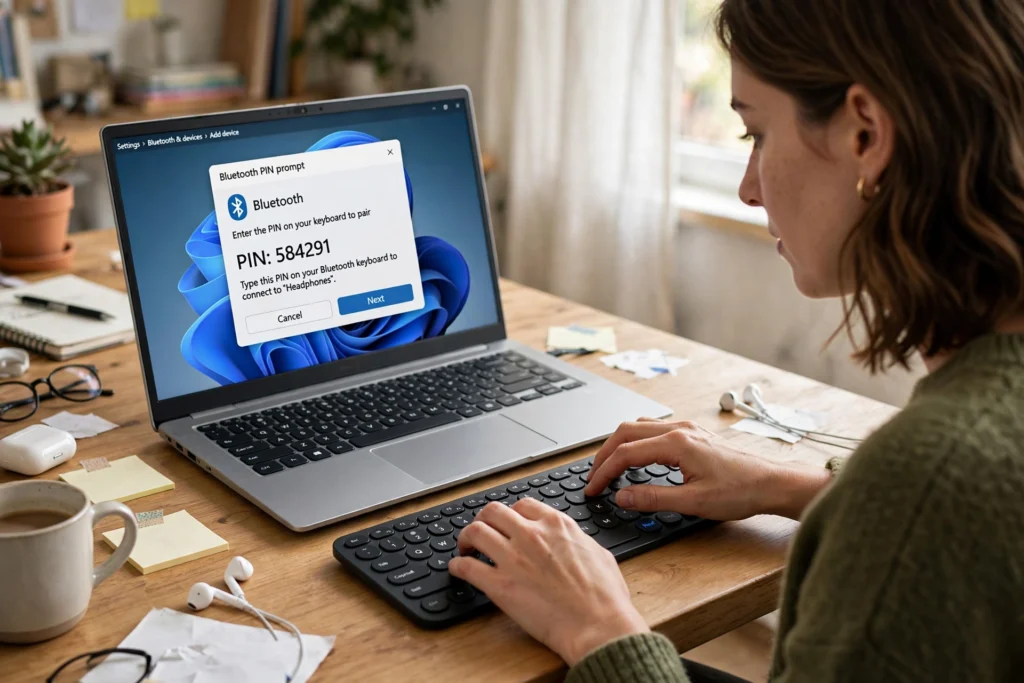
For smartwatches and fitness bands, you may need to pair through the brand’s app. For a Bluetooth keyboard on Windows, the PIN may need to be typed on the keyboard itself, not into the computer.
Quick Reference: Common Default Bluetooth PINs
There is no universal Bluetooth PIN. The correct code depends on the device and its pairing method. Modern Bluetooth devices may use a confirmation prompt or a temporary passkey instead of a fixed code.
| Device type | What to try |
|---|---|
| Older Bluetooth headphones or speakers | Check the manual first. If no code is listed, try 0000 or 1234. |
| Car stereo | Check the car stereo screen and vehicle manual. The code may appear on the display or be set by the manufacturer. |
| Bluetooth keyboard | Follow the PIN shown by Windows or the keyboard’s setup instructions. You may need to type the displayed code on the keyboard and press Enter. |
| OBD2 car diagnostic scanner | Check the scanner manual or its app. Some models use 0000 or 1234, while others use a different code or a different pairing method. |
| Smartwatch or fitness band | Start setup in the manufacturer’s companion app if its instructions require it. |
| Bluetooth Low Energy (BLE) sensor or smart device | Follow the manufacturer’s setup process. A traditional PIN may not be used at all. |
Which default PINs are worth trying?
The most common legacy Bluetooth passcodes are:
- 0000
- 1234
Some older or specialized devices may use other codes, but values such as 1111, 9999, or 123456 are not universal Bluetooth PINs. Do not keep guessing random codes. Check the device manual or manufacturer’s support page for the exact model.
Google’s Android troubleshooting guidance also suggests trying 0000 or 1234 when an accessory requires a passcode and you cannot find it.
Fix 1: Forget the Device and Pair It Again
A phone or computer may have saved an old pairing key. If that saved information no longer matches the device, you may see an incorrect PIN error even when you do not get a chance to enter a new code.
Removing the old pairing lets both devices start the process again.
On Android
- Open Settings.
- Go to Connected devices or Bluetooth. The exact name depends on your phone.
- Find the device that will not connect.
- Tap its settings icon.
- Select Forget, Unpair, or Remove.
- Turn Bluetooth off, wait a few seconds, and turn it back on.
- Put the accessory into pairing mode.
- Select it from the list of available devices and follow the prompts.
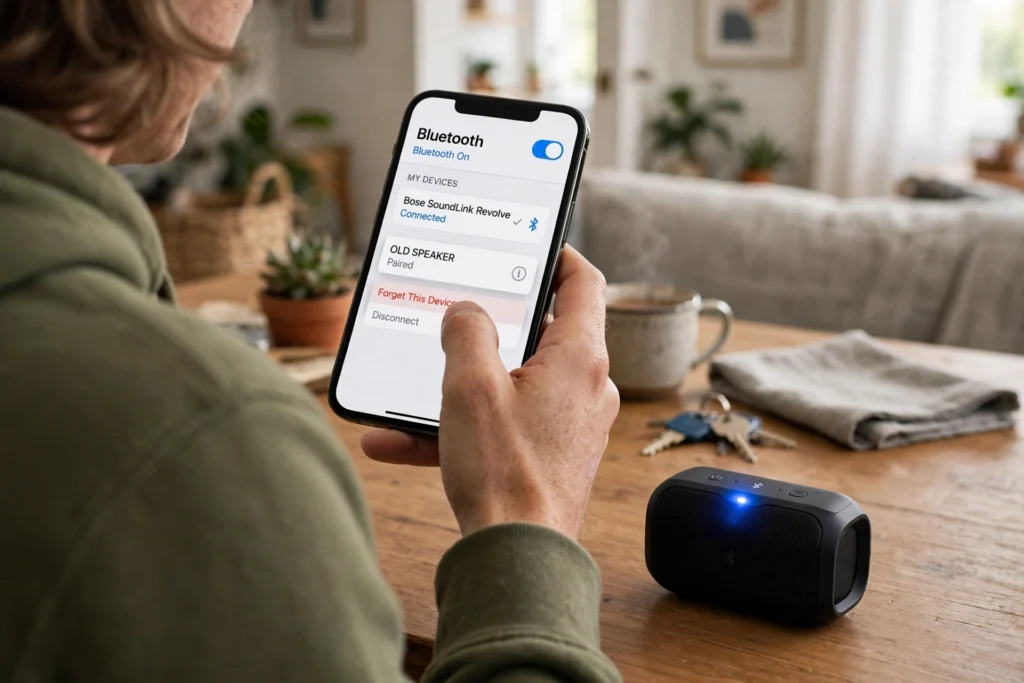
On iPhone
- Open Settings and tap Bluetooth.
- Find the device under My Devices.
- Tap the information icon next to its name.
- Choose Forget This Device.
- Restart the iPhone and the Bluetooth accessory.
- Put the accessory into pairing mode and connect again.
On Windows 11
- Open Settings.
- Select Bluetooth & devices, then Devices.
- Find the device you want to remove.
- Select the menu beside it and choose Remove device.
- Restart the computer or turn Bluetooth off and on.
- Put the accessory into pairing mode.
- Select Add device, choose Bluetooth, and try pairing again.
On Windows 10, open Settings > Devices > Bluetooth & other devices, select the device, and choose Remove device.
Important: Forgetting a device removes its saved pairing from that phone or computer. It does not usually erase your photos, apps, or other personal files.
Fix 2: Restart Both Devices and Clear the Connection Problem
If the PIN error returns immediately, restart the phone or computer and the accessory before trying more advanced fixes.
- Turn off the Bluetooth accessory.
- Restart your phone or computer.
- Turn the accessory back on.
- Make sure it is in pairing mode, often shown by a flashing light.
- Keep it close to the phone or computer.
- Try pairing again.
Also check whether the accessory is already connected to another phone, tablet, or computer. Some devices allow only one active connection or can become confused when several saved devices are nearby. Disconnect it from the other device and try again.
Should you clear the Bluetooth cache on Android?
Some Android phones let you clear cache or storage for system apps, but the steps and available options vary by manufacturer and Android version. Clearing Bluetooth system storage can remove saved connection information or change other Bluetooth settings, so it should not be your first step.
Try forgetting the affected device and restarting the phone first. If the error continues, check your phone manufacturer’s instructions for Bluetooth troubleshooting. Avoid clearing data for an unfamiliar system app or installing an app that claims it can repair Bluetooth automatically.
Fix 3: Pair Smartwatches and Fitness Bands Through Their App
A smartwatch or fitness band may appear in your phone’s normal Bluetooth device list but fail when you try to pair it there.
This can happen because some accessories need their companion app to start the setup process. The app may exchange security information, request permissions, or complete steps that the normal Bluetooth settings screen does not handle by itself.
Android supports companion-device pairing for accessories such as BLE-capable smartwatches, and manufacturers may provide their own setup flow.
Follow these steps
- Install the official companion app recommended by the manufacturer.
- Turn on Bluetooth on your phone.
- Open the app and select its option to add or pair a device.
- Put the smartwatch or fitness band into pairing mode.
- Select the correct model or device name inside the app.
- If a code appears on both screens, check that the codes match and confirm on both devices.
- Allow the permissions the app needs for setup.
Do not repeatedly enter 0000 or 1234 if the watch uses a confirmation code or app-based setup.
If the device was previously paired with another phone, remove the old connection using the manufacturer’s instructions. Some wearables also need to be unpaired or reset from their own settings before they can be set up with a new phone.
Fix 4: Solve the Bluetooth Keyboard PIN Loop on Windows 10 and 11
Bluetooth keyboards can be confusing because Windows may show a PIN that you have never set. In some pairing flows, Windows displays a temporary code that you must type on the Bluetooth keyboard itself, then press Enter. Nothing may appear on the screen while you type because the keyboard is not connected yet.
Method A: Type the displayed PIN on the keyboard
- Open Windows Bluetooth settings and remove the keyboard if it is already listed.
- Turn the keyboard on and put it into pairing mode.
- On Windows 11, go to Settings > Bluetooth & devices > Add device > Bluetooth. On Windows 10, go to Settings > Devices > Bluetooth & other devices > Add Bluetooth or other device.
- Select your keyboard.
- If Windows displays a PIN, type those digits directly on the Bluetooth keyboard.
- Press Enter on the Bluetooth keyboard.
- Wait for Windows to finish connecting.
Do not type the displayed code into a computer text box unless Windows specifically asks you to do so.
Method B: Use the Windows pairing wizard
If Windows keeps asking for a PIN but does not give you a clear way to complete the pairing, try the built-in device pairing wizard.
- Press Windows + R to open the Run box.
- Type devicepairingwizard and press Enter.
- Put your keyboard into pairing mode.
- Select the keyboard from the available devices.
- If the wizard offers an option such as Enter a code, select it.
- Follow the displayed instructions. If a temporary code appears, type it on the Bluetooth keyboard and press Enter.
The available screens differ across Windows versions and devices. If the wizard does not show this option, do not assume that a PIN bypass is possible. Check the keyboard’s manual and the manufacturer’s support page. This method is a troubleshooting route, not a way to bypass Bluetooth security.
If the keyboard still will not pair
- Replace or recharge its batteries.
- Make sure it is not connected to another computer.
- Try another Bluetooth USB adapter or computer, if available.
- Install the latest Bluetooth driver from your computer manufacturer’s official website.
- Check whether the keyboard supports your version of Windows.
If the keyboard has a pairing button or several device-selection keys, follow its own instructions to enter pairing mode and select the correct connection slot.
Fix 5: Reset Network or Bluetooth Settings as a Last Resort
If several Bluetooth devices fail to pair, the problem may be with your phone or computer rather than one accessory.
Before resetting anything, test another Bluetooth device. If only one accessory fails, focus on that accessory first.
Android: Reset Wi-Fi and Bluetooth settings
Some Android phones provide a reset option for Wi-Fi, mobile network, or Bluetooth settings. The menu name varies by manufacturer.
- Open Settings.
- Search for Reset network settings or Reset Wi-Fi and Bluetooth.
- Read the confirmation screen carefully.
- If the option matches what you want to reset, confirm it.
- Restart the phone and try pairing again.
Depending on the phone, this may remove saved Wi-Fi networks, Bluetooth pairings, or other network settings. It normally does not erase personal files, but always read the warning before confirming.
iPhone: Reset Network Settings
On iPhone, the available reset options can vary by iOS version. A network reset removes network settings and may remove saved Wi-Fi networks and related configurations. It is not the same as erasing all content.
Before resetting:
- Restart your iPhone.
- Forget the affected Bluetooth accessory.
- Try pairing it again.
- If several devices still fail, consult Apple’s current instructions for the reset options available on your iOS version.
Use a reset only after simpler fixes fail. You may need to reconnect to Wi-Fi networks and pair Bluetooth devices again.
Windows: Refresh Bluetooth drivers
If multiple devices show PIN errors or cannot pair:
- Open Device Manager.
- Expand Bluetooth.
- Find the actual Bluetooth adapter, not just an entry such as Microsoft Bluetooth Enumerator.
- Check your computer manufacturer’s website for a current Bluetooth driver.
- Install the appropriate update and restart Windows.
- Try pairing again.
Do not uninstall several Bluetooth components at random. If you are unsure which adapter is installed, check the computer model or ask the manufacturer’s support team.
Bluetooth Pairing PIN Troubleshooting Matrix
Use this table to choose the next step based on the error you see.
| What happens | Likely reason | Best next step |
|---|---|---|
| “Incorrect PIN or passkey” appears immediately | Old pairing information or wrong pairing method | Forget the device on both sides, restart, and pair again |
| The device asks for a PIN, but the manual has none | The code may be displayed on a screen or generated during pairing | Read the on-screen instructions and check the device manual |
| A speaker rejects 0000 | The model may use a different code or no fixed PIN | Check the model-specific instructions |
| A smartwatch appears in Bluetooth settings but will not connect | It may require setup through a companion app | Start pairing inside the official app |
| Windows asks for a keyboard PIN you never set | Windows may be generating a temporary pairing code | Type the displayed code on the keyboard and press Enter |
| Every Bluetooth device fails to pair | The problem may involve the host device’s settings, driver, or Bluetooth adapter | Restart the host device, update drivers, and consider a settings reset |
| The accessory is missing from the device list | It may not be in pairing mode or may be connected elsewhere | Enter pairing mode, disconnect other hosts, and scan again |
Frequently Asked Questions
What is the default PIN for Bluetooth devices?
There is no single default PIN for every Bluetooth device. 0000 and 1234 are common legacy passcodes, but modern devices may use a temporary code, a confirmation prompt, or app-based setup. Always check the manufacturer’s instructions first.
Why does Android say “Couldn’t pair because of an incorrect PIN or passkey” before I enter a code?
The phone may be trying to reuse an old pairing key, or the accessory may require a different setup process. Forget the device, restart both devices, and pair again. For a smartwatch or fitness band, use the official companion app if required.
Why won’t my phone let me type a Bluetooth PIN?
Some pairing prompts are confirmation screens, not text fields. Others may expect you to enter a code on the accessory itself. Follow the instructions shown on the phone and the accessory rather than assuming every PIN must be typed on the phone.
Can I bypass a Bluetooth PIN?
Do not try to bypass pairing security. If Windows or another device is asking for a code, use the supported pairing process, check the manual, or use the manufacturer’s official troubleshooting steps. If the device offers secure confirmation instead of a PIN, follow that process.
Does resetting network settings delete my photos?
A network settings reset normally does not delete photos, documents, or apps. However, it may remove saved Wi-Fi networks, Bluetooth pairings, and other network settings. Read the exact warning on your device before confirming.
Why does my Bluetooth device keep disconnecting after pairing?
That is a different problem from an incorrect PIN. Possible causes include weak signal, low battery, interference, outdated drivers, or the accessory being connected to another host. If connection dropouts continue, look into Bluetooth interference causes and fixes.
Final Takeaway
When your Bluetooth pairing PIN is not working, do not keep guessing codes. Check the device manual, try 0000 or 1234 only when appropriate, forget the old pairing, and restart both devices.
If you are connecting a smartwatch or fitness band, use its official companion app when required. If you are pairing a Windows keyboard, check whether the code must be typed on the keyboard itself. Reset network settings or change drivers only after simpler fixes fail.
What is the default PIN for Bluetooth devices?
There is no single default PIN for every Bluetooth device. 0000 and 1234 are common legacy passcodes, but modern devices may use a temporary code, a confirmation prompt, or app-based setup. Always check the manufacturer's instructions first.
Why does Android say "Couldn't pair because of an incorrect PIN or passkey" before I enter a code?
The phone may be trying to reuse an old pairing key, or the accessory may require a different setup process. Forget the device, restart both devices, and pair again. For a smartwatch or fitness band, use the official companion app if required.
Why won't my phone let me type a Bluetooth PIN?
Some pairing prompts are confirmation screens, not text fields. Others may expect you to enter a code on the accessory itself. Follow the instructions shown on the phone and the accessory rather than assuming every PIN must be typed on the phone.
Can I bypass a Bluetooth PIN?
Do not try to bypass pairing security. If Windows or another device is asking for a code, use the supported pairing process, check the manual, or use the manufacturer's official troubleshooting steps. If the device offers secure confirmation instead of a PIN, follow that process.
Does resetting network settings delete my photos?
A network settings reset normally does not delete photos, documents, or apps. However, it may remove saved Wi-Fi networks, Bluetooth pairings, and other network settings. Read the exact warning on your device before confirming.
Why does my Bluetooth device keep disconnecting after pairing?
That is a different problem from an incorrect PIN. Possible causes include weak signal, low battery, interference, outdated drivers, or the accessory being connected to another host. If connection dropouts continue, look into Bluetooth interference causes and fixes.



5 Comments
Pingback: Bluetooth Pairing vs. Connecting: Key Differences
Pingback: Bluetooth Pairing Not Working? 4 Causes & Fixes That Work
Pingback: How to Pair Bluetooth Devices: Android, iPhone & Windows
Pingback: Pair Bluetooth Windows 7: Step-by-Step Guide
Pingback: Bluetooth Pairing Failed: 5 Quick Fixes for Any Device