


Quick Answer: How to Fix Bluetooth Not Working After an Android Update
If you have Bluetooth not working after Android update, start with a restart. Turn your phone off and on again, then turn Bluetooth off and on. In most cases, that fixes it in under two minutes. If it does not, forget the device and pair it again, then clear the Bluetooth cache. Work through the steps below in order. Stop as soon as Bluetooth works. This guide covers Android 14, Android 15, and Android 16, plus Samsung, Pixel, and Xiaomi phones.
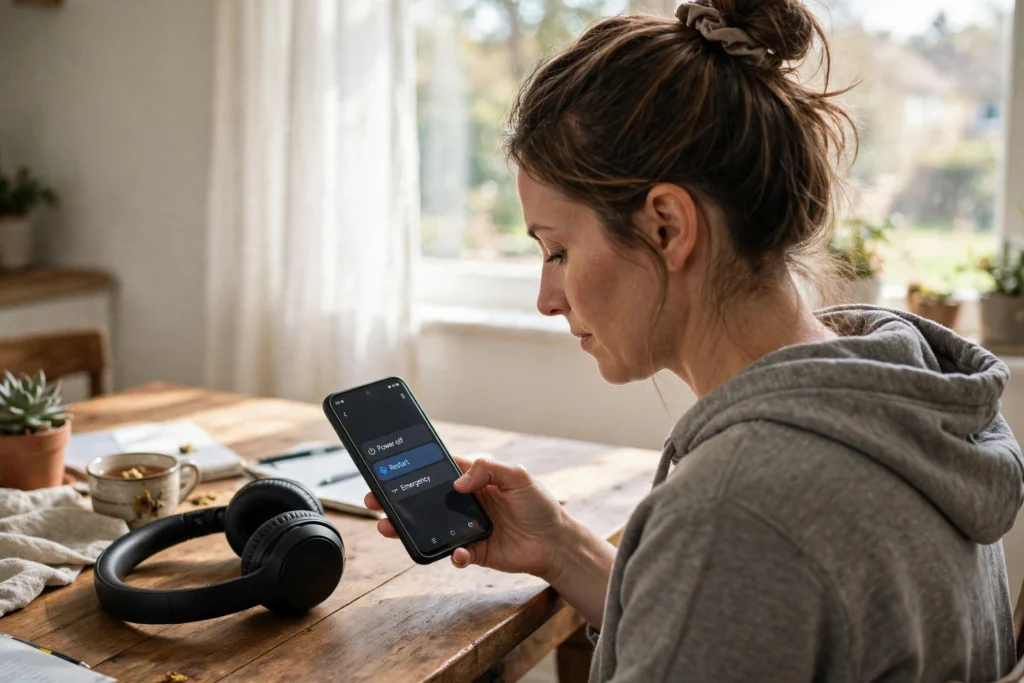
Try this first (5 minutes): Swipe down from the top of the screen and tap the Bluetooth icon to turn it off. Wait 10 seconds and tap it again. Now restart your phone. Hold the power button, tap Restart, and wait for the phone to start again. Then try to connect your headphones, speaker, or car. If it connects, you are done. If not, move to Step 1.
Why Bluetooth Not Working After Android Update Happens
A system update changes more than the look of your phone. It can replace the Bluetooth software, change how your phone talks to headphones and cars, and turn on new features like LE Audio. Your old saved pairings were made with the old software. After the update, the phone and the accessory can disagree about how to connect. That is why a device that worked fine yesterday suddenly fails today. Common update problems are a stale Bluetooth cache, a new default audio setting, and a bug in the update itself. Samsung phones on One UI 8 and Pixel phones on Android 16 had this exact problem, and later patches fixed it for most people.
Step 1: Restart Your Phone and the Accessory
Restart both sides of the connection. Hold the power button on your phone and tap Restart. Turn your headphones, speaker, or car stereo off, wait 30 seconds, and turn it back on. A restart clears the temporary glitch that an update can leave behind. Test the connection again. This one step fixes the problem for many people, so do not skip it. If the device still will not connect at all, our guide to Bluetooth not working on Android covers the general fixes in detail.
Step 2: Forget the Device and Pair It Again
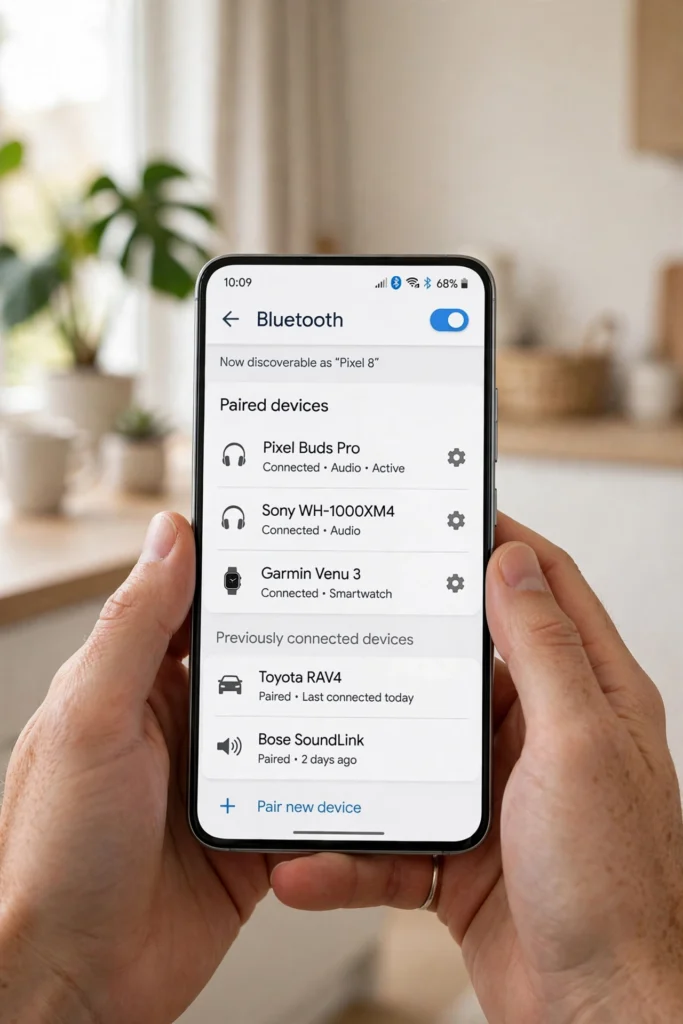
An update can break a saved pairing. The fix is to delete it and start fresh. Go to Settings, then Connected devices, then Bluetooth. Tap the gear icon or the small i next to the device that fails. Tap Forget or Unpair. Now put your headphones or speaker into pairing mode again and pair it from scratch. If the phone asks for a code, try 0000 or 1234. Pairing from scratch is the fix that works most often after an update, because it rebuilds the connection with the new software. If you need the full pairing steps, see our complete step by step pairing guide.
Step 3: Clear the Bluetooth Cache and Data
The Bluetooth cache stores old connection data. After an update, that old data can clash with the new software. Clearing it is safe. It does not delete your photos, contacts, or files. Go to Settings, then Apps, then See all apps. Tap the three dots at the top and choose Show system apps. Find Bluetooth and tap it. Tap Storage and cache, then tap Clear cache. Tap Clear data too if the problem is still there. Restart your phone and try to pair again. Google support also lists this step, and it fixed the issue for many Samsung and Pixel users after the March 2026 update.
Step 4: Check for a Follow-Up Update or Patch
Sometimes the update itself is buggy, and the maker ships a fix a few days later. Samsung fixed most One UI 8 Bluetooth problems in One UI 8.5. Pixel phones got Bluetooth fixes in later Android 16 patches. Go to Settings, then System, then System update, and check for updates. Install anything that is available, then restart your phone and test Bluetooth again. When you have Bluetooth not working after Android update and no patch is out yet, the steps below are your best option until the fix arrives.
Step 5: Test in Safe Mode to Find a Bad App
A third party app can break Bluetooth after an update. VPN apps, battery saver apps, and cleaner apps are the usual suspects. Safe Mode turns all third party apps off, so you can test if one of them is the cause. Press and hold the power button. Long press Power off on the screen, then tap OK to reboot to safe mode. Test Bluetooth. If it works in safe mode, an app is the problem. If you have Bluetooth not working after Android update because of a bad app, safe mode will prove it in one test. Restart normally, then uninstall the apps you installed or updated most recently. A VPN app is the first one to remove, because it can take over the network settings that Bluetooth shares.
Step 6: Reset Network Settings
If nothing above works, reset the network settings. This clears all saved Wi-Fi networks, Bluetooth pairings, and mobile settings, so you will need your Wi-Fi passwords again. Go to Settings, then System, then Reset options, then Reset Wi-Fi, mobile and Bluetooth. Confirm and restart your phone. Pair your devices again from scratch. This is a strong fix, and it solved the problem for many people after the Android 15 and Android 16 updates. Our guide to resetting Bluetooth settings explains what this reset keeps and what it clears.
Step 7: Try the Developer Options Fixes for Android 15 and 16
Android 15 and 16 changed how Bluetooth audio works. Two new settings cause most of the trouble: LE Audio and the audio codec choice. You can change them in Developer Options. For Bluetooth not working after Android update on a Pixel phone, this step is the one most guides skip. First, turn Developer Options on. Go to Settings, then About phone, and tap Build number seven times. Now open Settings, then System, then Developer Options. Find Bluetooth LE Audio and turn it off. Set Bluetooth AVRCP Version to 1.5. Turn on Disable Bluetooth A2DP hardware offload. Restart your phone and test. Pixel 7 and Pixel 8 users fixed cutting audio after the March update with these exact changes. Only change these settings if the earlier steps failed, and write down what you change so you can undo it.
Calls Work but Music Does Not? Check the Audio Profiles
Some people find that calls connect but music does not, or the other way round. This is a profile problem. After an update, your phone can turn on only one audio profile for a device. Go to Bluetooth settings and tap the gear icon next to the device. Make sure both Call audio and Media audio are turned on. If one is off, turn it on and test again. Car users see this most: the car connects for calls but plays no music. If the car still plays no sound, forget the car on your phone and also delete your phone from the car system, then pair them again from scratch. If the connection keeps dropping in the car, see our guide to Bluetooth disconnecting on Android.
Brand Notes: Samsung, Pixel, and Xiaomi
Samsung phones on One UI 8 had the worst update problems. Bluetooth to cars broke, and audio cut out at random. One UI 8.5 fixed it for most users, so update first. Pixel phones on Android 16 had an LE Audio bug that broke older speakers and headphones. Turn LE Audio off in Developer Options. If you have Bluetooth not working after Android update on a Xiaomi phone, battery optimization is the first thing to check. Xiaomi phones on HyperOS can block Bluetooth with battery optimization. Go to Settings, then Battery, and set Bluetooth and your music app to Unrestricted. Then test again.
When to Wait for a Patch and When to Factory Reset
If your problem started the day the update arrived and many other people report the same issue online, it is probably a bug in the update. In that case, use the steps above to work around it and wait for the patch. A factory reset will not fix a bug in the update, and it erases your phone, so do not start there. Only factory reset as a last step if every other fix failed and the problem affects all Bluetooth devices, not just one. Back up your data first. Go to Settings, then System, then Reset options, then Erase all data. For the same problem on a Windows PC after an update, see our guide to Bluetooth not working after a Windows update.
Frequently Asked Questions
Why is my Bluetooth not working after Android update?
An update can replace the Bluetooth software, change the audio settings, or leave a stale cache behind. The phone and the accessory then disagree about how to connect. A restart, a fresh pairing, and clearing the Bluetooth cache fix it for most people.
Will a new update fix my Bluetooth, or should I wait?
Check for a follow-up update first. Makers often ship a patch within days or weeks of a bad update. Samsung fixed One UI 8 Bluetooth problems in One UI 8.5, and Pixel phones got fixes in later Android 16 patches. If no patch is out yet, the steps in this guide will keep you going.
Does clearing the Bluetooth cache delete my data?
No. Clearing the cache and data for the Bluetooth system app only removes saved pairings and old connection data. Your photos, contacts, apps, and files stay untouched. You will need to pair your devices again.
Why do calls work but music does not after the update?
Your phone can connect a device for calls only and leave media audio off. Go to Bluetooth settings, tap the gear icon next to the device, and turn on both Call audio and Media audio. If that does not help, forget the device on both sides and pair it again.
Should I factory reset my phone to fix Bluetooth?
No, not first. A factory reset erases everything and often does not fix an update bug. Try the restart, fresh pairing, cache clear, and network reset first. Factory reset is only the last step, and only if the problem affects every Bluetooth device you own.
Bluetooth not working after Android update is annoying, but it is almost never permanent. Most update Bluetooth problems end at Step 2 or Step 3. If your phone still will not connect after all seven steps, the problem may be the accessory, not the phone. Test with a different pair of headphones or a different speaker. If the second device works, the first one needs a firmware update or a reset of its own.