

When Bluetooth is not working on Android, it can show up in a few frustrating ways. Your phone won’t find your speaker. Your earbuds connect, then drop a minute later. Or the Bluetooth switch won’t turn on at all. Restarting your phone fixes it for an hour, and then it’s back.
Most of these problems are software glitches on the phone, not broken hardware. A saved pairing gets corrupted, Android’s hidden Bluetooth app collects bad data, or a battery saver cuts off the connection. Work through the fixes below in order. They start with the quickest and safest, and end with a full Bluetooth reset.
Which fix should you start with?
| If this is happening | Start here |
|---|---|
| Bluetooth acting weird after normal use | Quick Triage |
| One device won’t connect, but others work | Step 1 |
| Nothing connects, or Bluetooth crashes or won’t turn on | Step 2 |
| Watch, earbuds, or tracker keeps dropping in the background | Step 3 |
| Nothing else worked | Step 4 |
Quick Triage: Instant Fixes for Android Bluetooth Glitches
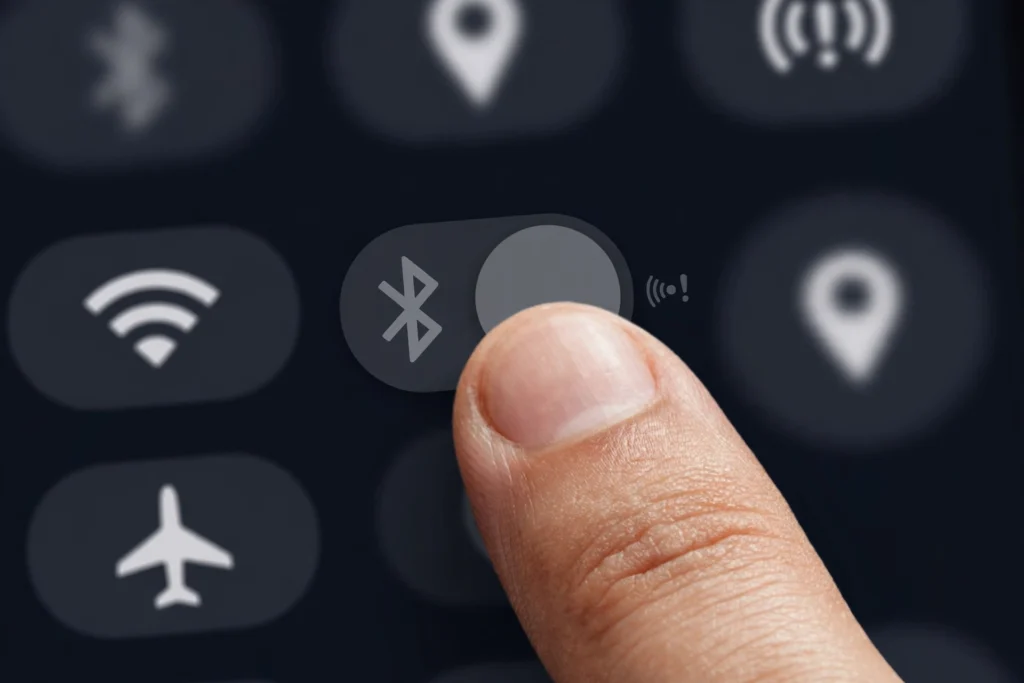
Try these first. They take about two minutes and fix many small glitches.
- Toggle Bluetooth off and on. Swipe down from the top, tap the Bluetooth tile to turn it off, wait 10 seconds, and turn it back on.
- Toggle Airplane mode. Turn Airplane mode on for 10 seconds, then off. This resets all your phone’s wireless radios at once. Make sure Bluetooth is back on afterward.
- Restart your phone. Hold the power button (on some phones, power and volume down together) and tap Restart.
- Restart the accessory too. Turn your headphones, speaker, or watch off and on, and make sure it’s charged.
- Check the distance. Keep the device within a few meters, with no walls in between.
Bluetooth switch greyed out or won’t turn on? Restart your phone first. If it’s still stuck, go straight to Step 2.
Step 1: Forget and Re-Pair the Problematic Device
Best for: one device won’t connect, but others work.
A saved pairing gets corrupted and won’t work no matter how many times you tap “connect.” Forgetting the device and pairing again from scratch usually fixes it.
On Pixel:
- Go to Settings, then Connected devices, and tap the gear icon next to the device.
- Tap Forget, then confirm.
On Samsung Galaxy:
- Go to Settings, then Connections, then Bluetooth.
- Tap the gear icon next to the device, then Unpair.
Then pair it again:
- Put the accessory in pairing mode (hold its Bluetooth or power button until the light flashes).
- On your phone, tap Pair new device and select it.
If the device still won’t pair, reset the accessory itself. Most have a small reset button or a button combination; check the manual.
Step 2: Clear the System Bluetooth App Cache and Data
Best for: nothing connects, or Bluetooth crashes or won’t turn on.
Android has a hidden system app called Bluetooth that manages all connections. When its stored data goes bad, Bluetooth can crash or refuse to start. Clearing its cache is safe and won’t remove your paired devices.
- Open Settings, then Apps.
- Tap See all apps (or the three-dot menu), then Show system.
- Find and tap Bluetooth in the list.
- Tap Storage & cache (or Storage).
- Tap Clear cache.
Try Bluetooth again. If it still crashes, go back and tap Clear storage (or Clear data) instead — this erases all paired devices, so you’ll need to pair them again.
Step 3: Check Battery Optimization & Background Restrictions
Best for: watch, earbuds, or tracker keeps dropping in the background.
Android’s battery saver can kill the Bluetooth connection for apps running in the background. This is a common cause of wearables and trackers that keep disconnecting.
- Open Settings, then Apps, and tap the app for your device (like Galaxy Wearable or the earbuds’ companion app).
- Tap App battery usage (or Battery).
- Set it to Unrestricted (or Don’t optimize).
Also check: Settings, then Battery, then Battery Saver — turn it off while testing.
Step 4: Reset Network Settings (Wi-Fi, Mobile & Bluetooth)
Best for: nothing else worked.
This resets all Bluetooth pairings, saved Wi-Fi networks, and mobile settings. It’s the strongest software fix short of a factory reset.
On Pixel:
- Go to Settings, then System, then Reset options.
- Tap Reset Bluetooth & Wi-Fi, then Reset.
On older Android versions, this option is called Reset Wi-Fi, mobile & Bluetooth, and it also resets mobile data settings.
On Samsung Galaxy:
- Open Settings, then General management, then Reset.
- Tap Reset network settings (or a Wi-Fi and Bluetooth reset option if your phone shows one).
- Tap Reset settings and confirm.
On Xiaomi, Redmi, or POCO: search for “reset” in Settings and look for a Wi-Fi, mobile networks, and Bluetooth reset option.
Never tap “Factory data reset.” That erases your entire phone.
After the reset, restart your phone, turn Bluetooth on, and pair your devices again.
Still broken? Test in Safe Mode
Safe Mode starts your phone with only its built-in apps. If Bluetooth works there, an app you installed is causing the problem.
- Most phones, including Pixel and Samsung: press and hold the power button (or power and volume down), then touch and hold Power off until you see Safe mode. Tap it.
- Test Bluetooth. Then restart normally to leave Safe Mode.
If Bluetooth works in Safe Mode, uninstall recently added apps one at a time, especially Bluetooth, battery, or “cleaner” apps.
If Bluetooth fails even in Safe Mode and after a network reset, test your accessory with another phone. If the accessory works elsewhere, your phone may have a hardware fault, and it’s worth contacting your phone maker or carrier.
Frequently Asked Questions
Why won’t my Android phone connect to my Bluetooth speaker?
Usually the speaker isn’t in pairing mode, or it’s still connected to another phone. Turn off Bluetooth on other nearby devices, forget the speaker on your phone, put it in pairing mode, and pair again.
How do I clear the Bluetooth cache on Samsung or Pixel?
Go to Settings, then Apps, show system apps, tap Bluetooth, then Storage (or Storage & cache), and tap Clear cache. Don’t tap Clear data unless you’re ready to re-pair everything.
How do I reset Bluetooth settings on Android?
On Pixel: Settings, System, Reset options, Reset Bluetooth & Wi-Fi. On Samsung: Settings, General management, Reset, Reset network settings.
Why does my Android Bluetooth keep dropping?
Battery optimization is a common cause. Set your device’s companion app to Unrestricted battery use, and keep the device close to your phone.
Can a system update break Bluetooth?
It can. Updates sometimes leave behind Bluetooth data that causes problems. Clearing the Bluetooth cache (Step 2) often fixes it.
Why is my Android phone not finding any Bluetooth devices?
Check that each device is in pairing mode and close by. If your phone finds nothing at all, clear the Bluetooth cache and restart your phone.
For more Android Bluetooth help, visit our main guide.
