

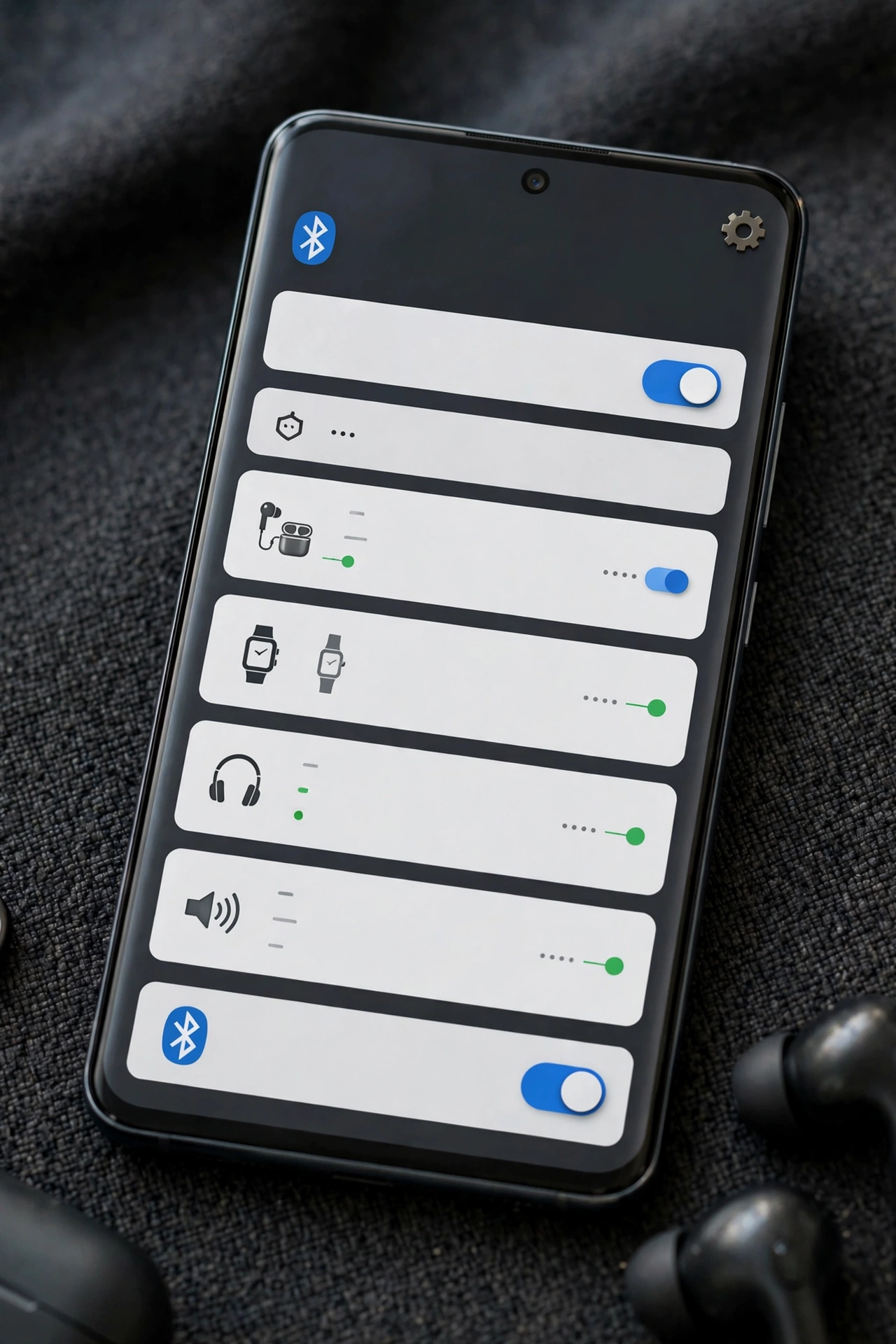
Android Bluetooth settings can feel like a maze. You tap the Bluetooth tile and a pop-up opens instead of the switch turning off. Your Samsung menus don’t match the screenshots you find online. And there’s a setting called “Audio device type” that nobody seems to explain.
This guide walks through every Android Bluetooth setting that matters, in plain words. You’ll learn where each menu lives on Pixel and Samsung phones, what every option inside them does, and how to unlock the hidden advanced settings that control your audio quality.
How to Access Bluetooth Settings on Android
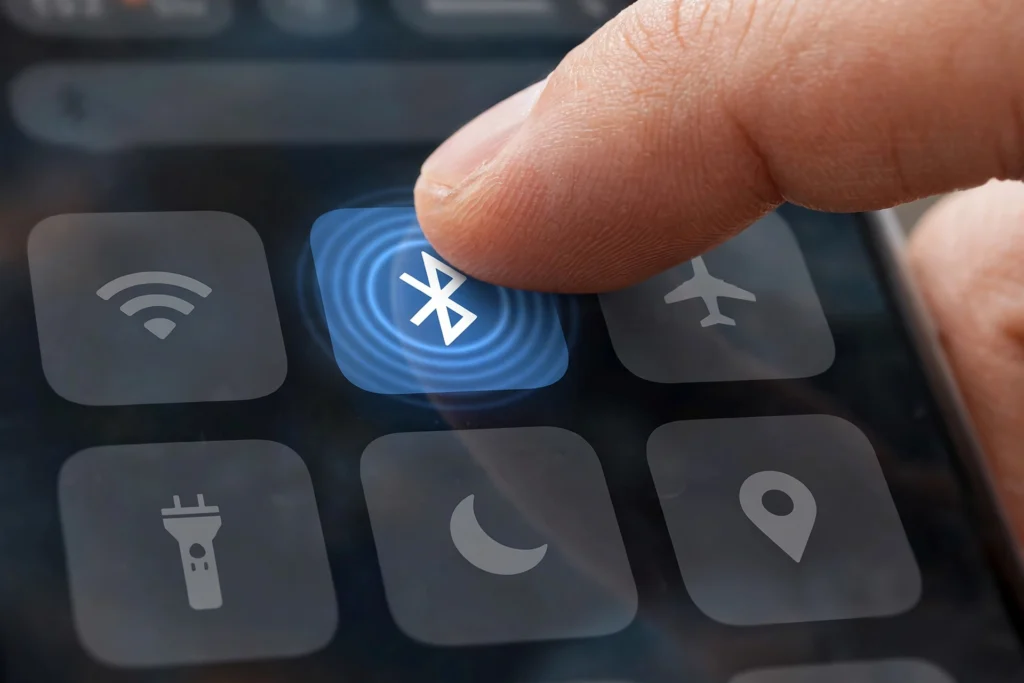
There are two ways in: the Quick Settings panel and the Settings app.
Option 1: Quick Settings (fastest)
Swipe down from the top of the screen. Swipe down again to see all tiles. Then:
- Long-press (press and hold) the Bluetooth tile to jump straight into the full Bluetooth settings. This works on almost every Android phone.
- Tap the tile to turn Bluetooth on or off, or to open a mini-panel, depending on your phone. See the note below.
Why tapping the Bluetooth tile doesn’t turn it off anymore (Pixel)
With the Android 14 QPR2 update in early 2024, Google changed how the Bluetooth tile works on Pixel phones. Tapping it no longer switches Bluetooth off right away. Instead, it opens a small pop-up panel with:
- An on/off switch for Bluetooth.
- A list of your recently connected devices, so you can switch between them with one tap.
- Nearby devices that are ready to pair.
So if you tap the tile and a panel appears, that’s normal. Use the switch in the panel to turn Bluetooth off.
Samsung and many other brands still turn Bluetooth on or off with a single tap on the tile. Their behavior can change with future updates, so if your tile acts differently, check for a switch inside the pop-up.
Option 2: The Settings app
| Phone | Path |
|---|---|
| Google Pixel / stock Android | Settings, then Connected devices |
| Samsung Galaxy (One UI) | Settings, then Connections, then Bluetooth |
| Xiaomi, Redmi, POCO | Settings, then Bluetooth |
Can’t find it? Open Settings and type “Bluetooth” in the search bar at the top.
The “Connected Devices” Menu Explained
This is the main Bluetooth hub on Pixel and stock Android phones. Samsung organizes the same things a little differently.
On Pixel and stock Android
When you open Settings, then Connected devices, you’ll see these sections:
| Section | What it does |
|---|---|
| Media devices or Currently connected | Shows devices connected right now, like your earbuds |
| Pair new device | Starts a search for new Bluetooth devices |
| Saved devices (or Previously connected devices) | Every device you’ve paired before. Tap See all for the full list |
| Connection preferences | Holds the main Bluetooth on/off switch, plus other options like NFC, Cast, Android Auto, and Quick Share |
A common surprise: on Pixel, the Bluetooth master switch isn’t on the first screen. It’s under Connection preferences, then Bluetooth. Tapping Pair new device turns Bluetooth on automatically.
Google Fast Pair works in the background on most Android phones. When a supported accessory goes into pairing mode nearby, a pop-up card appears at the bottom of your screen. Its settings are usually under Settings, then Google, then Devices & sharing (or All services), then Devices. Menu names vary by phone.
On Samsung Galaxy (One UI)
Open Settings, then Connections, then Bluetooth. Everything is on one screen:
- The Bluetooth switch at the top.
- Paired devices, listed below it.
- Available devices, shown when you tap Scan.
Tap the three-dot menu in the top right corner and choose Advanced settings for Samsung’s extra Bluetooth options. These can include syncing devices with your Samsung account, ringtone sync, and other features. The list varies by model and One UI version.
Is my phone visible to other devices?
Older Android phones had a visibility timeout setting, letting you choose how long your phone stayed discoverable. Most current phones don’t have it anymore. Instead, your phone is visible to other devices only while the Bluetooth settings screen is open. Leave that screen, and other devices can’t find your phone.
Managing Saved Devices (The Device Details Menu)
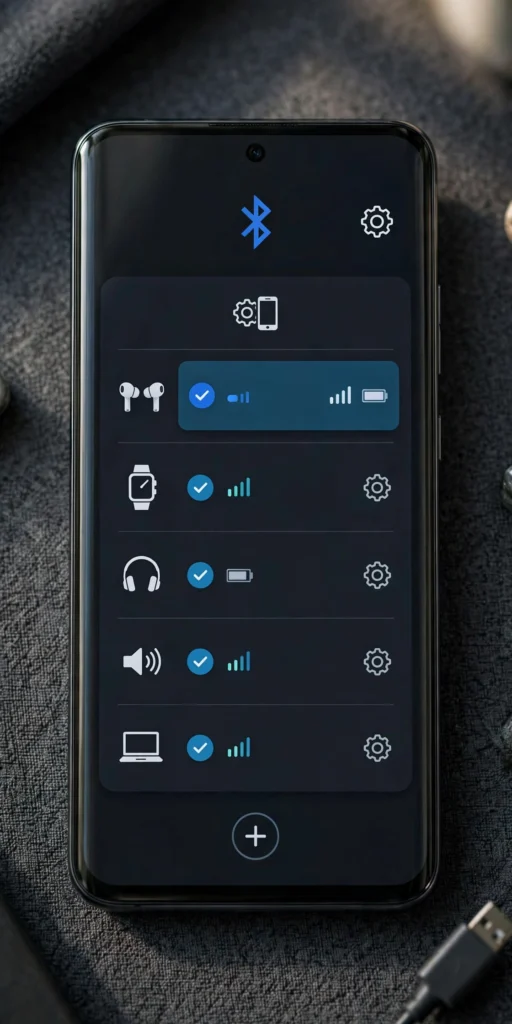
Tap the gear icon next to any paired device to open its details. This is where you control how that one device behaves.
Rename the device
- Pixel: tap the gear, then the pencil (edit) icon at the top, type a new name, and tap Rename.
- Samsung: tap the gear, then Rename.
The new name only appears on your phone. It doesn’t change the name on the accessory itself or on other phones.
Choose what the device is used for
You’ll usually see switches like these:
| Switch | What it controls | Example use |
|---|---|---|
| Phone calls | Whether calls go through this device | Turn off for a speaker so calls stay on your phone |
| Media audio | Whether music and videos play through it | Turn off for a car if you only want calls there |
| Contact sharing | Lets the device see your contacts | Turn on for your car, off for everything else |
| HD audio (some phones) | Uses a higher-quality codec if supported | Turn on for good headphones, off to save battery |
Disconnect vs. Forget
These two buttons sound similar but do very different things:
| Disconnect | Forget (Unpair on Samsung) | |
|---|---|---|
| What happens | Ends the connection for now | Deletes the device from your phone completely |
| Will it reconnect later? | Yes, automatically next time | No. You must pair it again from the start |
| When to use it | You want to switch to another device for a while | The device is acting up, or you’re selling or giving it away |
Why You Should Set Your “Audio Device Type”
On newer Android phones, the details menu for an audio device includes an Audio device type option. It’s one of the most ignored Bluetooth settings, but it’s worth 10 seconds of your time.
What it is: you tell Android what kind of device you’ve connected. The choices on Google’s own list are:
- Not set
- Speaker
- Headphones
- Car
- Hearing device
- Other
Why it matters: Android can’t always tell what a Bluetooth device is from its name. Google says setting the correct type can help with two things:
- Spatial audio. This 3D-style sound effect is designed for headphones. Telling Android a device is headphones helps it apply spatial audio where it makes sense, and avoid it on a car or a room speaker.
- Hearing health and loudness tracking. Android’s hearing features measure how loud sound is in your ears over time. That only makes sense for headphones, not for a speaker across the room. Setting the right type helps those features work properly.
How to set it (Pixel and stock Android):
- Open Settings, then Connected devices.
- Tap the gear icon next to the audio device.
- Tap Audio device type.
- Choose the type that matches your device.
If you don’t see this option, your phone or Android version doesn’t offer it yet. That’s okay. Everything else still works.
Advanced Bluetooth Settings (Developer Options)
Android hides its most technical Bluetooth settings in Developer options. Most people never need them, but they’re useful if you want better audio quality or need to fix car stereo quirks.
How to unlock Developer options
- Open Settings, then About phone. On Samsung: About phone, then Software information.
- Tap Build number seven times in a row.
- Enter your PIN if asked. You’ll see a message saying “You are now a developer.”
- Go back to Settings. You’ll find Developer options under System (Pixel) or at the bottom of the main list (Samsung).
The Bluetooth settings worth knowing
| Setting | What it does | When to change it |
|---|---|---|
| Bluetooth Audio Codec | Picks the method used to send sound to your headphones (SBC, AAC, aptX, LDAC) | To try a higher-quality codec your headphones support |
| LDAC playback quality | Trades sound quality against connection stability for LDAC headphones | Lower it if audio stutters, raise it for best quality |
| Sample rate / bits per sample | Fine-tunes audio detail | Leave on default unless you know your headphones support more |
| Disable absolute volume | Separates your phone’s volume from your headphones’ own volume | If volume is far too loud or too quiet, or jumps when you connect |
| Bluetooth AVRCP version | Controls how your phone sends play controls and song info | Some older car stereos show song titles only on certain versions, like 1.4 or 1.5 |
Why codecs matter: a codec decides how much sound detail fits through the wireless connection.
- SBC is the basic codec every device supports.
- AAC is common and works well, especially with Apple and many popular headphones.
- aptX variants are found on many Qualcomm-powered phones and headphones.
- LDAC, from Sony, can send the most detail, but it needs a strong signal.
Both your phone and your headphones must support a codec to use it. Choosing one your headphones don’t support won’t work, and the setting often goes back to default after you reconnect.
A word of caution: Developer options exist for testing. Change one setting at a time and test it. If something breaks, set it back to default. You can also turn Developer options off completely with the switch at the top of that page.
Volume jumping to max when you connect? That’s often an absolute volume issue.
Frequently Asked Questions
How do I access the Bluetooth settings on my Android phone?
Long-press the Bluetooth tile in Quick Settings. Or open Settings, then Connected devices (Pixel) or Connections, then Bluetooth (Samsung).
Why does tapping the Bluetooth icon no longer turn it off?
On Pixel phones, Android 14 QPR2 changed the tile so tapping opens a mini-panel with your devices. Use the switch inside that panel to turn Bluetooth off.
How do I change the name of my Bluetooth device?
Tap the gear icon next to the device, then the pencil icon (Pixel) or Rename (Samsung). The new name only shows on your phone.
What does “Audio device type” mean on Android?
It tells Android whether the device is headphones, a speaker, a car, or a hearing device. Google says it helps with spatial audio and hearing health features.
Where do I find advanced Bluetooth settings on Android?
In Developer options. Unlock them by tapping Build number seven times in About phone. Samsung also has an Advanced settings menu inside Bluetooth.
How do I force LDAC on Android?
Connect LDAC headphones, open Developer options, and set Bluetooth Audio Codec to LDAC. Many phones also have an HD audio switch in the device’s settings that does this for you.
For help when settings don’t fix the problem, see our troubleshooting guide.
