

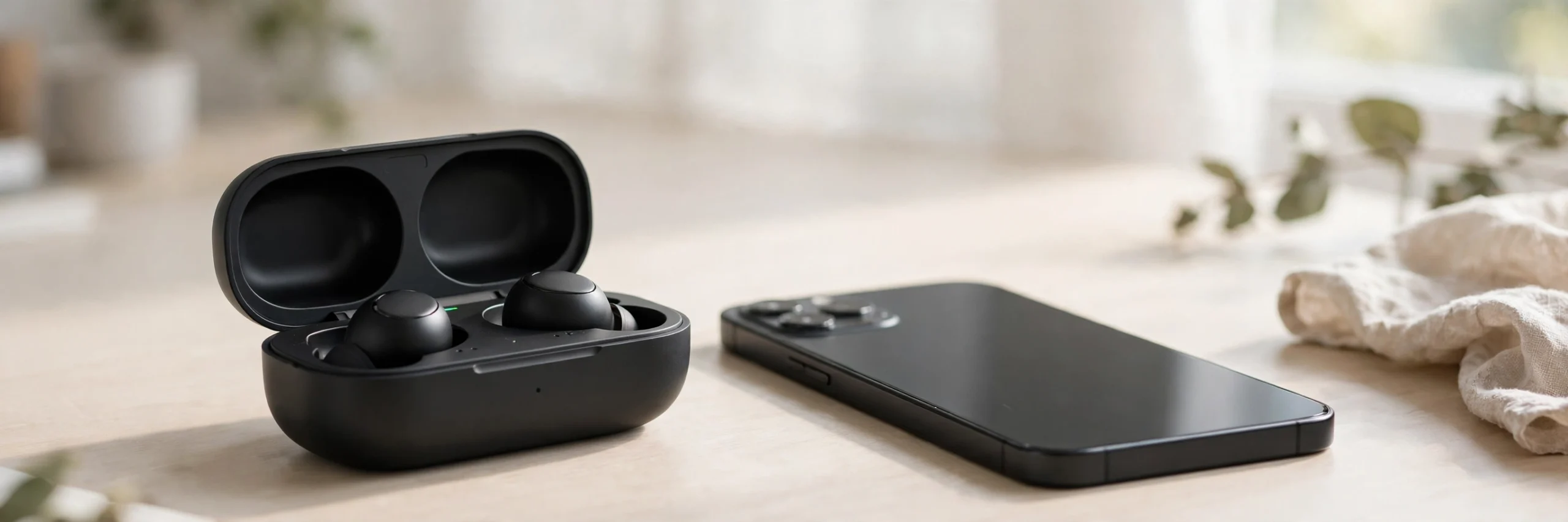
If your Bluetooth earbuds will not show up in your phone’s Bluetooth settings, you may feel stuck before you even start listening. Maybe your new earbuds keep flashing lights, your phone cannot find them, or you have connected them to your phone before but now want to use them with a laptop. The key is to put your earbuds into pairing mode first, then select them in your device’s Bluetooth settings.
This guide explains how to pair Bluetooth earbuds with Android phones, iPhones, Windows PCs, and Mac computers. You will also learn how to recognize pairing mode, connect a second device when your earbuds support multipoint, and check a few common problems if the connection fails.
Step 1: Put Your Earbuds into Pairing Mode
Before you can connect your earbuds, they must be in pairing mode, also called discoverable mode. This lets nearby phones and computers find them.
The exact method depends on your earbud model. Try the method that matches your earbuds.
Method 1: Open the Charging Case
Some true wireless stereo (TWS) earbuds enter pairing mode automatically when you open the charging case for the first time.
- Charge the earbuds and case if needed.
- Place both earbuds inside the case.
- Open the lid and keep the earbuds near your phone or computer.
- Check whether the LED indicator flashes or your device displays a pairing prompt.
- If the earbuds do not appear, try the case button or touch control method below.
Some models only enter pairing mode automatically during first-time setup. Opening the lid may not be enough after they have already been paired.
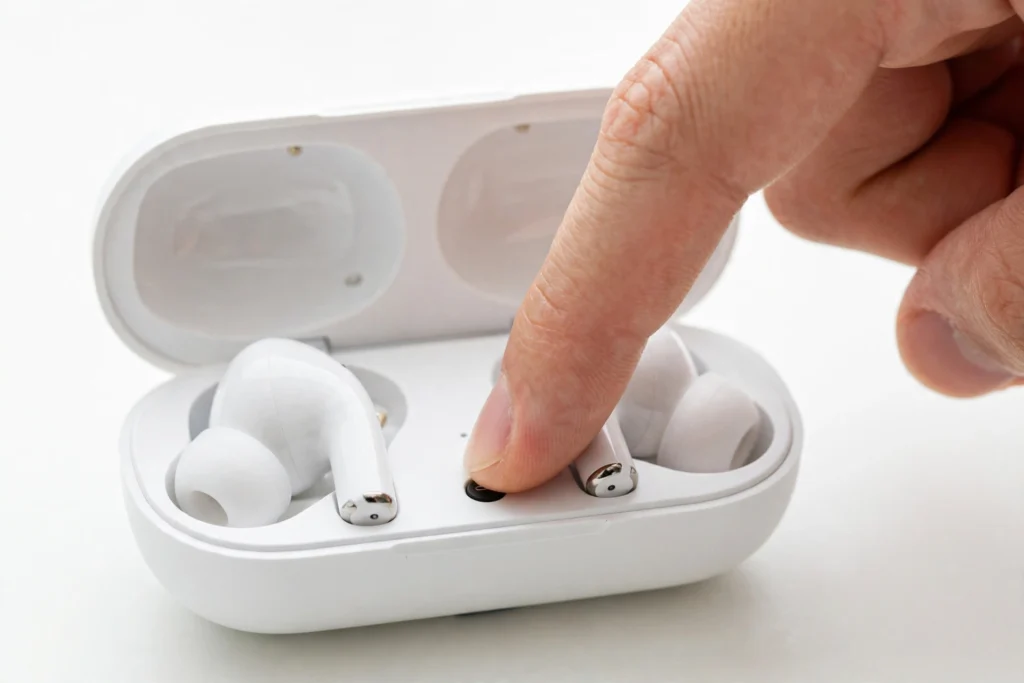
Method 2: Hold the Button on the Charging Case
Many earbuds have a physical button on the case that starts pairing mode.
- Put both earbuds in the case.
- Open the lid.
- Press and hold the case button for the time stated in your earbud manual.
- Watch for a flashing LED or another pairing signal.
- Open Bluetooth settings on your phone or computer.
The button location and hold time vary by model. Do not assume every case uses the same timing.
Method 3: Hold the Earbud Touch Controls
Some earbuds have no case button. Instead, they use touch controls on the earbuds themselves.
- Remove both earbuds from the case, unless the manual says to keep them inside.
- Touch and hold the marked control area on the earbuds.
- Wait for the pairing signal.
- Check your device’s Bluetooth list.
How do you know your earbuds are in pairing mode? Look for a flashing light, a voice prompt such as “pairing,” or a pairing message on your phone. Light colors vary by brand, so a flashing red and blue light does not mean the same thing on every model.
If none of these methods works, check the instructions for your exact model. Some earbuds require a different button combination or a specific reset procedure.
Step 2: Connect Earbuds to Your Phone or Computer
Once your earbuds are in pairing mode, open Bluetooth settings on the device you want to use.
How to Pair Earbuds to Android
- Open Settings on your Android phone.
- Tap Bluetooth or Connected devices, depending on your phone.
- Turn Bluetooth on.
- Tap Pair new device or the option to search for devices.
- Select your earbuds from the list.
- Confirm the pairing request if one appears.
Your earbuds should now connect. On some Android phones, compatible earbuds may show a Fast Pair pop-up when you open the case nearby.
If your earbuds do not appear, make sure they are still in pairing mode and are not connected to another nearby device.
How to Pair Earbuds to iPhone (iOS)
- Open Settings on your iPhone.
- Tap Bluetooth.
- Turn Bluetooth on.
- Put your earbuds into pairing mode.
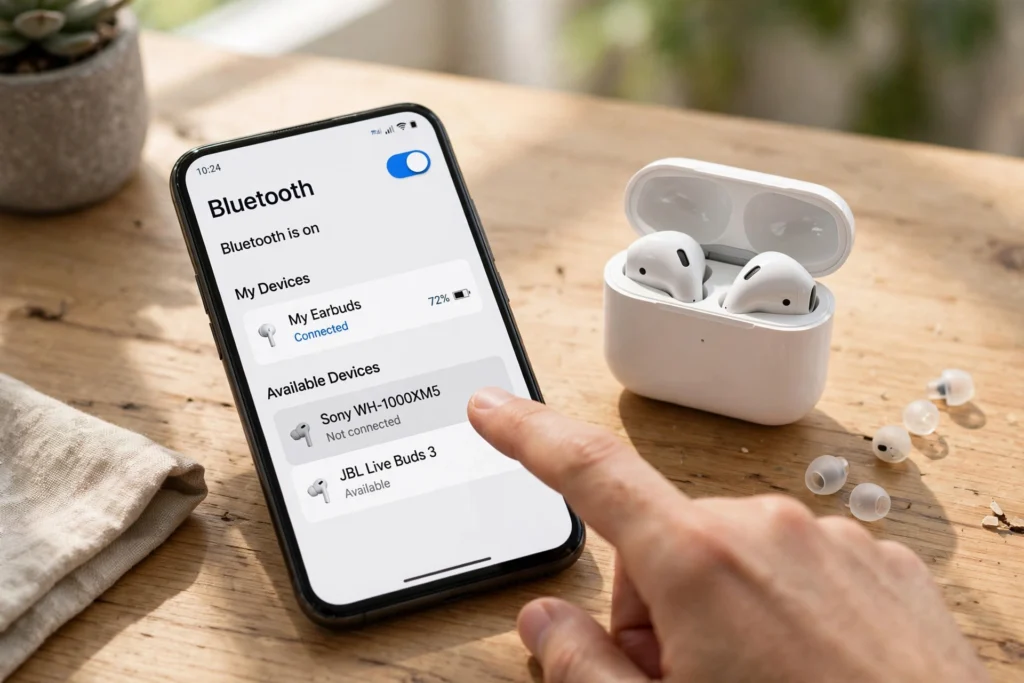
- Wait for their name to appear under available devices.
- Tap the name to connect.
After pairing, your earbuds may appear under My Devices. Tap their name if they are listed but not connected.
If an iPhone asks for a PIN or passcode, check the earbud manual. Do not assume a code such as 0000 works for every model.
How to Pair Earbuds to Windows 11 or Windows 10
For Windows 11:
- Open Settings.
- Select Bluetooth & devices.
- Turn Bluetooth on.
- Click Add device.
- Choose Bluetooth.
- Select your earbuds when they appear.
For Windows 10:
- Open Settings.
- Select Devices, then Bluetooth & other devices.
- Turn Bluetooth on.
- Click Add Bluetooth or other device.
- Choose Bluetooth and select your earbuds.
Keep the earbuds in pairing mode while Windows searches. Once connected, you may need to select them as the sound output device in your computer’s sound settings.
How to Pair Earbuds to Mac
- Open the Apple menu.
- Select System Settings. Older macOS versions may show System Preferences.
- Click Bluetooth.
- Turn Bluetooth on if needed.
- Put your earbuds into pairing mode.
- Find your earbuds in the nearby devices list and click Connect.
If they connect but sound still comes from your Mac’s speakers, open System Settings, select Sound, and choose your earbuds under output devices.
How to Connect Earbuds to a Second Device (Multipoint)
Some Bluetooth earbuds support multipoint, which lets them stay connected to two devices at the same time. For example, you can connect your earbuds to your laptop and phone, then switch between a video call and a phone call.
To set it up:
- Pair your earbuds with the first device.
- Check your earbud manual or app to confirm that multipoint is supported.
- Follow the model’s instructions to enter pairing mode again.
- Open Bluetooth settings on your second device.
- Select your earbuds and complete pairing.
- Check the earbud app or manual to confirm multipoint is enabled, if required.
Not all earbuds support multipoint. Some can remember several devices but connect to only one at a time. If your earbuds disconnect from the first device when you pair the second, they may not support simultaneous connections.
Tip: If you want to switch between devices without pairing again, check whether your earbuds support multipoint or automatic device switching.
Earbuds Will Not Pair? Quick Fixes
If your earbuds do not appear in Bluetooth settings or refuse to connect, try these checks first.
- Charge the earbuds and case. Low battery can stop some models from entering pairing mode or connecting properly.
- Check the charging contacts. If the earbuds are new, remove any protective plastic film covering the charging contacts. Make sure the contacts are clean and the earbuds charge correctly.
- Restart Bluetooth. Turn Bluetooth off on your phone or computer, wait a few seconds, and turn it back on.
- Check other devices. Your earbuds may already be connected to a phone, tablet, or laptop nearby. Disconnect them from that device before trying again.
- Move closer. Keep your earbuds near the device while pairing and move away from other possible sources of interference.
If your earbuds still do not appear, forget the old pairing from your device’s Bluetooth settings and try again. Only reset the earbuds if needed, and follow the reset instructions for your exact model because reset methods vary.
Frequently Asked Questions
Do earbuds need to be inside the case to pair?
It depends on the model. Some earbuds enter pairing mode while inside an open case, while others must be removed first. Check the instructions for your earbuds.
What does a flashing light mean?
A flashing LED often indicates pairing mode, but the color and flashing pattern vary by brand. Check your earbud manual to confirm what the light means.
Can I pair earbuds with two phones at once?
Yes, if your earbuds support Bluetooth multipoint. Without multipoint, you may need to disconnect from one phone before connecting to the other.
Why are my earbuds not showing up in Bluetooth settings?
They may not be in pairing mode, may be connected to another device, or may have a low battery. Confirm pairing mode first, then restart Bluetooth and try again.
Final Thoughts
Pairing Bluetooth earbuds is usually simple once you know how to activate pairing mode. Open the case, use the case button, or hold the earbud touch controls according to your model’s instructions. Then select the earbuds in your Android, iPhone, Windows, or Mac Bluetooth settings.
If the connection fails, check the battery, charging contacts, and existing connections before trying again. For the best results, always use the pairing and reset instructions made for your exact earbud model.
