

Trying to pair Bluetooth on Android should take seconds, yet it often turns into a hunt. You open Settings and can’t find “Pair new device.” Your earbuds don’t show up in the list. Or the steps you found online were written for a Pixel, and your Samsung menus look nothing like them.
The fix is a simple four-step routine: turn on Bluetooth, put your accessory in pairing mode, connect, then set it up properly. Below, you’ll get the exact steps for Pixel and Samsung phones (plus Xiaomi), what the blinking lights on your accessory mean, and how to use Google Fast Pair to skip most of the work.
The 30-second version:
- Swipe down from the top of your screen and turn on Bluetooth.
- Hold your accessory’s pairing button until its light flashes fast.
- Tap Connect on the pop-up, or open Bluetooth settings and tap the device’s name.
- Open the device’s settings to rename it and set its type.
Step 1: Turn On Bluetooth on Your Android Phone
Option A: Quick Settings (fastest)
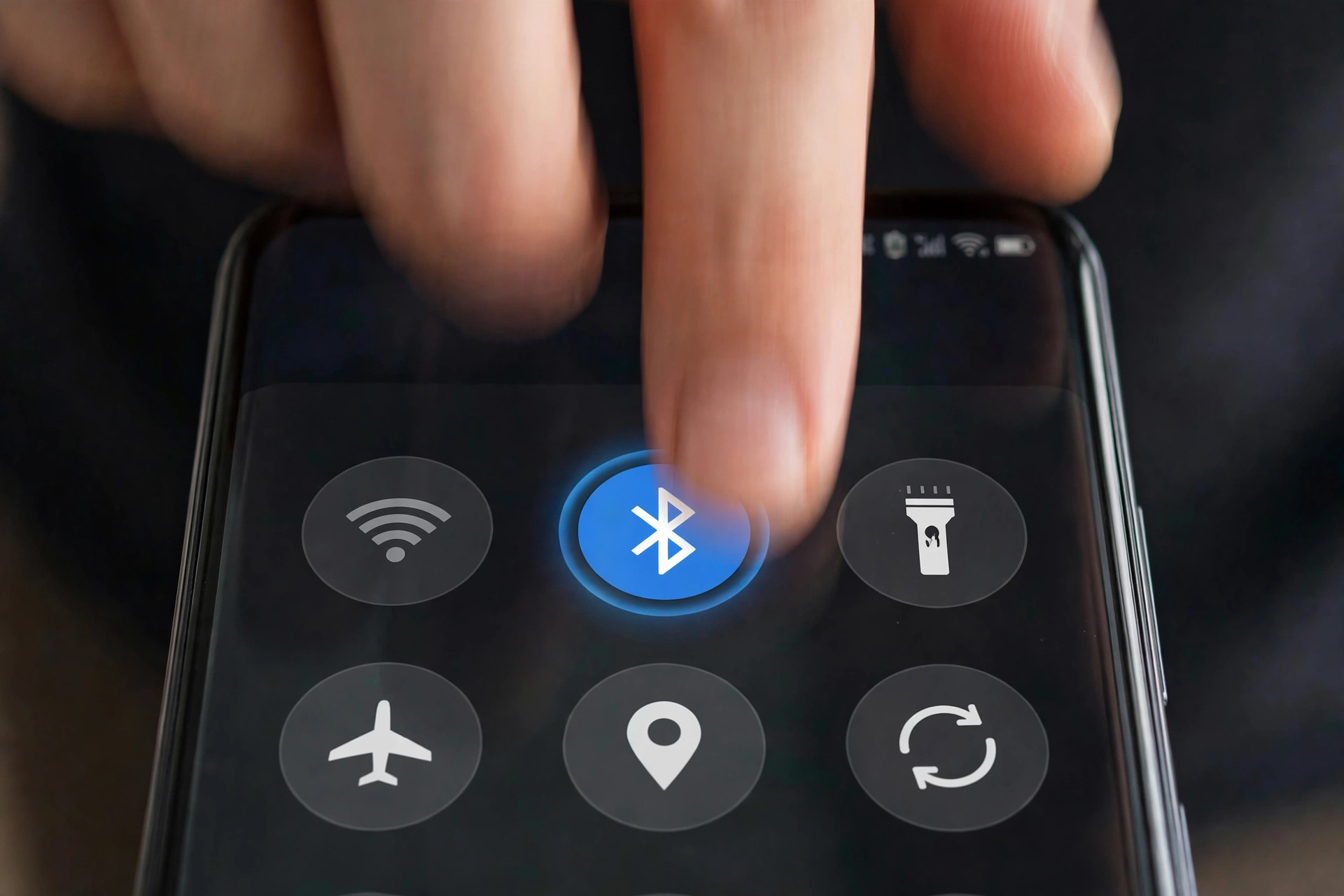
- Swipe down from the top of the screen. Swipe down again to see all the tiles.
- Tap the Bluetooth tile. It lights up when Bluetooth is on.
- Long-press (press and hold) the tile to jump straight into Bluetooth settings.
On some newer phones, tapping the tile opens a small panel listing your devices instead of just switching Bluetooth on. On Xiaomi phones with the split control center, swipe down from the top right corner.
Option B: The Settings app
The menu names are different on each brand, which is where most people get stuck:
| Phone | Path to Bluetooth | Where new devices appear |
|---|---|---|
| Google Pixel / stock Android | Settings, then Connected devices | Tap Pair new device |
| Samsung Galaxy (One UI) | Settings, then Connections, then Bluetooth | Under Available devices (tap Scan to refresh) |
| Xiaomi, Redmi, POCO (HyperOS / MIUI) | Settings, then Bluetooth | Under Available devices |
On Pixel, the Bluetooth on/off switch itself is under Connected devices, then Connection preferences, then Bluetooth. But tapping Pair new device turns Bluetooth on for you anyway.
Can’t find it? Open Settings, tap the search bar at the top, and type “Bluetooth.”
Step 2: Put Your Bluetooth Accessory Into Pairing Mode
This is the step most people skip, and it’s the number one reason a phone can’t find a device.
Your phone can only find accessories that are broadcasting a “ready to pair” signal. Turning headphones or a speaker on usually isn’t enough. When they power on, most of them try to reconnect to the last phone they used. They only become visible to new phones in pairing mode (also called discovery mode).
How to enter pairing mode on most devices:
| Device | Usual method |
|---|---|
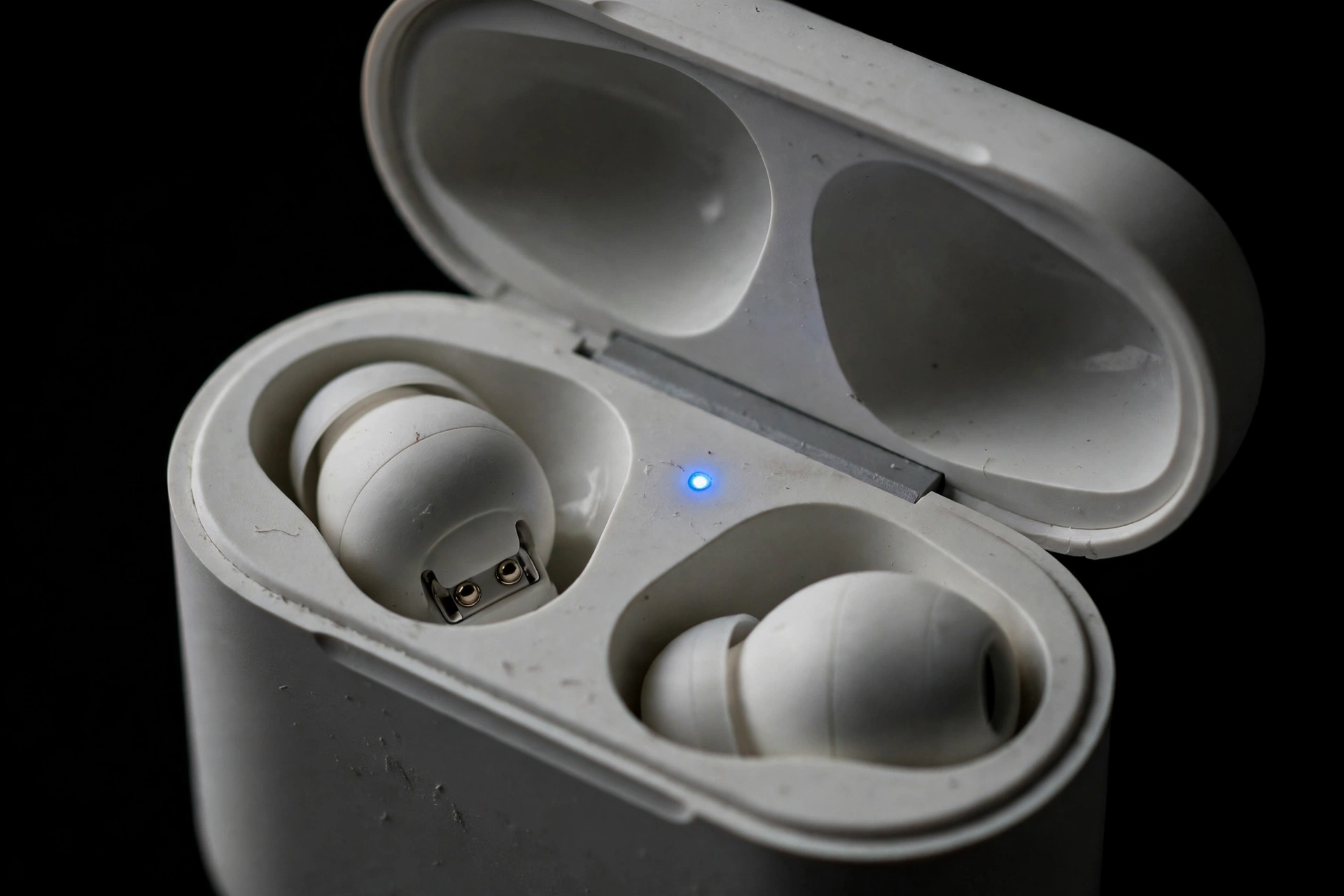
| Earbuds in a case | Open the lid and hold the button on the case until the light flashes |
| Headphones | Hold the power or Bluetooth button for about 3 to 7 seconds while turning them on |
| Speakers | Press and hold the Bluetooth button until the light flashes fast |
| Smartwatches | Usually paired through the watch’s own app, not Bluetooth settings |
| Car stereos | Start pairing from the car’s screen or menu, then search from your phone |
Exact buttons and timing vary by brand, so check the manual if these don’t work.
Read the light:
| What the light does | What it usually means |
|---|---|
| Fast flashing (often blue, or blue and red) | Pairing mode. Ready to connect. |
| Slow blinking | Trying to reconnect to a device it already knows |
| Solid light | Already connected to something |
If the light is blinking slowly or solid, the accessory isn’t ready. Put it back into pairing mode.
Two more tips:
- Keep it close. Stay within about 1 meter (3 feet) while pairing.
- Act quickly. Many accessories leave pairing mode after a few minutes to save battery. If it stops flashing, start again.
Step 3: Connect Using Google Fast Pair or Manual Pairing
The quick way: Google Fast Pair
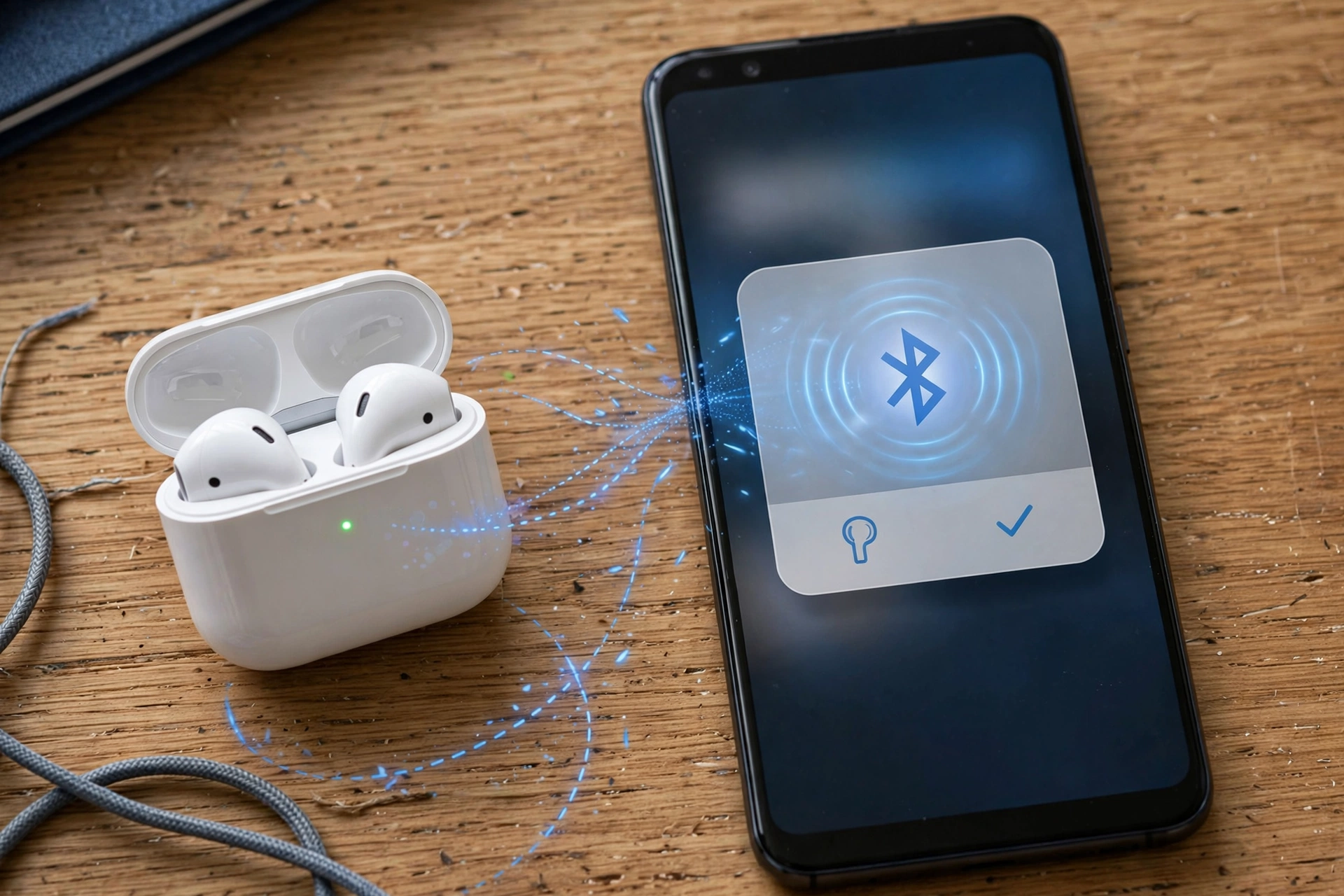
Google Fast Pair is built into most Android phones through Google Play services. When a supported accessory goes into pairing mode near your unlocked phone, a card slides up from the bottom of your screen.
- Make sure Bluetooth is on and your phone is unlocked.
- Put the accessory in pairing mode and hold it close to your phone.
- Tap Connect on the pop-up.
That’s it. Fast Pair often also saves the accessory to your Google account, shows battery levels, and lets some earbuds be found with Find My Device.
Fast Pair pop-up not showing?
- Not every accessory supports it. Look for “Google Fast Pair” on the box or product page.
- Your phone must be unlocked, with Bluetooth on.
- The accessory must be in pairing mode and very close.
- On many phones, check Settings, then Google, then Devices & sharing (or All services), then Devices, and make sure Scan for nearby devices is on. Menu names vary.
- Samsung phones may show Samsung’s own pop-up for Galaxy Buds instead.
If no pop-up appears after a minute, just pair manually. It works with every device.
The manual way (works with every accessory)
On a Google Pixel or stock Android:
- Open Settings, then Connected devices.
- Tap Pair new device.
- Wait for your accessory to appear under Available devices, then tap its name.
- If a code appears, check that it matches on both devices, then tap Pair.
On a Samsung Galaxy:
- Open Settings, then Connections, then Bluetooth.
- Make sure the switch at the top is on.
- Tap Scan if your device doesn’t appear right away.
- Tap your accessory under Available devices, then tap Pair if asked.
On Xiaomi, Redmi, or POCO:
- Open Settings, then Bluetooth.
- Turn Bluetooth on and wait for the Available devices list.
- Tap your accessory to pair.
Pairing your phone to another phone, car, or laptop? Your Android phone is only visible to other devices while its Bluetooth settings screen is open. Keep that screen open while the other device searches. If you leave it, your phone disappears from their list.
Why won’t my Android phone find my Bluetooth device?
If your device doesn’t appear, go through this quick list:
- Not in pairing mode. The light should be flashing fast.
- Connected to another phone. Turn off Bluetooth on other nearby phones or tablets.
- Pairing mode timed out. Start it again and search right away.
- The app can’t see it. For accessories you set up through an app, the app needs the Nearby devices permission (Android 12 and newer).
Still not showing up? Our troubleshooting guide covers deeper fixes like clearing the Bluetooth cache.
Step 4: Manage, Rename, and Optimize Paired Devices
Once paired, a few quick settings make the device easier to use. Tap the gear icon next to the device in your Bluetooth list.
Rename it. Turn “QCY-T13 R” or “BT-SPK-2093” into “Gym earbuds” or “Kitchen speaker.”
- Pixel: tap the gear, then the pencil (edit) icon at the top.
- Samsung: tap the gear, then Rename.
This only changes the name on your phone, not on the accessory.
Set the audio device type. Some newer versions of Android, including recent Pixel updates, let you tell your phone what kind of audio device it is: Headphones, Speaker, Car, Hearing aid, or Other.
Why it matters:
- Spatial audio is meant for headphones, not a car or a room speaker. Choosing the right type helps Android apply it only where it makes sense.
- Android may handle volume and sound features differently for headphones (close to your ears) than for a speaker or car.
- Choosing Hearing aid helps Android treat it as a hearing device.
Look for Audio device type or Device type in the device’s settings. If you don’t see it, your phone or Android version doesn’t offer it yet, and that’s fine.
Choose what it’s used for. Turn Phone calls or Media audio on or off. For example, turn off Phone calls on a speaker so calls stay on your phone.
Contact and message sharing. Turn it on for your car so it can show contacts and read texts. Leave it off for other devices.
HD audio. Some phones show an HD audio switch for headphones that support better codecs. It can improve sound but may use more battery.
Forget or Unpair. Removes the device. Use it when a device keeps acting up and you want to pair it fresh.
Frequently Asked Questions
How do I turn on Bluetooth on an Android phone?
Swipe down from the top of the screen and tap the Bluetooth tile. Or open Settings and go to Connected devices (Pixel) or Connections, then Bluetooth (Samsung).
Where is the “Pair new device” button?
On Pixel and stock Android, it’s in Settings, then Connected devices. Samsung doesn’t use that button. Open Connections, then Bluetooth, and look under Available devices.
How do I put my Bluetooth device in pairing mode?
Hold its Bluetooth or power button until the light flashes fast. For earbuds, open the case and hold the button on the case.
Why isn’t the Fast Pair pop-up showing?
The accessory may not support Fast Pair, or your phone is locked, Bluetooth is off, or the device isn’t in pairing mode. You can always pair manually instead.
How do I make my Android phone discoverable?
Open its Bluetooth settings screen and keep it open. Your phone stays visible to other devices only while that screen is showing.
Can I pair more than one Bluetooth device to my Android phone?
Yes. You can pair many devices, and usually connect several at once, like a watch and earbuds together.
