

Quick Answer: How to Pair Bluetooth on Samsung Galaxy (One UI)
Yes, you can pair almost any Bluetooth device with your Samsung Galaxy phone in under a minute. Put the device in pairing mode first. Then open Settings, tap Connections, tap Bluetooth, and tap the device name under Available devices. That is all it takes for most headphones, speakers, and watches. This guide shows you how to pair Bluetooth Samsung Galaxy phones with headphones, speakers, watches, and cars, plus what to do when your phone cannot find a device.
Try this first (1 minute): Put your headphones or speaker in pairing mode. On most devices, press and hold the power or pairing button until a light flashes. Then swipe down from the top of your Galaxy screen, touch and hold the Bluetooth icon, and tap the device name when it appears.
Before You Start: Put Your Device in Pairing Mode
Your Galaxy phone can only find a device that is in pairing mode. This is the step most people miss. A device that is just switched on is not always ready to pair. Press and hold the power button until a light blinks, or open the charging case with the earbuds inside.
Method 1: Pair From Settings
This is the most reliable way to pair Bluetooth Samsung Galaxy phones with any accessory. It works on every Galaxy model and every One UI version.
- Put your accessory in pairing mode.
- Open Settings on your Galaxy phone.
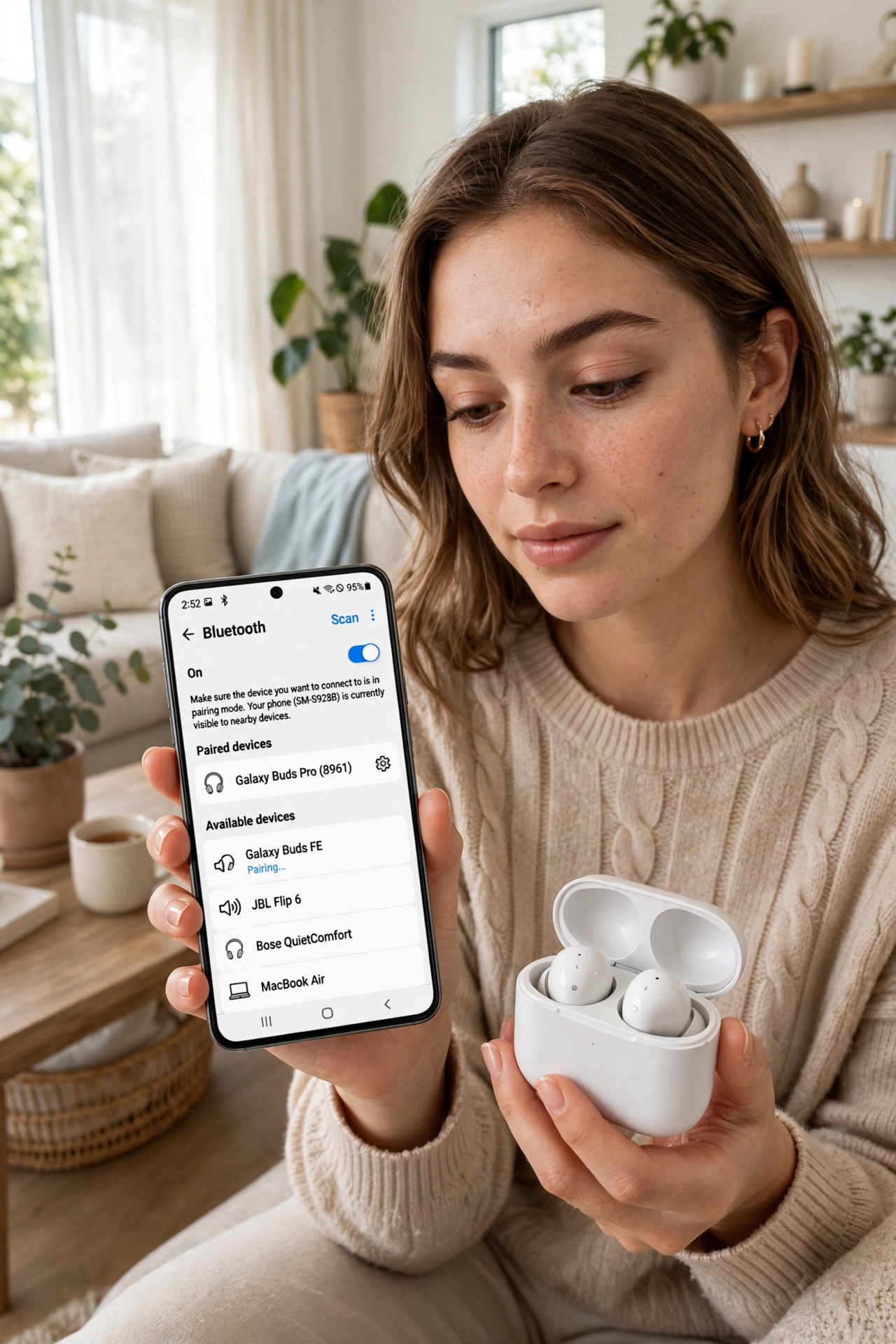
- Tap Connections, then tap Bluetooth.
- Turn the Bluetooth switch on if it is off.
- Wait a few seconds. Your accessory appears under Available devices.
- Tap the device name. Tap Pair or OK if your phone asks.
- Some devices ask for a PIN. Try 0000 or 1234 first. Check the manual if those do not work.
Once paired, the device moves to Paired devices. It connects by itself the next time you switch it on near your phone. Our guide to how to turn on Bluetooth on Android covers the quick settings too.
Method 2: Pair From the Quick Panel
If you pair devices often, the Quick Panel is faster. Swipe down from the top of the screen with two fingers to open the full Quick Panel. Touch and hold the Bluetooth icon. This opens the Bluetooth settings page. Then tap the device name under Available devices and confirm the pairing. A single tap on the Bluetooth icon only turns Bluetooth on or off.
Pair Galaxy Buds the Fast Way
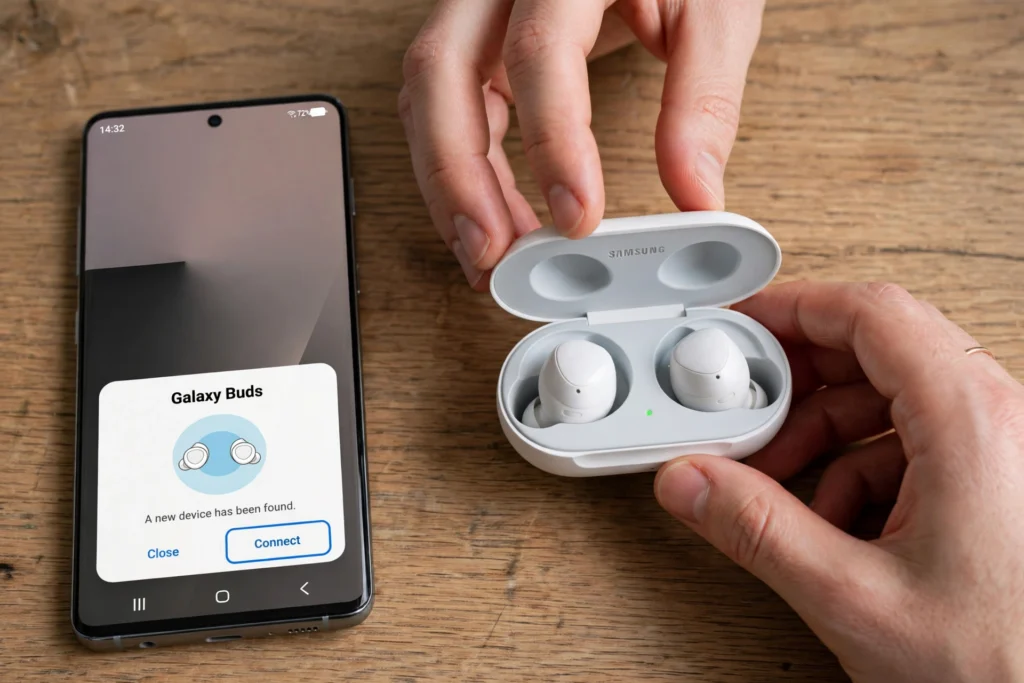
Samsung earbuds pair faster than other accessories. The fastest way to pair Bluetooth Samsung Galaxy Buds is the automatic pop-up. Open the Galaxy Buds case near your Galaxy phone. A small window appears on your phone. Tap Connect and you are done.
If no pop-up appears, close the case and open it again. Still nothing? Put the Buds in pairing mode by hand. For Buds3 and Buds3 Pro, press and hold the pairing button on the bottom of the case for more than 3 seconds until the light flashes blue, red, and green. For Buds2 and Buds2 Pro, press and hold both earbuds in the open case for more than 3 seconds. For older Buds, wear both earbuds and press and hold both touch pads for more than 3 seconds until you hear a sound. Then pair from Settings as in Method 1. The Galaxy Wearable app manages your Buds after pairing.
Pair a Galaxy Watch
A Galaxy Watch pairs through the Galaxy Wearable app, not through the plain Bluetooth menu. Install the app from the Play Store if it is not on your phone yet. Press and hold the power button on the watch to turn it on. Open the app and tap Pair new device. Pick your watch model from the list and follow the steps on both screens. Confirm the code that appears on the watch and the phone. After pairing, the watch syncs notifications, health data, and apps.
Pair Your Galaxy With Your Car
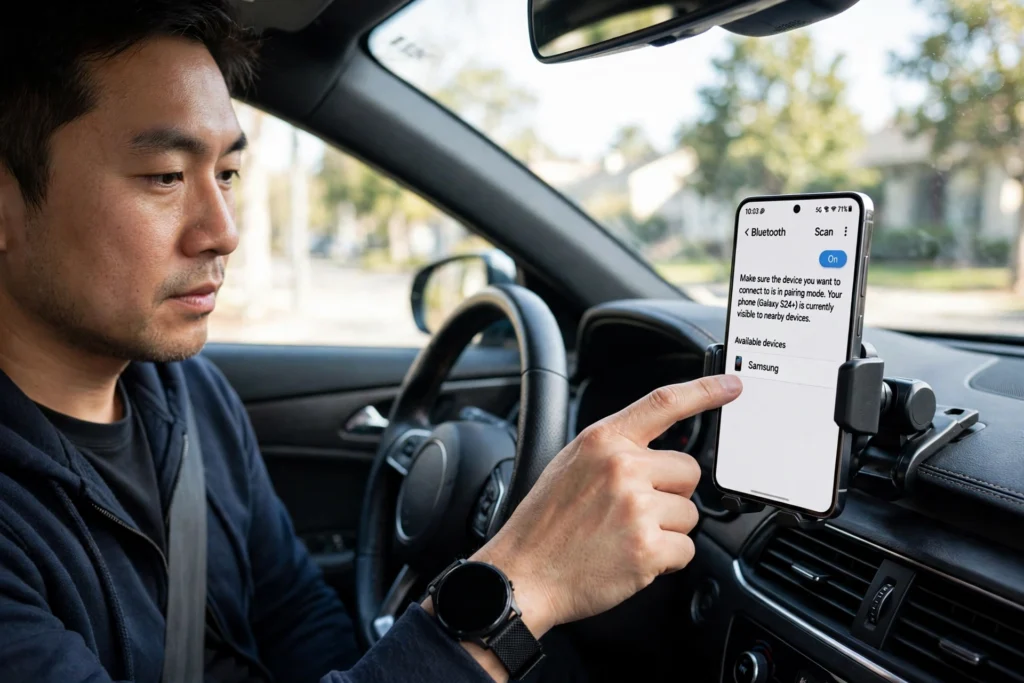
Pairing with a car needs both sides to search at the same time.
- On your car screen, open Bluetooth settings and choose Add new phone.
- On your Galaxy phone, open Settings, then Connections, then Bluetooth.
- Tap Scan if your phone does not search by itself.
- Tap your car name when it appears.
- Check that the PIN on your phone matches the PIN on the car screen. Tap Pair on both.
Once paired, calls and music play through the car speakers. If the car connects but you hear no sound, check the media audio switch for the car in your Bluetooth settings. Our guide to pairing versus connecting explains why a paired car can still stay silent.
Pair Two Devices at Once With Dual Audio
Most Galaxy phones can send music to two Bluetooth speakers or headphones at the same time. Samsung calls this Dual Audio. First, pair both devices with your phone one by one, as in Method 1. Then swipe down to open the Quick Panel and tap Media. Select both devices and music plays from both. This needs Bluetooth 5.0 or newer. If you want more ways to use several devices together, see our guide to how to pair more than one Bluetooth device.
Your Phone Cannot Find the Device? Try These Fixes
If your Galaxy phone cannot see the accessory, work through this list in order. Most pairing problems end at step 2.
- Check pairing mode again. Put the accessory back in pairing mode. A device leaves pairing mode after a minute or two if nothing connects.
- Move closer. Keep the accessory within 1 meter of your phone while pairing.
- Forget and pair again. If it worked before, open Bluetooth settings, tap the gear icon, tap Unpair, and pair it again.
- Clear the Bluetooth cache. Go to Settings, then Apps, show system apps, find Bluetooth, tap Storage, then Clear cache. Restart and try again.
- Reset network settings. Go to Settings, then General management, then Reset network settings. This erases saved Wi-Fi and Bluetooth connections, so use it last.
If you still cannot pair Bluetooth Samsung Galaxy accessories after these steps, try the accessory with a different phone to find out which side is at fault. For deeper Android fixes, see our guide to Bluetooth not working on Android.
Manage Your Paired Devices
After pairing, you can control what each device does. Open Settings, then Connections, then Bluetooth, and tap the gear icon next to a device. From here you can rename it and choose whether it handles calls, media audio, or both. To remove a device, tap Unpair at the bottom. Our guide to how to unpair a Bluetooth device covers removal on every device type.
Frequently Asked Questions
How do I pair Bluetooth Samsung Galaxy phones with headphones?
Put the headphones in pairing mode. Open Settings, tap Connections, then Bluetooth. Tap the headphone name under Available devices and confirm the pairing.
Why is my Samsung Galaxy not finding my Bluetooth device?
The device is probably not in pairing mode. Put it back in pairing mode and keep it within 1 meter of your phone.
Do I need an app to pair Galaxy Buds?
No. Open the Buds case near your phone and tap Connect on the pop-up. The Galaxy Wearable app is only for extra settings and updates.
Can I pair my Galaxy phone with two Bluetooth devices at once?
Yes. Pair both devices one by one, then open the Quick Panel, tap Media, and select both. This is Samsung Dual Audio and needs Bluetooth 5.0 or newer.
How do I unpair a Bluetooth device from my Samsung Galaxy?
Open Settings, tap Connections, then Bluetooth. Tap the gear icon next to the device and tap Unpair.
Now you know how to pair Bluetooth Samsung Galaxy phones with headphones, earbuds, watches, speakers, and cars. Pairing takes less than a minute once the accessory is in pairing mode.



2 Comments
Pingback: Android Bluetooth Not Auto Connecting? 8 Quick Fixes
Pingback: Bluetooth Not Working Samsung Galaxy? 7 Fixes That Work