


Yes, you can pair Bluetooth Windows 7 PCs with headphones, speakers, a mouse, or a phone, and the whole job takes about five minutes. Windows 7 has no Bluetooth page in Settings like newer versions do. Everything happens in Control Panel, under Devices and Printers. Open Control Panel, click Add a device, put your device in pairing mode, and pick it from the list. This guide walks you through each step, shows you what to do when a device does not show up, and explains how to add Bluetooth to an old PC that has none.
What You Need Before You Start
Check three things before you begin. First, your PC needs a Bluetooth adapter. Many old laptops have one built in, but many old desktops do not. Second, your device must be charged and switched on. Third, you need to know how to put your device in pairing mode. For most headphones and speakers, press and hold the power or Bluetooth button until a light flashes blue. For a mouse or keyboard, there is usually a small connect button on the bottom. Sit close to the PC while you pair. Bluetooth works best within a few feet, and other nearby devices can confuse the scan. Do these checks first and the steps to pair Bluetooth Windows 7 take only a few minutes.
How to Pair a Bluetooth Device on Windows 7
Follow these steps to pair Bluetooth Windows 7 with any device. The steps are the same for headphones, speakers, mice, keyboards, and phones.
- Put your Bluetooth device in pairing mode. The light should flash blue.
- Click the Start button, then click Control Panel.
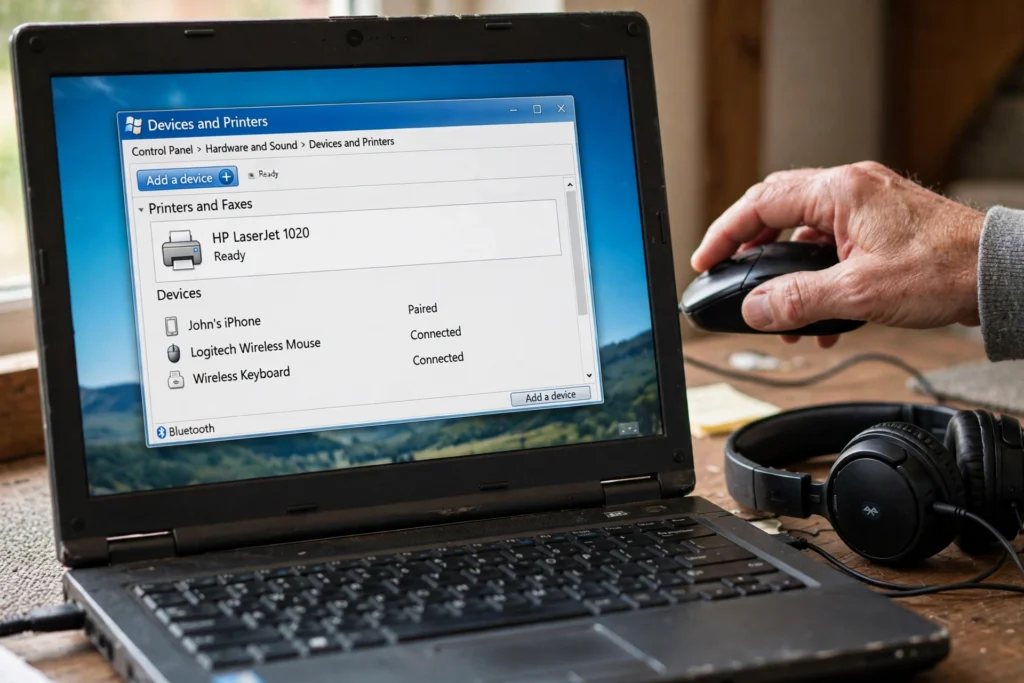
- Click Hardware and Sound, then click Devices and Printers. You can also type Bluetooth in the Control Panel search box and click View devices and printers.
- Click Add a device at the top of the window. Windows 7 will now scan for nearby Bluetooth devices. This can take up to a minute.
- When your device appears in the list, click it once to select it, then click Next.
- If Windows asks for a pairing code, try 0000 or 1234. Many devices use one of these two codes. Some devices need no code at all.
- Wait while Windows installs the drivers for your device. This can take a few minutes, and you may need an internet connection for the driver download.
- When you see a message that the device was added, click Close. Your device is now paired.
Your device should now appear under Devices in the Devices and Printers window. If it is a mouse or keyboard, it should start working right away. If it is a pair of headphones or a speaker, you may need one more step to hear sound through it.
Pairing Headphones, Mice, and Phones
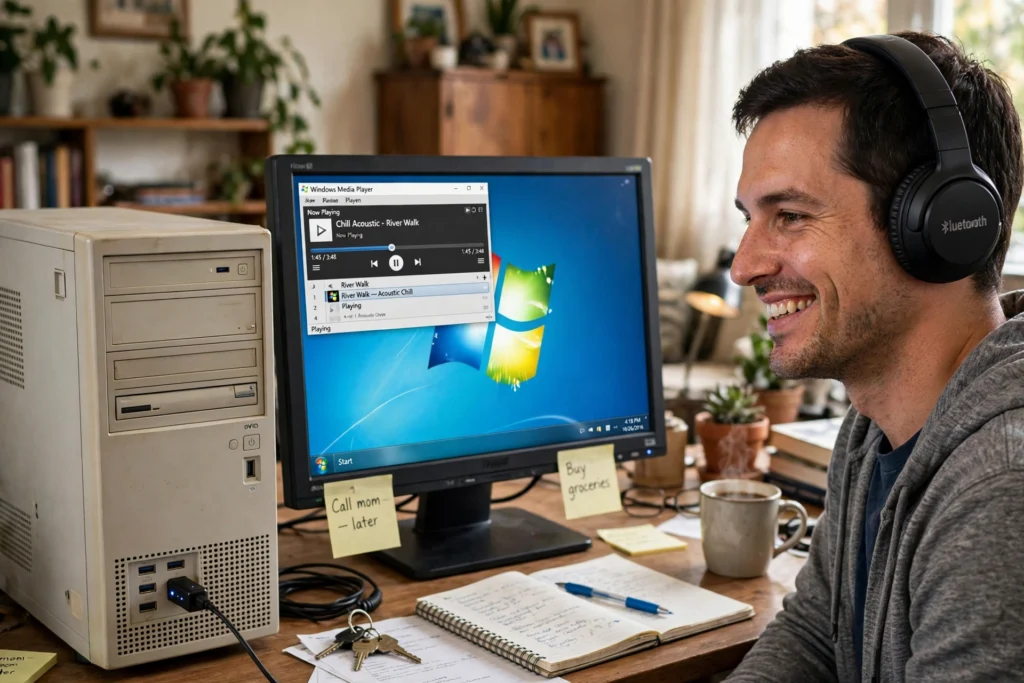
Headphones and speakers pair the same way, but they need one extra step after pairing. Right click the speaker icon in the taskbar, click Playback devices, and set your Bluetooth headphones as the default device. If you skip this step, sound keeps coming from your PC speakers.
A Bluetooth mouse or keyboard pairs fast and needs no extra setup. If the mouse stops working after a restart, take the batteries out for ten seconds and put them back in.
The steps to pair Bluetooth Windows 7 with a phone are a little different. Turn on Bluetooth on the phone and make it visible or discoverable. Add it from the PC side. Your phone will show a code. Check that the code matches the one on the PC, then accept it on both screens.
After Pairing: Make Your Headphones the Default Sound Device
Windows 7 sometimes pairs your headphones but keeps playing sound through the PC speakers. This is normal. Right click the small speaker icon at the bottom right of your screen. Click Playback devices. Find your Bluetooth headphones, right click them, and choose Set as Default Device. Then click OK and play a song to test it. If you still hear nothing, double click your headphones in the same list and check that the volume is turned up.
If Your Device Does Not Show Up
Start with the simple checks. Make sure your device is still in pairing mode. Most devices leave pairing mode after a minute or two, so start it again. Move the device closer to the PC. Turn the device off and on again.
If you try to pair Bluetooth Windows 7 and nothing appears in the list, the problem is often the driver. Open Device Manager from Control Panel, look for Bluetooth Radios, and check for a yellow warning sign. If you see one, right click the adapter and click Update Driver Software. If Windows cannot find a driver, go to the website of your PC maker or the adapter maker and download the Windows 7 driver for your exact model. Restart the PC, then try again.
Another fix is to remove the device and pair it again. In Devices and Printers, right click the device and choose Remove device. Then start over from the steps above. If your Bluetooth pairing is not working even after this, our guide on fixing pairing problems walks through every cause one by one.
If your pairing PIN keeps failing, try 0000 first, then 1234. Some devices print the code on a sticker or in the manual. A few devices pair with no code at all, so try clicking Next without typing anything.
What If Your PC Has No Bluetooth at All
Many old Windows 7 desktops were sold with no Bluetooth inside. The fix is a small USB Bluetooth adapter. Plug it into a USB port and Windows 7 will usually install the driver on its own. If it does not, use the disc or the download link that came with the adapter.
Pick an adapter that lists Windows 7 support on the box. Older Bluetooth 4.0 adapters are a safe choice. Some of the newest adapters only ship drivers for Windows 10 and Windows 11, so check before you buy. If your laptop has a Bluetooth switch or a function key for wireless, make sure Bluetooth is turned on first. Our guide on how to turn on Bluetooth on an older laptop covers laptops with no visible switch.
Windows 7 Is Old Now: What That Means for Bluetooth
Microsoft ended support for Windows 7 in January 2020. That means no new updates and no new drivers from Microsoft. New Bluetooth devices may still work, but their makers may not test them on Windows 7 anymore. If a new pair of headphones will not pair, check the box or the maker website for Windows 7 support before you blame the PC.
For everyday use, Windows 7 still pairs fine with most Bluetooth 4.0 and older devices. If you ever move to a newer PC, the steps are different. See our guide on how to pair a Bluetooth device on Windows 11 for the modern steps. For a full overview, see our complete guide to pairing Bluetooth devices.
Frequently Asked Questions
Can I still pair Bluetooth Windows 7 in 2026?
Yes. Windows 7 still pairs Bluetooth devices through Control Panel and the Add a device window. Support has ended, so new devices may lack Windows 7 drivers, but most Bluetooth 4.0 and older devices still pair fine.
Where is Bluetooth in Windows 7 Control Panel?
Click Start, then Control Panel, then Hardware and Sound, then Devices and Printers. Click Add a device at the top. There is no Bluetooth page in Settings on Windows 7 like there is on Windows 10 and Windows 11.
What is the pairing code for Bluetooth on Windows 7?
Most devices use 0000 or 1234. Some devices need no code at all. If neither code works, check the sticker on the device or the manual that came with it.
Why does my Bluetooth device not show up in Add a device?
The device is probably not in pairing mode, or it left pairing mode before the scan finished. Put the device in pairing mode again, move it closer to the PC, and try again. If it still does not show up, check the Bluetooth driver in Device Manager.
Can I add Bluetooth to a Windows 7 desktop that has none?
Yes. Plug in a USB Bluetooth adapter. Pick one that lists Windows 7 support on the box. Windows 7 will install the driver, or you can install it from the disc or download that came with the adapter.
Once you know how to pair Bluetooth Windows 7, the same steps work for almost any device you own. Put the device in pairing mode, add it through Devices and Printers, and set it as the default sound device if it plays audio.