

Quick Answer: Does Windows 11 Support Bluetooth LE Audio?
Yes. Windows 11 supports Bluetooth LE Audio from version 22H2 onward, and super-wideband stereo arrived with the 24H2 updates. Bluetooth LE Audio Windows support is real, but it only works when four things line up: the right Windows version, a Bluetooth radio that supports LE Audio, drivers that expose it, and headphones that support it too. Check it in 30 seconds: open Settings, then Bluetooth and devices, then Devices, and look for “Use LE Audio when available”. If you see it, your PC is ready. If not, the cause is almost always the driver or the hardware.
Try this first (30 seconds): Press Windows + I, click Bluetooth and devices, then Devices. Scroll to Device settings and switch “Use LE Audio when available” on, then disconnect and reconnect your headphones. If you do not see it, work through the 4-part check below first.
What LE Audio Changes for Windows Users
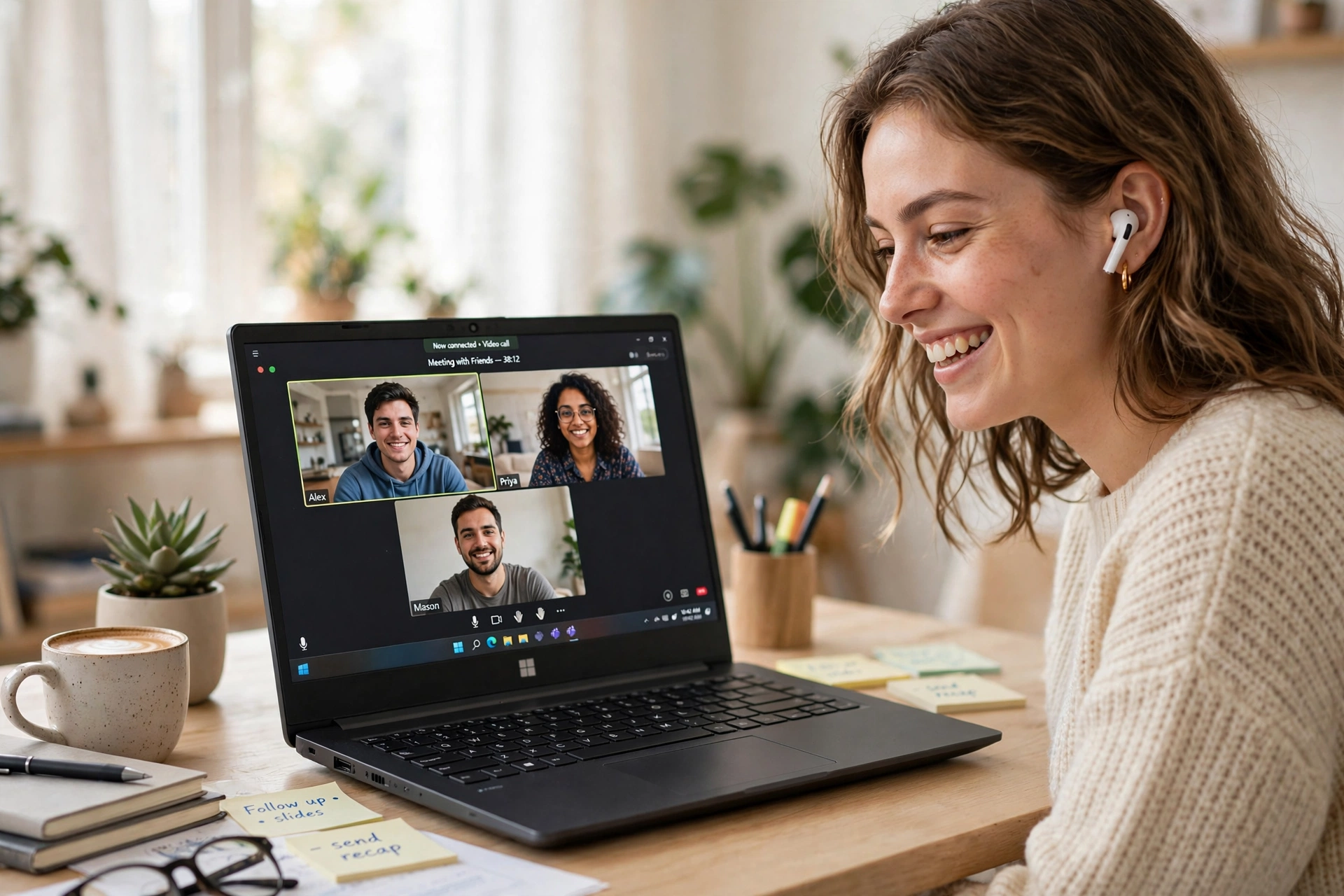
For years, Bluetooth audio on Windows forced a bad trade. Music used A2DP, which gives stereo sound but no microphone, while calls used HFP, which gives a microphone but drops the sound to mono. The moment you joined a call or game chat, your music turned flat and muffled. LE Audio ends that trade. Its new codec, LC3, and a mode called super-wideband stereo keep music in stereo at 32 kHz while the microphone stays on. Microsoft added this in the 24H2 updates. If your microphone stops working on calls, the old A2DP and HFP swap is often behind it.
LC3 is the codec at the heart of LE Audio. A codec squeezes sound into digital data so it can travel over Bluetooth, then rebuilds it at the other end. LC3 can deliver similar or better sound than the older SBC codec while using less than half the data, which saves battery and leaves room for the microphone stream. LC3 is not the same as LDAC or aptX. See how Bluetooth audio codecs compare before you judge a headset by one codec name.
How Bluetooth LE Audio Windows Support Works: The 4-Part Check
Bluetooth LE Audio Windows support is an ecosystem feature. Four parts must line up, and if one is missing, Windows falls back to classic Bluetooth audio. Check each part in order.
1. Windows 11 version 22H2 or newer. LE Audio needs 22H2 at minimum, and super-wideband stereo comes with 24H2. Check it in Settings, then System, then About. Windows 10 does not support LE Audio at all.
2. A Bluetooth radio that supports LE Audio. Your PC needs Bluetooth 5.2 or newer, with real LE Audio support. A spec sheet that only says “Bluetooth LE” is not proof, because LE is the low energy radio and LE Audio is the audio system built on it. Check which Bluetooth version your PC has.
3. Drivers that expose LE Audio. The Bluetooth radio driver and the audio driver must both expose LE Audio to Windows. Get them from your PC maker, or from Intel, Qualcomm, Realtek, or MediaTek. Generic drivers often hide the feature, even on new hardware, and this is the most common reason the toggle never appears.
4. Headphones that support LE Audio and LC3. Your earbuds or headset must support LE Audio, ideally with TMAP listed. Look for “LE Audio”, “LC3”, or “TMAP” on the spec sheet. Update the firmware through the maker app, because many makers add LE Audio support after launch.
How to Turn On Bluetooth LE Audio in Windows 11
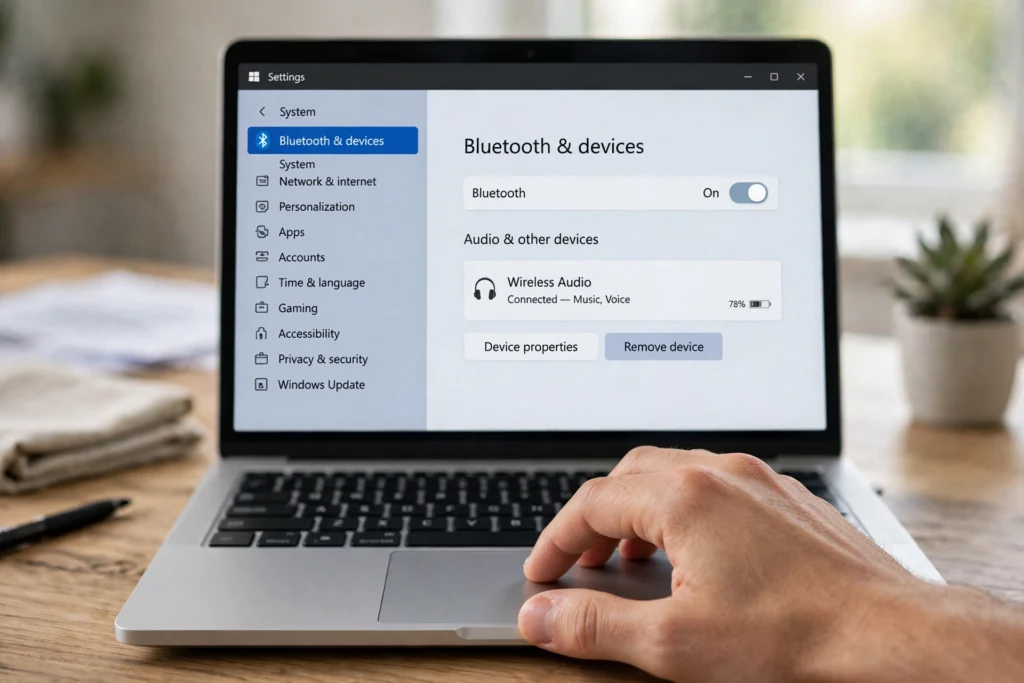
If your PC passes the 4-part check, turning LE Audio on takes less than a minute. Press Windows + I to open Settings. Click Bluetooth and devices, then click Devices. Scroll down to Device settings and find “Use LE Audio when available”. Switch it on. Then disconnect your headphones and reconnect them so they pick up the new setting. If the sound does not change, restart once. The option only appears when Bluetooth is turned on and your PC supports LE Audio. To check hearing device support, type “Hearing devices” in Start search.
The Advanced Way: Change It in the Registry
Advanced users can change the same setting in the Windows Registry. Only try this if you are comfortable with the Registry, and create a system restore point first, because a wrong edit can make Windows unstable. Press Windows + R, type regedit, and press Enter. Go to Computer\HKEY_LOCAL_MACHINE\SYSTEM\CurrentControlSet\Control\Bluetooth\Audio\Bats. Right click Bats, choose New, then DWORD (32-bit) Value, and name it UserPrefersClassicAudio. Set the value to 0 to enable LE Audio, or 1 to disable it. Click OK and restart your PC. It cannot add support that your hardware and drivers lack.
What Works Today on Windows 11
Super-wideband stereo in calls and game chat. This is the biggest win. With a compatible headset and 24H2, joining a voice call or opening game chat no longer drops your audio into mono. Music and game sound stay in stereo, and your voice runs at 32 kHz.
Direct streaming to hearing devices. Compatible hearing aids can stream sound straight from the PC with no extra streamer box around your neck. You pair them like normal headphones, and the Hearing devices page confirms support.
Shared Audio with two headphones. The June 2026 update (KB5094126) is rolling out native audio sharing to Windows 11. It lets your PC stream the same sound to two pairs of connected headphones, speakers, or hearing aids at the same time. Open Quick Settings from the taskbar, click the Shared Audio toggle, and pick two supported accessories. Both ends need Bluetooth 5.3 or newer and LE Audio support. It replaces the apps and workarounds people used for pairing more than one Bluetooth device.
What Is Still Coming
Auracast broadcast audio. Auracast lets one source broadcast sound to many listeners at once, like a radio station for earbuds. Airports, gyms, and museums could broadcast sound you join with your own earbuds. A future Windows update is expected to bring Auracast to compatible PCs, but today it mostly works on some phones. Our guide to LE Audio and Auracast explained in plain words covers what you need to join one.
Wider driver and hardware support. That is why Bluetooth LE Audio Windows support feels uneven today: the parts arrive at different times. Microsoft says most new mobile PCs that launch from late 2025 onward have support from the factory. Older PCs may gain it through driver updates.
When the “Use LE Audio When Available” Option Is Missing
If Bluetooth LE Audio Windows support is missing from your PC, work through this table in order. Most cases are drivers, not Windows itself.
| What you see | Likely cause | Fix |
|---|---|---|
| No toggle at all | Windows older than 22H2, or the radio and driver do not expose LE Audio | Update Windows to 24H2 and install the newest Bluetooth driver from the PC maker |
| Toggle is there but sound does not change | Headphones do not support LE Audio, or the firmware is old | Update headphone firmware in the maker app and check the spec sheet for LC3 |
| Headphones will not reconnect after sleep | Known LE Audio behavior on some PCs | Reconnect by hand after sleep; classic Bluetooth reconnects on its own |
One quirk is worth knowing. On some PCs, LE Audio headphones do not reconnect by themselves after sleep or a restart. Classic Bluetooth reconnects on its own, so reconnect by hand if it happens to you.
Should You Buy New Hardware?
For a desktop PC, the cheapest fix is a USB Bluetooth 5.3 adapter that lists LE Audio support, often 15 to 30 dollars. Check the box for the words “LE Audio” or “LC3”, not just Bluetooth 5.3. For a laptop, check the maker support page for a driver first. When you buy new headphones, look for “LE Audio”, “LC3”, or “TMAP” on the spec sheet, and buy one that lists the feature clearly.
Frequently Asked Questions
Does Windows 11 support Bluetooth LE Audio?
Yes, from version 22H2 onward, with super-wideband stereo added in the 24H2 updates. Your PC also needs a compatible radio and drivers, plus headphones that support it.
How do I check if my PC supports LE Audio?
Open Settings, then Bluetooth and devices, then Devices, and look for “Use LE Audio when available”. If the toggle is there, your PC supports it. If it is missing, update Windows and your Bluetooth driver, then check again.
Does Bluetooth LE Audio work on Windows 10?
No. Windows 10 does not have Bluetooth LE Audio Windows support, and no update adds it. You need Windows 11 version 22H2 or newer, plus matching hardware and drivers.
Why is the “Use LE Audio when available” option missing?
The usual cause is the driver or the hardware. The radio driver must expose LE Audio to Windows, and many PCs need a driver update from the maker first. If the radio itself lacks LE Audio support, no setting will add it.
Can I share audio with two headphones on Windows 11?
Yes, with the Shared Audio feature rolling out in the June 2026 update (KB5094126). Open Quick Settings, click Shared Audio, and pick two supported accessories. Your PC and both headphones need Bluetooth 5.3 and LE Audio support.
Final Verdict: Should You Turn It On?
Bluetooth LE Audio Windows support is worth turning on if your PC and your headphones both support it. You get stereo sound that stays stereo on calls, clearer voice, and better battery life. If your PC does not support it yet, check the driver page before you buy anything.