


Bluetooth pairing and connecting are related, but they are not the same thing. Pairing lets two Bluetooth devices recognize and trust each other. Connecting creates an active link so they can share data, play audio, or work together.
For example, when you pair wireless earbuds with your phone, your phone saves the earbuds as a known device. When you connect them, you can listen to music or make calls.
A device can be paired without being connected. This is why your phone may remember your headphones but still fail to play sound through them.
The Quick Answer: Pairing vs. Connecting at a Glance
Think of Bluetooth like making a phone call. Pairing is like saving someone’s phone number. Connecting is like calling that person and starting a conversation.
| Feature | Bluetooth Pairing | Bluetooth Connecting |
|---|---|---|
| Main purpose | Helps devices recognize and trust each other | Creates an active link for communication |
| When it happens | Usually the first time you set up a device | Whenever you want to use the device |
| What gets saved | Pairing information and security keys, when bonding is used | An active connection that exists while the devices communicate |
| Example | Adding earbuds to your phone’s saved devices | Playing music through those earbuds |
| Device status | Paired or saved | Connected or active |
| Battery use | Usually brief during setup | May use more power while data is transferred |
| What happens afterward | The device may remain saved even when turned off | The active link ends when disconnected or when the devices lose contact |
The exact wording and behavior can vary by device and operating system. Some devices connect automatically as soon as they are paired, while others need you to select them manually.
What Is Bluetooth Pairing?
Bluetooth pairing is the setup process that allows two devices to recognize each other and establish the security information they may need for future connections.
For example, when you connect new wireless headphones to a phone for the first time, you usually put the headphones into pairing mode. Your phone searches for nearby devices, finds the headphones, and asks you to confirm the pairing if needed.
Once pairing is complete, the phone may remember the headphones for future use.
What happens during pairing?
The process often includes these steps:
- Discovery: One device makes itself available to nearby Bluetooth devices.
- Device selection: You choose the device you want to pair with.
- Security check: The devices may ask you to confirm a code, enter a PIN, or press a button.
- Key exchange: The devices establish security information according to the Bluetooth pairing method.
- Saving the device: If bonding is used, the devices store information that can help them recognize each other later.
Not every Bluetooth device follows the same steps. Many modern devices pair without asking for a PIN.
Pairing vs. bonding: Are they different?
Yes. Pairing is the process of setting up a relationship between two Bluetooth devices. Bonding means storing security information so the devices can recognize each other during later connections.
This stored information can include security keys. It allows supported devices to reconnect without repeating the full setup process each time.
That is why your headphones may still appear in your phone’s saved Bluetooth list after you turn them off.
Why do some devices need a PIN or button press?
A PIN, confirmation code, or physical button can help make sure you are pairing with the intended device. The method depends on the devices and their Bluetooth capabilities.
For example:
- A car stereo may display a code that you must confirm on your phone.
- Some keyboards require you to enter a code on the keyboard.
- Many earbuds use a pairing button or a charging case.
- Some modern accessories pair through a companion app.
Keep the devices close during setup, and follow the instructions for your specific model.

What Is Bluetooth Connecting?
Bluetooth connecting happens when two devices establish an active wireless link so they can communicate.
Suppose your headphones are already paired with your phone. When you select the headphones and they connect, your phone can send audio to them. Depending on the device, the connection may also support calls, media controls, or other features.
What happens during a Bluetooth connection?
Once a connection is established, the devices can exchange data using the Bluetooth services and profiles they support.
Common examples include:
- Wireless headphones: Receive music or other audio.
- Car audio systems: Play phone audio and support hands-free calls.
- Wireless keyboards and mice: Send keystrokes or pointer movements.
- Smartwatches: Exchange supported notifications, health data, or app information.
- Bluetooth speakers: Receive audio from a phone, tablet, or computer.
The connection may remain active while the devices are in use. It can also end when you disconnect the device, move out of range, turn off Bluetooth, or switch off one of the devices.
Does a paired device connect automatically?
Often, yes. Many Bluetooth devices automatically reconnect to a previously paired device when both are available.
However, automatic connection is not guaranteed. It may depend on the accessory, its settings, the device’s connection rules, and whether it is already connected to something else.
For example, your earbuds may connect to your laptop instead of your phone because the laptop was the last device they used.
If your accessory is saved but will not connect, see the troubleshooting steps below.
Stored Pairings vs. Active Connections: How Many Devices Can You Use?
One common source of confusion is the difference between how many devices Bluetooth can remember and how many it can connect to at once.
These are two separate limits.
Stored pairings
A phone, computer, or accessory can remember multiple paired devices. The number depends on the product and its software. There is no universal rule that every Bluetooth device stores only four to eight pairings.
For example, your phone may remember several headphones, speakers, cars, and keyboards. You do not normally need to pair each one again every time you switch accessories.
Active connections
The number of devices that can stay connected at the same time depends on the phone or computer, the accessory, and the type of Bluetooth activity.
Consider these examples:
- Your phone may remember several headphones but usually sends ordinary audio to one selected output at a time.
- Some headphones support Bluetooth multipoint, which lets them stay connected to two source devices, such as a laptop and a phone.
- Some phones and speakers support sharing audio with multiple compatible accessories.
- A smartwatch may maintain a Bluetooth connection while your phone is also connected to a car system.
Being paired with several devices does not mean an accessory can use all of them at the same time.
Important: Multipoint support does not automatically mean an accessory can play audio from two devices at once. Check the manufacturer’s specifications to learn what your model supports.
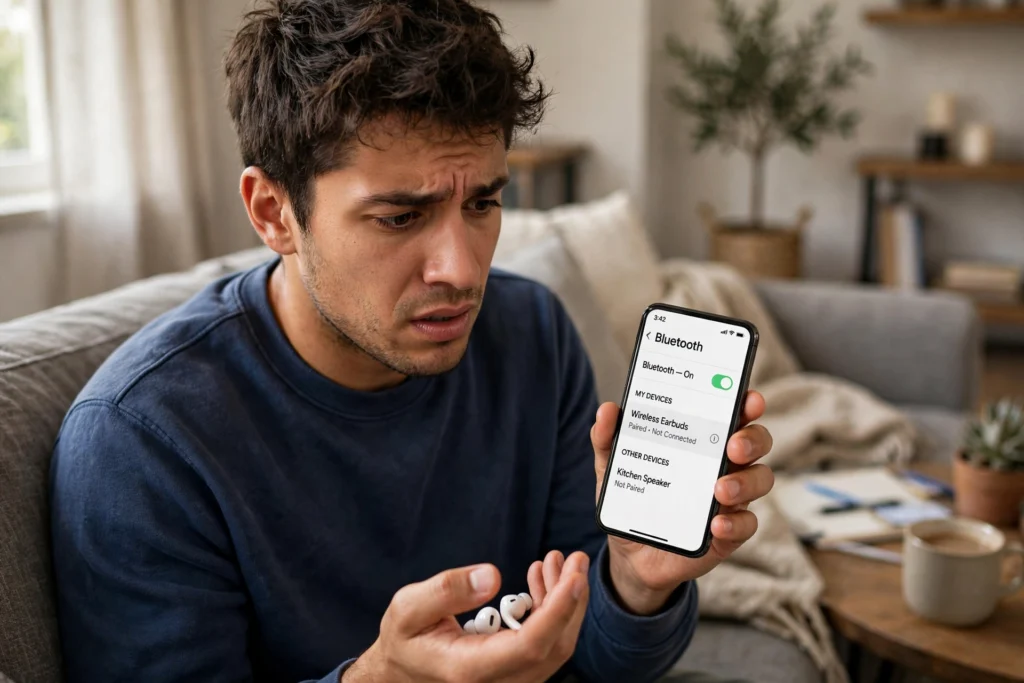
Why Does My Device Say “Paired” but Won’t Connect?
If your device appears as paired but will not connect, the original setup may still be saved even though the active connection cannot be established.
Try these steps in order. Test the connection after each step so you can identify what fixed the problem.
1. Check that Bluetooth is turned on
Make sure Bluetooth is enabled on both devices. If you are using headphones, a keyboard, or a speaker, confirm that it has enough battery power and is switched on.
2. Move the devices closer together
Place the devices near each other and try connecting again. Walls, interference, and distance can affect Bluetooth performance.
3. Check whether the accessory is connected elsewhere
Some accessories connect to another phone, tablet, or computer and then refuse a new connection.
Turn Bluetooth off temporarily on the other device, or disconnect the accessory from it. Then try connecting from the device you want to use.
This is a common issue with earbuds and headphones that support multipoint or automatic reconnection.
4. Disconnect and reconnect
If the device is already listed as connected but does not work, disconnect it and connect it again.
For headphones, also check that they are selected as the audio output. A successful Bluetooth connection does not always mean your phone or computer is sending sound to the correct device.
5. Restart both devices
Restart your phone or computer and turn the accessory off and on again. This can clear a temporary software problem without deleting the saved pairing.
6. Forget the device and pair it again
If the earlier steps fail, remove the saved pairing and set it up again.
- Open the Bluetooth settings on your phone or computer.
- Select the device that is not connecting.
- Choose Forget, Unpair, or Remove device, depending on your system.
- Put the accessory into pairing mode.
- Search for it again and complete the pairing process.
This can help when the saved pairing information no longer matches what the accessory expects. It is especially useful after certain resets or when a device has been set up again with another phone.
Keep in mind that forgetting a device removes its saved pairing from that phone or computer. It does not necessarily erase every pairing stored on the accessory itself.
For more help, look into Bluetooth pairing PIN errors and passkey problems.
7. Check for device-specific problems
If the device still will not connect, look for firmware updates or troubleshooting instructions from its manufacturer.
On a Windows computer, you can also check whether the Bluetooth adapter is working correctly. On a phone, a system update or accessory reset may help, but follow the manufacturer’s instructions before resetting anything.
Avoid resetting all network settings or removing Bluetooth drivers as your first step. These actions can affect other connections and may create more work than necessary.
Disconnecting vs. Unpairing: What Is the Difference?
Disconnecting and unpairing are not the same action.
| Action | What it does | Is the saved pairing kept? | When to use it |
|---|---|---|---|
| Disconnect | Ends the active Bluetooth connection | Usually yes | When you want to stop using a device temporarily |
| Forget or unpair | Removes the saved pairing from your phone or computer | No, not on that device | When you want to remove an old device or fix a pairing problem |
| Turn Bluetooth off | Stops Bluetooth communication from that device while it is off | Usually yes | When you want to stop Bluetooth use temporarily |
For example, if you disconnect your headphones, they may reconnect later without another setup. If you forget them, you usually need to pair them again before using them.
Unpairing does not normally delete your photos, music, or other personal files. It removes the Bluetooth pairing relationship from the device where you choose Forget or Remove. Some accessories may also need a separate reset to clear their own saved device list.
If you want to remove an old accessory completely from your saved list, look into how to unpair a Bluetooth device step by step.
Frequently Asked Questions
Does leaving Bluetooth paired drain my phone battery?
Keeping a device paired in the saved list usually uses little power by itself. Battery use depends more on whether Bluetooth is enabled, whether active connections are maintained, and what data is being transferred.
You generally do not need to forget a trusted device just to save battery. If you are not using Bluetooth, you can turn it off when appropriate.
Can two Bluetooth devices pair without a password?
Yes. Many modern Bluetooth devices pair without asking you to enter a password. They may use a confirmation prompt, a button press, or another supported security method.
Some older devices and certain accessories require a PIN or passkey. Follow the instructions for the specific model rather than assuming every device uses the same default code.
What is the difference between unpairing and disconnecting?
Disconnecting ends the active wireless link but usually keeps the saved pairing information. Unpairing or forgetting removes that saved relationship, so you generally have to pair the devices again before reconnecting.
Why does my device keep connecting to the wrong phone?
The accessory may be reconnecting to another device it remembers. Disconnect it from that device, turn Bluetooth off there temporarily, or review the accessory’s multipoint settings. Then connect it to the phone you want to use.
Does pairing mean my Bluetooth device is ready to use?
Not always. Pairing saves the relationship between the devices, but the connection may still need to be established. You may also need to select the correct service, such as the audio output on a phone or computer.
Do I need to pair my Bluetooth device every time?
Usually not. If both devices retain their pairing information, they can often reconnect automatically. You may need to pair them again if you forget the device, reset the accessory, clear its stored settings, or encounter a pairing problem.
Final Takeaway
Bluetooth pairing is the setup step that helps devices recognize and trust each other. Connecting is the step that creates an active link so they can exchange data.
Remember the phone call example: pairing saves the number, while connecting starts the call. If a device says it is paired but will not connect, check its power, distance, and other active connections first. Forgetting and pairing it again is a useful next step when simpler fixes do not work.
Does leaving Bluetooth paired drain my phone battery?
Keeping a device paired in the saved list usually uses little power by itself. Battery use depends more on whether Bluetooth is enabled, whether active connections are maintained, and what data is being transferred. You generally do not need to forget a trusted device just to save battery. If you are not using Bluetooth, you can turn it off when appropriate.
Can two Bluetooth devices pair without a password?
Yes. Many modern Bluetooth devices pair without asking you to enter a password. They may use a confirmation prompt, a button press, or another supported security method. Some older devices and certain accessories require a PIN or passkey. Follow the instructions for the specific model rather than assuming every device uses the same default code.
What is the difference between unpairing and disconnecting?
Disconnecting ends the active wireless link but usually keeps the saved pairing information. Unpairing or forgetting removes that saved relationship, so you generally have to pair the devices again before reconnecting.
Why does my device keep connecting to the wrong phone?
The accessory may be reconnecting to another device it remembers. Disconnect it from that device, turn Bluetooth off there temporarily, or review the accessory's multipoint settings. Then connect it to the phone you want to use.
Does pairing mean my Bluetooth device is ready to use?
Not always. Pairing saves the relationship between the devices, but the connection may still need to be established. You may also need to select the correct service, such as the audio output on a phone or computer.
Do I need to pair my Bluetooth device every time?
Usually not. If both devices retain their pairing information, they can often reconnect automatically. You may need to pair them again if you forget the device, reset the accessory, clear its stored settings, or encounter a pairing problem.


2 Comments
Pingback: How to Pair Bluetooth Samsung Galaxy (One UI Guide)
Pingback: Bluetooth Range Explained: How Far It Reaches in Real Life