

In this article:
- What Does “Pairing Mode” Actually Mean?
- The Biggest Mistake: Power On vs. Pairing Mode
- First-Time Pairing vs. Second-Time Pairing
- How to Put Any Device in Pairing Mode (The Universal Cheat Sheet)
- How to Know if Pairing Mode is Active
- Why Won’t My Device Enter Pairing Mode? (Troubleshooting)
- Next Step: Connect Your Device
- Frequently Asked Questions
Bluetooth pairing mode is a special state where a device announces itself to nearby phones and computers, so they can find it and connect for the first time. Until a device is in pairing mode, a new phone can’t see it.
That’s why a speaker can be switched on, with its light glowing, and still not show up in your phone’s Bluetooth list. Turning a device on is not the same as putting it in pairing mode. Below you’ll learn what pairing mode is, how to start it on almost any device, and what to do when it won’t turn on.
What Does “Pairing Mode” Actually Mean?
Every Bluetooth connection has two sides:
- The accessory is the device that needs to be found, like headphones, a speaker, earbuds, or a keyboard.
- The host is the device that does the searching, like your phone or laptop.
Pairing mode makes the accessory discoverable. That means it sends out a signal saying, “I’m here, you can connect to me.” Your phone hears that signal and adds the device to its list.
Once you tap the device, the two sides do a quick security check, sometimes called a handshake. They swap secret keys and agree to trust each other. That is pairing.
Pairing and connecting are not the same thing. Pairing happens once, the first time. Connecting happens every day after that, automatically, using the keys they saved. You only need pairing mode for the first step.
the full difference between pairing and connecting
The Biggest Mistake: Power On vs. Pairing Mode
Most “my Bluetooth device won’t show up” problems come from one mix-up.
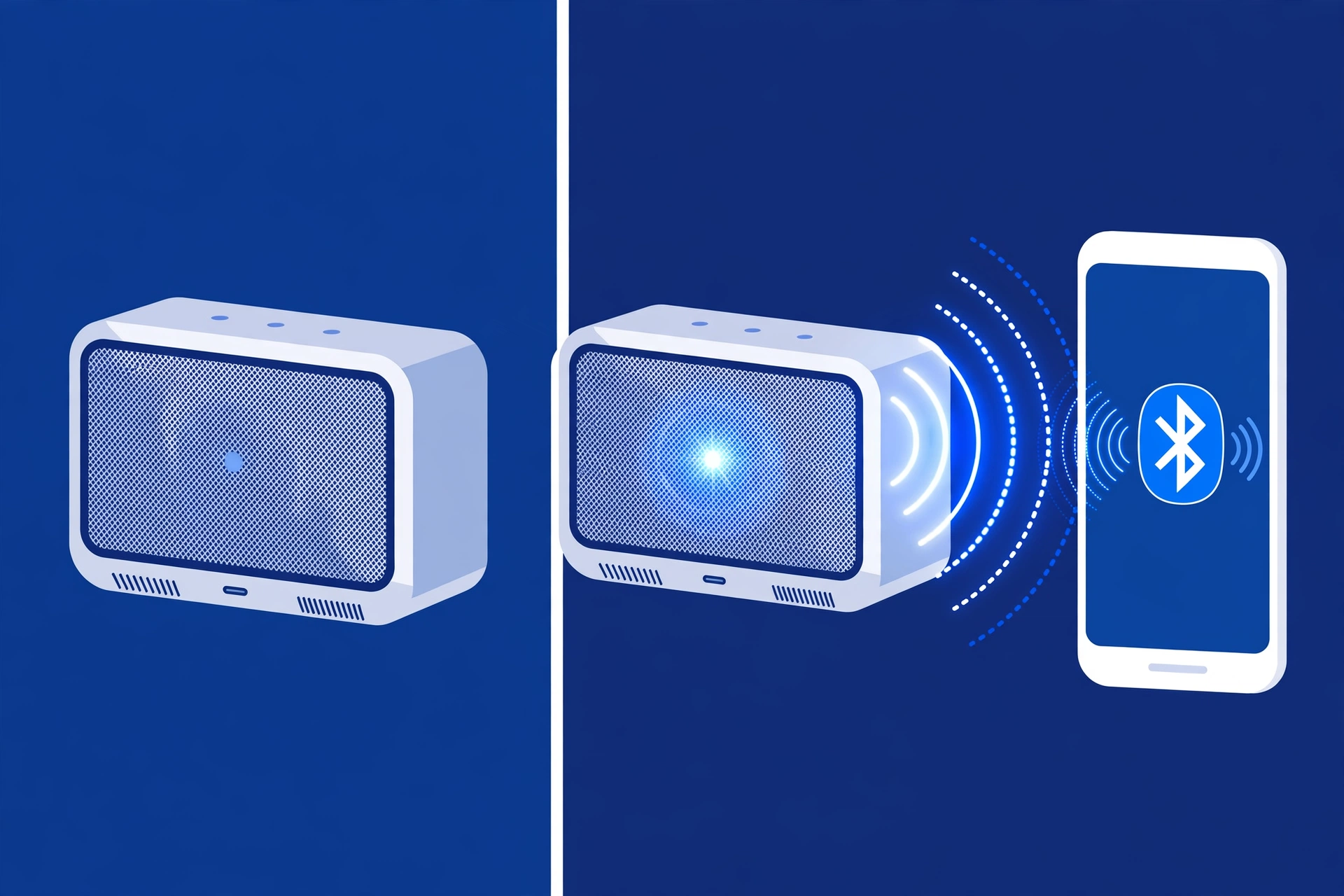
When you turn on a device you’ve paired before, it doesn’t broadcast to the world. It quietly looks for the phone or laptop it already knows and connects to that. It only becomes visible to new devices when you put it into pairing mode on purpose.
Think of a shop with a “closed” sign. The lights are on, someone is inside, but customers can’t walk in. Pairing mode flips the sign to “open.”
So if your headphones are on and your phone can’t find them, don’t keep scanning. Start pairing mode first, then scan.
First-Time Pairing vs. Second-Time Pairing
Many people notice something odd. A new pair of earbuds paired in seconds out of the box, but pairing them with a second phone a month later was a headache.
Here’s why:
| First time (brand new device) | Later (a device that’s been paired before) | |
|---|---|---|
| What happens when you turn it on | Many devices go into pairing mode on their own | It tries to reconnect to an old device |
| Is it visible to new devices? | Usually yes | Usually no |
| What you need to do | Just turn it on and scan | Start pairing mode with a button press |
Once a device has saved a pairing, it stops advertising to strangers. If that saved pairing is broken or outdated, it can make things harder. That’s why clearing old pairings, which is covered later, sometimes helps.
How to Put Any Device in Pairing Mode (The Universal Cheat Sheet)
Every brand does this a little differently, but almost all devices use one of three methods. Check your manual if none of these work, since button names and hold times vary.
Method 1: The Dedicated Bluetooth Button (Speakers & Keyboards)
Many speakers, keyboards, and mice have a button with the Bluetooth symbol or a button labeled “Pair” or “Connect.”
- Turn the device on.
- Press and hold the Bluetooth or Pair button for about 3 to 5 seconds.
- Release when the light starts flashing or you hear a sound.
On some keyboards, the pairing key is a function key combined with a number, such as Fn plus a Bluetooth key. Keyboards with several channels often need you to hold the channel key until its light blinks fast.
how to pair a Bluetooth speaker
how to pair a Bluetooth keyboard or mouse
Method 2: Holding Power from an “Off” State (Headphones)
Many headphones don’t have a separate pairing button. The power button does both jobs.
- Make sure the headphones are fully off.
- Press and hold the power button, and keep holding after the headphones turn on.
- Release when you hear “pairing” or see the light flash.
The key is to start from off. A quick press turns the headphones on. A long press, usually 5 to 7 seconds, switches on pairing mode.
how to pair Bluetooth headphones of any brand
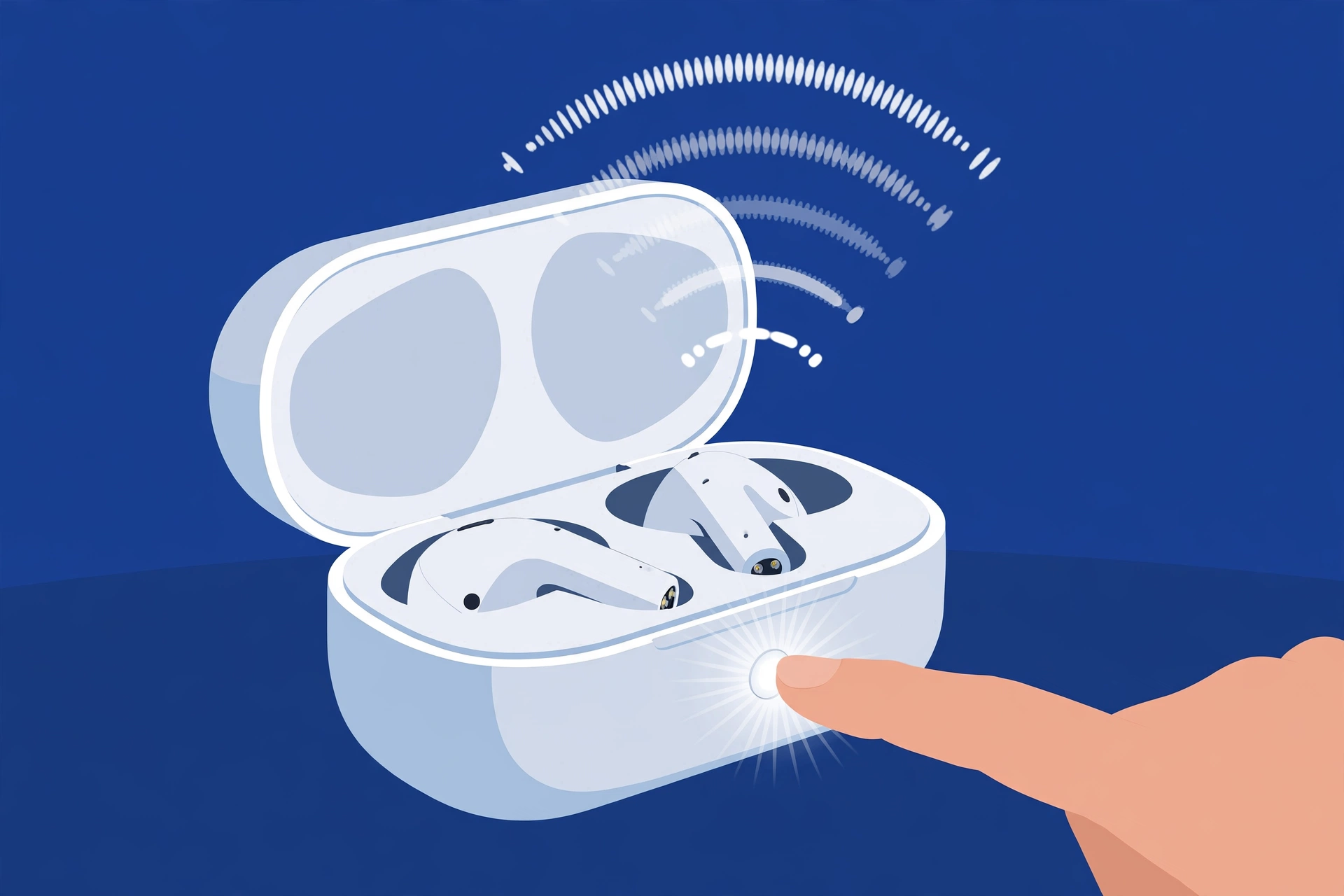
Method 3: The Charging Case Button (True Wireless Earbuds)
Earbuds that come in a charging case often start pairing from the case.
- Put both earbuds in the case, and keep the lid open.
- Press and hold the small button on the case, often on the back or side, until the light flashes. On some models, you instead hold touch controls on the earbuds themselves.
- Keep the case close to your phone and scan.
For example, on AirPods, you hold the setup button on the back of the case until the light flashes white.
how to pair Bluetooth earbuds of any brand
How to Know if Pairing Mode is Active
Don’t guess. Your device will usually tell you in one of two ways: a light or a voice.
| What you see or hear | What it usually means |
|---|---|
| Light flashing blue and red, or rapidly flashing blue | Pairing mode is on |
| Fast white flashing light | Pairing mode is on (common on earbud cases) |
| Voice says “pairing” or “ready to pair” | Pairing mode is on |
| Slow blue blink or pulse | Waiting to reconnect to a known device, not pairing |
| Solid light | Usually already connected |
| No light | Off, or the battery is dead |
Colors and patterns differ by brand, so treat this as a guide, not a rule. If your phone still doesn’t find the device after you see the pairing light, scan again right away. Pairing mode doesn’t last forever. Most devices turn it off after a few minutes to save battery.
Why Won’t My Device Enter Pairing Mode? (Troubleshooting)
If the light won’t flash no matter how long you hold the button, one of these three things is usually the cause.
“Device Stealing” (Multipoint Conflicts)
This is the most overlooked reason. If your headphones were paired with a laptop, tablet, or phone that is nearby with Bluetooth on, they may connect to it the moment you turn them on. When that happens, they act connected and won’t enter pairing mode.
Picture earbuds that instantly jump to an old iPad sitting in the next room. They never get a chance to show up for your new phone.
The fix: Turn off Bluetooth on every other device the accessory has been paired with, or move far away from them. Then turn the accessory off and on, and start pairing mode again.
Some newer accessories support multipoint, which lets them stay connected to two devices at once. Most everyday headphones and speakers can only manage one active connection.
why earbuds keep connecting to the wrong device
Low Battery Restrictions
A nearly empty battery can stop a device from entering pairing mode, or from broadcasting a strong enough signal to be seen. Charge it for at least 15 to 30 minutes, then try again. Some devices won’t start pairing mode at all while they are plugged in and charging, so try it unplugged too.
Factory Resetting the Accessory
If the first two don’t help, the accessory may be holding on to a broken saved pairing. A factory reset wipes its Bluetooth memory so it starts fresh. The method differs by brand. It often means holding the power or pairing button for around 10 seconds, until the light blinks a certain way. Your manual will have the exact steps.
After a reset, remove the accessory from your phone’s Bluetooth list too, then pair again from scratch.
how to reset Bluetooth headphones
how to reset a Bluetooth speaker
how to forget a Bluetooth device on any platform
Next Step: Connect Your Device
Once your device is flashing, you’re halfway there. Now open the Bluetooth settings on your phone or computer, wait for the device name to appear, and tap it. The exact steps depend on your operating system.
the complete guide to pairing Bluetooth devices on any device
If the light is flashing but your phone still can’t find the device, or the pairing fails after you tap it, those are different problems with their own fixes.
what to do when a Bluetooth device is not discoverable
how to fix Bluetooth pairing failures
Frequently Asked Questions
How do I turn on pairing mode?
For most devices, hold the pairing button or the power button until a light flashes or a voice says “pairing.” Speakers and keyboards usually have a Bluetooth button. Headphones use a long press of the power button from off. Earbuds usually use a button on the charging case.
How do I make my earbuds discoverable?
Put both earbuds in the case with the lid open, then hold the button on the case until the light flashes. Keep the case close to your phone while you scan.
What does a flashing blue and red light mean?
On many devices, it means pairing mode is on and the device is waiting to be found. Check your manual to be sure, since colors vary by brand.
Why doesn’t my device show up on my phone when I turn it on?
Turning a device on doesn’t make it visible. It needs to be in pairing mode. If it was paired before, it may also have reconnected to another nearby device instead.
Why did my headphones connect to my laptop instead of going into pairing mode?
They remembered the laptop and connected to it automatically. Turn off Bluetooth on the laptop, then start pairing mode again.
