

“Pairing Unsuccessful.” “Pairing Rejected.” “Incorrect PIN or Passkey.” If you’re seeing an error like this, your phone and your accessory can already see each other, you tapped the device name, and the connection still fell apart. That’s a different problem than a device that never shows up in the scan at all, and it needs a different fix.
Most pairing rejections come down to one of a few things: leftover connection data left over from a previous pairing, a PIN or passcode mismatch, a competing device holding the connection hostage, or a permission the phone needs but never got. The steps below go in order, from the most common cause to the least, so you can stop at whichever one fixes it.
In this article:
- “Pairing Failed” vs. “Device Not Found”: What’s the Difference?
- Step 1: Clear Stale Pairing Records (On Both Devices)
- Step 2: Break Active Connections with Competing Devices
- Step 3: Resolve PIN, Passkey, and Passcode Errors
- Step 4: Grant Required App & Location Permissions
- Step 5: Reset the Bluetooth System Cache (Android & Windows)
- Still Failing? Next Troubleshooting Steps
- Frequently Asked Questions
“Pairing Failed” vs. “Device Not Found”: What’s the Difference?
These two problems look similar but come from different places, and mixing them up wastes time. Device not found’ means your phone’s scan never sees the accessory at all, usually because the accessory isn’t in discoverability mode, the state where it actively broadcasts itself so nearby phones can find it. ‘Pairing failed’ means the opposite: the accessory is discoverable, it shows up in the list, you tap it, and the security handshake, the exchange of keys or a PIN that confirms both devices agree to connect, breaks down partway through.
If your problem is that the device never appears in the list in the first place, the fixes below won’t help much.
Step 1: Clear Stale Pairing Records (On Both Devices)
This fixes more pairing rejections than anything else on this list, and it’s also the step most guides get half right. Here’s the part they usually miss: a corrupted pairing record doesn’t just live on your phone. It also lives on the accessory itself, in its own memory. Forgetting the device on your phone only clears half the problem.
Think of it as a two-sided handshake. Both sides need to agree on the same connection keys, and if one side is still holding onto an old, broken version of that agreement, the new attempt gets rejected even after you’ve forgotten the device on your phone.
To fully clear it:
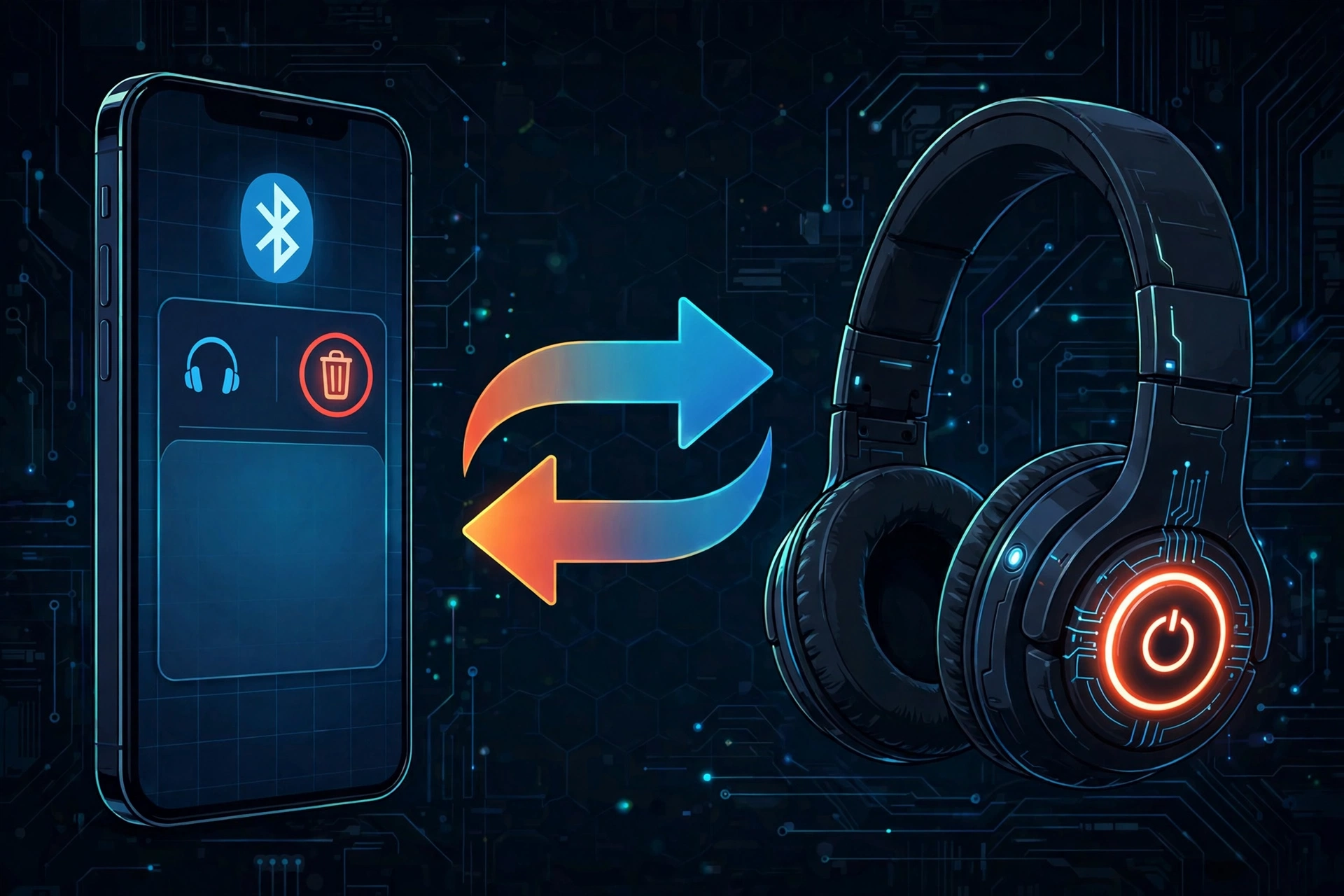
- On your phone: go into Bluetooth settings, find the device, and choose “Forget” or “Unpair.” Don’t just disconnect, actually remove it.
- On the accessory: most headphones, earbuds, and speakers have their own way to clear saved pairings, often by holding the power button for 8 to 10 seconds until you hear a tone or see a flashing light, or by using a dedicated pairing button. The exact method varies by brand, so check the accessory’s manual if you’re not sure.
Do both, then put the accessory into pairing mode and try again. This gives both sides a completely clean slate instead of one clean device shaking hands with one that still remembers the old, broken connection.
Here’s what this looks like in practice: you forget a pair of headphones on your phone, then try to pair them again, and you still get “Pairing Rejected.” That’s confusing if you assume forgetting the device on your phone was the whole fix. It wasn’t. The headphones themselves still have your phone’s old connection details saved in their own memory, and they’re rejecting the new handshake because it doesn’t match what they’re still expecting. Resetting the headphones’ own pairing memory is the step that actually clears it.
Step 2: Break Active Connections with Competing Devices
Sometimes a pairing attempt gets rejected not because the data is corrupted, but because the accessory is already busy. Many Bluetooth accessories can only hold one active connection at a time, and if yours is quietly still connected to a laptop across the room or a tablet in a bag, it may reject a new pairing request from your phone outright instead of switching over.
This is especially common with earbuds and headphones you’ve used with multiple devices. Turn off Bluetooth on whatever else the accessory might already be connected to, or move out of range of it, then try pairing again. Some newer devices support multipoint pairing, letting them stay linked to two devices at once, but most everyday accessories still can’t juggle a new pairing request while an old connection is active.
Step 3: Resolve PIN, Passkey, and Passcode Errors
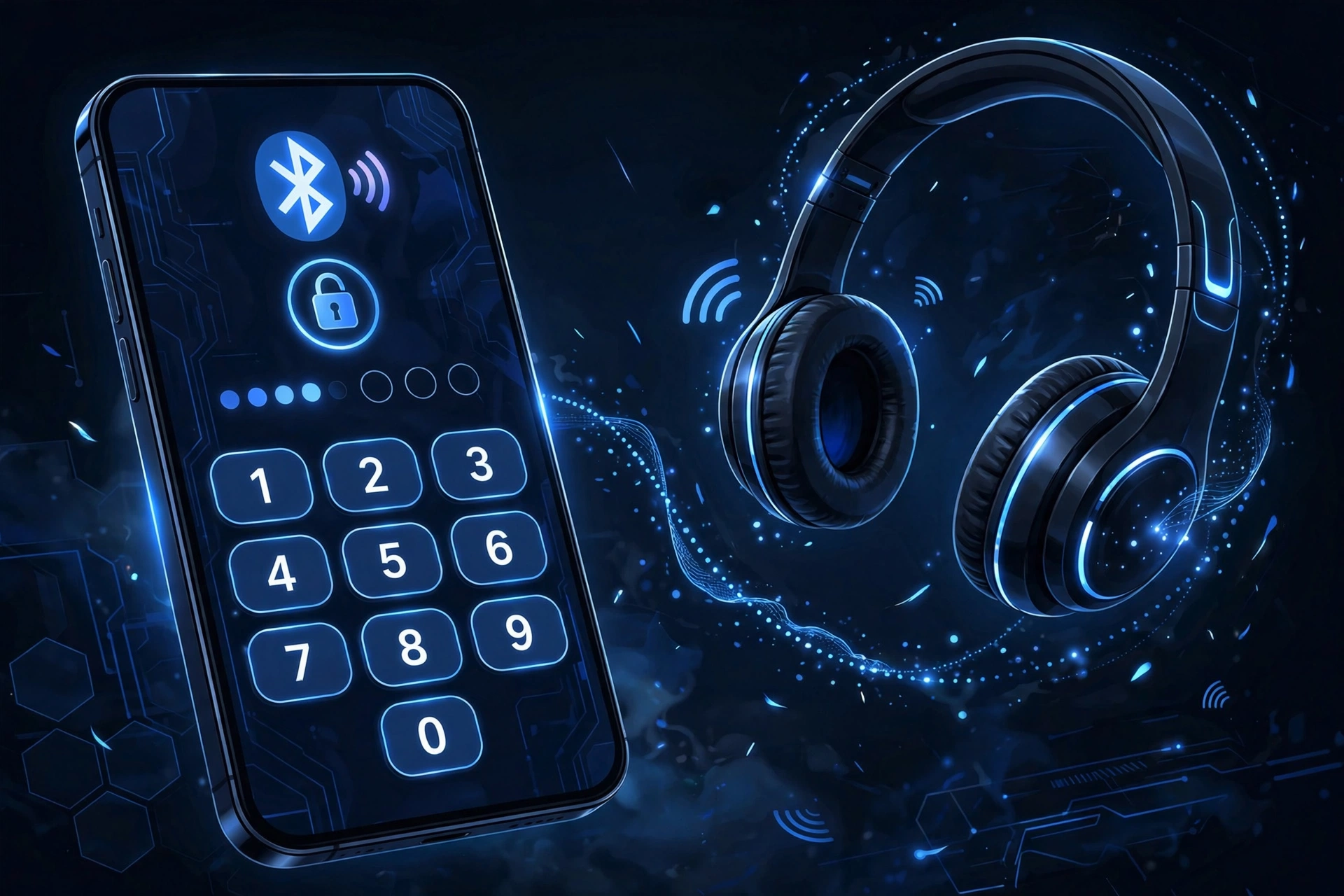
If you’re getting an actual “Incorrect PIN” or “Incorrect Passkey” popup, the devices found each other and started the handshake, but the security code didn’t match. This is most common with older or simpler accessories that don’t have a screen of their own, like basic headsets, car stereos, or older keyboards.
These headless devices, meaning devices with no screen to display a custom code, almost always use a fixed default PIN instead of generating one on the fly. If your phone is prompting you for a code and you don’t know it, try these first, in order:
- 0000
- 1234
- 8888
Check the accessory’s manual or the sticker on the device itself if none of these work, since some manufacturers use a different fixed code. Devices with their own screen, like some car infotainment systems, usually generate a matching code on both screens for you to confirm instead of asking you to type one in blind.
Step 4: Grant Required App & Location Permissions
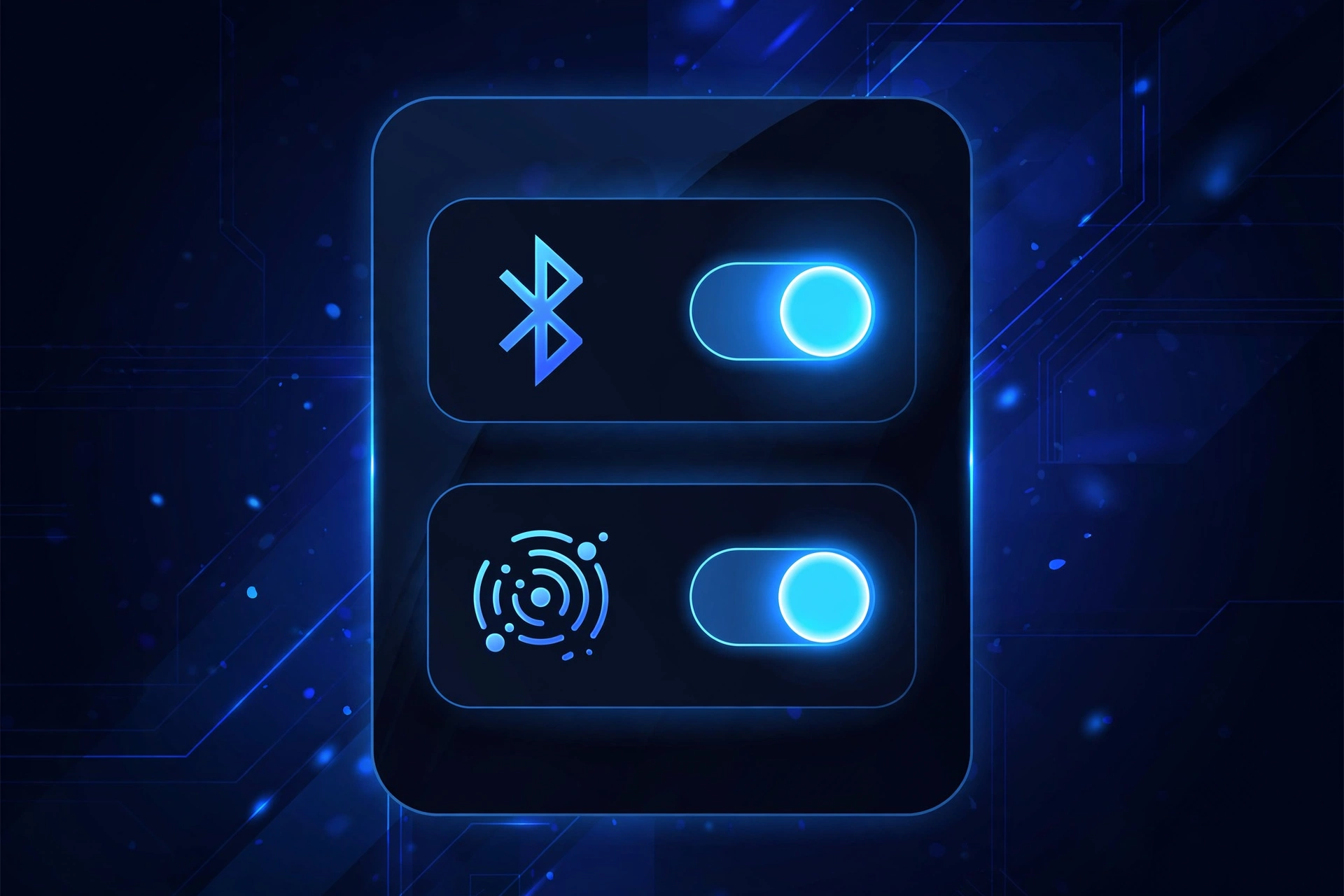
Modern phones add a layer that older troubleshooting advice doesn’t account for: app permissions. On Android, Bluetooth pairing for many accessories requires the ‘Nearby Devices’ permission, and on some older Android versions, Location permission too. That’s not because Bluetooth and location share hardware, it’s because a Bluetooth scan can reveal roughly where you are, so Android treats scanning as a location-sensitive action and requires the same permission. If that permission was denied, either by you or by a default setting, the pairing handshake can fail silently without a clear error message.
On iPhone, a similar block exists as the Bluetooth privacy toggle for the specific companion app you’re using, found under Settings, then Privacy & Security, then Bluetooth. If a fitness tracker or a pair of smart headphones won’t pair through their own app, this is worth checking before assuming the hardware is at fault.
This also applies to Google Fast Pair and Apple’s pairing system for accessories with the H1 or H2 chip, both found in AirPods and similar devices. These systems rely on the same underlying permissions, and Fast Pair specifically requires the accessory to be within about half a meter of your phone to trigger, much closer than standard Bluetooth pairing needs.
Step 5: Reset the Bluetooth System Cache (Android & Windows)
If nothing above has worked, the software running Bluetooth itself may have corrupted data separate from any single device’s pairing record. On Android, this means going into Settings, then Apps, finding the Bluetooth system app, and clearing its cache specifically, not its data, which would also wipe your saved device list unnecessarily.
On Windows, Bluetooth pairing is handled by a background service rather than a simple app cache, and restarting it correctly involves a few more steps than the Android equivalent.
Still Failing? Next Troubleshooting Steps
If you’ve cleared both sides’ pairing records, checked for competing connections, confirmed the PIN, and granted the right permissions, and the handshake is still failing, the issue is likely something broader than this specific pairing attempt.
If the real problem is that the accessory never showed up to pair with in the first place, that’s a discovery issue rather than a handshake failure.
Frequently Asked Questions
Why does my phone say “Pairing Unsuccessful”?
Usually it means the security handshake between the two devices broke down, most often because one side still has a corrupted or outdated pairing record from before. Clear the pairing on both your phone and the accessory itself, then try again from scratch.
Why is my Bluetooth pairing rejected by the device?
This can happen if the accessory is already connected to another device and can’t accept a new pairing request, or if there’s a leftover pairing record on the accessory’s own memory that doesn’t match what your phone is sending. Disconnecting the accessory from other devices and clearing pairing data on both sides usually resolves it.
What is the default Bluetooth pairing PIN code?
The most common default codes are 0000, 1234, and 8888. These are typically used by headless devices, meaning accessories without their own screen, like basic headsets or older keyboards. Check the accessory’s manual if none of these work.
Why does my speaker reject pairing even though I put it in pairing mode?
It’s likely still holding an old pairing record for a different device, or it’s currently connected to something else nearby. Reset the pairing data on the speaker itself, not just on your phone, and make sure nothing else with Bluetooth on is already connected to it.
Do I need to reset my headphones if my phone refuses to pair with them?
Not always, but it’s one of the most effective fixes when a straightforward pairing attempt keeps failing. Forgetting the device on your phone only clears half of the stored connection data. Resetting the headphones themselves clears the other half, which is often the actual cause of the rejection.
