

Bluetooth not connecting is one of the most frustrating tech problems, because it usually shows up without warning. One moment your headphones or speaker paired fine, and the next your phone can’t even find the device during a scan, or the connection just quietly fails to complete after you tap it. Sometimes it looks like a full connection failure, and other times the device shows up as paired but nothing actually goes through, the handshake never completes. Either way, you’re left guessing whether the problem is your phone, the accessory, or something in between.
The good news is that most Bluetooth connection failures come down to a small handful of causes: a device stuck in discovery mode, a battery too low to keep the radio broadcasting at full strength, wireless interference on the same 2.4 GHz band your Bluetooth and Wi-Fi both share, or leftover pairing data that never fully completed a clean handshake the first time. Instead of working through a random list of fixes and hoping one sticks, this guide starts with a two-minute test that tells you exactly which device is causing the problem, then walks you through the fixes in order, from the fastest quick wins to a full network settings reset if nothing else works.
In this article:
- Step 1: The Isolation Test (Find Out Which Device is Broken)
- Step 2: The 60-Second “Quick Fix” Checklist
- Step 3: Stop “Device Stealing” (Check Other Connections)
- Step 4: Forget the Device and Re-Pair
- Step 5: Clear the Bluetooth Cache & Reset Network Settings
- Still Not Connecting? Choose Your Platform or Device
- Frequently Asked Questions
Step 1: The Isolation Test (Find Out Which Device is Broken)
Before you restart anything or change a single setting, do this test. It takes less than two minutes and saves you from applying phone fixes to a broken speaker, or speaker fixes to a broken phone.
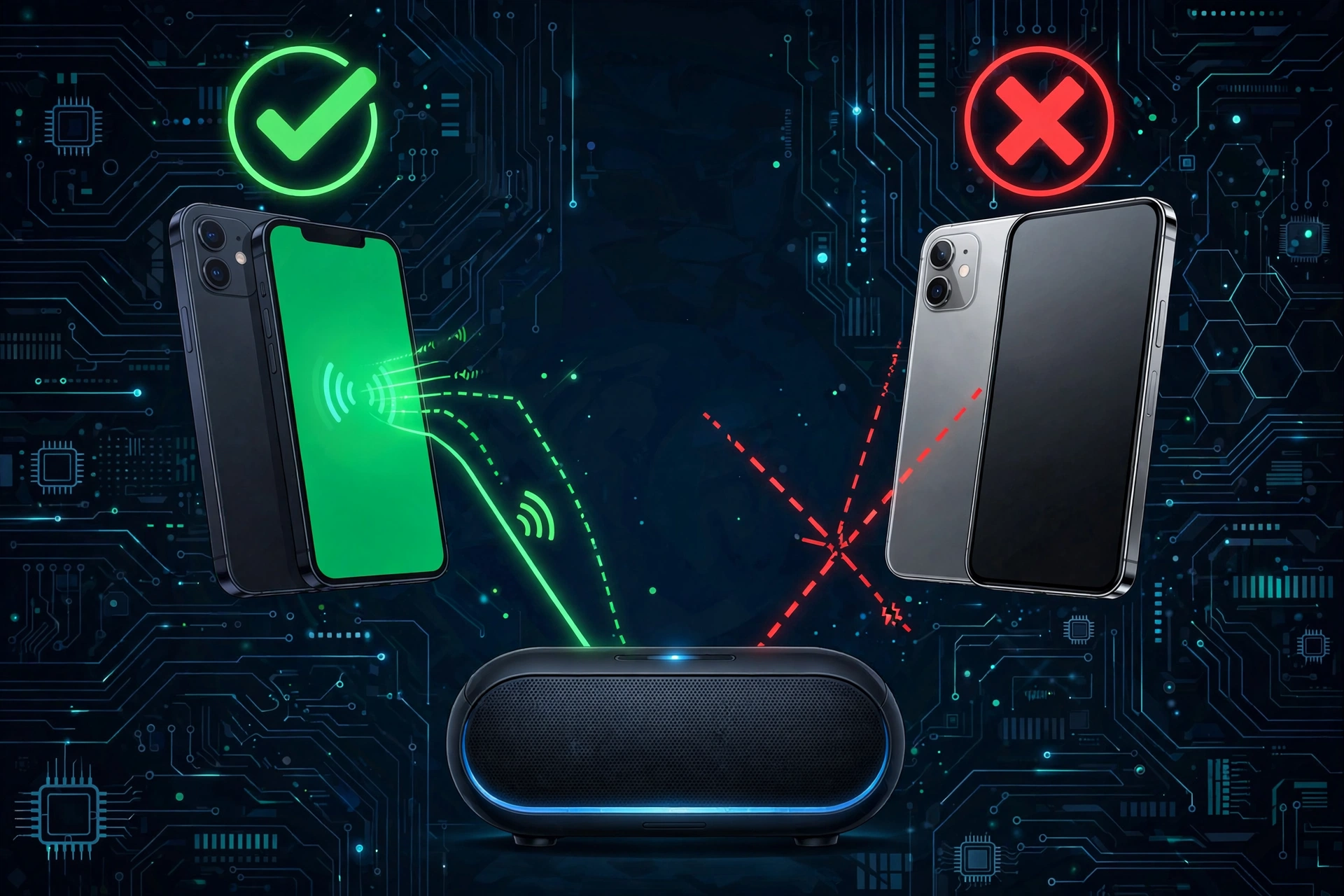
Try connecting your accessory, like a speaker, earbuds, or headphones, to a different phone or tablet. If it connects fine there, the accessory itself is working, and the problem is with your original phone.
Now try the opposite. Connect your phone to a different Bluetooth accessory, like a friend’s speaker or a different pair of headphones. If that works, your phone’s Bluetooth is fine, and the problem is with the original accessory.
This one test tells you exactly where to focus. If neither test works, the problem is more likely to be the specific pairing between these two devices, not either device on its own, which points you toward Step 4 below.
Don’t have a second phone or accessory to test with? You can still narrow things down. If your phone can successfully find and connect to any other Bluetooth device at all, even a car stereo or a friend’s headphones for a few seconds, that tells you your phone’s Bluetooth hardware is working, and the problem is more specific to this one accessory or this one pairing. Even your own body can weaken a Bluetooth signal enough to cause a failed connection, since it partially absorbs the 2.4 GHz signal, which is part of why keeping a clear line of sight between devices helps.
Step 2: The 60-Second “Quick Fix” Checklist
These are the fixes that solve most Bluetooth connection problems in under a minute, and they’re worth doing even if you think you’ve already tried them.
- Toggle Bluetooth off and on. This alone clears a surprising number of minor software glitches, since it forces the radio to fully reset its current state.
- Restart both devices. Turn off both your phone and the accessory, wait about 30 seconds, then turn them back on. A quick toggle isn’t always enough, a full restart clears more of the device’s temporary memory than simply switching Bluetooth off and on.
- Check battery levels. A low battery can put a device into a power-saving state that weakens or disables Bluetooth entirely. Keep both devices above roughly 20% before trying again, this is one of the most overlooked causes of connection failures.
- Move the devices closer together. Device discovery, the process of two Bluetooth devices finding each other, works best within a few feet, with nothing solid blocking the signal, especially during the first connection attempt.
- Move away from Wi-Fi routers and microwaves. Bluetooth and most Wi-Fi routers share the same 2.4 GHz ISM band, so pairing near a router, a running microwave, or a room packed with other wireless devices can cause discovery to fail or connections to drop. Unshielded USB 3.0 ports and hubs can also create interference on this same frequency range, so if your accessory or its dongle is plugged into a USB 3.0 port on a laptop, try a different port or move it further away from other USB 3.0 devices.
If your Bluetooth won’t connect and you haven’t tried all five of these yet, start here before moving on to anything more involved.
Step 3: Stop “Device Stealing” (Check Other Connections)
If your Bluetooth shows as paired but not actually connecting, this is often why. Many accessories, especially headphones and earbuds, automatically reconnect to whichever paired device is nearby and has Bluetooth turned on, usually whichever one they connected to most recently.
So if your headphones won’t connect to your laptop, check whether they’re already connected to your phone in your pocket, or even a tablet sitting forgotten in a backpack in another room. The accessory isn’t broken, it’s just busy talking to a different device it can’t see you disconnect from.
Turn off Bluetooth on the other device, or manually disconnect the accessory from it, before trying to pair with the one you actually want. Some newer devices support multipoint pairing, which lets them stay connected to two devices at once and switch between them automatically, but most everyday accessories can only manage one active connection at a time, which is exactly why this “stealing” happens so often.
Step 4: Forget the Device and Re-Pair
If the isolation test pointed to a problem with this specific pairing, rather than either device on its own, the saved connection data between them is likely corrupted.
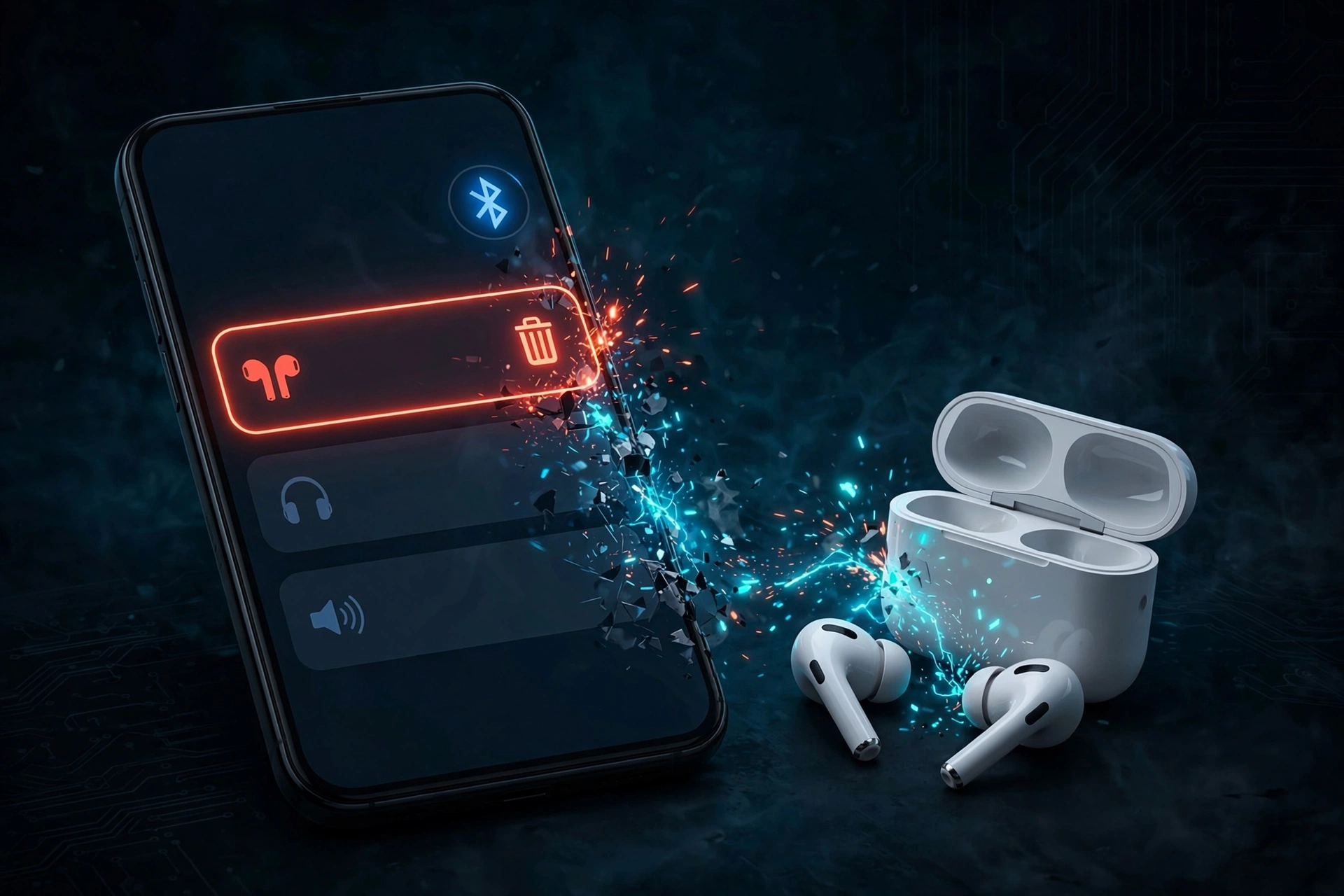
Go into your Bluetooth settings, find the device, and choose “forget” or “unpair” it completely. Don’t just disconnect, actually remove it from the list. Then put the accessory back into pairing mode and connect again from scratch. This forces a brand new handshake, the moment two devices connect for the first time, instead of trying to reuse old, possibly broken connection data.
Here’s where to find this option on each platform:
- On Android: Go to Settings, then Connected devices, tap the gear icon next to the device name, and select Forget.
- On iPhone: Go to Settings, then Bluetooth, tap the small “i” icon next to the device name, and select Forget This Device.
- On Windows: Go to Settings, then Bluetooth and devices, click the device, and select Remove device.
This single step fixes a large share of “paired but not working” problems that the quick fixes above don’t touch.
Step 5: Clear the Bluetooth Cache & Reset Network Settings
If nothing above has worked, this is the deeper fix, and it’s also a common reason Bluetooth starts failing right after a phone software update. Updates sometimes leave behind corrupted background data for the Bluetooth system app, and clearing it forces the phone to rebuild that data from scratch instead of carrying over whatever broke during the update.
On most Android phones, this means going into Settings, then Apps, finding the Bluetooth system app, and clearing its cache (not its data, just the cache, to avoid removing your paired device list unnecessarily). On iPhone, there isn’t a separate cache to clear this way, so the equivalent step is usually a full restart or, if the problem persists, a network settings reset.
If clearing the cache doesn’t help, the next step up is resetting your network settings entirely. On Android, this is usually under Settings, then System, then Reset options, then Reset Wi-Fi, mobile, and Bluetooth. On iPhone, it’s under Settings, then General, then Transfer or Reset iPhone, then Reset Network Settings.
Before you do this, know exactly what it does: it will delete your saved Wi-Fi networks and passwords, along with saved Bluetooth pairings and VPN configurations. It does not delete your photos, apps, messages, or any personal data, only network-related settings. You’ll need to log back into Wi-Fi networks and re-pair Bluetooth devices afterward, so only use this step if the fixes above haven’t worked.
Still Not Connecting? Choose Your Platform or Device
If you’ve worked through the steps above and Bluetooth still won’t connect, the issue is likely something specific to your operating system or the exact device you’re using. These universal fixes cover the most common causes, but deeper, platform-specific problems need a more targeted guide.
If you suspect the problem is a mismatch between an older and a newer device, like a very old speaker struggling to connect to a brand new phone, it’s worth checking whether a Bluetooth version mismatch is involved. Very old devices (Bluetooth 2.1 or earlier) can sometimes struggle to pair with much newer hardware, even though most modern devices are built to stay backward compatible. This is different from an audio codec mismatch, like SBC versus AAC or aptX, which affects sound quality and delay once you’re already connected, not whether the devices can pair in the first place.
Frequently Asked Questions
Why won’t my Bluetooth connect?
Usually it’s one of a handful of common causes: low battery, the accessory already connected to a different device, outdated pairing data, or the devices simply being too far apart or too close to a Wi-Fi router. Start with the quick fix checklist above, most connection problems are solved by one of those five steps.
Why is my Bluetooth paired but not connecting?
This usually means the saved connection data between the two devices has gone bad, or the accessory has auto-connected to a different paired device instead. Try forgetting the device and re-pairing it from scratch, and check whether another device nearby is holding the connection first.
How do I force a Bluetooth connection?
There’s no true “force connect” option on most phones, but forgetting the device completely and re-pairing it achieves the same result. This clears any corrupted handshake data and starts the connection process fresh.
How do I know if my phone’s Bluetooth is broken or if my speaker is broken?
Run the isolation test. Try connecting the speaker to a different phone, and try connecting your phone to a different accessory. Whichever one fails in both tests is the actual problem.
Will resetting my network settings delete my photos or data?
No. A network settings reset only removes saved Wi-Fi passwords, Bluetooth pairings, and VPN configurations. Your photos, apps, messages, and other personal data are not affected.
Why does my Bluetooth keep failing after a software update?
Updates can leave behind corrupted background data for the Bluetooth system app. Clearing the Bluetooth app’s cache, or doing a full network settings reset if that doesn’t help, usually resolves this without needing a full factory reset.
