

Your headphones show as connected. The Bluetooth icon is on. But no sound is coming out, or it’s still playing through your phone or laptop’s own speakers instead. Your device isn’t broken. Bluetooth actually has two separate layers, a connection layer and an audio layer, and this problem almost always means the first one worked while the second one didn’t.
Think of it like plugging in a cable that clicks into place but isn’t actually carrying signal. The devices agreed to connect, but your phone or PC never switched over to sending audio through that connection. The fixes below are ordered the way they should actually be tried: quick routing checks first, then platform-specific settings, then drivers last, since drivers are rarely the real cause and take the longest to fix.
In this article:
- 5 Universal Fixes to Try First
- How to Fix No Sound on Windows 11 & 10
- How to Fix No Sound on Android
- How to Fix No Sound on iPhone & Mac
- Does Your Audio Cut Out When You Open a Game or Voice Chat?
- Frequently Asked Questions
5 Universal Fixes to Try First
These work no matter what device or operating system you’re using, and they solve the problem most of the time.
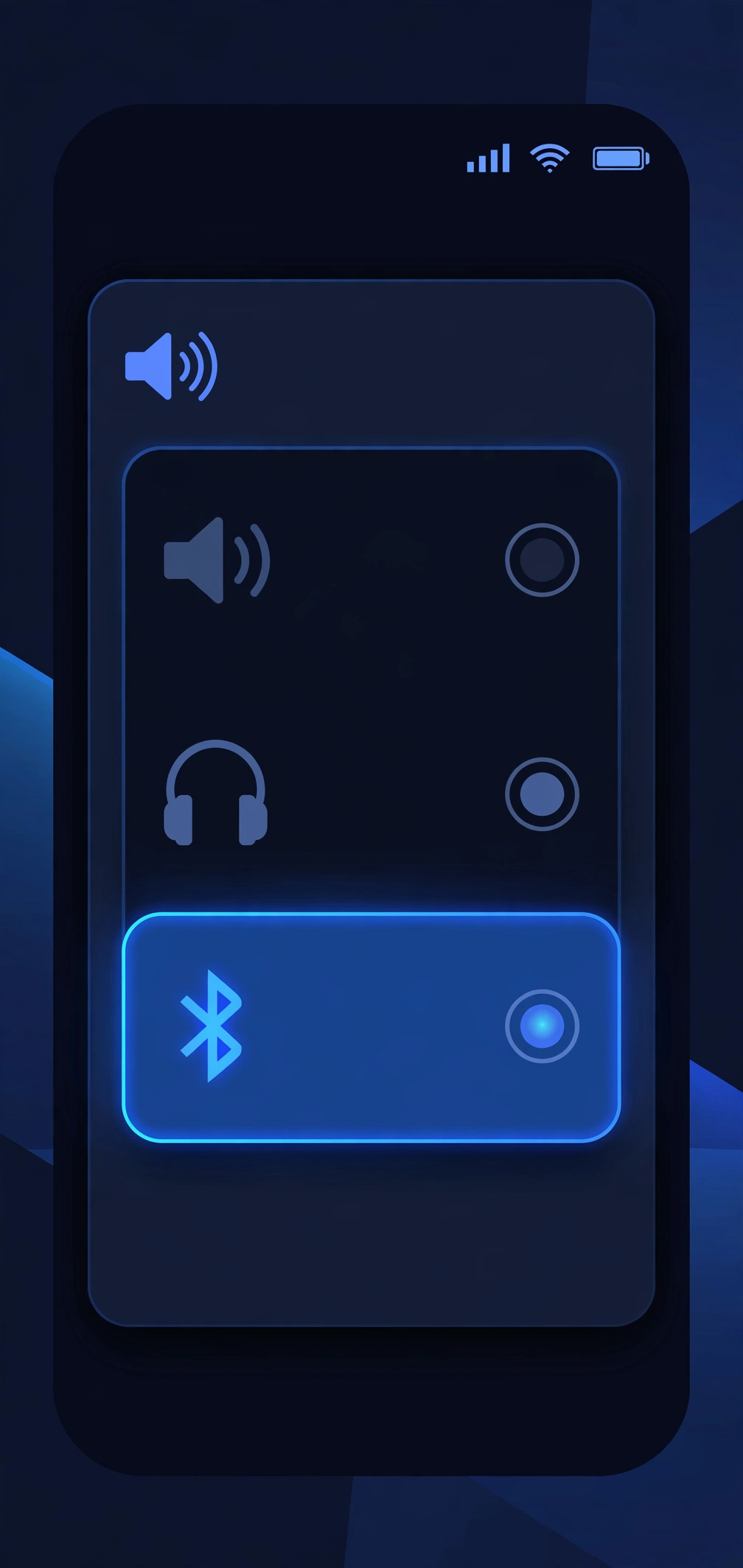
- Confirm the right output is selected. Connected doesn’t always mean selected. Check your phone or computer’s sound output menu and make sure the Bluetooth device is chosen, not the built-in speakers. This single check solves the problem more often than anything else on this list.
- Check both volumes. Check the volume on the Bluetooth accessory itself, and separately check the media volume on your phone or PC. It’s easy to have one turned all the way down without noticing, especially the device-side volume.
- Check the volume mixer. On Windows and some phones, individual apps can have their own volume controls separate from the system volume. If one specific app has no sound but everything else works, its own volume slider in the volume mixer is worth checking before anything else.
- Unpair, restart, and re-pair. Forget the device completely, restart both your phone or PC and the accessory, then pair again from scratch. This clears out stale pairing data that can quietly break the audio route even when the connection itself looks normal.
- Disconnect other paired devices. If the accessory is also paired to another nearby phone, tablet, or laptop, it may be sending audio there instead, or splitting the connection in a way that leaves your current device silent. Turn off Bluetooth on anything else it’s paired with and try again.
How to Fix No Sound on Windows 11 & 10
Windows is the platform most likely to connect a Bluetooth device without actually routing sound to it, and there’s a specific reason why.
Check your default playback device. Right-click the speaker icon in your taskbar, select Sound settings, and make sure your Bluetooth device is chosen as the output, not your PC’s built-in speakers. Windows sometimes reverts to the built-in speakers after a restart even if you set it correctly before.
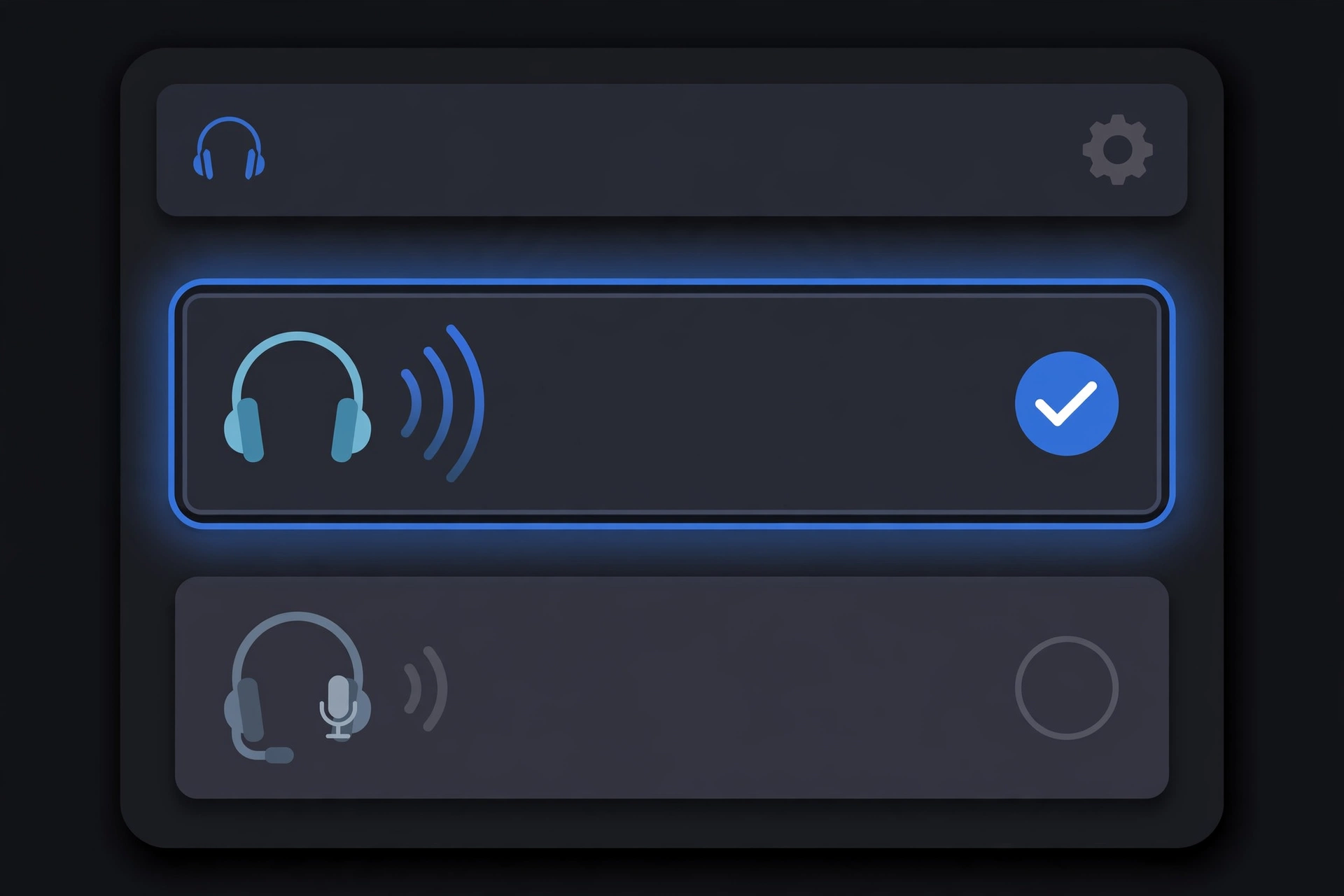
Understand the Stereo vs Hands-Free split. This is the part most guides skip. Windows can show your Bluetooth headset as two separate devices: one labeled something like “Headphones” using A2DP (Advanced Audio Distribution Profile), which gives full stereo, high-quality sound, and one labeled “Hands-Free AG Audio” using HFP (Hands-Free Profile), which is lower quality, often mono, and includes the microphone. If Windows has quietly switched you to the Hands-Free version, that’s why the sound seems weak, tinny, or missing entirely from one side. Go back into Sound settings and select the Stereo or “Headphones” version specifically.
Watch what triggers the switch. Opening Discord, Zoom, or any app that uses your microphone can force Windows to switch your headset from the high-quality Stereo profile to the lower-quality Hands-Free profile automatically, since the mic only works through that profile on Classic Bluetooth. Closing the app, or muting its microphone access, often switches audio back to normal.
If you’re on a newer PC, check LE Audio settings. This only applies if both your headset and PC support Bluetooth LE Audio, most people can skip this paragraph. Windows 11 version 24H2 and newer supports Bluetooth LE Audio, a newer standard that can deliver full stereo sound even while your microphone is active, avoiding the Stereo-vs-Hands-Free problem entirely on supported hardware. If your headset and PC both support it but audio still cuts out or sounds wrong when the mic is on, go to Settings, then System, then Sound, select your device, expand Output settings, then Format, and check “Format when microphone is active.” Switching this between Stereo and Mono can resolve glitches specific to LE Audio devices.
Last resort: update the driver. If none of the above works, an outdated Bluetooth driver can be the real cause, though it’s less common than a routing or profile issue. Update it through Device Manager before trying anything more drastic.
How to Fix No Sound on Android
Android usually has a simpler, more specific fix than Windows does.
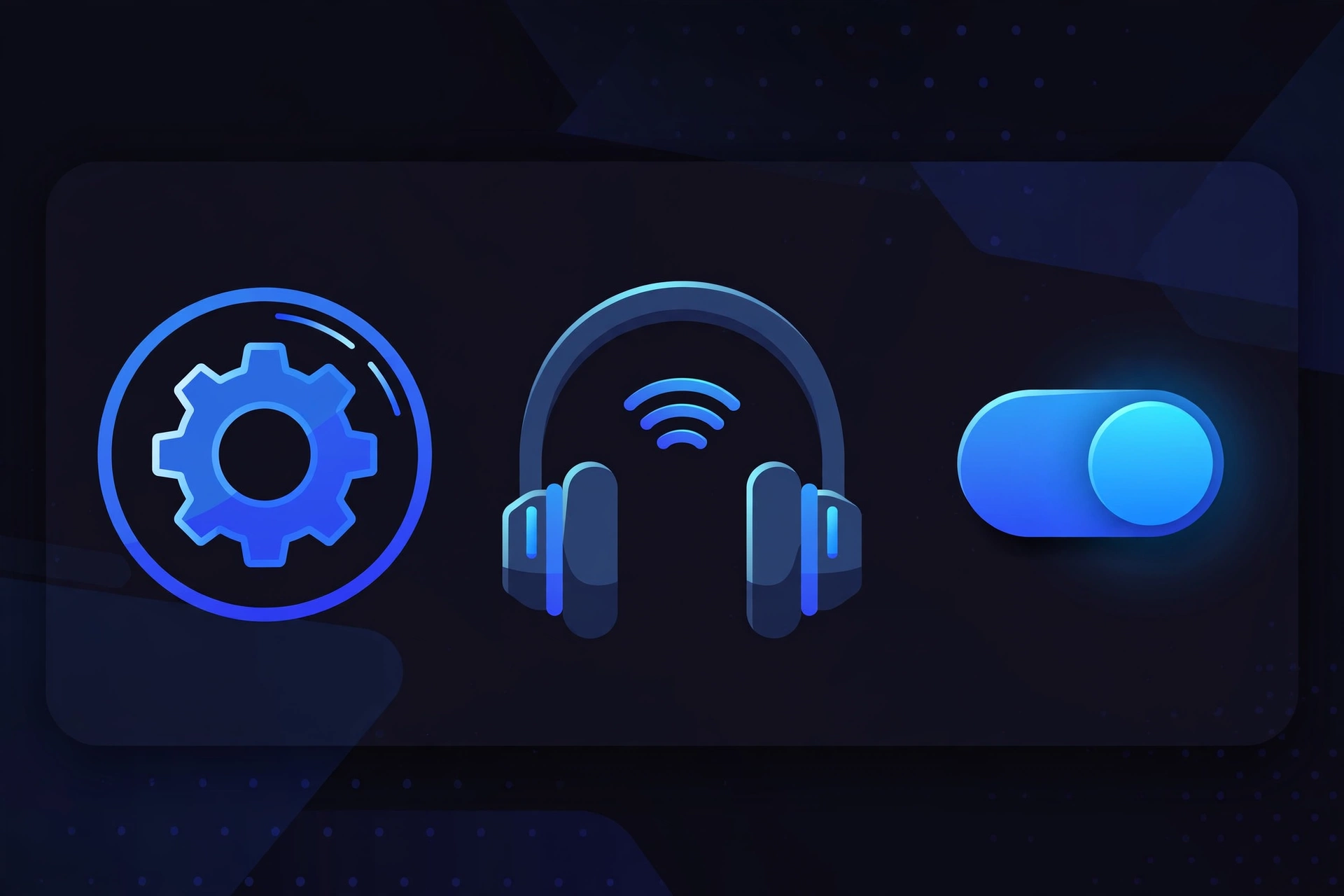
Toggle Media Audio back on. Tap the gear icon next to your paired device in Bluetooth settings. You’ll see separate toggles for things like Phone Calls, Media Audio, and Contact Sharing. If Media Audio is switched off, that alone explains why sound keeps playing through your phone’s speaker instead of your headphones, even though the connection is active.
Clear the Bluetooth app’s cache. Go to Settings, then Apps, find the Bluetooth app, tap Storage, and clear its cache, not its data. This resolves routing glitches without wiping your saved device list.
Reset network settings as a last resort. If nothing else works, a full network settings reset clears out deeper corrupted Bluetooth data, though it also removes saved Wi-Fi passwords, so treat it as a final step.
How to Fix No Sound on iPhone & Mac
On iPhone or iPad, open Control Center and tap the audio output icon in the top right of the playback card. Make sure your Bluetooth device is selected there specifically, not just connected in Bluetooth settings. It’s possible for a device to show as connected while a different output, like the iPhone’s own speaker or AirPlay to another device, is still selected.
On Mac, open System Settings, then Sound, and check the Output tab to confirm your Bluetooth device is selected as the output, not the internal speakers.
If either still shows no sound after that, go to Settings, then Bluetooth, tap the “i” next to the device, and choose “Forget This Device,” then pair again from scratch to clear out any corrupted connection data.
Does Your Audio Cut Out When You Open a Game or Voice Chat?
If sound works fine normally but cuts out, drops to mono, or gets quiet the moment you open a game, Discord, or Zoom, this isn’t a separate bug, it’s the same Stereo vs Hands-Free issue from the Windows section above, and it affects Android and Mac too.
Here’s what’s actually happening: as soon as an app activates your headset’s microphone, Classic Bluetooth forces the connection into Hands-Free Profile so it can carry both your voice and the incoming audio at once. HFP was never built for high-quality music, so the tradeoff is lower audio quality in exchange for the mic working at all.
The most reliable fix is muting the app’s microphone access when you don’t need to talk, which usually lets your OS switch back to the high-quality profile automatically. If your headset and device both support Bluetooth LE Audio, this tradeoff mostly goes away, since LE Audio was specifically designed to carry good quality stereo sound and a working microphone over the same connection at once, unlike the older Classic Bluetooth profiles this workaround has always required.
If a specific pair of headphones still has this problem even with everything above checked, the issue may be with that accessory’s own hardware or firmware rather than your OS.
Frequently Asked Questions
Why does my phone play music out loud when connected to Bluetooth?
Your phone hasn’t switched its audio output to the Bluetooth device, even though the connection itself is active. On Android, check that Media Audio is enabled for the device. On iPhone, check Control Center to confirm the right output is selected.
How do I fix Bluetooth connected but no sound on Windows 11?
Start by confirming your Bluetooth device is set as the default playback device in Sound settings, then check whether Windows switched it to the lower-quality Hands-Free profile instead of Stereo. Closing any app using your microphone often fixes it instantly.
Why is my Bluetooth speaker connected but no sound is coming out?
Run through the five universal fixes first, especially checking both the speaker’s own volume and your device’s media volume, and try unpairing and re-pairing. If that doesn’t help, confirm the speaker is actually selected as your audio output, not just connected.
Is my Bluetooth speaker broken, or is it a software issue?
Almost always software. A speaker that connects but has no sound is a routing problem, not a hardware failure. A genuinely broken speaker usually fails to connect at all rather than connecting silently.
Why does my audio cut out when I open a game or voice chat app?
The microphone activating forces your headset into a lower-quality profile that isn’t built for music, which can sound like cutting out or dropping to mono. Muting the app’s mic access when you’re not talking usually restores full sound.
