

Your Bluetooth connects fine, then drops a few minutes later, or every time your phone screen locks, or randomly while you’re just sitting there. That’s a different problem than Bluetooth failing to connect in the first place, and the fix depends entirely on when it happens.
Instead of working through a long list of random fixes, start by noticing the pattern. The table below matches what you’re seeing to the most likely cause, then the rest of this guide walks through the fix for that specific cause.
In this article:
- Isolate the Problem: Why Does Bluetooth Drop?
- 1. Fix Environmental and Hardware Interference
- 2. Fix Device and Pairing Conflicts
- 3. Stop Windows from Turning Off Your Bluetooth
- 4. Stop Android and iOS from Killing Bluetooth
- When to Update or Reinstall Drivers
- Frequently Asked Questions
Isolate the Problem: Why Does Bluetooth Drop?
| What You’re Seeing | Likely Cause | Where to Look |
|---|---|---|
| Drops after sitting idle for a while | Windows or your PC is putting the Bluetooth radio to sleep | Power Management section below |
| Drops the moment your phone screen locks | Android is closing the Bluetooth app in the background | Android section below |
| Drops randomly, no clear pattern | Wireless interference from Wi-Fi or USB 3.0 | Interference section below |
| Drops only near your router or a USB hub | Wireless interference | Interference section below |
| Drops when another of your devices is nearby | A competing paired connection | Device conflicts section below |
| Drops constantly no matter what you try | Outdated or corrupted Bluetooth driver | Drivers section below |
If more than one row matches what you’re seeing, work through the guide in order. Interference and power management are by far the two most common causes, so start there before assuming anything is broken.
1. Fix Environmental and Hardware Interference
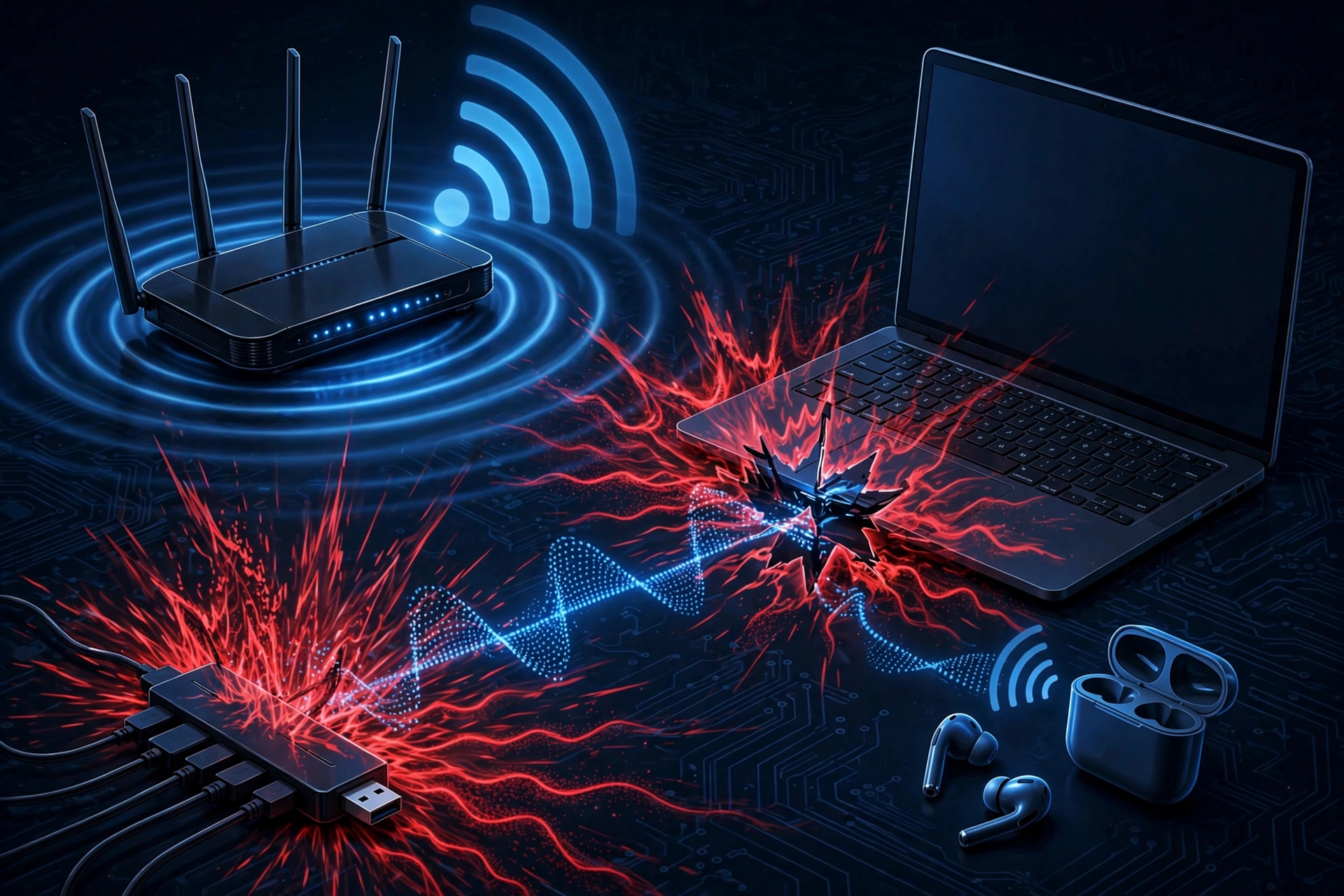
Bluetooth shares the same 2.4GHz ISM band as most Wi-Fi routers, and that shared frequency is one of the most common reasons a connection that works fine most of the time suddenly drops. If your Bluetooth disconnects near your router, in a room full of other wireless devices, or seemingly at random, interference is worth ruling out before you touch any settings.
Walls and physical obstructions weaken the signal too, so a connection that’s fine in the same room can start dropping the moment you walk into another room or put something solid between the two devices. Bluetooth’s range and signal strength were never designed to punch through multiple walls reliably, so a connection that drops the moment you leave the room isn’t a fault, it’s the signal doing exactly what it’s built to do at that distance.
Move Away from 2.4GHz Wi-Fi and USB 3.0 Hubs
USB 3.0 ports and hubs are a source of interference that a lot of people don’t expect. USB 3.0’s data transfer speed generates electrical noise in the same 2.4GHz range Bluetooth uses, and an unshielded port or a cheap hub can leak enough of that noise to disrupt a nearby Bluetooth connection, especially with a USB Bluetooth dongle plugged in close to other USB 3.0 devices.
If you’re using a USB Bluetooth adapter, try moving it to a USB 2.0 port instead, usually black rather than blue on most PCs, or use a short USB extension cable to create a few extra inches of distance between the dongle and the hub or laptop body. That small amount of distance is often enough to clear up a connection that was dropping constantly.
2. Fix Device and Pairing Conflicts
Sometimes the accessory itself is the reason for the drop, not your phone or PC. Two things to check:
Low battery. A weak charge can cause a device to disconnect and reconnect repeatedly as it tries to conserve power, which can look like a random dropout even though the real cause is simple.
A competing connection. If your headphones or speaker is paired with more than one device, it may quietly switch over to another paired device the moment that device comes into range, cutting your current connection without any warning. This is common with earbuds people use across a phone, a laptop, and a tablet. If your connection keeps dropping whenever you’re near another device you’ve paired the accessory with before, that’s very likely what’s happening. Turn off Bluetooth on the other device to stop it from stealing the connection. This is especially common in cars, where the vehicle’s Bluetooth system often has multiple phones saved from different family members, all quietly competing to be the one it connects to.
Outdated accessory firmware. Some headphones, earbuds, and speakers have their own Bluetooth firmware that can cause exactly this kind of repeat disconnect until it’s updated. Check the accessory’s companion app, if it has one, for a firmware update before assuming the problem is your phone or PC.
Some newer accessories support multipoint pairing, which lets them stay connected to two devices at once without this conflict, but most everyday headphones and speakers can only hold one active connection, which is exactly why this kind of “stealing” happens so often. A quick way to test this is to notice whether the drops line up with you walking into a specific room or picking up a specific other device. If they do, that device is almost certainly the one pulling the connection away.
3. Stop Windows from Turning Off Your Bluetooth
This is the single most common Windows-specific cause of random disconnects, and it’s a setting most people never knew existed. By default, Windows is allowed to power down your Bluetooth adapter on its own to save battery, which causes exactly the kind of “drops when idle” pattern from the table above.
To fix it:
- Open Device Manager.
- Expand Bluetooth, and find your Bluetooth adapter (not the individual paired device).
- Right-click it, choose Properties, then go to the Power Management tab.
- Uncheck “Allow the computer to turn off this device to save power.”
On some newer Windows updates, this same adapter can show up under a different category instead of directly under Bluetooth, most often “Human Interface Devices” or “USB Root Hub,” depending on how your specific adapter is connected. If you don’t see a Bluetooth entry with a Power Management tab, check those categories too.
This setting matters more than it sounds like it should, because Windows applies it by default to almost every wireless and USB device to save battery on laptops, without knowing that a Bluetooth radio going to sleep for even a second is enough to drop an active connection. A wired mouse pausing for a moment is invisible to you. A Bluetooth headset doing the same thing cuts your audio.
If you’ve done this and a specific accessory still disconnects on a fixed pattern, like clockwork every 10 or 15 minutes, there’s a deeper registry-level cause some Windows users have tracked down: a specific Bluetooth service being incorrectly enabled for that device. This is an advanced fix and not something Microsoft officially documents, so back up your registry first and only attempt it if the steps above didn’t work. This is the single most common Windows-specific cause of random disconnects, on Windows 11 and Windows 10 alike, and it’s a setting most people never knew existed.
The relevant keys live under HKEY_LOCAL_MACHINE\SYSTEM\CurrentControlSet\Services\BTHPORT\Parameters\Devices\[your device’s Bluetooth address], which you can find in your device’s properties under Details. Under that key, some users have found a service value set to Enabled that shouldn’t be, for a Bluetooth profile their accessory doesn’t actually use, and disabling it stopped the repeating disconnect pattern. Because the exact value differs by device and driver, this isn’t a one-size-fits-all setting to flip, it’s something to investigate carefully for your specific hardware, ideally alongside your device’s Bluetooth address and current registry state rather than copying a value from somewhere else.
If none of this resolves it, the Bluetooth Support Service itself may need restarting.
4. Stop Android and iOS from Killing Bluetooth
On Android, the most common cause of a connection dropping the instant your screen locks is battery optimization. Android aggressively closes background processes to save power, and on some phones, that includes the background connection keeping your Bluetooth accessory linked. The Bluetooth radio itself isn’t failing, the OS is shutting down the process managing it.
To fix it, go to Settings, then Apps, find Bluetooth, and set its battery usage to “Unrestricted” instead of “Optimized.” On phones with a separate battery saver mode, check that it isn’t set to aggressively restrict background activity either.
On iPhone, there isn’t a battery optimization setting the way Android has one, so a screen-lock disconnect usually points somewhere else. Low Power Mode is the first thing to check, since it can restrict background wireless activity on some accessories. If that’s off and it still happens, forgetting the device and re-pairing it clears out corrupted connection data that can cause the same symptom.
When to Update or Reinstall Drivers
If you’ve worked through the fixes above and a Windows PC still disconnects constantly, an outdated or corrupted Bluetooth driver is the most likely remaining cause. This is usually a last resort, since a driver update or reinstall is a bigger step than a settings change, but it’s worth doing once you’ve ruled out power management, interference, and device conflicts. A driver that’s out of date, or one that got partially corrupted during a Windows update, can behave normally most of the time and only fail intermittently, which is why it tends to get overlooked until everything else has already been tried.
Frequently Asked Questions
Why does my Bluetooth keep disconnecting randomly?
The three most common causes are wireless interference, a Windows power setting turning off the Bluetooth radio to save power, and a competing device stealing the connection. Check the table near the top of this guide to match your exact symptom to the likely cause.
How do I stop Windows from turning off my Bluetooth?
Open Device Manager, find your Bluetooth adapter, go to its Power Management tab, and uncheck “Allow the computer to turn off this device to save power.” This single setting fixes most idle disconnects on Windows.
Why does my music stop when my phone screen locks?
On Android, this is almost always battery optimization closing the background process managing your Bluetooth connection. Set the Bluetooth app’s battery usage to Unrestricted in your phone’s app settings to fix it.
Can Wi-Fi interfere with my Bluetooth headphones?
Yes. Bluetooth and most Wi-Fi routers share the same 2.4GHz frequency band, so being close to a router, a crowded wireless environment, or even a USB 3.0 port can genuinely cause drops that have nothing to do with the headphones themselves.
Is my Bluetooth device physically broken, or is it a software problem?
It’s almost always software or environmental, not a broken device. A consistent pattern, like dropping only when idle or only when your screen locks, points to a setting rather than hardware failure. A truly broken accessory usually fails to connect at all rather than disconnecting on a predictable pattern.
Does having too many devices paired to my phone cause disconnections?
Not directly, but a long list of old paired devices can make it more likely that one of them reconnects unexpectedly and steals an active connection. Removing devices you no longer use reduces that risk.
