


Bluetooth interference happens when other wireless signals, electronic devices, or physical objects weaken or disrupt the connection between your Bluetooth devices. It can cause headphones to cut out, audio to stutter, a wireless mouse to lag, or a device to disconnect without warning.
The most common Bluetooth interference causes include 2.4 GHz Wi-Fi congestion, USB 3.0 devices, microwave ovens, physical barriers, and poor device placement. Bluetooth is designed to handle some interference, but it cannot avoid every source of radio noise.
The good news is that you can often fix the problem by changing your Wi-Fi settings, moving a USB adapter, reducing obstacles, or testing your devices in a different location.
How Bluetooth Signals Get Interrupted
Bluetooth sends information through radio waves. These waves travel through the air between devices, such as your phone and headphones or your computer and wireless mouse.
Most Bluetooth devices use the 2.4 GHz ISM band, a range of radio frequencies shared with Wi-Fi and other wireless technologies. Because several devices use this same band, their signals can sometimes compete with one another.
What Is the 2.4 GHz Band?
The 2.4 GHz band is a part of the radio spectrum used by many everyday devices. It is popular because it supports short-range wireless communication without requiring a separate licensed frequency band in many regions.
Devices that may use this band include:
- Bluetooth headphones, speakers, and keyboards
- Wi-Fi routers and network adapters
- Wireless mice and keyboards
- Some baby monitors and cordless phones
- Microwave ovens, which can leak radio-frequency energy around this band
When signals overlap or a receiver is exposed to strong radio noise, it may have trouble receiving Bluetooth data correctly. The result can be delayed responses, lost audio packets, or a dropped connection.
How Bluetooth Tries to Avoid Interference
Bluetooth uses a technique called Frequency Hopping Spread Spectrum (FHSS) in its classic radio operation. Instead of staying on one radio channel, it changes frequencies as communication continues.
Classic Bluetooth uses 79 channels, each spaced 1 MHz apart, across its 2.4 GHz operating band. This hopping makes it harder for interference on one frequency to disrupt the entire connection.
Bluetooth Low Energy (BLE) uses a different channel arrangement, with 40 channels spaced 2 MHz apart. It also uses methods designed to help devices communicate in a busy radio environment.
These methods reduce the effects of interference, but they do not make Bluetooth immune to it. Strong nearby signals, radio noise, weak reception, or poor device hardware can still interrupt communication.
1. Wireless Spectrum Congestion: Wi-Fi and Router Overlap
One of the most common Bluetooth interference causes is a busy 2.4 GHz Wi-Fi network.
Wi-Fi routers and Bluetooth devices can operate in the same frequency band. When a router sends large amounts of data nearby, its signals may overlap with Bluetooth activity or make it harder for a Bluetooth receiver to hear its intended signal.
Does Wi-Fi Interfere With Bluetooth?
Yes, it can. The risk is often higher when a Bluetooth device is close to a busy 2.4 GHz router or when several wireless networks are active nearby.
For example, you may notice that your Bluetooth headphones work well in your bedroom but start cutting out beside your router. The router may be creating a more crowded radio environment, especially during heavy downloads or streaming.
Wi-Fi channels 1, 6, and 11 are often used as non-overlapping 20 MHz channel choices in the 2.4 GHz band. However, the exact channel plan depends on local regulations and network settings. Bluetooth hops across frequencies within the same band, so changing a Wi-Fi channel may help but will not always remove interference.
How to Reduce Wi-Fi Interference
Try these steps:
- Move away from the router. Test your Bluetooth headphones or mouse a few feet farther away.
- Use 5 GHz or 6 GHz Wi-Fi when available. These bands can reduce competition with Bluetooth because Bluetooth normally uses 2.4 GHz. Your router and connected device must support the band you choose.
- Reduce heavy 2.4 GHz traffic. Move suitable laptops, TVs, and other high-data devices to a different Wi-Fi band.
- Test another Wi-Fi channel. If your router is crowded, changing its 2.4 GHz channel may improve performance.
- Keep the Bluetooth adapter in a clear position. Avoid hiding it behind a desktop tower or beside other radio equipment.
If Bluetooth problems improve when you switch your laptop to 5 GHz Wi-Fi, wireless congestion may be part of the cause.
2. USB 3.0 and USB-C Electromagnetic Interference
A less obvious cause of Bluetooth problems is a USB port or device near your Bluetooth adapter.
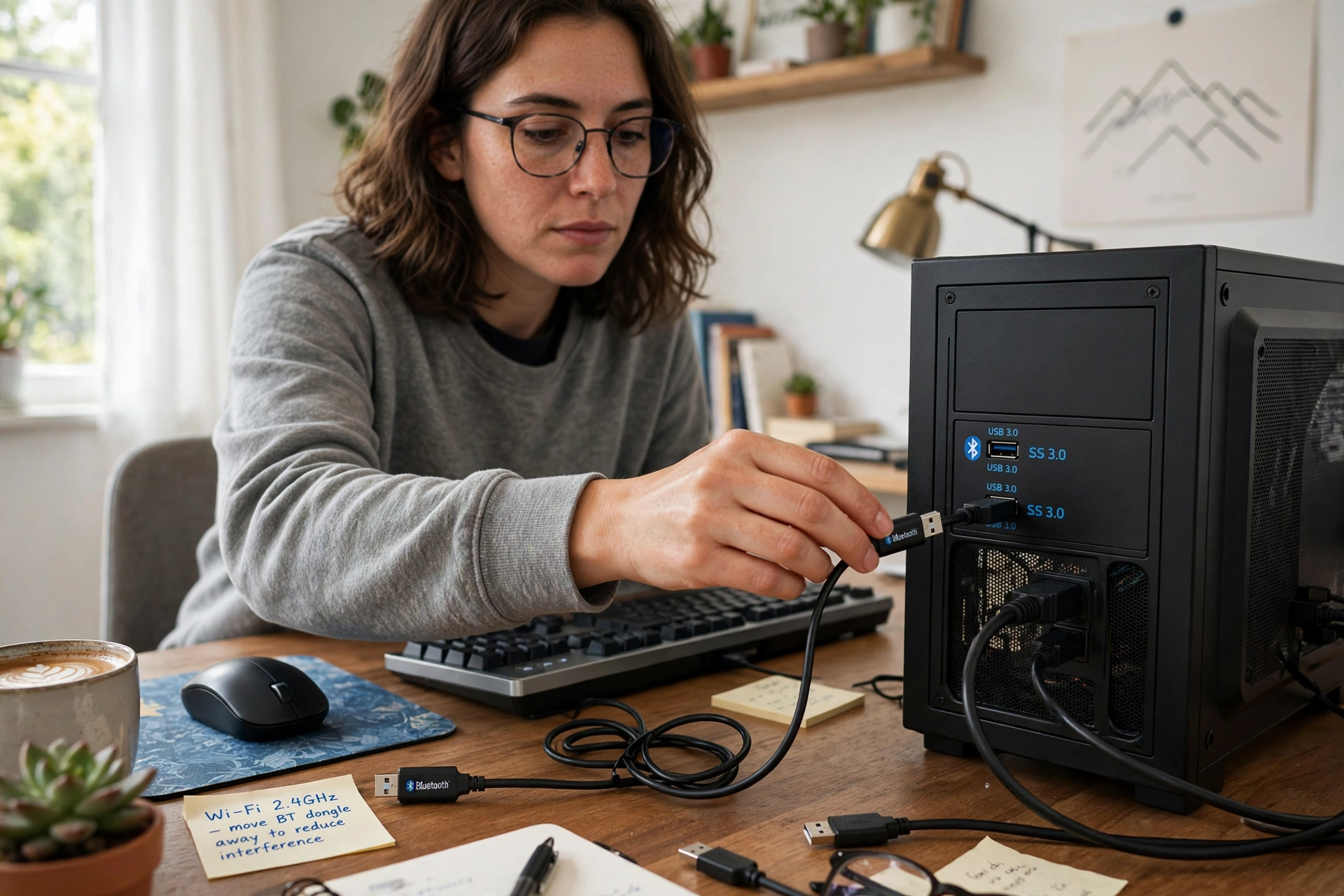
USB 3.0 equipment can produce radio-frequency noise that affects the 2.4 GHz band. This can happen when a USB 3.0 device, cable, or port is close to a Bluetooth receiver.
The issue is especially noticeable on desktop computers, where the Bluetooth adapter may sit beside USB ports, cables, and other electronics.
Why Does a USB Port Cause Bluetooth Stuttering?
Imagine you plug a small Bluetooth adapter into a USB port on the back of your computer. Your wireless mouse starts lagging, or your headphones begin to cut out.
The adapter may be receiving interference from nearby USB 3.0 activity. The problem is not necessarily a faulty Bluetooth device. It may be the position of the adapter and the radio noise around it.
USB-C is only a connector type, so not every USB-C port causes this problem. The risk depends on the USB technology, connected equipment, cable design, and physical layout.
How to Fix USB 3.0 Bluetooth Interference
Try these fixes in order:
- Move the Bluetooth adapter to another USB port. A port farther from active USB 3.0 equipment may work better.
- Use a short USB extension cable. Move the adapter away from the computer case, port, and nearby cables.
- Try a USB 2.0 port if available. This may help separate the adapter from a noisy USB 3.0 setup.
- Move external drives away from the Bluetooth adapter. Test the connection with the drive unplugged to see whether it makes a difference.
- Test the adapter in another computer. If the problem disappears, the original computer’s layout or hardware may be involved.
A USB extension cable is often a simple and low-cost fix for a Bluetooth dongle that works poorly when plugged directly into a computer.
3. Household Appliances and Other Wireless Devices
Some household devices can add interference to the 2.4 GHz band. This may explain why your Bluetooth headphones work well in one room but cut out in another.
Common sources include:
- Microwave ovens
- Certain baby monitors
- Some older cordless phones
- Other nearby wireless equipment using the same band
Can a Microwave Oven Interfere With Bluetooth?
Yes. Microwave ovens use radio-frequency energy to heat food. Their operating frequency is close to the 2.4 GHz band used by Bluetooth and Wi-Fi. A properly functioning microwave oven is designed to contain this energy, but a small amount of leakage may still affect nearby wireless devices.
You may notice a problem when using Bluetooth headphones in the kitchen while the microwave is running. The interference may disappear once the oven stops.
The effect depends on the microwave, distance, Bluetooth receiver, and surrounding conditions. A microwave is not automatically the cause of every kitchen connection problem.
How to Test for Appliance Interference
- Move away from the suspected appliance.
- Test the Bluetooth connection while the appliance is off.
- Repeat the test while it is operating, if safe and practical.
- Compare the results from the same position and with the same devices.
Do not open or attempt to repair a microwave oven yourself. If you suspect it is damaged or leaking energy, stop using it and have it checked by a qualified service provider.
If a baby monitor or cordless device seems responsible, move it farther away or change its supported channel or operating band if the manufacturer allows it.
4. Physical Obstructions and Your Body
Bluetooth signals can weaken when they pass through walls, furniture, metal, and other objects. This is called signal attenuation.
Even without radio interference, a weak Bluetooth signal can cause audio dropouts or delayed responses.
Why Bluetooth Stops Working Through Walls
Bluetooth is a short-range wireless technology, and its real-world range depends on the devices and environment. A clear line of sight usually provides a better connection than a path through several walls.
Different materials affect radio signals in different ways:
- Drywall and wood: Often allow some signal through, but can still weaken it.
- Concrete and brick: Can reduce signal strength more strongly, especially when several walls are involved.
- Metal: Can block or reflect radio waves and may create areas with poor reception.
- Water-rich materials: Can absorb some radio energy, reducing the signal that reaches the receiver.
This is why headphones may disconnect when you leave your phone on a desk and walk into another room.
Can Your Body Block Bluetooth?
Yes. Your body can weaken Bluetooth signals because human tissue contains a lot of water and can absorb some radio energy at 2.4 GHz.
For example, putting your phone in a back pocket may place your body between the phone and wireless earbuds. Turning your head, changing pockets, or moving the phone to a less obstructed position may improve the connection.
How to Improve Bluetooth Range
- Keep your phone or computer closer to the Bluetooth device.
- Avoid placing your phone behind your body when using wireless earbuds.
- Keep the adapter away from metal cases and enclosed spaces.
- Test the connection in the same room before testing it through walls.
- Check the manufacturer’s range estimate, but remember that real-world range is usually lower when obstacles are present.
If the connection works reliably at close range but fails across a room or wall, weak signal strength may be more likely than a software problem.

5. Multiple Bluetooth Devices Connected at Once
Connecting several Bluetooth devices to one computer or phone does not always cause interference. However, it can increase the amount of wireless activity and the work the host device must manage.
For example, your laptop might be connected to Bluetooth headphones, a mouse, a keyboard, and a phone. If the adapter, software, or radio environment is struggling, you may notice lag, audio stutters, or delayed input.
Why Can Multiple Devices Cause Problems?
Bluetooth devices share the available radio time and must coordinate their communication. The host adapter and connected devices manage when information is sent and received.
The effect depends on what each device is doing. A keyboard that sends small bursts of data places a different demand on the connection than headphones streaming continuous audio.
Problems are more likely when several devices are active in a crowded wireless environment, the adapter has limited support, or the computer’s Bluetooth driver is faulty.
Remember that multiple connections are not proof of interference. A driver problem, low battery, or an application issue can produce similar symptoms.
How to Test Multiple Bluetooth Connections
- Disconnect Bluetooth devices you are not using.
- Test the headphones or mouse with only one accessory connected.
- Reconnect the other devices one at a time.
- Check whether the problem returns when a particular device is active.
- If the issue remains, test the Bluetooth adapter or headphones with another host device.
This helps you find out whether the problem relates to wireless congestion, a specific accessory, or the host computer.
How to Diagnose and Fix Bluetooth Interference
The fastest way to find the cause is to change one thing at a time. If you change several settings at once, it becomes harder to tell which fix worked.
Step 1: Identify the Type of Problem
Look at what happens when the connection fails.
| Symptom | Possible cause | First test |
|---|---|---|
| Headphones cut out near the router | 2.4 GHz Wi-Fi congestion | Switch suitable devices to 5 GHz Wi-Fi |
| Mouse lags when a USB drive is active | USB 3.0 radio-frequency noise | Move the Bluetooth adapter using an extension cable |
| Audio drops only in the kitchen | Microwave or other local interference | Test away from the appliance |
| Connection fails through walls | Weak signal or physical obstruction | Move closer to the source device |
| Problems start when several accessories connect | Adapter, software, or radio congestion | Disconnect unused devices |
| Bluetooth fails even at close range | Driver, battery, pairing, or hardware problem | Restart, recharge, and test another device |
These are clues, not guaranteed diagnoses. More than one cause can be present at the same time.
Step 2: Move the Devices Closer Together
Place your phone or computer near the Bluetooth accessory and test it in an open space.
If the connection becomes stable, distance or an obstacle may be weakening the signal. If it still fails at close range, continue with the next checks.
Step 3: Change the Wireless Environment
- Move away from the Wi-Fi router and other wireless equipment.
- Switch your computer’s Wi-Fi to 5 GHz or 6 GHz if supported.
- Move the Bluetooth dongle away from USB 3.0 ports and cables.
- Test the connection in another room.
Try one change at a time and repeat the same activity that caused the problem.
Step 4: Check Battery, Drivers, and Pairing
Low battery power can cause some Bluetooth accessories to behave unpredictably. Charge the device, then test it again.
On a Windows computer, check for Bluetooth driver updates through Windows Update or the computer or adapter manufacturer’s support page. You can also restart Bluetooth, remove the device from the paired-device list, and pair it again.
On a phone, check for system updates and confirm that the Bluetooth accessory works properly with another compatible device.
These steps help rule out problems that may look like radio interference but are actually caused by software, pairing, or hardware.
Step 5: Test With Another Device
If possible, connect the same headphones or accessory to another phone or computer.
- If the problem happens on both devices in the same location, the environment or accessory may be involved.
- If the problem happens only on one computer, its Bluetooth adapter, driver, or physical layout may be the cause.
- If only one accessory fails, check its battery, firmware, and manufacturer guidance.
This simple test can help you avoid buying a replacement before you know which part is causing the issue.
Frequently Asked Questions About Bluetooth Interference
What are the most common Bluetooth interference causes?
The most common causes include crowded 2.4 GHz wireless signals, nearby USB 3.0 equipment, household appliances, physical barriers, weak signal strength, and problems with the Bluetooth adapter or driver. The cause depends on where and when the connection fails.
Does Wi-Fi interfere with Bluetooth?
Yes. Bluetooth and many Wi-Fi networks use the 2.4 GHz band, so their signals can compete for radio space. Switching suitable devices to 5 GHz or 6 GHz Wi-Fi can reduce this type of interference, although it will not fix every Bluetooth problem.
Why does Bluetooth cut out in the kitchen?
A microwave oven or another wireless device may be contributing to interference. Walls, appliances, and the position of your phone can also weaken the signal. Test the connection away from the appliance and compare the results.
Can USB 3.0 interfere with Bluetooth?
Yes. USB 3.0 equipment can produce radio-frequency noise that affects nearby Bluetooth receivers. Moving a Bluetooth dongle away from the USB port with an extension cable is a useful test.
Can too many Bluetooth devices cause interference?
Several active Bluetooth devices can increase wireless activity and the workload on the host adapter. But the number of paired devices alone does not prove interference. Disconnect unused accessories and test each device separately to find the cause.
How can I tell if Bluetooth interference is happening?
Look for problems that change with location or nearby device activity. If the connection becomes stable when you move away from a router, unplug a USB device, or leave a room, interference or signal blockage may be involved. If the problem continues everywhere, check the battery, drivers, pairing, and hardware.
Final Verdict
Bluetooth interference causes can range from crowded Wi-Fi signals to USB 3.0 noise, household appliances, physical barriers, and problems with your Bluetooth adapter.
The best fix depends on the symptoms. Start by moving your devices closer together, switching suitable Wi-Fi devices to 5 GHz, moving a USB dongle away from noisy ports, and testing with fewer connected accessories.
If none of these steps helps, check the device battery, Bluetooth drivers, pairing settings, and hardware. Change one thing at a time so you can identify the real cause instead of guessing.


3 Comments
Pingback: Bluetooth Tethering Explained: Setup, Speed & Uses
Pingback: Bluetooth Latency Explained: Causes & Fixes
Pingback: Bluetooth Interference USB 3.0: How to Fix It