


Bluetooth tethering lets you share your phone’s mobile internet with another device, such as a laptop, using Bluetooth instead of Wi-Fi or a USB cable. It can be useful when you want a simple internet connection while using less battery than a Wi-Fi hotspot often does.
However, Bluetooth tethering is much slower than most Wi-Fi connections. It works well for email, messaging, and light browsing, but it may struggle with video streaming, large downloads, and video calls.
In this guide, you will learn what Bluetooth tethering is, how it works, how to set it up on Android and iPhone, and when to use it instead of a Wi-Fi hotspot or USB tethering.
What Is Bluetooth Tethering?
Bluetooth tethering is a way to share your phone’s mobile data connection with another device through Bluetooth. Your phone connects to the cellular network, then passes internet traffic to a paired device, such as a Windows laptop.
For example, imagine your laptop has no Wi-Fi connection. You can connect it to your phone through Bluetooth and use your phone’s mobile data to browse the web.
Bluetooth tethering is different from sending files through Bluetooth. File transfer moves photos, documents, or other files between devices. Bluetooth tethering creates a network connection so the second device can access the internet.
What is Bluetooth tethering used for?
It is most useful when you need a basic internet connection and want to avoid using a Wi-Fi hotspot. You can use it to:
- Check email and send messages.
- Read websites and news.
- Access simple online documents.
- Perform light browsing when Wi-Fi is unavailable.
- Connect a laptop when saving phone battery is important.
You still need an active mobile data connection, and your phone plan must allow tethering. The data used by the connected device usually counts toward your mobile data allowance.
How Bluetooth Tethering Works Under the Hood
Bluetooth tethering uses a small wireless network called a Personal Area Network (PAN). It lets nearby devices communicate over Bluetooth.
Here is how the connection works:
- Cellular network: Provides mobile internet to your phone
- Your phone: Shares its internet connection through Bluetooth
- Bluetooth Personal Area Network: The short-range wireless link between the two devices
- Connected laptop: Sends and receives internet traffic through your phone
When you open a website on your laptop, the request travels through the Bluetooth connection to your phone. Your phone sends it over the cellular network and returns the response to the laptop.
Two technical terms help explain this process:
- NAP (Network Access Point): The device that provides access to a network. During tethering, your phone typically takes this role.
- PANU (Personal Area Network User): The device that connects to the personal area network. Your laptop typically takes this role.
These roles are part of Bluetooth networking profiles. They help compatible devices establish a network connection rather than simply pair for audio or file sharing.
Bluetooth operates in the 2.4 GHz radio band, which is also used by Wi-Fi and other wireless devices. However, Bluetooth tethering does not provide the same data speed as a typical Wi-Fi hotspot. Its actual speed depends on the devices, Bluetooth implementation, signal conditions, and mobile network.
How to Set Up Bluetooth Tethering
The exact steps depend on your phone and computer. In most cases, you must enable tethering on your phone, pair the two devices, and then tell the computer to connect through the Bluetooth network.
How to Use Bluetooth Tethering on Android
Android phones commonly include a Bluetooth tethering option, although the menu names can differ by brand and software version.
- Turn on mobile data. Open your phone’s Settings and make sure Mobile Data is enabled.
- Enable Bluetooth. Turn Bluetooth on from Settings or the quick settings panel.
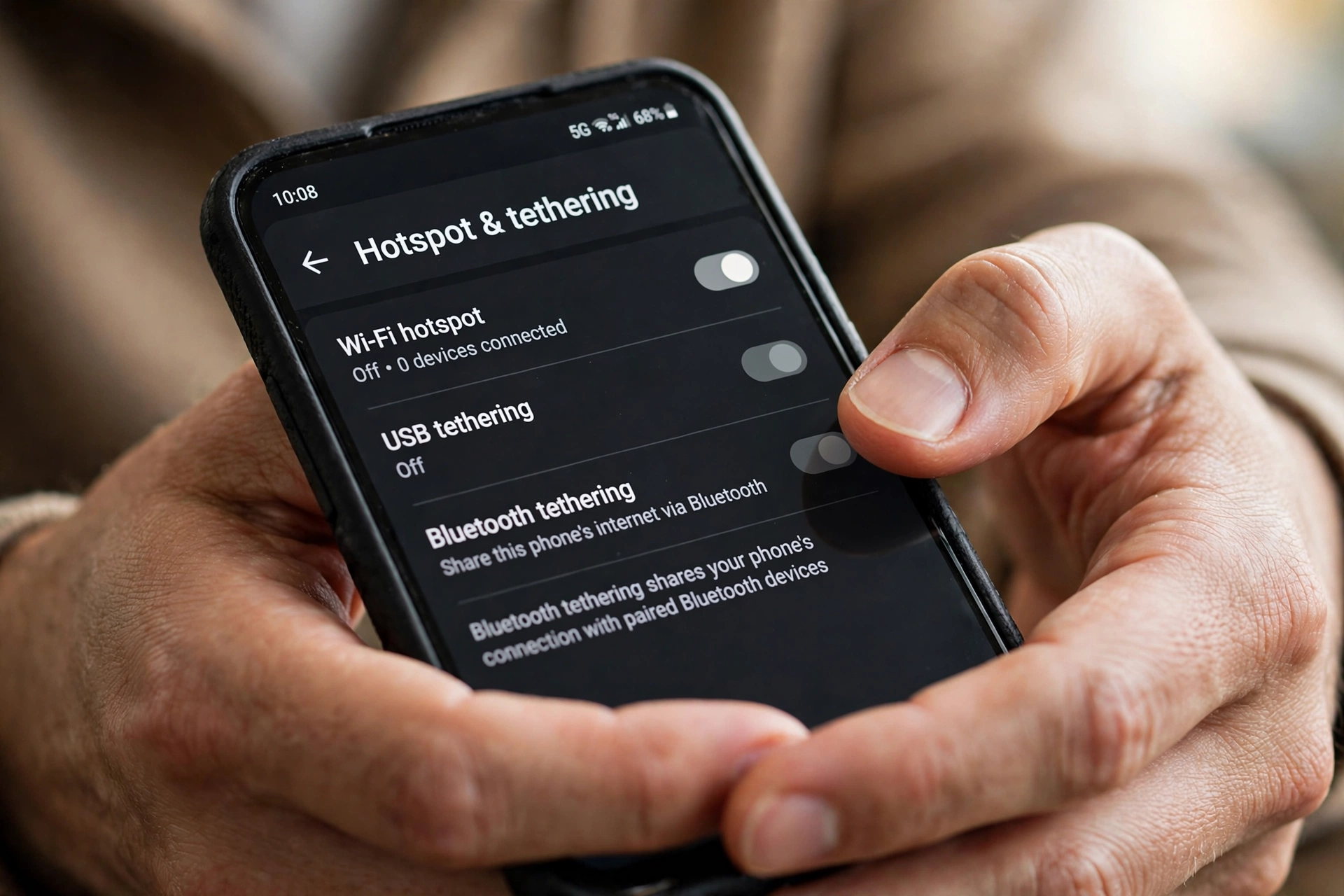
- Open the hotspot settings. Go to Settings, then look for Network and Internet, Connections, or Hotspot and Tethering.
- Enable Bluetooth tethering. Turn on the Bluetooth tethering option. Some phones may require you to open the tethering menu first.
- Pair your laptop with your phone. Open Bluetooth settings on both devices, select the other device, and confirm the pairing request.
- Connect through the laptop’s network settings. Pairing alone may not start internet sharing. You may need to select the phone under the computer’s Bluetooth network options.
On many Android phones, the path looks like this:
Settings → Hotspot & Tethering → Bluetooth Tethering
The names and order may vary. If you cannot find the option, search for “Bluetooth tethering” in your phone’s Settings.
How to Connect a Windows 11 Laptop to Phone Bluetooth Internet
After pairing your phone and Windows 11 laptop, check whether Windows offers a Bluetooth network connection.
- Open your phone’s Bluetooth tethering setting and make sure it is enabled.
- On your Windows laptop, open Settings → Bluetooth & devices.
- Make sure Bluetooth is turned on and pair the laptop with your phone if you have not already done so.
- Open Control Panel and go to Devices and Printers. Depending on your Windows configuration, you may also find Bluetooth network options through other system menus.
- Look for your phone and open its available connection options. If present, select Connect using → Access point or the equivalent Bluetooth network option.
- Open a website to check whether the internet connection works.
Windows menus can vary by version, Bluetooth adapter, and driver. Some systems do not show the same access point option. If pairing succeeds but internet access does not, check the troubleshooting section below.
How to Set Up Bluetooth Tethering on an iPhone
iPhone supports sharing a cellular connection through Personal Hotspot, but its built-in sharing options differ from Android. Do not assume that every iPhone and computer combination supports general-purpose Bluetooth PAN internet sharing in the same way.
To check the available options:
- Open Settings → Personal Hotspot. On some iOS versions, this may appear under Settings → Cellular → Personal Hotspot.
- Turn on Allow Others to Join if the option is available.
- Turn on Bluetooth on the iPhone and the computer.
- Pair the devices through their Bluetooth settings.
- Check Apple’s supported Personal Hotspot connection instructions for your computer and iOS version.
Apple commonly documents Personal Hotspot connections over Wi-Fi, USB, and Bluetooth for supported devices and configurations, but the exact computer-side steps differ. If your Mac or Windows laptop does not offer a usable Bluetooth network connection, use Wi-Fi or USB tethering instead.
Bluetooth Tethering vs. Wi-Fi Hotspot vs. USB Tethering
All three methods share your phone’s internet connection, but they differ in speed, power use, and convenience.
| Feature | Bluetooth tethering | Wi-Fi hotspot | USB tethering |
|---|---|---|---|
| Connection | Bluetooth | Wi-Fi | USB cable |
| Typical speed | Often around 1 to 3 Mbps, but varies | Usually much faster | Often fast, depending on devices and network |
| Phone battery | Often lower use than Wi-Fi hotspot | Can use more battery | May charge the phone, depending on the port and cable |
| Cable needed | No | No | Yes |
| Best for | Light browsing and messages | Streaming, downloads, and multiple devices | Faster, stable connection to one computer |
| Device support | Depends on Bluetooth PAN support | Broad support on modern devices | Depends on phone, computer, and cable |
The speed range of 1 to 3 Mbps is a rough practical estimate, not a guaranteed limit. Your actual speed may be lower or higher depending on Bluetooth hardware, software, interference, and cellular reception. Wi-Fi and USB tethering can also be limited by your mobile network.
Which Tethering Method Should You Choose?
- Choose Bluetooth tethering if you only need email, messaging, and light web browsing, and lower power use matters.
- Choose a Wi-Fi hotspot if you need to connect several devices or want to stream video and download files.
- Choose USB tethering if you want a direct connection to a laptop and your phone and computer support it.
If speed is your main concern, Bluetooth tethering is usually not the best choice. A Wi-Fi hotspot or USB connection is generally more suitable for demanding tasks.

Pros and Cons of Bluetooth Tethering
Bluetooth tethering is useful for simple tasks, but it has limits. Understanding both sides helps you decide whether it fits your needs.
Advantages of Bluetooth Tethering
1. It can use less battery
Bluetooth tethering often uses less phone battery than running a Wi-Fi hotspot. This can help when you need internet access for a long time and cannot charge your phone. Actual power use depends on the devices and how much data you send.
2. It does not need a cable
You can connect your phone and laptop wirelessly. This is convenient when you do not have a USB cable nearby.
3. It is useful for basic online tasks
Email, messaging, reading articles, and other light activities usually need less bandwidth than video streaming or large downloads.
4. It provides another way to share mobile data
If Wi-Fi is unavailable or you prefer not to create a Wi-Fi hotspot, Bluetooth tethering may be a useful alternative.
Disadvantages of Bluetooth Tethering
1. Internet speed is limited
Bluetooth connections generally offer much less bandwidth than modern Wi-Fi connections. Large downloads, high-quality video, and demanding websites may take longer to load.
2. It may not support every computer setup
Pairing two devices does not guarantee that internet sharing will work. Your phone, computer, Bluetooth adapter, and software must support the required network connection.
3. Video calls may perform poorly
A video call needs enough speed and a stable connection in both directions. Bluetooth tethering may struggle, especially when the cellular signal is weak or other devices are using the connection.
4. It still uses mobile data
Bluetooth does not make internet access free. Websites, apps, downloads, and background updates can all use your cellular data allowance.
5. It is not automatically secure
Bluetooth tethering can be reasonably safe when used with trusted devices, updated software, and proper pairing. However, Bluetooth does not replace good security practices. Keep your phone updated, avoid pairing with unknown devices, and turn off sharing when you no longer need it.
Frequently Asked Questions About Bluetooth Tethering
Does Bluetooth tethering use mobile data?
Yes. Bluetooth is only the connection between your phone and the other device. Your phone still uses its cellular internet connection, so browsing, downloads, and app activity count toward your mobile data allowance. Your carrier may also apply tethering limits or charges under your plan.
Is Bluetooth tethering faster than Wi-Fi?
No, not in most cases. A Wi-Fi hotspot usually provides much higher speeds than Bluetooth tethering. Bluetooth is better suited to basic online tasks, while Wi-Fi is generally better for streaming, video calls, and large downloads.
Does Bluetooth tethering drain your phone battery?
Yes, but it often uses less battery than a Wi-Fi hotspot. The exact difference depends on your phone, Bluetooth hardware, cellular signal, and how much data the connected device uses. A weak cellular signal can increase power use because your phone has to work harder to maintain its network connection.
Can you share internet via Bluetooth?
Yes, if your phone and receiving device support Bluetooth internet sharing. On many Android phones, you can enable Bluetooth tethering in the hotspot settings. On a computer, you may need to select a Bluetooth network or access point connection after pairing.
Why is my Bluetooth tethering connection slow?
Several things can cause a slow connection:
- Bluetooth tethering has lower bandwidth than Wi-Fi on most devices.
- Your phone may have a weak cellular signal.
- Your mobile network may be congested.
- Your computer may have an old Bluetooth adapter or driver.
- Background apps may be using your mobile data.
- The devices may be too far apart or affected by wireless interference.
Try moving closer to your phone, checking the cellular signal, and closing apps that use a lot of data. If the connection remains slow, switch to Wi-Fi or USB tethering.
Why does Bluetooth pair successfully but the internet does not work?
Bluetooth pairing only confirms that the devices can communicate. It does not always establish an internet connection.
First, check that mobile data and Bluetooth tethering are enabled on your phone. Next, confirm that your computer supports Bluetooth PAN networking and has the correct drivers. On Windows, look for an option to connect through the phone as an access point. If the required option is missing, your computer or software may not support that setup.
Restarting both devices can also help. If the problem continues, try USB or Wi-Fi tethering to check whether your phone’s internet connection is working.
Can Bluetooth tethering be used for video streaming?
It can work for some low-quality video, but it is not ideal for streaming. Speeds and connection stability may not be enough for smooth playback, particularly at higher resolutions. A Wi-Fi hotspot or USB tethering is usually a better choice.
Can Bluetooth tethering connect multiple devices?
Support depends on your phone, operating system, and Bluetooth networking implementation. Bluetooth tethering is generally better suited to a simple connection than sharing internet with several devices. If you need to connect multiple phones, tablets, or computers, a Wi-Fi hotspot is usually more convenient.
Does Bluetooth tethering work when the screen is off?
It may continue working when your phone’s screen is off, but behavior depends on the device, operating system, battery-saving settings, and manufacturer restrictions. If the connection keeps dropping, check your phone’s battery optimization settings and tethering options.
Final Verdict
Bluetooth tethering is a useful way to share mobile internet when you need a simple wireless connection and want to avoid using a Wi-Fi hotspot. It is best for email, messaging, reading websites, and other light tasks.
Its main trade-off is speed. Bluetooth tethering is usually slower than Wi-Fi or USB tethering, and compatibility can vary between phones and computers.
Use Bluetooth tethering for light browsing and lower-power sharing. Choose Wi-Fi or USB tethering when you need better speed, more stable performance, or support for demanding tasks.