


If your Bluetooth device keeps disconnecting, reconnecting, or disappearing from your saved device list, the cause may be a weak battery, a software problem, power-saving settings, or another device taking over the connection.
Start by testing your Bluetooth accessory with a second phone or computer. If it stays connected to the second device, the problem is more likely to be with your original phone or computer. If it disconnects from both, check the accessory’s battery, settings, and hardware.
Follow these fixes in order, from the easiest checks to the more advanced system changes. You usually do not need to reset your whole phone or computer.
Quick Diagnostic: Is the Problem Your Phone, Computer, or Accessory?
Before changing settings, find out which device is causing the problem. This can save you time and help you avoid unnecessary resets.
Use the fault-follows-the-device test
- Charge your headphones, speaker, mouse, keyboard, or other Bluetooth accessory.
- Connect it to your usual phone or computer.
- Notice whether it disconnects or disappears from the saved device list.
- Pair it with a second phone or computer.
- Test it for long enough to see whether the same problem happens.
| Test result | Likely cause | What to try next |
|---|---|---|
| It disconnects from both devices | Low battery, accessory fault, or firmware issue | Charge it fully and check for updates |
| It works on another device but not your usual one | Host device settings, saved pairing data, or Bluetooth adapter problem | Forget and re-pair, then check power settings |
| It disconnects only when another device is nearby | Automatic connection or multipoint conflict | Disconnect it from other phones and computers |
| It drops only when the battery is low | Weak battery or power delivery problem | Charge it fully and test again |
| It disappears from the saved list | Pairing memory, reset, or software issue | Check whether the accessory or host is clearing saved pairings |
Important distinction: A Bluetooth device that disconnects is not always unpaired. Disconnecting ends the active link. Unpairing removes the saved relationship between devices. If the device remains listed as paired, troubleshoot the connection first. If it disappears from the list, investigate why the pairing is being removed.
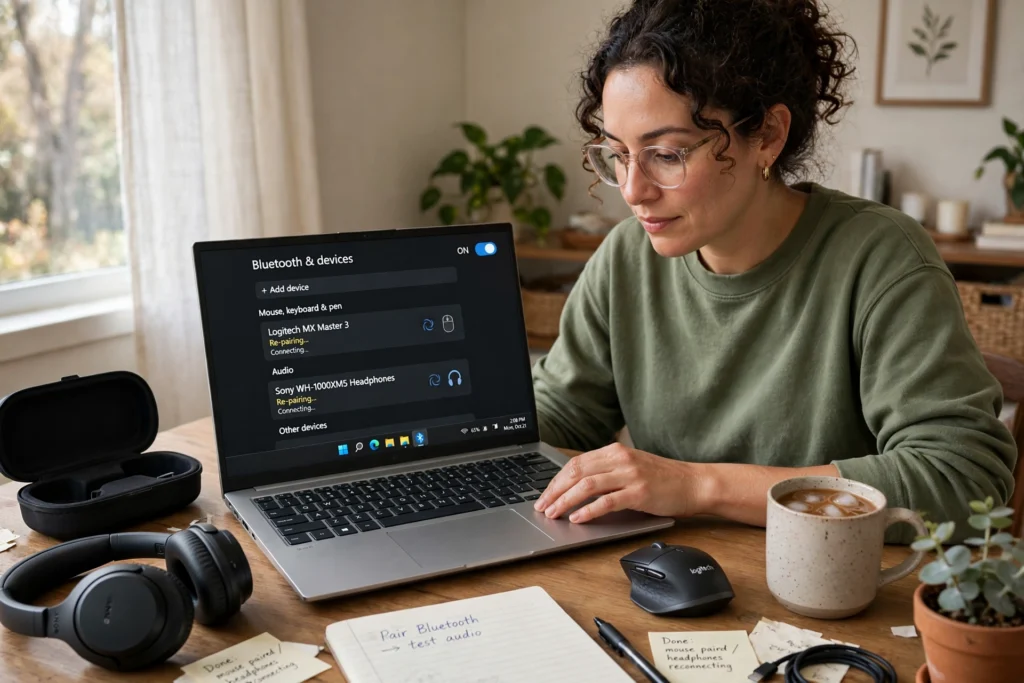
1. Clear Old Pairing Information and Pair Again
A saved pairing can sometimes stop working after a device reset, a software update, or pairing with another phone. In these cases, the device may connect briefly and then disconnect.
Removing the old pairing and setting it up again can help.
On Windows 11 or Windows 10
- Open Settings.
- Select Bluetooth & devices on Windows 11, or Devices on Windows 10.
- Open the list of paired devices.
- Select your accessory and choose Remove device.
- Turn the accessory off and back on.
- Put it into pairing mode and add it again.
On Android
The menu name depends on your phone.
Google Pixel and many other Android phones: Open Settings, select Connected devices, tap the settings icon beside your accessory, and choose Forget.
Samsung Galaxy: Open Settings, select Connections, then Bluetooth. Tap the settings icon beside your accessory and choose Unpair.
The exact labels may vary by Android version and phone maker.
On iPhone or iPad
- Open Settings.
- Tap Bluetooth.
- Tap the information icon beside your accessory.
- Select Forget This Device and confirm.
- Put the accessory into pairing mode and connect it again.
These steps follow Apple’s guidance for removing a Bluetooth accessory.
Reset the accessory’s pairing memory if needed
Some headphones, earbuds, and car systems store their own list of paired devices. Removing an accessory from your phone does not always clear that list.
If the problem continues, check the accessory’s manual for a way to clear its Bluetooth memory or reset its pairing settings. A factory reset may erase other settings, so use it only when simpler steps fail.
2. Stop Power-Saving Settings from Interrupting Bluetooth
Some computers and phones use power-saving features to reduce battery use. Depending on the device and its software, these features or related driver problems can affect Bluetooth connections.
If your Bluetooth device disconnects after your computer has been idle, when the screen turns off, or when battery saver starts, check the settings below.
Windows 11 and Windows 10
Step 1: Turn off Energy Saver temporarily
- Open Settings.
- Select System, then Power & battery.
- Turn off Energy Saver or Battery Saver temporarily, if available.
- Test the Bluetooth connection.
Step 2: Check Bluetooth adapter power management
- Right-click Start and open Device Manager.
- Expand the Bluetooth section.
- Right-click your computer’s Bluetooth adapter. It may be named Intel Wireless Bluetooth, Realtek Bluetooth Adapter, or something similar.
- Select Properties.
- If a Power Management tab is available, look for Allow the computer to turn off this device to save power.
- If the option is present, clear the checkbox and select OK.
- Restart your computer and test the connection.
The Power Management tab is not available for every adapter or Windows setup. If you cannot find it, do not change unrelated device settings. Microsoft troubleshooting guidance also recommends checking power-saving settings and Bluetooth drivers when connections keep dropping.
Step 3: Update the Bluetooth driver
If the problem continues:
- Open Device Manager.
- Expand Bluetooth.
- Right-click the Bluetooth adapter.
- Select Update driver and follow the instructions.
If Windows cannot find a suitable update, check the support website for your laptop or motherboard maker. Choose the driver for your exact model.
Android phones
First, check whether Battery Saver is enabled. Turn it off temporarily and test the connection.
If the problem happens mainly with a particular accessory or companion app, you can also check the app’s battery settings. On some Android phones, the Bluetooth system app may have its own battery-use setting.
On supported devices, the path may look like this:
- Open Settings.
- Select Apps.
- Open the full app list and show system apps if needed.
- Find Bluetooth, if it is listed.
- Open App battery usage or a similar setting.
- If an appropriate option is available, test whether allowing more background activity helps.
Menu names differ between Android versions and manufacturers. Do not force a setting that your phone does not offer, and avoid changing battery restrictions for unrelated apps.
iPhone and iPad
iOS does not offer the same general Bluetooth adapter power-management controls found on some Windows computers. Start by charging the accessory, restarting both devices, and checking whether the problem affects only one accessory.
If an app is needed to operate your accessory, check Settings under Privacy & Security for its Bluetooth permission. Apple lists accessory power, distance, and app permissions among the basic checks for connection problems.
3. Stop Other Devices from Taking Over the Connection
Your headphones may be paired with your phone, laptop, and tablet at the same time. That does not mean they can actively use all those connections at once.
Some accessories support Bluetooth multipoint, which allows them to stay connected to more than one source device. Other accessories switch between saved devices based on their own connection rules.
This can make it seem as if your Bluetooth device keeps disconnecting by itself.
Try the multipoint test
- Turn off Bluetooth temporarily on nearby phones, tablets, and computers that have used the accessory.
- Connect the accessory to the device you want to use.
- Play music or use the device for several minutes.
- Turn Bluetooth back on for the other devices one at a time.
- Watch whether the disconnections return.
If the problem starts when a second device becomes available, you may have found the cause.
How to prevent connection conflicts
- Disconnect the accessory from devices you are not using.
- Check whether your headphones have a multipoint or automatic-switching setting.
- If needed, remove old pairings from the accessory’s saved list.
- Follow the manufacturer’s instructions for choosing a preferred device.
For example, if your earbuds keep switching from your phone to your laptop, disconnect them from the laptop when you want to use your phone. If the earbuds support multipoint, check their app for controls over how they handle calls and audio from different devices.
Do not reset your phone just because another device takes over the connection. Test the other saved devices first.
4. Check the Battery, Distance, and Wireless Interference
Not every Bluetooth problem is caused by software. Battery problems and wireless interference can also make a connection unstable.
Charge the accessory fully
A low battery can affect some accessories before they shut down completely. Their power system may struggle to support wireless transmission, especially when the battery is worn or damaged.
Try this:
- Charge the accessory fully using its recommended charger.
- Disconnect it from the charger if the manufacturer recommends using it that way.
- Connect it to your phone or computer.
- Test whether it stays connected longer.
If the accessory works when fully charged but disconnects as the battery gets low, the battery may be worn or unable to supply stable power. This is a clue, not proof of battery failure.
For earbuds, check both earbuds and the charging case. Dirty charging contacts can prevent one earbud from charging properly.
Reduce distance and physical barriers
Bluetooth works over short distances, but walls, furniture, and your body can weaken the signal.
Keep the accessory near the phone or computer while testing. If the connection becomes stable at close range, distance or signal blockage may be part of the problem.
Check for 2.4 GHz wireless interference
Bluetooth uses the 2.4 GHz radio band, which is also used by many Wi-Fi networks and other wireless devices. Nearby electronics can sometimes interfere with a weak connection.
Try these simple tests:
- Move away from a crowded desk full of wireless equipment.
- Keep the accessory away from large metal objects.
- If you use a desktop computer, move a Bluetooth USB adapter away from the back of the computer with a suitable USB extension cable.
If the problem began after connecting a USB 3.0 device or hub, temporarily move it farther from the Bluetooth adapter and test again. USB 3.0 equipment can create radio noise that affects nearby 2.4 GHz wireless devices in some setups. Moving the equipment is a useful test, but it will not fix every Bluetooth disconnection.
5. Restart Bluetooth Services and Update the System
If the accessory works with another phone but not with your computer, the computer’s Bluetooth software or driver may be the cause.
Try the simpler system fixes before resetting network settings.
Restart Bluetooth Support Service on Windows
Windows uses background services to manage Bluetooth functions. Restarting the relevant service may help if the connection problem is caused by a temporary system issue.
- Press Windows + R.
- Type services.msc and press Enter.
- Find Bluetooth Support Service.
- Right-click it and select Restart, if that option is available.
- Test the Bluetooth connection again.
If the service is stopped and cannot be started, or you receive an error, note the message rather than changing several service settings at random.
Run the Windows Bluetooth troubleshooter
On Windows 11, open Settings, go to System, then Troubleshoot, and select Other troubleshooters. Run the Bluetooth troubleshooter if it is available. You may also be directed to the Get Help app.
The available troubleshooting options can differ by Windows version.
Check for updates
Install available operating system updates and check the accessory maker’s app or website for firmware updates.
If the problem started immediately after a driver update, check the computer maker’s instructions for restoring a known-good driver. Avoid downloading drivers from unfamiliar websites.
6. Clear Bluetooth Cache or Reset Network Settings
Use these steps only if the earlier fixes did not work. Resetting wireless settings can remove saved connections, so understand what each action changes before continuing.
Android: Clear Bluetooth cache carefully
Some Android versions provide a way to clear the cache for system apps. The exact controls vary by phone, and not every phone exposes a separate Bluetooth cache option.
If your phone offers a Clear cache option for the Bluetooth system app, you can try it after restarting the phone and re-pairing the accessory.
Be careful not to confuse Clear cache with Clear storage or Clear data. The latter options can erase stored app information and may reset Bluetooth settings. Avoid clearing Bluetooth system data unless your phone maker recommends it for your specific problem.
If you cannot find a Bluetooth cache option, skip this step. Do not install a third-party app that claims it can repair Bluetooth.
Windows: Reset the adapter only if needed
If the Bluetooth adapter still behaves incorrectly, open Device Manager and check its status. You can try disabling and re-enabling the adapter, then restart the computer.
If you decide to uninstall the adapter driver, first make sure you know how to obtain the correct replacement from your computer maker. Windows may reinstall the adapter after a restart, but this is not guaranteed in every situation.
Reset network settings on a phone
A network settings reset is a later option, especially if several wireless connections are having problems.
Before doing it, check your phone’s confirmation screen carefully. Depending on the operating system, the reset may remove saved Wi-Fi networks and passwords, network preferences, VPN settings, or other connection settings. It normally does not delete your personal photos or apps, but the exact effects depend on the reset option you choose.
After the reset, you may need to reconnect to Wi-Fi and pair your Bluetooth accessories again.
Use a network reset only after simpler troubleshooting fails. If just one accessory is affected and it also fails on other devices, resetting your phone’s network settings is unlikely to be the best first move.
Frequently Asked Questions
Why does my Bluetooth device keep unpairing itself?
First, check whether it actually disappears from the saved device list. If it stays listed but disconnects, the issue may be power, signal strength, another connected device, or a driver problem. If it disappears completely, check for accessory resets, pairing-memory limits, and software issues.
Why does Bluetooth connect and then disconnect immediately?
A rapid connect-disconnect loop can happen when saved pairing information is no longer accepted, the accessory has a weak battery, or another device takes over the connection. Charge the accessory, turn off Bluetooth on other paired devices, and forget and re-pair the accessory if needed.
Why does my Bluetooth mouse or headphones keep disconnecting on Windows?
Common causes include power-saving settings, outdated Bluetooth drivers, low accessory battery, and wireless interference. Test the accessory on another device, check the Bluetooth adapter’s power settings, and update the correct driver.
Why does my car keep forgetting my phone’s Bluetooth?
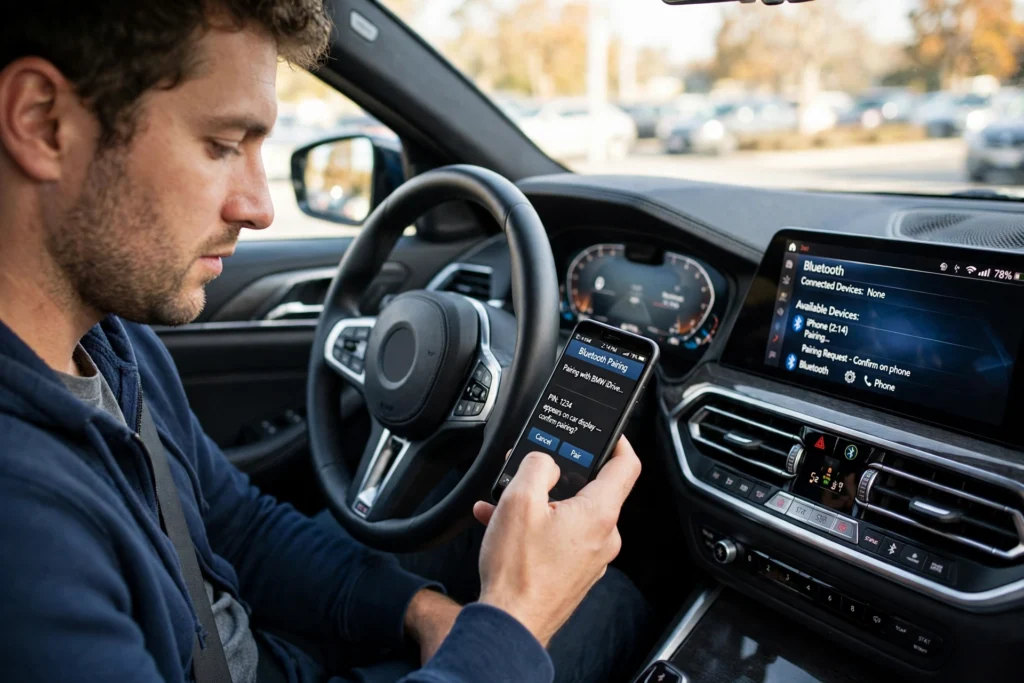
Your car may have a limited saved-device list, or its pairing memory may need to be cleared. Remove the old phone entry from both the car’s Bluetooth menu and your phone’s saved devices, then pair them again. Follow your car manufacturer’s instructions, and make sure you do this while parked safely.
Will forgetting a Bluetooth device delete my personal files?
Usually, no. Forgetting a Bluetooth accessory removes the saved pairing relationship from your phone or computer. It does not normally delete photos, documents, or music. However, resetting the accessory itself may erase its own settings or saved device list.
Should I replace my Bluetooth accessory?
Consider replacement or repair if the accessory disconnects across several phones or computers even when fully charged, nearby, and correctly paired. If it works reliably on other devices, investigate the original phone or computer before buying a replacement.
Final Checklist
If your Bluetooth device will not stay paired, follow this order:
- Charge the accessory and test it close to your phone or computer.
- Test it on a second device to narrow down the cause.
- Forget and re-pair the accessory.
- Disconnect other devices that may be taking over the connection.
- Check power-saving settings on Windows or Android.
- Reduce possible wireless interference and update relevant software.
- Try advanced resets only after the simpler fixes fail.
The most useful clue is whether the problem follows the accessory or stays with one phone or computer. That test helps you focus on the right fix instead of resetting everything unnecessarily.


1 Comment
Pingback: Bluetooth Not Working in Windows 11? 7 Real Fixes