

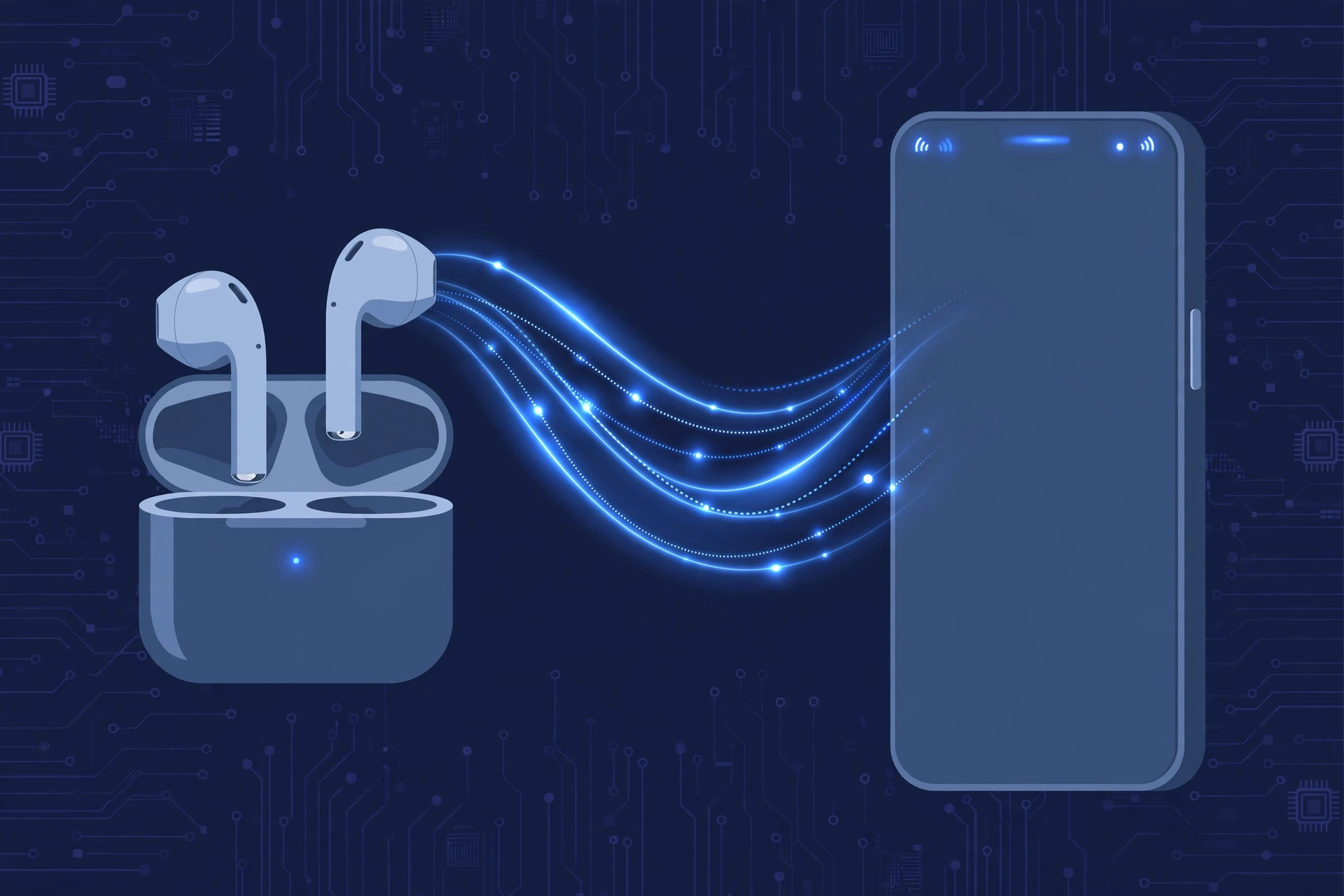
Bluetooth problems can be frustrating. Your headphones may disconnect, audio may stutter, or your mouse and keyboard may suddenly stop responding.
The good news is that many Bluetooth connection problems can be prevented.
The most useful steps are simple:
- Keep Bluetooth away from heavy 2.4 GHz interference.
- Move your Wi-Fi to 5 GHz or 6 GHz when possible.
- Use a USB extension cable for Bluetooth dongles near noisy USB 3.0 ports.
- Stop Windows and mobile devices from aggressively saving Bluetooth power.
- Remove old Bluetooth pairings.
- Keep drivers and firmware updated.
- Replace very old Bluetooth hardware when it becomes the weak point.
Here is how to prevent Bluetooth connection problems before they start.
1. Why Do Bluetooth Connections Drop? The 2.4 GHz Problem
Bluetooth uses the 2.4 GHz radio band. Many other devices use this same part of the wireless spectrum. These include:
- Bluetooth devices
- 2.4 GHz Wi-Fi routers
- Wireless keyboards and mice
- Some cordless devices
- Microwave ovens
- Some USB 3.0 equipment
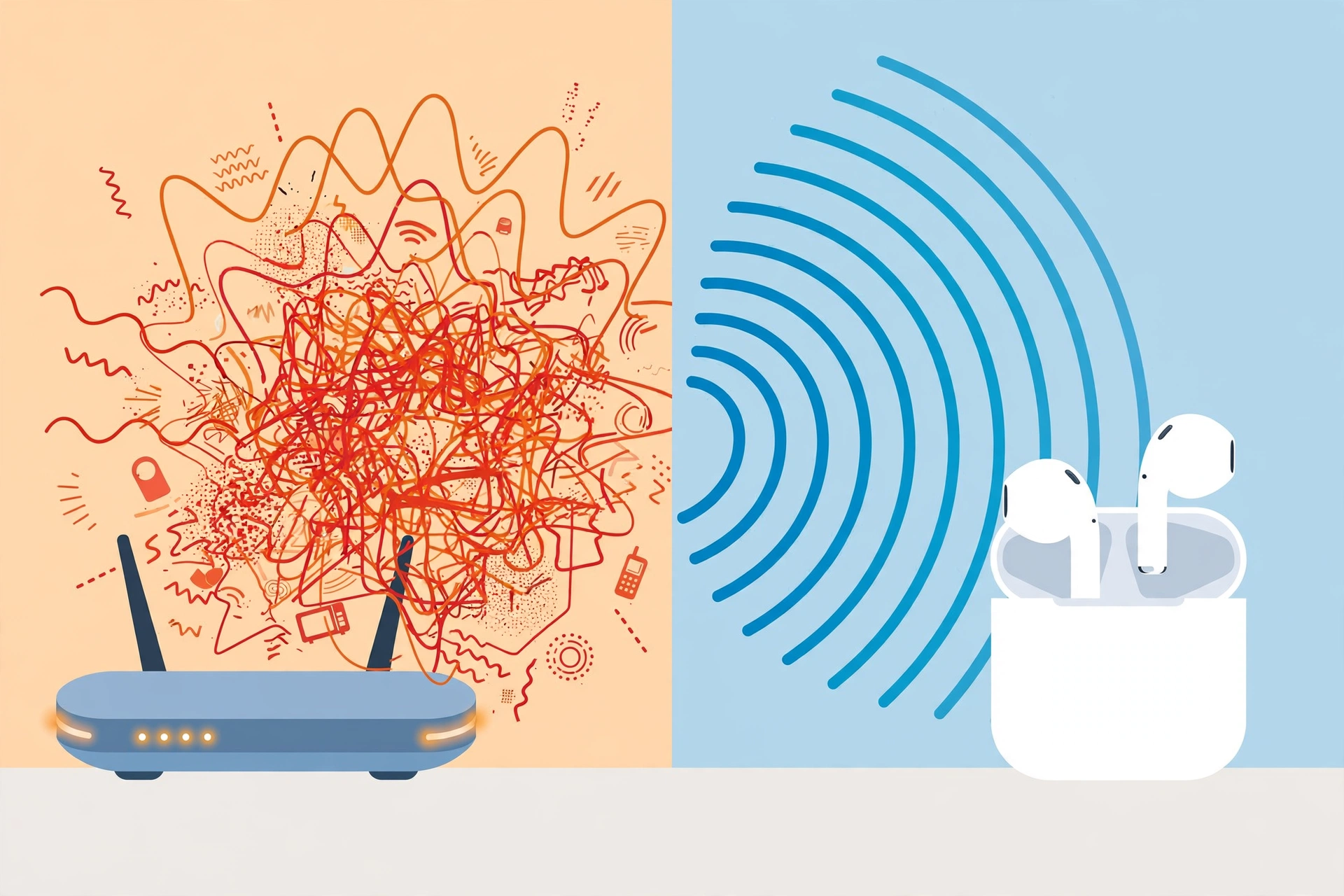
Bluetooth uses a method called frequency hopping. In simple terms, it quickly moves between different frequencies instead of staying on only one channel. This helps Bluetooth deal with interference, but it cannot remove all interference.
For example, imagine your phone is connected to Bluetooth earbuds while sitting next to a busy 2.4 GHz Wi-Fi router. The two wireless systems are sharing the same general radio space. You may notice:
- Audio cutting out
- Music stuttering
- Slow response from a Bluetooth mouse
- Random disconnections
- Problems reconnecting
Physical objects can also weaken the signal. Metal, concrete, walls, and even the position of your body can reduce signal strength.
The first rule of Bluetooth stability is simple: reduce interference before changing software settings.
2. Eliminate Physical and Radio Frequency Interference
Your Bluetooth environment can have a bigger effect on connection stability than you might expect. Before changing drivers or resetting your device, look at where your Bluetooth devices and wireless equipment are placed.
Move Your Wi-Fi to the 5 GHz Band
If your router supports multiple Wi-Fi bands, connect your computer or phone to 5 GHz Wi-Fi instead of 2.4 GHz when practical. Some newer routers also support 6 GHz Wi-Fi.
Why can this help? Bluetooth uses the 2.4 GHz band. Moving Wi-Fi traffic to 5 GHz or 6 GHz can reduce competition in the 2.4 GHz space. You do not need to turn Wi-Fi off.
Try this:
- Open your router settings.
- Check whether separate 2.4 GHz and 5 GHz networks are available.
- Connect your computer or phone to the 5 GHz network.
- Test your Bluetooth headphones, mouse, or keyboard again.
Keep in mind that 5 GHz has a shorter range than 2.4 GHz in many home environments. Use the band that works best for the device and location.
Quick tip: If Bluetooth becomes stable after moving your Wi-Fi connection to 5 GHz, wireless interference was likely part of the problem.
Isolate USB 3.0 Port Noise: The Dongle Trick
This is especially important for desktop computers and laptops that use a USB Bluetooth dongle. USB 3.0 equipment can produce radio noise that affects the 2.4 GHz range. When a Bluetooth dongle sits directly beside a USB 3.0 port, cable, or device, the noise can make the wireless connection less reliable.
A very simple fix is to move the Bluetooth dongle away from the computer. Use a short USB extension cable. Place the dongle a little away from the USB ports and other cables. This can be particularly useful when a desktop PC has its USB ports close together.
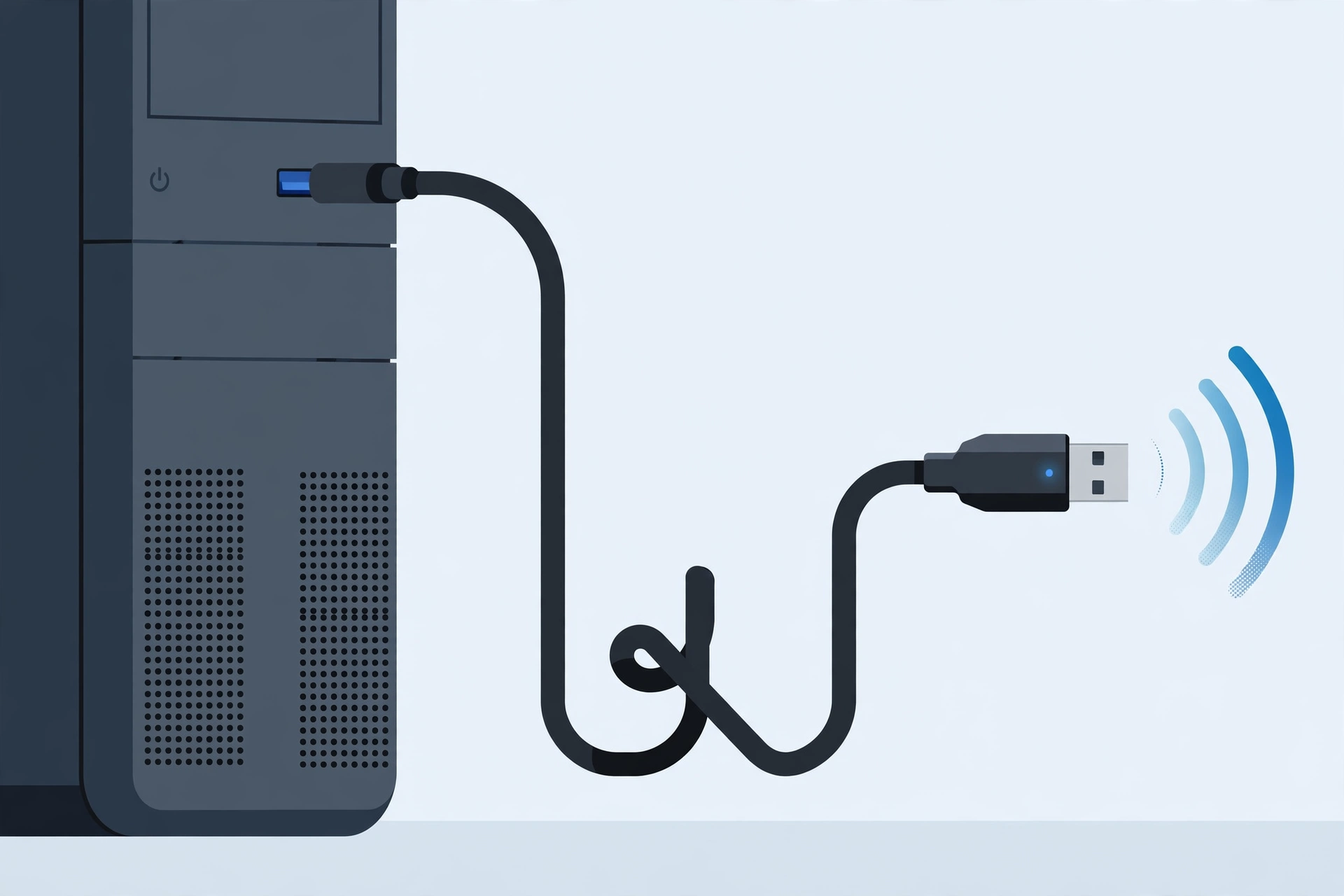
What to try first: If your Bluetooth dongle keeps dropping on a PC, move it away from the USB 3.0 area before buying a new adapter.
Clear Physical Obstacles: Line of Sight
Bluetooth does not always need a perfect line of sight, but obstacles can reduce signal strength. Try to keep the Bluetooth source and device reasonably close. For example:
- Keep your phone on the same side as your Bluetooth earbuds.
- Do not place a Bluetooth speaker behind large metal objects.
- Avoid putting a Bluetooth dongle behind a large desktop computer.
- Keep headphones within a practical range of the source.
Your body can also block some of the radio signal. For example, if your phone is in your back pocket, your body can sit between the phone and your earbuds. Moving the phone to a front pocket or another better position may improve the connection.
3. Stop Your Operating System from Sleeping Your Bluetooth
Sometimes the wireless environment is fine, but your operating system is trying to save power. Power-saving features can reduce power to Bluetooth hardware when the computer or phone thinks the device is not being used. This can lead to random disconnections.
Windows: Disable Power Management in Device Manager
Windows gives some Bluetooth devices a power management option. To check it: right-click the Start button, open Device Manager, expand Bluetooth, find your Bluetooth adapter, right-click it and select Properties, open the Power Management tab if available, and look for “Allow the computer to turn off this device to save power”. If this option is causing your connection to drop, uncheck it and click OK.
Also check related devices under Human Interface Devices, especially if you have a Bluetooth mouse or keyboard.
Why this matters: Your computer may be trying to save battery or power by turning off part of the Bluetooth hardware.
Android and iOS: Adjust Battery Optimization Settings
Phones also use battery-saving features. On Android, look for settings related to battery optimization, background activity, battery saver, and app power management. If a companion app manages your Bluetooth accessory, make sure the phone is not aggressively stopping that app in the background. For iPhone, check Low Power Mode when investigating Bluetooth behavior. If Bluetooth problems mainly happen when the screen is locked or the battery is low, power management is worth checking.
Mac: Energy Saver and Bluetooth Module Reset
On Mac, keep macOS updated and check battery or energy settings if Bluetooth problems appear during low-power conditions. If Bluetooth becomes unstable, restarting the Mac can also reload the Bluetooth system.
4. Practice Good Device Pairing Hygiene
Your Bluetooth device can remember devices that you no longer use. Over time, this can make connection management harder, especially when several devices are nearby. A cleaner Bluetooth setup is easier to manage.
Unpair Unused and Old Devices
Look through your Bluetooth settings. If you see devices that you no longer own or use, remove them — old headphones, a previous phone, an old car system, a previous keyboard, speakers you no longer use. Good habit: Keep only the devices you regularly use paired when practical.
Manage Multipoint Connection Limits
Some modern headphones support Multipoint, allowing connections with more than one source (laptop + phone). This can cause random audio switching or stuttering. If you experience this, temporarily turn off Multipoint in the headphone’s companion app and test with only one source.
Clear the Bluetooth System Cache: When to Do It
Clearing Bluetooth data can help when stored pairing information becomes corrupted — e.g. a device refuses to pair or keeps trying to reconnect. A safer first step is often to Forget the device and pair it again. Important: Resetting Bluetooth settings may remove saved pairings.
5. Keep Drivers and Firmware Updated
Bluetooth hardware depends on software. Old software can cause connection problems after an OS update. On Windows: open Settings, go to Windows Update, install available updates, then check Device Manager for Bluetooth driver updates — preferably from your computer manufacturer’s support page. Avoid random driver packages from unknown websites. On Mac, keeping macOS updated is the main maintenance step.
Update Headphone and Accessory Firmware
Many Bluetooth accessories have companion apps offering firmware updates. Check the manufacturer’s official app periodically. Before updating firmware, keep the device charged and follow the manufacturer’s instructions.
6. When to Upgrade Your Hardware
Sometimes software and environmental changes are not enough. If your Bluetooth adapter is very old (e.g. Bluetooth 4.0), the hardware itself may limit performance. Before buying a new adapter, check: Bluetooth version, OS support, driver support, antenna design, range, and device compatibility. Upgrade when: you have reduced interference, checked power settings, removed old pairings, updated software, and tested another USB position, but the connection is still unreliable.
7. Frequently Asked Questions
How Can I Prevent Bluetooth Connection Problems?
Start with the physical environment. Move Wi-Fi to 5 GHz or 6 GHz when practical, keep Bluetooth devices reasonably close, reduce physical obstacles, and move USB Bluetooth dongles away from USB 3.0 ports. Then check power management, old pairings, drivers, and firmware.
How Do I Fix Bluetooth Stuttering?
First check for interference. Move away from a crowded 2.4 GHz environment and try 5 GHz Wi-Fi. If you use a USB Bluetooth dongle, move it away from USB 3.0 ports with a short extension cable. Then check your Bluetooth driver, firmware, Multipoint settings, and audio settings.
Does Low Battery Cause Bluetooth to Drop?
It can be a factor. Phones and computers may use stronger power-saving behavior when battery levels are low. If Bluetooth problems mainly appear when your battery is nearly empty, check Battery Saver, Low Power Mode, and battery optimization settings.
Does 2.4 GHz Wi-Fi Interfere With Bluetooth?
Yes, they operate in the same general 2.4 GHz wireless space. Bluetooth is designed to share this band, but heavy wireless activity can still affect connection quality. Using 5 GHz or 6 GHz Wi-Fi can reduce some of this competition.
Should I Turn Off Bluetooth When I Am Not Using It?
You do not need to turn Bluetooth off simply to prevent connection problems. However, turning it off when you do not need it can reduce unnecessary connections and make your wireless environment easier to manage.
How Often Should I Maintain My Bluetooth Devices?
A simple monthly check is enough for most users: check battery health, driver updates, firmware updates, remove devices you no longer use, check Bluetooth placement and obstacles, and review Multipoint connections.
Final Bluetooth Stability Checklist
Before blaming your headphones, mouse, keyboard, or Bluetooth adapter, run through this list:
- Use 5 GHz or 6 GHz Wi-Fi when practical.
- Keep Bluetooth devices reasonably close.
- Reduce walls, metal objects, and other physical barriers.
- Move USB Bluetooth dongles away from USB 3.0 ports.
- Use a USB extension cable for a desktop Bluetooth dongle when needed.
- Check Windows Device Manager power settings.
- Review Android battery optimization and battery saver settings.
- Keep macOS, Windows, Android, or iOS updated.
- Update accessory firmware.
- Consider newer Bluetooth hardware if the adapter is very old.
The best way to prevent Bluetooth connection problems is to treat Bluetooth like any other wireless technology. Give it a clean radio environment, keep the hardware and software updated, and avoid unnecessary saved connections.
Small changes, such as moving a USB dongle or switching Wi-Fi from 2.4 GHz to 5 GHz, can sometimes make a bigger difference than replacing the entire device.
