


Android Bluetooth Draining Battery Fast: How to Fix It
Yes, you can fix it in a few minutes. In most cases, Android Bluetooth draining battery fast is caused by Bluetooth scanning, a misbehaving app, or an old accessory that keeps reconnecting. Turn off Bluetooth scanning first, then check which app or device is using the power. The steps below fix the problem for most phones, and they do not stop you from using your earbuds, watch, or car.
Start with the quick wins. They take less than two minutes. If the drain continues, work through the deeper fixes one by one. Check your battery screen after each change so you know which fix worked.
1. Turn Off Bluetooth Scanning
Bluetooth scanning is the most common cause of fast drain, and the first thing to check when you notice Android Bluetooth draining battery faster than usual. Your phone keeps searching for nearby devices even when Bluetooth is off. This hidden scan runs all day in the background.
Go to Settings, then Location, then Location Services or Scanning. Turn off Bluetooth scanning. Your paired earbuds and watch will still connect normally. Only the background search stops.
Many users see the biggest improvement from this one change. If your phone lost 10 to 20 percent overnight, scanning is the first thing to suspect.
2. Turn Off Location Scanning Too
Location scanning uses Bluetooth and Wi-Fi to find your position. Apps use it to show nearby places and improve maps. But it keeps the Bluetooth radio awake even when you are not using any Bluetooth device.
In the same Location Services menu, turn off Wi-Fi scanning as well if you do not need it. Your GPS still works for maps and navigation. Only the extra background scans stop.
Some phones hide this setting under Settings, then Location, then Improve Accuracy. The name changes by brand, but the idea is the same. Turn off every scan you do not need.
3. Find the App That Is Using Bluetooth in the Background
Sometimes the radio is innocent. The real drain comes from an app that uses Bluetooth all day. Fitness apps, tracker apps, smart home apps, and some shopping apps scan for devices in the background.
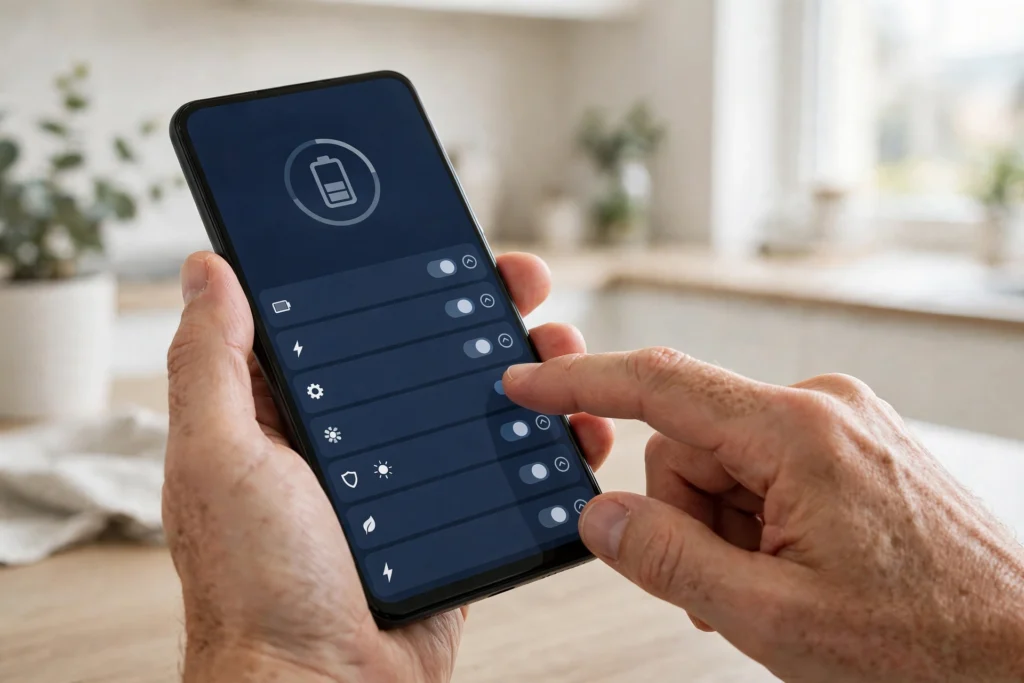
Open Settings, then Battery, then Battery Usage. Look for Bluetooth near the top of the list. Tap it to see details. If an app shows high usage, that app is the problem.
To stop it, go to Settings, then Apps, then pick the app. Tap Permissions, then Nearby Devices, and set it to Deny. Only do this for apps that do not need Bluetooth. Your earbuds app and your watch app need the permission, so leave those alone.
Also check for old scanner or booster apps. Some apps promise to save battery but run all day in the background. Uninstall any Bluetooth booster or battery saver app. They usually make the drain worse, not better.
4. Forget Old and Unstable Devices
An old pair of earbuds or a car system that keeps dropping the connection can drain your battery fast. Each time the connection drops, your phone tries to reconnect. Those repeated attempts use power all day.
Open Settings, then Connected Devices, then Previously Connected Devices. Remove every device you no longer use. Tap the gear icon next to a device, then Forget.
If one device keeps dropping, unpair it and pair it again from scratch. A fresh pairing often fixes the loop. If it still drops, the accessory itself may be faulty. Try a different pair of earbuds for a day and compare the battery.
If your phone keeps losing the connection to a device you still use, read our guide on why Bluetooth keeps disconnecting on Android and how to fix it.
5. Update Your Phone and Accessory Firmware
Old software is a quiet battery killer. Android updates often include fixes for Bluetooth power use. Accessory makers also release firmware updates that fix reconnect loops and bad power behaviour.
On your phone, go to Settings, then System, then System Update, and install any update. Then open the app for your earbuds, watch, or speaker and check for a firmware update there too.
Android Bluetooth draining battery overnight after a recent update is a known pattern. A bad update can break power management until the next patch arrives. If the drain started right after an update, check our guide on Bluetooth not working after an Android update for the full fix list.
6. Clear the Bluetooth Cache
A corrupt Bluetooth cache can keep the radio awake. Clearing it is safe. It does not delete your files or your photos. It only removes temporary Bluetooth data.
Go to Settings, then Apps, then See All Apps. Tap the three dot menu and choose Show System Apps. Find Bluetooth, tap Storage, then Clear Cache. Restart your phone after that.
If clearing the cache does not help, the next step is a full reset of the network settings. That removes all saved Wi-Fi networks and paired devices, so only do it when the other fixes have failed. Our guide explains how to reset your Bluetooth settings step by step.
7. Turn On Battery Optimization for Bluetooth Apps
Android has built-in tools that limit background activity. They are free and already on your phone. Most people never turn them on.
First, turn on Adaptive Battery. Go to Settings, then Battery, then Adaptive Battery, and switch it on. Android will learn which apps you rarely use and limit them.
Second, turn on Adaptive Connectivity if your phone has it. Go to Settings, then Connected Devices, then Connection Preferences. This setting reduces background scanning when no paired device is nearby.
Third, check Battery Optimization for each Bluetooth app. Go to Settings, then Apps, pick the app, then Battery, and choose Optimized. Do not set your watch or earbuds app to Restricted. That can break notifications and calls.
8. Check Your Audio Codec and LE Audio Settings
Not all Bluetooth audio uses the same amount of power. High quality codecs like LDAC and aptX Adaptive sound better, but they use more power than the basic SBC codec. If battery matters more than sound quality on a long day, switch to a lighter codec.
Turn on Developer Options by tapping the build number seven times in Settings, then About Phone. Then open Developer Options and find Bluetooth Audio Codec. Try AAC or SBC for a day and compare the drain.
Also check if your earbuds support LE Audio. LE Audio is the newer low energy audio standard. It can cut power use during calls and music. If your phone and earbuds both support it, turn it on in the earbuds app or in the Bluetooth device settings.
How Much Battery Should Bluetooth Use
Here is the honest answer. On a modern Android phone, idle Bluetooth should use less than 1 percent of your battery per day. That is normal. But how do you know if Android Bluetooth draining battery on your phone is normal or a real problem? Use the numbers below as your guide. You do not need to turn Bluetooth off to save power.
Streaming music over Bluetooth adds about 1 to 2 percent per hour. That is also normal. The sound processing and the constant connection cost power.
The drain is abnormal when Bluetooth uses more than 4 percent in a day with no active connection, or when your phone loses 10 percent or more overnight with the screen off. That points to scanning, a bad app, or a faulty accessory. Work through the fixes above in order.
To check the real number, open Settings, then Battery, then Battery Usage. Tap the menu and choose Show Full Device Usage or Show System Apps. Find Bluetooth in the list. If it is near the top, something is wrong. If it sits near the bottom, your battery problem is coming from somewhere else, like the screen or a social media app.
For the full picture of normal power use, read our guide on how much battery Bluetooth normally uses.
When Android Bluetooth Draining Battery Means a Hardware Problem
Sometimes no setting fixes the drain. That usually means the problem is in the hardware, not the software.
Watch for these signs. Your phone gets warm while idle with Bluetooth on. The battery drops fast even in safe mode. The drain started after a drop or after water damage. Your battery health is below 80 percent. Any of these points to a worn battery or a damaged Bluetooth chip.
Test it in safe mode first. Press and hold the power button, then long press Power Off and tap Safe Mode. Safe mode turns off all third party apps. If the drain stops in safe mode, an app is the cause. If the drain continues, the battery or the hardware is the cause.
A phone older than three years with a worn battery will show Bluetooth as a big user, but the real problem is the battery itself. It holds less charge, so every small use looks big. In that case, a battery replacement fixes more than any setting can.
If your phone is still under warranty, contact the maker before you open it or pay for a repair. A faulty Bluetooth module is usually covered.
Conclusion
Android Bluetooth draining battery fast is usually a settings problem, not a Bluetooth problem. Turn off Bluetooth scanning first. Then check Battery Usage to find the app or device behind the drain. Forget old accessories, update your software, clear the Bluetooth cache, and turn on Adaptive Battery.
Normal idle Bluetooth costs less than 1 percent a day. If yours costs far more, one of the fixes above will find it. Check your battery screen after each change. The fix that drops the number is the one that mattered.
On Samsung phones, the steps are the same but the menu names differ slightly. See our guide on how to pair Bluetooth on a Samsung Galaxy for the Samsung layout.