

Bluetooth on a Windows PC raises the same questions again and again. Does my PC even have Bluetooth? Where did the switch go? Why do my headphones keep dropping? The answers are usually scattered across Microsoft help pages and long forum threads, and finding the right one takes longer than the fix itself.
This Windows Bluetooth FAQ puts the most common questions in one place. Each answer gives you the short version first. If you need step-by-step help, follow the link to our full guide on that topic.
General & Setup Questions
How do I check if my PC has built-in Bluetooth?
Open Device Manager (press Windows + X, then choose Device Manager) and look for a section called Bluetooth. If it’s there and lists an adapter, your PC has Bluetooth. You can also check Settings:
- Windows 11: Settings, then Bluetooth & devices. If you see a Bluetooth switch, you have it.
- Windows 10: Settings, then Devices, then Bluetooth & other devices.
Almost all laptops have Bluetooth built in. Many desktop PCs don’t. Some desktop motherboards include Bluetooth on the same card as Wi-Fi, and it may need the small antennas screwed onto the back to work well. If your PC has no Bluetooth, a USB Bluetooth adapter adds it in minutes.
See the best USB Bluetooth adapters for PC.
Where is the Bluetooth toggle in Windows 11 and Windows 10?
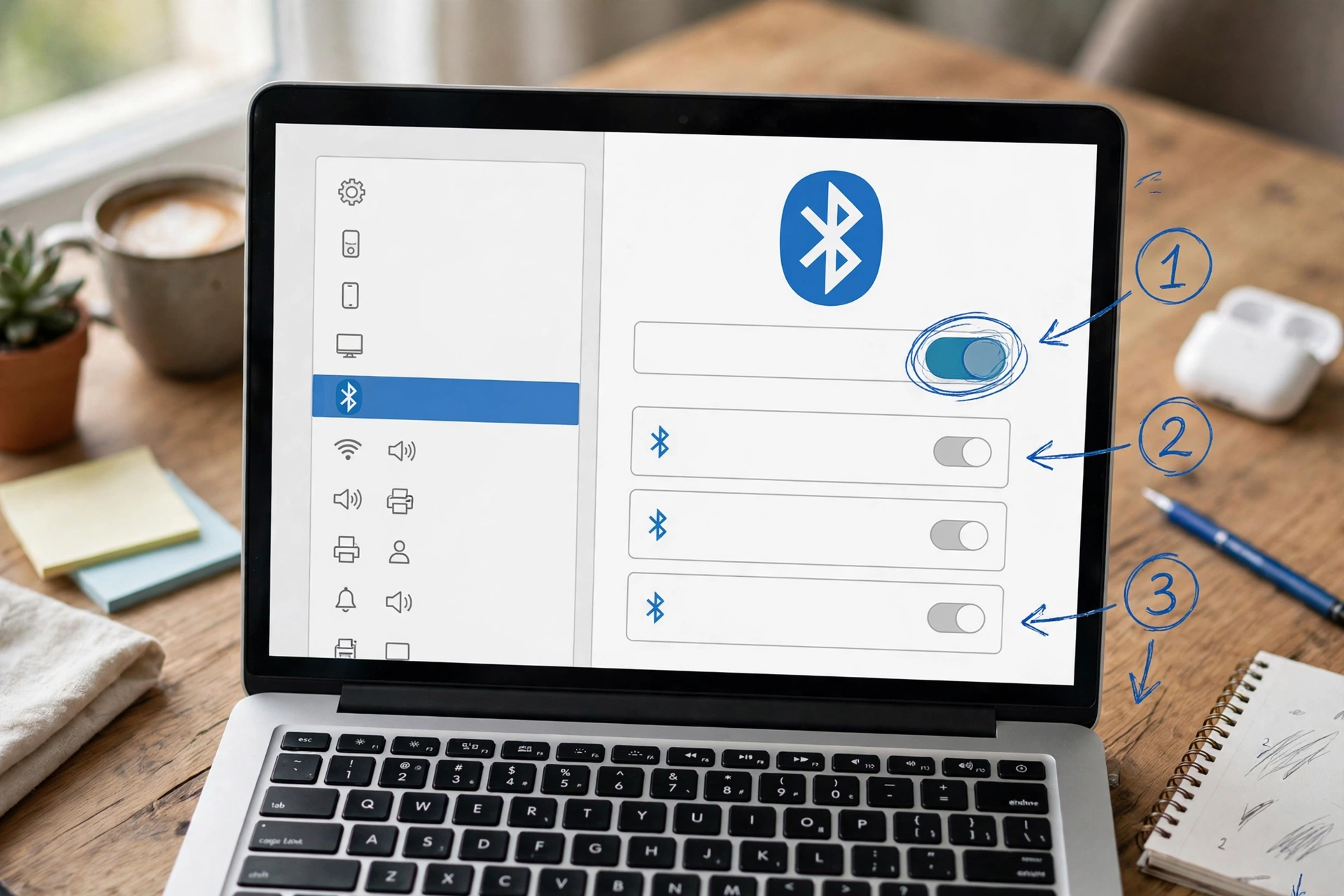
Press Windows + A on either version.
- Windows 11 opens Quick Settings. Click the Bluetooth tile to turn it on or off. Click the small arrow next to it to see your devices.
- Windows 10 opens the Action Center. Click the Bluetooth tile. If you don’t see it, click Expand.
See how to turn Bluetooth on or off in Windows 11 and 10.
How do I check which Bluetooth version my PC has?
Open Device Manager, expand Bluetooth, right-click your adapter, and choose Properties. On the Advanced tab, look for Firmware and the LMP number. Then match it:
| LMP number | Bluetooth version |
|---|---|
| 9 | 5.0 |
| 10 | 5.1 |
| 11 | 5.2 |
| 12 | 5.3 |
| 13 | 5.4 |
See how to check your Bluetooth version on any device.
Missing Features & UI Problems
Why did my Bluetooth toggle disappear completely?
Usually, Windows has lost track of your Bluetooth adapter. The most common reasons are:
- The Bluetooth chip got stuck in a bad power state.
- The Bluetooth driver crashed or was replaced by an update.
- The Bluetooth Support Service stopped.
If only the Quick Settings tile is gone, it may just be unpinned. Press Windows + A, click the pencil icon, click Add, and choose Bluetooth. If the switch is also gone from Settings, a full power drain (shut down, unplug, hold the power button for 30 seconds) fixes many cases.
See how to fix Bluetooth missing from Windows.
How do I restart the Bluetooth Support Service?
- Press Windows + R, type services.msc, and press Enter.
- Find Bluetooth Support Service (also called bthserv).
- Right-click it and choose Restart.
- Double-click it and set Startup type to Automatic, so you don’t have to do this again.
If the buttons are greyed out or the service won’t start, our full guide covers those cases.
See the full guide to the Bluetooth Support Service.
Connection & Performance Quirks
Why does my Bluetooth keep disconnecting randomly on Windows?
The most common reason on laptops is power saving. Windows can turn off the Bluetooth chip, or the USB connection it uses inside the PC, to save battery. Sometimes it doesn’t wake it back up properly, and your device drops out. To stop it:
- Open Device Manager and expand Bluetooth.
- Right-click your adapter, choose Properties, and open the Power Management tab.
- Untick Allow the computer to turn off this device to save power.
- Do the same for each USB Root Hub under Universal Serial Bus controllers.
Some PCs also have a USB selective suspend setting in the advanced Power Options. Turning it off can help too, though not every PC shows it. Other causes include distance, walls, and interference from Wi-Fi or USB 3.0 devices.
See more fixes for Bluetooth not working on Windows.
How do I fix Code 43 or Code 10 errors in Device Manager?
These codes mean Windows found your Bluetooth adapter but can’t use it.
| Code | What it means | First thing to try |
|---|---|---|
| Code 10 | The device can’t start | Reinstall or update the Bluetooth driver |
| Code 43 | Windows stopped the device because it reported a problem | Do a full power drain, then reinstall the driver |
If the error keeps coming back after a clean driver reinstall, the adapter may be faulty.
See what Bluetooth Device Manager error codes mean and how to cleanly reinstall your Bluetooth driver.
Why won’t my PC find my Bluetooth device?
Most of the time, the device isn’t in pairing mode. Turning headphones or a speaker on isn’t enough. Hold the pairing button until the light flashes fast, then click Add device in Windows. Also make sure the device isn’t already connected to your phone nearby.
See how to put any device into pairing mode.
Why won’t my headphones connect automatically when I turn them on?
Headphones reconnect to the last device they used. If that was your phone, they’ll go to your phone, not your PC. Turn off Bluetooth on the phone, or click the headphones in Windows Quick Settings to connect them. If they keep refusing to reconnect, remove them in Windows Settings and pair them again.
See what to do when a device is paired but not connected.
Why does my headset sound bad during calls?
Regular Bluetooth headsets switch to a lower-quality mode when the microphone is on. That’s why music or game sound turns muffled on Discord or Teams calls. It happens on both Windows 10 and 11. Only newer LE Audio headsets on a compatible Windows 11 PC can keep stereo sound with the mic on.
See what changed for Bluetooth between Windows 10 and 11.
Can I use multiple Bluetooth adapters on one PC?
Not at the same time. Windows uses only one Bluetooth adapter at a time. If you add a USB dongle to a laptop that already has Bluetooth, disable the built-in adapter in Device Manager so Windows uses the dongle.
See how to fix a Bluetooth adapter that isn’t detected.
Where do I get the right Bluetooth driver?
From your PC maker’s support website, or the chip maker (Intel, Realtek, MediaTek, or Qualcomm). Avoid third-party “driver updater” programs. They often install the wrong driver.
See official Bluetooth drivers by chipset.
For everything else, from setup to troubleshooting, start with the complete guide to Bluetooth on Windows.
