

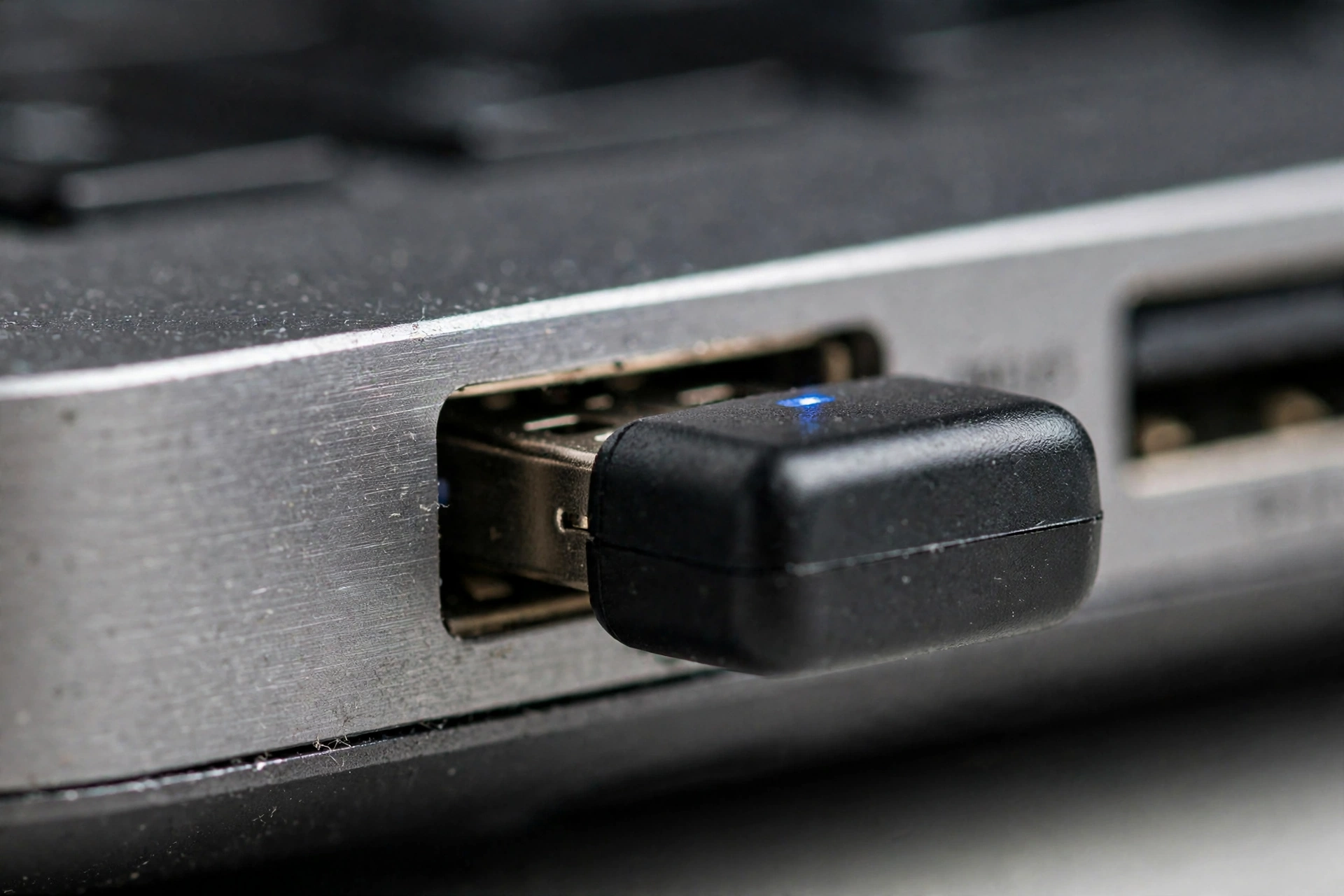
So you plugged in your new USB Bluetooth dongle and… nothing. Windows doesn’t beep. No new Bluetooth icon shows up. Device Manager doesn’t show anything new, or the adapter appears with a yellow warning triangle. Meanwhile, your laptop’s built-in Bluetooth, if it ever worked, stays dead too.
This guide covers both cases: a USB dongle that Windows ignores, and an internal adapter Windows no longer sees. We’ll start with the dongle fixes most people need, then move to driver problems and conflicts. Try them in order and stop when Windows finds your adapter.
Is Your Adapter a USB Dongle or Built Into the PC?
| What you have | Start with |
|---|---|
| A small USB stick you plug in | Fixes 1, 2, 3, then 4 |
| Bluetooth that came with the laptop or desktop | Fixes 3, 4, 5 |
| New dongle, but your PC has built-in Bluetooth too | Fix 3 (conflicts) first |
1. Try a Different USB Port (USB 3.0 Can Cause Problems)
Fixes: a dongle Windows doesn’t react to at all.
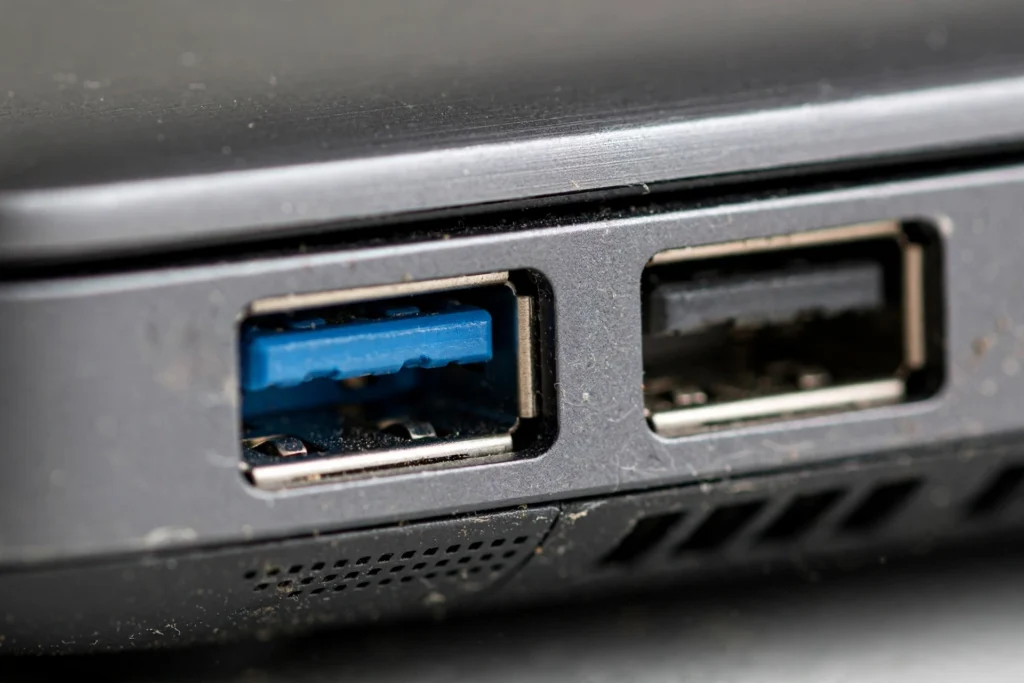
- Plug the dongle into a USB 2.0 port (the black ones inside) instead of USB 3.0 (blue inside). USB 3.0 ports can give off interference in the same 2.4GHz band Bluetooth uses.
- Don’t use a USB hub or dock at first. Plug the dongle straight into the PC.
- Try a port on the other side or back of the PC. Front-panel ports are more likely to be loose or poorly wired.
If Windows beeps and installs something after you switch ports, you’re done. If not, move on.
2. Force Windows to See the Dongle
Fixes: a dongle that gives no reaction in any port.
- Press Windows + X and choose Device Manager.
- Click Action, then Scan for hardware changes.
- If nothing new shows, click View, then Show hidden devices.
- Look under Bluetooth and under Universal Serial Bus controllers for anything new, like “Unknown USB Device” or a generic name.
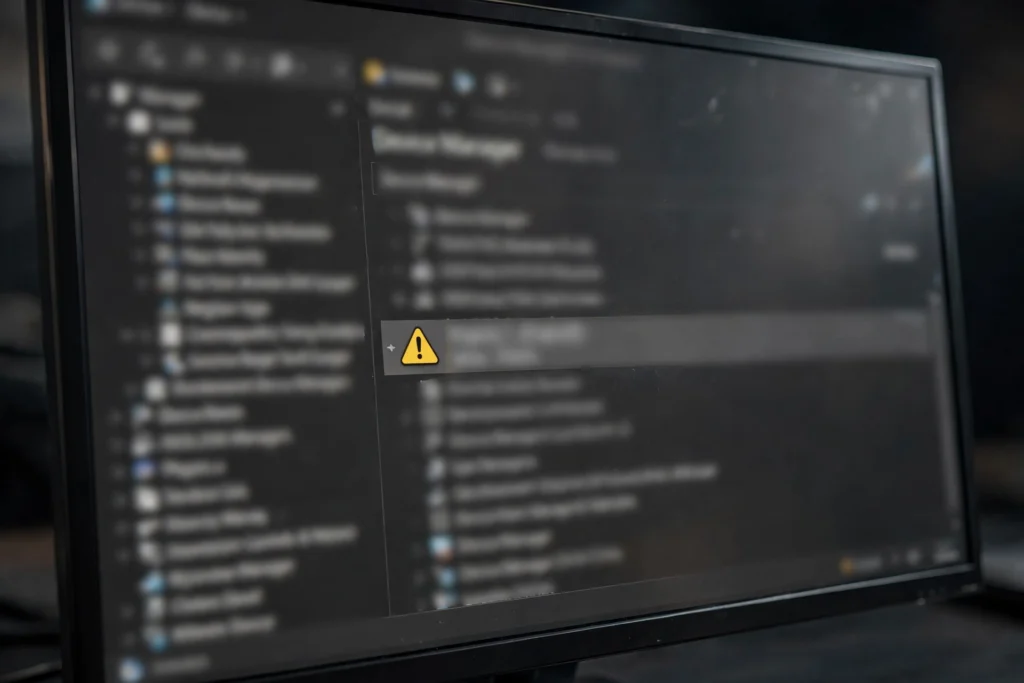
Seeing Unknown USB Device with a yellow warning? That’s actually good news. Windows found your dongle but doesn’t know what it is yet. That means it’s a driver problem, not a dead dongle. Go to Fix 4.
Still nothing anywhere? The dongle may be dead, or the port may not deliver enough power. Try the dongle on another PC to see if it’s the dongle itself.
3. Disable the Built-In Adapter (The Dongle Conflict)
Fixes: two Bluetooth adapters fighting, or a new dongle being ignored because the internal chip answers first.
If your PC has built-in Bluetooth and you added a USB dongle, the two adapters can conflict. Windows often keeps using the broken internal one and ignores the new dongle.
- Open Device Manager and expand Bluetooth.
- Right-click the internal or old adapter (it usually has Intel, Realtek, MediaTek, or Qualcomm in its name) and choose Disable device.
- Click Yes.
- Unplug the dongle, wait 10 seconds, and plug it back in.
Now Windows should use the dongle. If the internal adapter was working fine and you just wanted to upgrade, keep the old one disabled so they don’t fight.
If your PC never had Bluetooth and you only have the dongle, skip this fix.
4. Fix “Unknown Device” and Code 43 with the Right Driver
Fixes: adapter found but with a yellow warning, or “Windows has stopped this device because it has reported problems (Code 43).”
Code 43 usually means the driver is wrong, damaged, or missing. Many cheap dongles come with a tiny CD with an old driver, or none at all. Don’t run random “driver updater” apps from a web search. Get the driver from the right place instead.
- Find out who made your dongle’s chip. If Device Manager shows a name like “Realtek Bluetooth,” the dongle maker or Realtek’s driver is what you need. If it only says Unknown, check the dongle’s packaging or the seller’s listing for the chip brand.
- Get the driver from the dongle maker’s website first.
- No driver there? Get the chipset driver from the chip maker or your PC maker.
See how to find your Bluetooth chipset and get the official driver.
Then do a clean install:
- In Device Manager, right-click the problem device and choose Uninstall device.
- If you see “Attempt to remove the driver for this device,” tick it.
- Unplug the dongle, restart your PC, plug the dongle back in, and run the driver installer you downloaded.
See the full clean-install walkthrough.
5. When Nothing Detects the Internal Adapter
Fixes: built-in Bluetooth missing from Device Manager, even after showing hidden devices.
If your PC’s own Bluetooth adapter is gone from Device Manager completely, that’s the “missing adapter” problem, not just an undetected one. It usually needs a power drain to reset the stuck chip, restarting the Bluetooth Support Service, or turning off Fast Startup so the problem doesn’t come back.
See how to fix Bluetooth missing from Windows.
Frequently Asked Questions
Why won’t Windows detect my USB Bluetooth adapter?
Most often the wrong port (try USB 2.0 directly on the PC), a conflict with the built-in adapter (disable it in Device Manager), or a missing driver (shows as Unknown USB Device).
How do I know if my Bluetooth dongle is dead?
Try it on another PC. If no PC reacts to it in any port, the dongle is likely dead.
What does Code 43 mean for a Bluetooth adapter?
Windows stopped the device because the driver reported a problem. Cleanly reinstall the correct driver from the dongle or chip maker.
Should I disable my laptop’s built-in Bluetooth when using a dongle?
Yes, if they conflict. Disable the internal adapter in Device Manager so Windows uses only the dongle.
Why does my new dongle show as Unknown USB Device?
Windows sees the hardware but has no driver for it. Install the driver from the dongle maker or chipset maker.
For more Windows Bluetooth help, visit the complete guide to Bluetooth on Windows.
