


Finding the right Bluetooth drivers by chipset sounds easy until you try it. You don’t know if your PC has an Intel, Realtek, MediaTek, or Qualcomm chip. Device Manager just says “Generic Bluetooth Radio” or “Unknown device.” And when you search for a download, half the results are sketchy driver sites that want you to install their “updater.”
This guide fixes that in two steps. First, you’ll find out exactly which Bluetooth chip your PC has. Then you’ll jump to that chipset’s section and get the driver from an official, safe source.
Why You Need Your Specific Chipset Driver (Generic vs. OEM)
There are two kinds of Bluetooth drivers on a Windows PC:
| Generic driver | OEM chipset driver | |
|---|---|---|
| Who makes it | Microsoft | Intel, Realtek, MediaTek, Qualcomm, or your laptop maker |
| How it looks in Device Manager | “Generic Bluetooth Radio” or “Generic Bluetooth Adapter” | The brand name, like “Intel(R) Wireless Bluetooth(R)” |
| What it does | Basic connections | Full support, bug fixes, and features made for your exact chip |
Windows installs the generic driver when it can’t find a better one. It keeps Bluetooth working, but it isn’t built for your specific chip. That can mean dropped headphone connections, poor audio, or missing features. Installing the official chipset driver usually fixes this.
Why doesn’t Windows Update just do it? Windows Update doesn’t always offer the newest chipset driver, and “Search automatically” in Device Manager mainly checks drivers already on your PC. So Windows can say your driver is “up to date” even when a better one exists.
Also see whether you need the Intel or Realtek Bluetooth app, or if Windows is enough.
How to Find Out Which Bluetooth Chipset Your PC Has
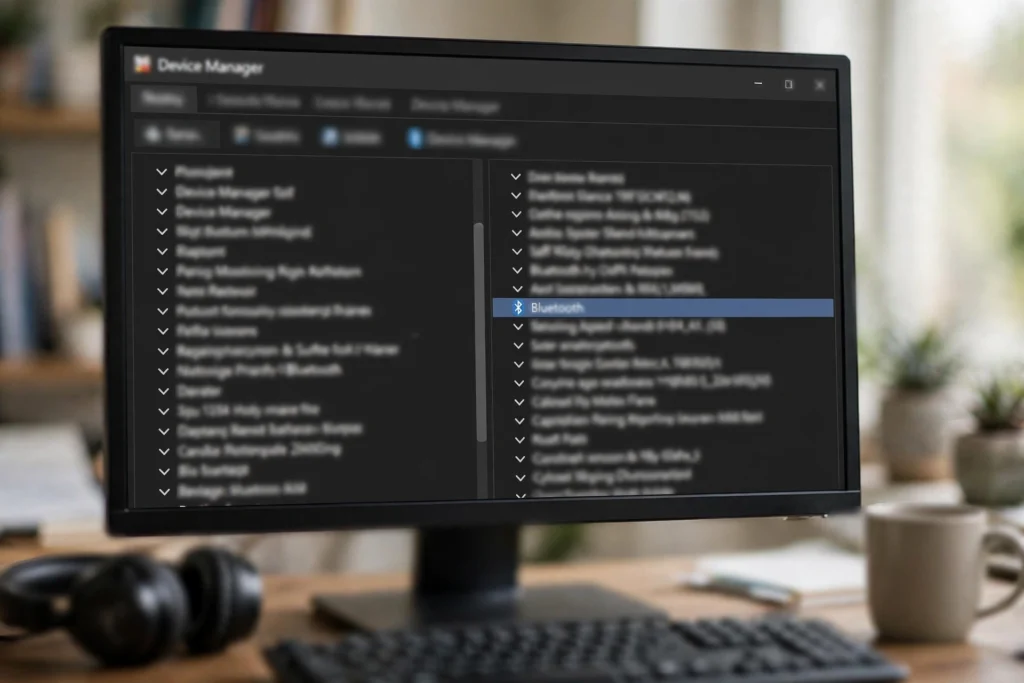
- Press Windows + X and choose Device Manager. (Or press Windows + R, type devmgmt.msc, and press Enter.)
- Expand the Bluetooth section.
- Look at the adapter’s name. It usually includes the brand: Intel, Realtek, MediaTek, or Qualcomm.
- Also check Network adapters. Bluetooth usually shares a chip with Wi-Fi, so the Wi-Fi card’s brand often tells you the Bluetooth brand too.
Have an AMD processor? The processor doesn’t decide your Bluetooth chip. Many AMD laptops use MediaTek or Realtek wireless cards. Some cards are even labeled “AMD” (like the RZ600 series) but are made by MediaTek. Check the adapter’s name, not your CPU.
The “Unknown Device” Trick: Using Hardware IDs
If the adapter shows up as Unknown device or Generic Bluetooth Radio, the name won’t help. Use its hardware ID instead. It’s like a fingerprint that tells you the maker.
- In Device Manager, right-click the device and choose Properties.
- Click the Details tab.
- In the Property dropdown, choose Hardware Ids.
- Look at the first line. Find the code after VID_ (or VEN_).
Most laptop Bluetooth chips connect inside the PC through USB, so you’ll usually see VID_. Here’s what the common codes mean:
| Code you see | Maker |
|---|---|
| VID_8087 | Intel |
| VID_0BDA | Realtek |
| VID_0E8D | MediaTek |
| VID_0CF3 | Qualcomm Atheros |
| VID_0A5C | Broadcom |
You may see codes that aren’t on this list, like VID_13D3 or VID_0489. These belong to companies that build wireless modules using another brand’s chip. In that case, get the driver from your laptop maker’s support page.
Don’t trust a code starting with VEN_8086 to mean Bluetooth. That’s Intel’s code for PCI devices like the Wi-Fi card. The Intel Bluetooth part normally shows as VID_8087.
Intel Wireless Bluetooth Drivers
Intel makes downloads easier than any other brand. You have two official options:
- Intel Driver & Support Assistant (DSA): a free Intel tool that scans your PC and finds the right driver for you. Get it from Intel’s support site at intel.com/content/www/us/en/support/detect.html.
- Manual download: go to Intel’s Download Center and search for Intel Wireless Bluetooth. Pick the version for Windows 10 or Windows 11 and download the installer.
On a brand-name laptop, Intel’s generic package usually works fine. If Intel’s installer refuses to run, use your laptop maker’s driver instead.
Realtek Bluetooth Drivers
Realtek is the most frustrating brand to download from. Its website is built for hardware makers, not regular users, and it doesn’t offer a simple Bluetooth driver page for laptops.
The easier and safer path is your laptop or PC maker’s support site. They package the Realtek driver tested for your exact model:
| Brand | Where to go |
|---|---|
| Dell | dell.com/support (or the SupportAssist app) |
| HP | support.hp.com (or HP Support Assistant) |
| Lenovo | pcsupport.lenovo.com (or Lenovo Vantage) |
| ASUS | asus.com/support (or the MyASUS app) |
| Acer | acer.com/support |

Enter your model or serial number, then look under Bluetooth, Wireless, or Network drivers.
Using a cheap USB Bluetooth dongle? Many use Realtek chips. Check the dongle maker’s website first.
MediaTek & Qualcomm (Atheros) Drivers
These chips are common in ASUS, Acer, and many gaming laptops. Like Realtek, MediaTek and Qualcomm don’t offer easy downloads for regular users. Try these in order:
- Your laptop maker’s support page. Same as the Realtek steps above.
- Windows Update Optional updates. Microsoft hosts many of these drivers. Windows 11: Settings, then Windows Update, then Advanced options, then Optional updates, then Driver updates. Windows 10: Settings, then Update & Security, then Windows Update, then View optional updates, then Driver updates. Tick anything with Bluetooth, MediaTek, or Qualcomm in the name, then click Download & install.
- The Microsoft Update Catalog (advanced). At catalog.update.microsoft.com, you can search using your hardware ID (for example, VID_0E8D) and download the matching driver directly from Microsoft.
How to Avoid Fake Driver Sites
Only download drivers from these places: Microsoft, the chip maker (Intel), or your PC or dongle maker. Avoid sites that ask you to install a “driver updater” first. They often bundle unwanted software or install the wrong driver.
Also, if Windows warns that a driver isn’t signed, stop. Don’t turn off driver signature enforcement to force it in. Official drivers are signed.
How to Safely Install Your New Driver
Got the installer? Don’t just run it on top of the old driver. A broken old driver can conflict with the new one. Remove the old driver first, restart, and then install the new one.
We’ve put the full clean-install steps, plus how to roll back if something goes wrong, in one guide: how to update, reinstall, or roll back your Bluetooth driver.
If Bluetooth is missing from Device Manager completely, you can’t install a driver yet. Start here instead: how to fix Bluetooth missing from Windows.
Frequently Asked Questions
How do I find out what Bluetooth driver I need?
Open Device Manager and check the name under Bluetooth. If it says Generic or Unknown, check Properties, then Details, then Hardware Ids, and match the VID code to the table above.
Why does Windows install a Generic Bluetooth Radio driver?
Windows uses Microsoft’s generic driver when it can’t find a driver for your exact chip. Installing the official chipset driver usually gives better stability and features.
Where do I download Intel Bluetooth drivers?
From Intel’s website, either with the Intel Driver & Support Assistant or by searching “Intel Wireless Bluetooth” in Intel’s Download Center.
How do I update Realtek Bluetooth?
Use your laptop or PC maker’s support page. Realtek’s own website isn’t set up for regular users.
Is Intel or Realtek Bluetooth better?
Both work well when they have the right driver. Stability depends more on the correct driver than on the brand.
Do I need an Intel driver if my PC has an AMD processor?
Not because of the processor. Check your Bluetooth adapter’s name or hardware ID. Many AMD laptops use MediaTek or Realtek Bluetooth chips.
For more Windows Bluetooth help, visit the complete guide to Bluetooth on Windows.
