


If your Bluetooth suddenly stops finding devices, won’t connect, or the switch acts strangely, the Bluetooth Support Service is often the hidden cause. It’s a background program in Windows that you never see, so when it crashes or stops, it’s hard to know what went wrong.
The fix usually takes less than a minute. Below, you’ll learn what this service does, how to restart it the easy way or with a command, how to unstick it when the buttons are greyed out, and how to make Windows restart it automatically next time.
What Is the Bluetooth Support Service (bthserv)?
The Bluetooth Support Service is a background program in Windows 10 and 11. Its short name is bthserv.
It handles two main jobs:
- Discovery: finding nearby Bluetooth devices when you click Add device.
- Pairing and connecting: linking your PC with headphones, mice, keyboards, and other devices.
According to Microsoft’s own description, if this service stops or is disabled, devices you already paired may stop working properly, and Windows can’t find or pair new ones.
You may also see a related service called Bluetooth User Support Service. It runs once for each person signed in to the PC and supports Bluetooth features for that user. If bthserv is acting up, it’s worth restarting this one too.
Method 1: How to Restart the Service (The Easy Way)
- Press Windows + R to open the Run box.
- Type services.msc and press Enter.
- Scroll down and find Bluetooth Support Service.
- Right-click it and choose Restart. If it says Stopped, choose Start instead.
Now stop this from happening again. This step is the one most guides leave out.
- Double-click Bluetooth Support Service to open its settings.
- Change Startup type to Automatic.
- Click Apply, then OK.
By default, Windows only starts this service when it thinks it’s needed. Setting it to Automatic makes Windows start it every time your PC turns on, so you don’t have to repeat these steps after every restart.
While you’re in the list, also right-click Bluetooth User Support Service (its name may end with a code like _1a2b3c) and choose Restart if it’s available. Then test your Bluetooth.
Method 2: Restarting via Command Prompt or PowerShell
This is faster if you’re comfortable typing commands, if the Services window freezes, or if you’re fixing a PC remotely. You need administrator rights.
Open an admin window first:
- Click Start and type cmd (or PowerShell).
- Right-click the result and choose Run as administrator.
- Click Yes when Windows asks for permission.
Command Prompt:
net stop bthserv

net start bthserv
If Windows says other services depend on it and asks to continue, type Y and press Enter. Run net start bthserv again afterward if Bluetooth audio services didn’t come back.
PowerShell (one line):
Restart-Service -Name bthserv -ForceThe -Force part also restarts any services that depend on bthserv.
To set it to Automatic with a command:
sc config bthserv start= auto
Type it exactly as shown, including the space after start=.
How to Fix a Stuck Bluetooth Service (Greyed Out Buttons)
Sometimes the service gets stuck. Its status says Stopping or Starting and never changes, and the Start, Stop, and Restart buttons are all greyed out. You can force it to close, then start it fresh.
Step 1: Find the service’s process ID (PID).
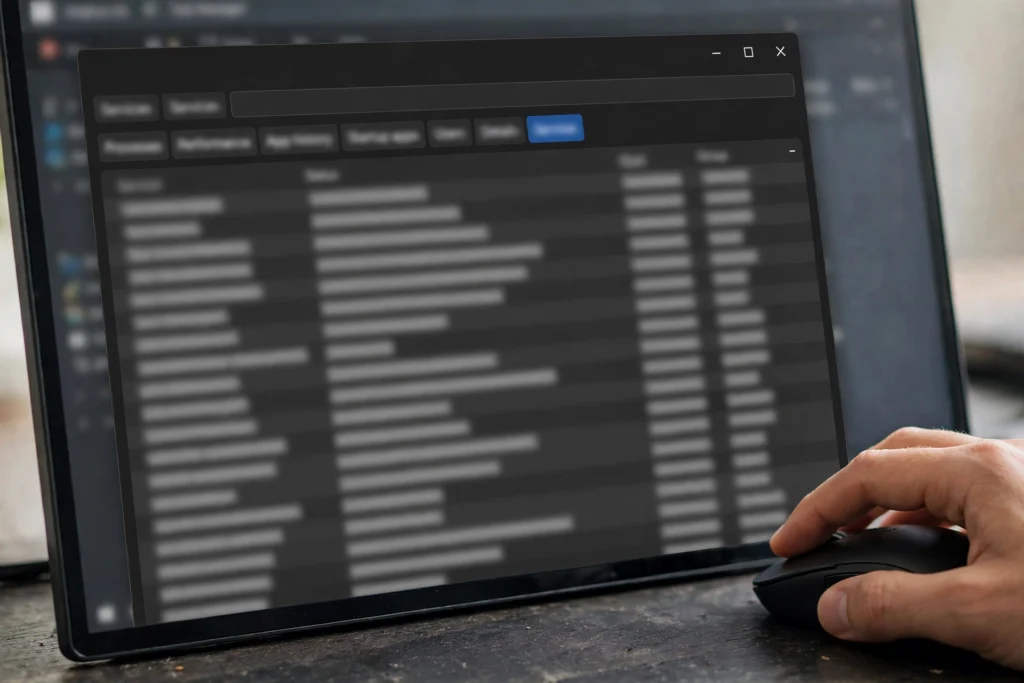
- Open Task Manager with Ctrl + Shift + Esc.
- Click the Services tab.
- Find bthserv and note the number in the PID column.
Step 2: End that process.
- Click the Details tab.
- Find the line with the same PID number. It will be named svchost.exe.
- Right-click it and choose End task, then confirm.
Step 3: Start the service again. Go back to services.msc, right-click Bluetooth Support Service, and choose Start.
Prefer commands? In an admin Command Prompt, type sc queryex bthserv to see the PID, then taskkill /PID 1234 /F, replacing 1234 with your number.
One warning: svchost.exe is a shared Windows host program. On most modern PCs, bthserv runs in its own copy, but on PCs with less memory it may share one with other services. Ending it then stops those services too. Only end the exact PID you found, and restart your PC if anything else stops working.
If the service won’t start at all and shows an error like 1079, 5 (Access denied), or 1068, that’s a different problem. See how to fix the Bluetooth Support Service when it won’t start.
The Permanent Fix: Automate Service Recovery
Windows can restart a crashed service for you, so you don’t have to.
- Open services.msc and double-click Bluetooth Support Service.
- Click the Recovery tab.
- Set First failure to Restart the Service.
- Set Second failure to Restart the Service.
- Set Subsequent failures to Restart the Service.
- Set Restart service after to 1 minute.
- Click Apply, then OK.
Now, if the service crashes, Windows brings it back on its own within about a minute.
Keep in mind that this only kicks in when the service crashes. It won’t help if something stops it on purpose or if the problem is a broken driver. That’s why setting Startup type to Automatic (Method 1) matters too.
Still Having Trouble?
If restarting the service didn’t help, the problem is probably somewhere else:
- The Bluetooth switch is completely gone from Settings: see how to fix Bluetooth missing from Windows.
- Bluetooth is on but keeps failing, or broke after an update: the driver is the likely cause. See how to update, reinstall, or roll back your Bluetooth driver.
- Connections drop at random: see our full list of Windows fixes. Fixes for Bluetooth not working in Windows 11.
Frequently Asked Questions
What is bthserv?
It’s the short name for the Bluetooth Support Service, the Windows background program that finds, pairs, and connects Bluetooth devices.
How do I restart the Bluetooth service in Windows 11?
Press Windows + R, type services.msc, find Bluetooth Support Service, right-click it, and choose Restart. Then set its Startup type to Automatic.
What happens if I disable the Bluetooth Support Service?
Bluetooth stops working properly. Paired devices may fail, and Windows can’t find new ones. Only disable it if you never use Bluetooth.
Why does my Bluetooth service keep stopping?
Common causes are a buggy driver, a Windows update, or the service set to Manual. Set it to Automatic, turn on Recovery, and check your Bluetooth driver.
Why can’t I find Bluetooth Support Service in the list?
If it’s missing, Windows may not see a Bluetooth adapter at all, or the PC has no Bluetooth. Check Device Manager for a Bluetooth section.
For more Windows Bluetooth help, visit the complete guide to Bluetooth on Windows.
