


If your Bluetooth speaker will not connect, keeps disconnecting, or refuses to enter pairing mode, resetting it may help. The correct method depends on the speaker’s brand and model. Some speakers use a button combination, while others require a companion app or a small reset button.
Before you try a factory reset, restart the speaker first. If that does not work, follow the instructions below for your speaker brand. After resetting, remove the old speaker connection from your phone or computer and pair it again. This extra step can prevent the same connection problem from returning.
Bluetooth Speaker Reset Button Cheat Sheet
These are common reset methods to check, not universal instructions for every model. Button combinations can vary even within the same brand, so confirm the steps in your speaker’s manual before trying them.
| Speaker brand | Reset method to check |
|---|---|
| JBL | Some models use Play and Volume Up |
| Sony | Some models use Power and Bluetooth, or another model-specific combination |
| Soundcore | Some models use Power and Bluetooth |
| Ultimate Ears (UE) | Reset steps vary by model |
| Bose | Reset steps vary by model |
| Sonos | Usually reset through model-specific instructions |
| Tribit | Button combinations vary by model |
| Anker | Check the exact Soundcore model instructions |
| Marshall | Reset steps vary by model |
| Generic speakers | Check for a reset button, pinhole, or documented button combination |
Important: Do not assume a combination works for every speaker from a brand. If a button combination does nothing, check the official instructions for your exact model.
Restarting vs. Factory Resetting: Which Do You Need?
Restarting and factory resetting are different.
- Restart: Turns the speaker off and back on. It may fix a temporary glitch without deleting saved pairings.
- Factory reset: Restores the speaker to its original settings. It may erase saved Bluetooth devices and other settings.
Try a restart first if the speaker is frozen, briefly disconnects, or will not play sound.
Use a factory reset if the speaker repeatedly fails to pair, has persistent connection problems, or does not respond to normal troubleshooting.
How to Reset a Bluetooth Speaker Using General Button Combinations
If you do not know your speaker’s reset method, look for the instructions in its user manual or on the manufacturer’s support website.
Some speakers use combinations such as:
- Power + Volume Down
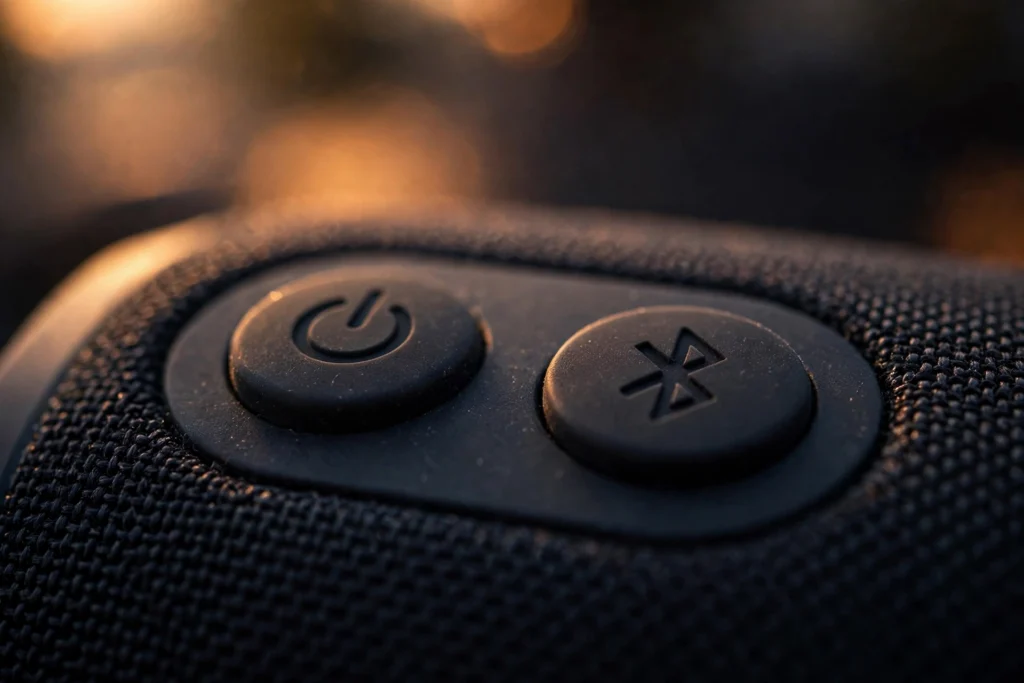
- Power + Bluetooth
- Play/Pause + Volume Up
- A dedicated reset button
These are examples of methods used by some models, not universal reset commands.
To try a documented button combination safely:
- Charge the speaker enough to keep it powered on.
- Turn it on if the instructions require it.
- Press and hold the listed buttons for the stated amount of time.
- Watch for an LED change, beep, or voice prompt.
- Release the buttons and wait for the speaker to restart.
If the speaker does not respond, do not keep trying random combinations. You may activate another feature or fail to reset it.
How to Reset Popular Bluetooth Speaker Brands
How to Reset a JBL Speaker
JBL has many speaker models, and their reset steps are not all the same.
Some models use a combination involving Play and Volume Up, while others have different instructions.
- Find your exact JBL model name.
- Check the official JBL support instructions.
- Follow the reset sequence for that model.
- Wait for the speaker to restart.
- Remove the old JBL pairing from your phone and connect again.
If your JBL speaker will not reset, charge it first and confirm that you are using the correct button combination.
How to Reset a Sony Bluetooth Speaker
Sony reset and initialization steps vary across speaker models. A reset may restart the speaker without erasing its settings, while initialization may restore factory settings.
- Check the model number on the speaker.
- Open Sony’s official support page for that model.
- Follow the listed reset or initialization instructions.
- Wait for the speaker to finish restarting.
- Forget the old Bluetooth connection on your phone and pair the speaker again.
Do not assume that holding Power and Bluetooth or Power and Volume Down works on every Sony speaker.
How to Reset a Soundcore Speaker
Soundcore speakers can use different reset methods depending on the model. Some use a combination involving the Power and Bluetooth buttons.
- Identify your Soundcore model.
- Check its official manual or Soundcore support instructions.
- Follow the documented reset steps.
- If the model uses the Soundcore app, check whether it offers troubleshooting or firmware updates.
- Remove the old Bluetooth pairing and connect again.
If the speaker still does not enter pairing mode, make sure it has enough battery power.
How to Reset an Ultimate Ears (UE) Speaker
Ultimate Ears models may have different reset instructions. Do not assume that holding Power and Volume Down will reset every UE speaker.
- Check the exact model name.
- Follow the manufacturer’s reset instructions.
- Wait for the speaker to restart.
- Forget the speaker in your phone’s Bluetooth settings.
- Put it into pairing mode and connect again.
If your model uses a companion app, check it for available support options and firmware updates.
How to Reset a Bose Bluetooth Speaker
Bose reset steps vary by product. Some speakers use button-based procedures, while certain smart speakers may offer additional controls through the Bose app.
- Identify your exact Bose model.
- Check the official Bose product support instructions.
- Follow the specified reset process.
- Open your phone’s Bluetooth settings and remove the old pairing.
- Pair the speaker again.
If the speaker remains unresponsive, check its charging status and the manufacturer’s troubleshooting guide.
How to Reset a Speaker Using a Pinhole Button
Some older or budget Bluetooth speakers have a small reset button hidden inside a pinhole. It may be near the charging port, on the back, or underneath the speaker.
If your speaker has one:
- Turn off the speaker if the manual tells you to.
- Look for a clearly marked reset pinhole.
- Use the tool recommended by the manufacturer.
- Press the button for the specified time.
- Wait for the speaker to restart.
Do not push a pin into an unmarked hole. It could be a microphone opening or another part of the hardware. If there is no clear reset label, check the manual before proceeding.
How to Reset a Smart Speaker Using Its Companion App
Some smart speakers use a companion app to manage settings, updates, and troubleshooting. Depending on the product, the app may provide a reset option or explain how to restore factory settings.
Try this approach:
- Open the speaker’s official app.
- Select your speaker.
- Look under Settings, System, or Support.
- Check for reset or factory-reset instructions.
- Follow the instructions for your exact model.
Not every app offers a factory-reset button. Some products require a physical button sequence instead.
A firmware update may also help with connection problems. Install one only if the manufacturer recommends it for your model and the speaker can complete the update safely.
Crucial Step: Forget the Speaker on Your Phone or Computer
A factory reset may clear the speaker’s pairing memory, but your phone or computer may still keep the old connection record. Removing that record helps both devices establish a fresh connection.
On an iPhone
- Open Settings and tap Bluetooth.
- Find your speaker.
- Tap the information icon next to its name.
- Choose Forget This Device.
- Put the speaker into pairing mode.
- Select it from the available devices list.
On Android
- Open Settings and go to Bluetooth or Connected devices.
- Find the speaker under paired devices.
- Tap its settings icon.
- Choose Unpair or Forget.
- Put the speaker into pairing mode.
- Select it to pair again.
On Windows
- Open Settings.
- Select Bluetooth & devices.
- Find your speaker and open its device options.
- Choose Remove device.
- Put the speaker into pairing mode.
- Add it again through Bluetooth settings.
On Mac
- Open System Settings and select Bluetooth.
- Find your speaker in the device list.
- Remove or forget the device using the available control.
- Put the speaker into pairing mode.
- Connect to it again.
What to Do If Your Bluetooth Speaker Still Won’t Reset
If the speaker does not reset or connect after these steps, check the following:
- Battery: Charge the speaker and try again.
- Buttons: Check whether the Power or reset buttons are stuck or damaged.
- Pairing mode: Confirm that the speaker is discoverable.
- Other devices: Turn off Bluetooth on nearby devices that may reconnect automatically.
- Firmware: Check the manufacturer’s app or support page for updates.
- Hardware: Test the speaker with another phone or computer.
If the speaker will not turn on, charge, or respond to its documented reset procedure, it may have a battery or hardware problem. Contact the manufacturer before opening the speaker or attempting a repair.
Frequently Asked Questions
Does resetting a Bluetooth speaker delete its pairings?
A factory reset often deletes saved pairings and restores the speaker’s original settings. A simple restart usually does not. The exact behavior depends on the model.
How do you force a Bluetooth speaker to reset?
Use the reset button or button combination listed in the manufacturer’s instructions. There is no single button combination that works for every Bluetooth speaker.
Why is my speaker not going into pairing mode?
The battery may be low, the speaker may already be connected to another device, or the wrong button sequence may be used. Charge the speaker, disconnect other devices, and check the correct pairing instructions.
Do I need to reset my phone too?
Usually, no. Start by restarting Bluetooth on your phone and forgetting the old speaker connection. Resetting your phone’s network settings should be a later step if other Bluetooth devices also have problems.
Final Thoughts
The best way to reset a Bluetooth speaker depends on its brand and model. Start with a restart, use the correct factory-reset instructions if needed, and then forget the old pairing on your phone or computer before reconnecting.
If the speaker still fails to reset, check its battery, official support instructions, and hardware condition before assuming it is broken.


1 Comment
Pingback: Bluetooth Speaker Not Connecting? 6 Easy Fixes