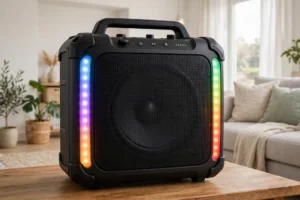
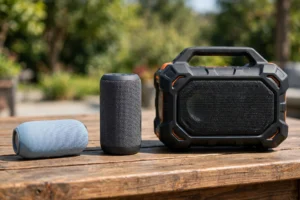



Want to play music through two Bluetooth speakers at the same time? You can often do this, but the right method depends on your speakers, phone, and computer. Some speakers pair directly with another speaker, while some phones and computers can send audio to two devices using built-in features.
The easiest way to pair two Bluetooth speakers is to use the speakers’ built-in stereo or party mode. If you have speakers from different brands, you may need a phone or computer feature instead. This guide explains how each method works and what to do if the speakers will not connect or play in sync.
Can You Connect Two Bluetooth Speakers at the Same Time?
Yes, you can connect two Bluetooth speakers at once, but not every phone or speaker supports it.
There are three main ways to play music on multiple Bluetooth speakers:
- Built-in speaker pairing: Compatible speakers link to each other using a feature such as True Wireless Stereo (TWS) or Party Mode.
- Phone-based audio sharing: Some phones, such as supported Samsung Galaxy models, can send media audio to two Bluetooth devices.
- Computer-based audio sharing: A Mac can create a Multi-Output Device to play audio through multiple outputs.
Before you start, check whether your speakers support connecting to another speaker. Look for terms such as TWS, Stereo Pair, Party Mode, PartyCast, or Wireless Party Chain in the user manual or companion app.
If your speakers do not support the same pairing feature, they may not connect directly. You can still try an operating system feature if your phone or computer supports it.
Can You Connect Two Different Brands of Bluetooth Speakers?
Usually, you cannot use the speakers’ built-in pairing feature to connect two different brands. For example, a JBL speaker and a Sony speaker may both use Bluetooth, but that does not mean their speaker-to-speaker pairing systems are compatible.
Bluetooth lets devices communicate through shared standards. However, features such as TWS and Party Mode may use brand-specific methods.
Here are your options:
| Your setup | Best method to try |
|---|---|
| Two compatible speakers from the same brand | TWS, Stereo Pair, or Party Mode |
| Two different brands with a supported Samsung phone | Samsung Dual Audio |
| Two different brands with a Mac | Multi-Output Device in Audio MIDI Setup |
| Two different brands with an iPhone | Check AirPlay support or use a compatible audio-sharing solution |
Newer technologies, such as Bluetooth LE Audio and Auracast, are designed to support shared audio in compatible devices. However, both the transmitting device and receiving speakers must support the required features. You cannot assume that any two Bluetooth speakers can use Auracast together.
Important: Bluetooth multipoint is different from connecting two speakers to one phone. Multipoint usually lets one speaker connect to two source devices, such as a phone and a laptop. It does not automatically let one phone play through two speakers.
Stereo Pairing vs. Party Mode: What’s the Difference?
Before connecting your speakers, decide how you want the music to sound.
Stereo Pair (TWS)
Stereo pairing separates the left and right audio channels. One speaker plays the left channel, while the other plays the right channel. This creates a wider, more natural sound when the speakers are placed correctly.
Party Mode
Party Mode usually sends the same music to both speakers. This is useful for filling a room or outdoor space with sound. It often plays synchronized mono audio rather than separate left and right channels.
The exact behavior depends on the speaker model. Some systems offer both stereo and party playback, while others support only one mode.
Choose stereo if you want a wider listening experience. Choose party mode if you want music playing in more than one place.
Method 1: Pair Two Speakers Using True Wireless Stereo (TWS)
This is usually the simplest way to connect two compatible speakers. It works best when both speakers support the same TWS or stereo-pairing feature.
The exact buttons vary by model, but the general process is similar.
Step 1: Charge and turn on both speakers
Charge both speakers enough to avoid power problems during pairing. Place them close together and turn them on.
Step 2: Connect the first speaker to your phone
Open Bluetooth Settings on your phone. Select the first speaker and wait until it connects.
This speaker will usually act as the primary or master speaker. It receives audio from your phone and works with the second speaker to play the music.
Step 3: Activate speaker-to-speaker pairing
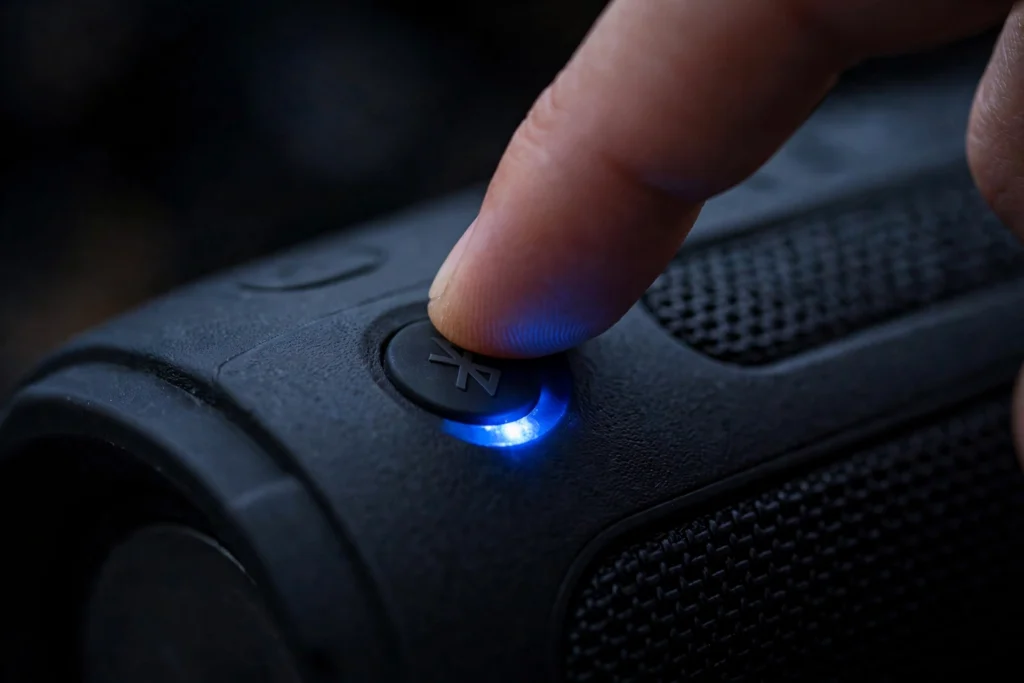
Use the speaker’s TWS, Stereo Pair, or speaker-link button. Depending on the model, you may need to press a dedicated button or hold a button for a few seconds.
Some models require you to activate pairing mode on both speakers. Others use a companion app.
Do not assume that holding the power button is the correct method for every speaker. Check the manufacturer’s instructions.
Step 4: Wait for the speakers to link
Give the speakers a few seconds to establish their connection. A flashing light, sound prompt, or steady indicator may confirm that they are linked.
The exact signal depends on the brand.
Step 5: Play music and test the sound
Start a song on your phone. If the speakers support stereo pairing, check that the left and right channels work as expected.
If both speakers play the same sound, they may be in party mode instead of stereo mode. Check the speaker’s instructions to switch modes if supported.
If TWS does not work: Make sure the two speakers are compatible with each other. Two speakers that use different pairing systems may not link even if they come from the same manufacturer.
Method 2: Connect Two Speakers Using Samsung Dual Audio
Samsung Dual Audio lets supported Samsung Galaxy devices send media audio to two connected Bluetooth audio devices at the same time. This can help if you want to play music through two different speaker brands.
Availability and menu names depend on your phone model and software version.
Step 1: Pair both speakers with your Samsung phone
- Turn on both speakers.
- Open Settings on your Samsung phone.
- Tap Connections, then Bluetooth.
- Pair the first speaker.
- Pair the second speaker as well.
If one speaker is already paired, you may only need to connect it.
Step 2: Open the Media panel
Swipe down from the top of the screen to open the Quick Settings panel. Look for Media output or the media panel.
On supported devices, you can select the audio devices that should play your media.
Step 3: Select both speakers
Choose both connected Bluetooth speakers from the available audio outputs, if your device allows it.
Start playing music and check that both speakers produce sound.
What if Samsung Dual Audio is not working?
Try these checks:
- Confirm that your Galaxy phone supports Dual Audio.
- Make sure both speakers are connected to the phone.
- Disconnect other audio devices you are not using.
- Restart Bluetooth and reconnect both speakers.
- Check for available phone software updates.
If the second speaker does not appear in the Media output panel, check your phone’s model-specific instructions. Not every Samsung phone or software version offers the same options.
Method 3: Play Audio Through Two Speakers on a Mac
If you want to connect two Bluetooth speakers to your Mac, macOS offers a tool called Audio MIDI Setup. It lets you create a Multi-Output Device that sends audio to more than one output.
This can be useful when the speakers do not support direct TWS pairing. However, it may not keep the audio perfectly synchronized.
Step 1: Connect both speakers to your Mac
- Turn on both Bluetooth speakers.
- Open System Settings and select Bluetooth.
- Pair each speaker with your Mac.
- Make sure both speakers are available as audio devices.
Step 2: Open Audio MIDI Setup
- Open Spotlight Search by pressing Command + Space.
- Type Audio MIDI Setup.
- Open the app.
- If needed, select Window, then Show Audio Devices.
Step 3: Create a Multi-Output Device
- Click the plus button in the Audio Devices window.
- Choose Create Multi-Output Device.
- Select the checkboxes next to both Bluetooth speakers.
- Choose a suitable primary or clock device if the options are shown.
The available controls may vary by macOS version and connected hardware.
Step 4: Choose the new audio output
Open your Mac’s sound settings and select the Multi-Output Device as the audio output.
Play a song to test both speakers. If you hear an echo or delay, the speakers may have different audio delays. A Multi-Output Device does not guarantee perfect synchronization.
How to Connect Two Bluetooth Speakers to an iPhone
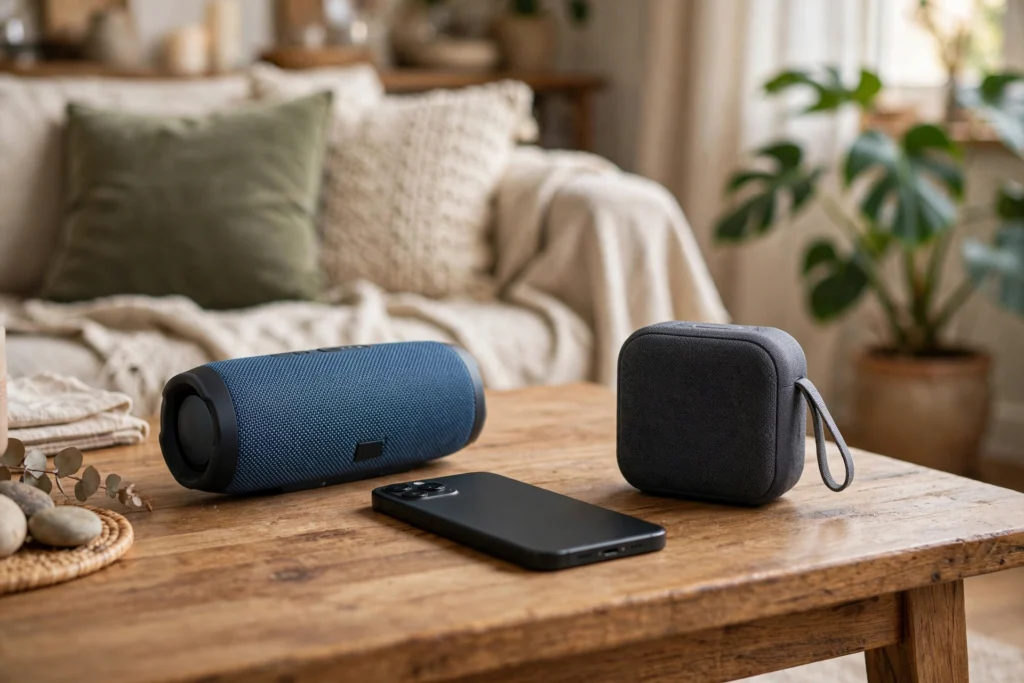
An iPhone does not provide a universal setting that sends ordinary Bluetooth audio to any two Bluetooth speakers at once.
Try these options instead:
- Use the speakers’ built-in pairing feature. Connect your iPhone to the primary speaker, then link the second speaker using TWS or Party Mode.
- Check AirPlay support. If both speakers support a compatible AirPlay setup, you may be able to select multiple outputs through an appropriate AirPlay configuration. Ordinary Bluetooth speakers do not automatically support AirPlay.
- Use a compatible audio-sharing system. Check whether your speakers and any required transmitter support the same multi-speaker technology.
If you have two different Bluetooth speaker brands, check their manuals before buying an adapter or app. Many third-party solutions have limits or may add audio delay.
Troubleshooting: Why Won’t My Two Speakers Sync?
Sometimes both speakers connect, but the sound is delayed, uneven, or out of sync. These fixes can help.
1. Move the speakers closer together
In TWS mode, the primary speaker may relay audio to the secondary speaker. A weak connection between them can cause dropouts or delays.
Place the speakers closer together and remove walls or large objects between them.
2. Disconnect unused devices
A speaker may automatically reconnect to a previously paired phone or computer. Turn off Bluetooth on other nearby devices that may be trying to connect.
Then restart the speakers and activate their pairing mode again.
3. Check for firmware updates
Some speakers use a companion app to install firmware updates. If the manufacturer provides an update for your model, install it according to the instructions.
An update may fix connection or synchronization problems.
4. Reset the speaker pairing
Remove the old speaker connection from your phone if necessary, then follow the manufacturer’s instructions to clear the speaker pairing. Pair the devices again in the recommended order.
Avoid using random factory-reset button combinations.
5. Understand the limits of audio delay
Different Bluetooth speakers process sound at different speeds. When audio reaches one speaker later than the other, you may hear an echo.
If you are using two standalone speakers through a computer or phone workaround, perfect synchronization may not be possible. A compatible speaker-linking system is often the better choice.
Does Pairing Two Speakers Drain Your Phone Battery Faster?
It can. Sending audio to two Bluetooth speakers may use more phone power than sending it to one, depending on the phone, connection method, and other activity.
The difference may be small during normal listening. To save battery, lower your screen brightness, close apps you do not need, and keep your phone charged during long listening sessions.
How Far Apart Can Two Paired Bluetooth Speakers Be?
There is no single distance that works for every speaker. The range depends on the Bluetooth version, speaker design, obstacles, and interference.
For the most reliable results, start with both speakers close together. If they stay connected, move them farther apart and test the audio. Walls, metal objects, and crowded wireless areas can reduce the range.
Final Thoughts
The best way to pair two Bluetooth speakers depends on what you own and how you want the music to sound.
For two compatible speakers, start with TWS or the manufacturer’s party mode. For different brands, try Samsung Dual Audio on a supported Galaxy phone or a Multi-Output Device on a Mac. iPhone users should check speaker pairing support or compatible AirPlay options.
If the speakers connect but do not stay in sync, move them closer together, update their firmware, and check for competing Bluetooth connections. Always confirm compatibility before assuming that two Bluetooth speakers can link directly.