

If your Bluetooth keeps disconnecting on Android, you know how annoying it gets. Your earbuds cut out in the middle of a song. Your car stereo drops a call. Your smartwatch stops syncing as soon as your screen turns off. You reconnect, it works for a while, and then it drops again.
The good news: random drops usually have one of a few causes, and most are easy to fix. Android’s battery saver may be putting Bluetooth to sleep, the saved pairing may be corrupted, or something nearby is interfering. Start with the quick test below to find out whether the problem is your phone or your accessory, then work through the fixes in order.
Why Your Android Bluetooth Keeps Dropping Connection
Here are the most common causes and how to recognize them:
| What you notice | Likely cause |
|---|---|
| Drops when the screen turns off or the phone sits in your pocket | Battery optimization is pausing Bluetooth or the device’s app |
| Connects, disconnects, reconnects over and over | Stale pairing data (a corrupted saved connection) |
| Stutters or drops in busy places, near Wi-Fi routers, or with the phone in a back pocket | Interference or distance |
| Drops get worse as the accessory’s battery gets low | Accessory battery is running out |
| Started right after a system update | Corrupted Bluetooth data left behind by the update |
A note on interference: Bluetooth uses the same 2.4GHz radio band as most Wi-Fi routers, microwaves, and many other wireless gadgets. In a crowded space, signals get lost. Your body also blocks Bluetooth well, so a phone in your back pocket with earbuds in your ears can drop more than a phone in your front pocket.
The “Fault Follows” Test: Is It Your Phone or the Accessory?
Before you change any settings, spend two minutes on this test. It tells you where the problem actually is.
- Connect the accessory to a different phone or tablet and use it for a while.
- Connect a different Bluetooth accessory to your phone and use it the same way.
| Result | What it means | Where to focus |
|---|---|---|
| Accessory drops on both phones | The problem follows the accessory | Charge it, update its firmware, or reset it |
| Your phone drops every accessory | The problem follows the phone | Steps 1 to 4 below |
| Drops only with this phone and this accessory | The pairing between them is the issue | Start with Step 1 |
| Works fine on both | It may be interference where you use it | Test in a different room or location |
Quick Triage: The Basic Fixes

These take a few minutes and solve many temporary glitches:
- Toggle Bluetooth. Swipe down from the top, turn Bluetooth off, wait 10 seconds, then turn it back on.
- Restart your phone and the accessory. Turn both fully off, then on again.
- Charge the accessory. Many earbuds and headphones drop more often when their battery is low.
- Move closer. Keep your phone within a few meters, and try it in a front pocket or on the table.
- Turn off what you don’t need. If your earbuds connect to a laptop and a phone at the same time (multipoint), turn Bluetooth off on the laptop and test again.
- Check for updates. Update your phone in Settings, then System (or Software update on Samsung). Also update your earbuds or watch through their companion app.
If drops keep happening, move on to Step 1.
Step 1: Forget and Re-Pair the Device (Clearing Stale Profiles)
Best for: a device that keeps connecting and disconnecting in a loop.
When your phone and an accessory first pair, they save shared connection info so they can recognize each other later. If that saved info gets corrupted, they may keep trying to connect and failing. Forgetting the device deletes it so you can pair fresh.
On Google Pixel or stock Android:
- Open Settings, then Connected devices.
- Tap the gear icon next to the device, then Forget.
On Samsung Galaxy:
- Open Settings, then Connections, then Bluetooth.
- Tap the gear icon next to the device, then Unpair.
Then:
- Restart your phone.
- Reset the accessory if it has a reset option. This clears the old connection on its side too.
- Put the accessory in pairing mode (the light usually flashes fast) and pair it again.
Step 2: The Hidden Fix: Set System Bluetooth Battery to “Unrestricted”
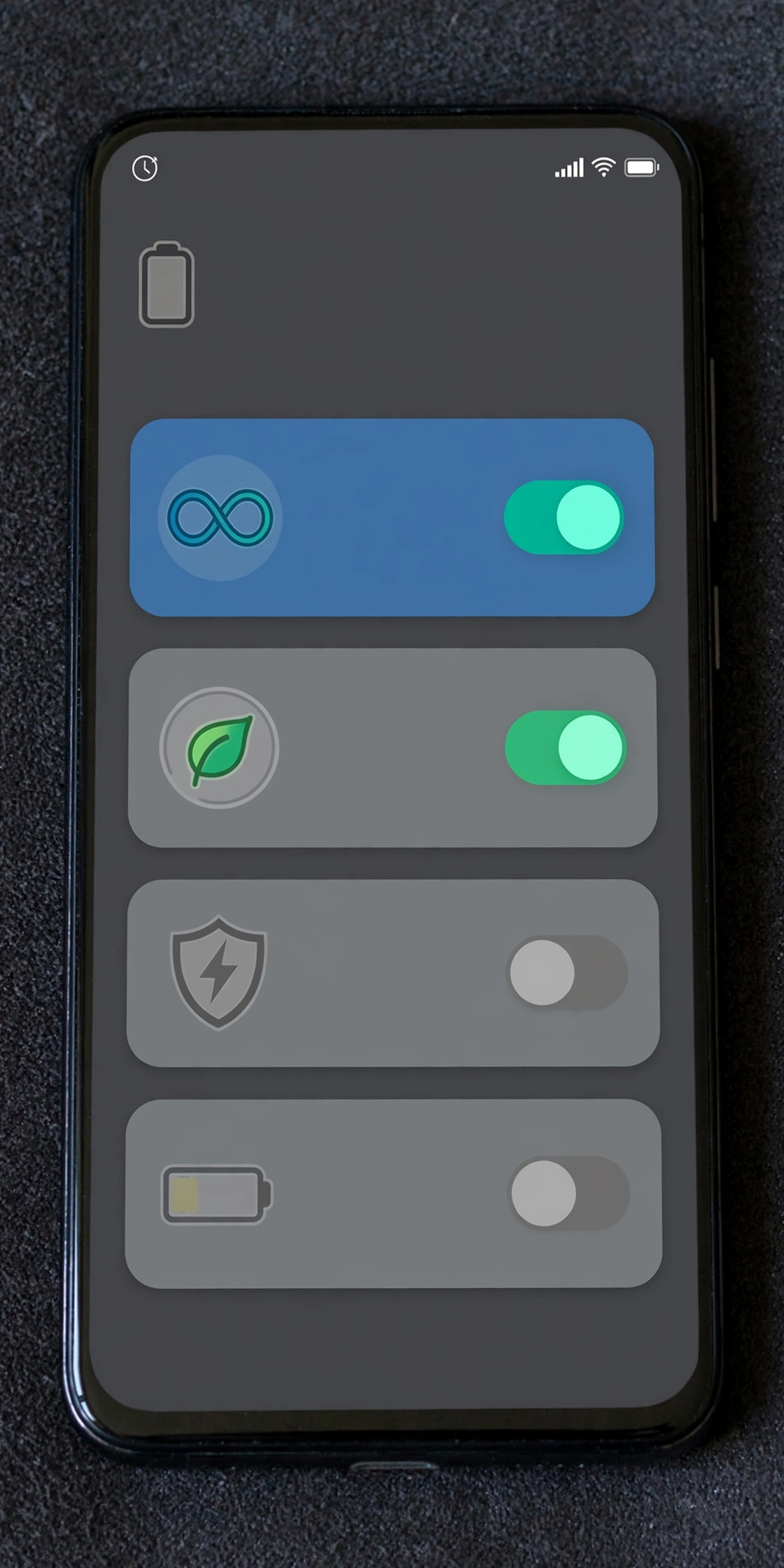
Best for: drops that happen when your screen turns off or your phone sits unused for a while.
Android saves battery by limiting what apps can do in the background. Phone makers like Samsung and Xiaomi often add even stricter battery savers. Sometimes this limits the parts that keep your Bluetooth device connected, and the connection drops.
There are two places to check.
Part A: The system Bluetooth app
Android runs Bluetooth through a hidden system app. On some phones, including many Pixels, you can change its battery setting. Many users report fewer drops after doing this.
On Google Pixel or stock Android:
- Open Settings, then Apps, then See all apps.
- Tap the three-dot menu at the top right and choose Show system.
- Scroll down and tap Bluetooth.
- Tap App battery usage.
- Choose Unrestricted.
On Samsung Galaxy:
- Open Settings, then Apps.
- Tap the filter or sort icon and turn on Show system apps, then tap OK.
- Find and tap Bluetooth.
- Tap Battery.
- Choose Unrestricted.
If the options are greyed out, your phone already manages the Bluetooth app itself, and you can’t change it. That’s fine. Move on to Part B, which matters more for most people.
Part B: The companion app for your device
Smartwatches, fitness trackers, and many earbuds rely on their own app (like Galaxy Wearable, Fitbit, or your earbuds’ app) to stay connected. If Android puts that app to sleep, your device drops or stops syncing.
- Open Settings, then Apps, and tap the companion app.
- Tap Battery (or App battery usage).
- Choose Unrestricted.
On Samsung, also check this: open Settings, then Battery (or Battery and device care), then Background usage limits. Make sure the companion app is not listed under Sleeping apps or Deep sleeping apps. If it is, remove it.
Also turn off Power saving mode for a day to see if the drops stop. If they do, battery saving was the cause.
Step 3: Clear System Bluetooth Cache and Storage
Best for: drops on every device, especially after a system update.
The Bluetooth system app stores temporary data. If it gets corrupted, connections can become unstable. Clearing it gives Bluetooth a fresh start.
- Go to the same Bluetooth system app as in Step 2.
- Tap Storage & cache (Pixel) or Storage (Samsung).
- Tap Clear cache first. This keeps your paired devices. Restart and test.
- Still dropping? Come back and tap Clear storage (or Clear data). This removes all paired devices, so you’ll need to pair them again.
On older phones, the app may be called Bluetooth Share. On some newer phones these buttons are greyed out. If so, skip to Step 4.
Step 4: Reset Network Settings
Best for: a last resort when nothing else stops the drops.
This resets all your phone’s wireless settings. It doesn’t delete photos, apps, or messages. But it removes all paired Bluetooth devices and, on most phones, all saved Wi-Fi networks and passwords. Write down any Wi-Fi passwords you need first.
On Google Pixel: Settings, then System, then Reset options, then Reset Bluetooth & Wi-Fi (or Reset Wi-Fi, mobile & Bluetooth on older versions).
On Samsung Galaxy: Settings, then General management, then Reset, then Reset network settings (or a Wi-Fi and Bluetooth reset option if your phone shows one).
Never tap Factory data reset, which erases your whole phone.
After the reset, restart your phone and pair your devices again.
Still dropping? If your phone drops every accessory even after a network reset, contact your phone maker or carrier. If only one accessory drops on every phone, the accessory may need repair or replacement.
Frequently Asked Questions
How do I stop my Android phone from disconnecting Bluetooth?
Set the Bluetooth system app and your device’s companion app to Unrestricted battery use, keep the device close, and forget and re-pair it if drops continue.
How do I change Bluetooth battery optimization on Samsung or Pixel?
Go to Settings, then Apps, show system apps, tap Bluetooth, then Battery (Samsung) or App battery usage (Pixel), and choose Unrestricted. Do the same for your device’s companion app.
Why does my Bluetooth disconnect when my screen turns off?
Android’s battery saving often limits background activity when the screen is off. Setting the companion app, and the Bluetooth app if possible, to Unrestricted usually helps.
Why do my earbuds keep disconnecting from my phone?
Low earbud battery, interference, a phone in a back pocket, or battery optimization are the most common causes. Run the Fault Follows test to check if the earbuds or the phone are at fault.
How do I reset Bluetooth settings on my phone?
On Pixel, use Reset Bluetooth & Wi-Fi under System, then Reset options. On Samsung, use Reset network settings under General management, then Reset.
Do Wi-Fi routers affect Bluetooth?
They can. Both often use the 2.4GHz band. Moving away from the router, or keeping your phone closer to your accessory, can reduce drops.
For more Android Bluetooth help, visit our main guide.
