

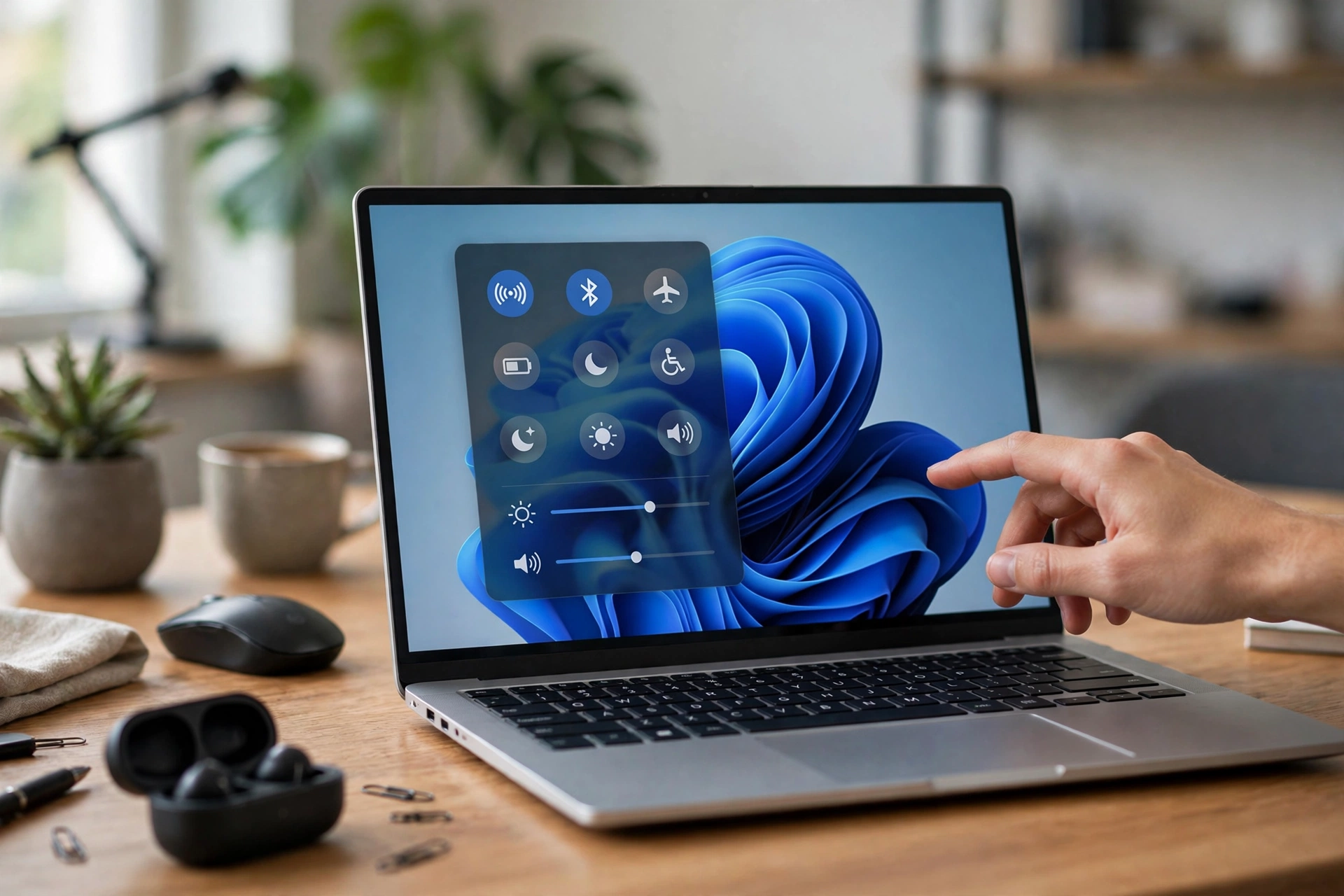
Bluetooth missing in Windows 11 is one of the most confusing PC problems. Yesterday your headphones worked. Today the Bluetooth button is gone from Quick Settings, the switch has vanished from the Settings app, and maybe the Bluetooth section is missing from Device Manager too.
The good news is that it’s rarely broken for good. The steps below are ordered from the fix most likely to work to the least likely. Start at Step 1, check if Bluetooth is back after each step, and stop as soon as it is.
Quick check before you start:
| What you see | Start at |
|---|---|
| Only the Quick Settings tile is gone. The switch is still in Settings. | Step 1 |
| The Bluetooth switch is gone from Settings too | Step 2 |
| The Bluetooth section is gone from Device Manager | Step 2 |
| Bluetooth came back before but keeps disappearing | Step 5 |
Step 1: Check if the Bluetooth Icon Was Just Unpinned
Best for: the Bluetooth tile is gone from Quick Settings, but Bluetooth still appears in Settings. Time: 10 seconds.
The tile may have been removed by accident. Bluetooth still works. The shortcut is just gone.
- Press Windows + A to open Quick Settings.
- Click the pencil icon (Edit quick settings) at the bottom.
- Click Add.
- Choose Bluetooth.
- Click Done.
Missing the small Bluetooth icon near the clock instead?
- Click the up arrow (^) on the taskbar. The icon may be hidden there.
- To bring it back for good, go to Settings, then Bluetooth & devices, then Devices, and click More Bluetooth settings.
- On the Options tab, tick Show the Bluetooth icon in the notification area, then click OK.
See how to turn Bluetooth on or off in Windows 11.
Still missing? If there’s no Bluetooth switch in Settings at all, go to Step 2.
Step 2: The 30-Second Power Drain (Fixes a “Stuck” Adapter)
Best for: Bluetooth is gone from Settings or Device Manager, especially on laptops. Time: 2 minutes.
Your Bluetooth chip can crash and get stuck. Shutting down normally doesn’t always clear it, because Windows keeps some hardware powered. A power drain cuts all power so the chip resets completely.
Quick try first: click Start, then Power, then Restart (not Shut down). If Bluetooth is back, you’re done. If not, do the full power drain:
- Hold the Shift key and click Start, then Power, then Shut down. Holding Shift forces a full shutdown.
- Unplug the charger, plus any USB devices and docks.
- Press and hold the power button for about 30 seconds.
- Plug the charger back in and turn on your PC.
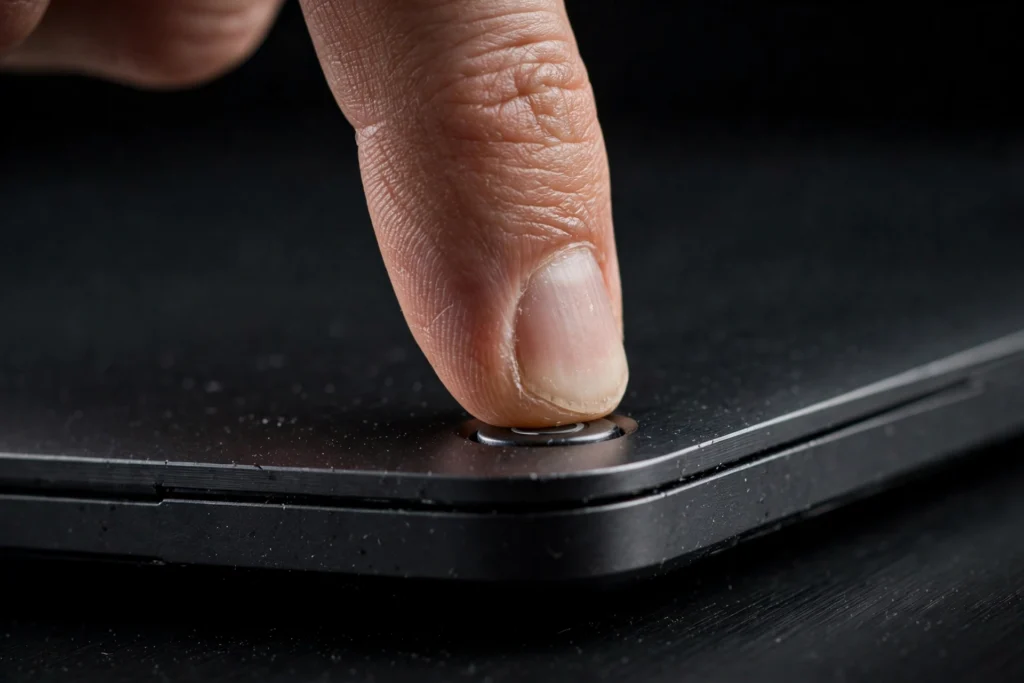
On a desktop PC: shut down the same way, switch off or unplug the power cable at the back, then hold the power button for 30 seconds.
Some laptops have their own reset method, like a tiny reset pinhole on the bottom. Your laptop maker’s support page will explain it.
Still missing? Go to Step 3.
Step 3: Restart the Bluetooth Support Service
Best for: the Bluetooth switch is gone from Settings, but your PC otherwise works fine. Time: 1 minute.
The Bluetooth switch depends on a background program called the Bluetooth Support Service (bthserv). If it stops, the switch can disappear even though the hardware is fine.
- Press Windows + R, type services.msc, and press Enter.
- Find Bluetooth Support Service in the list.
- Right-click it and choose Restart. If Restart is greyed out, choose Start.
- Double-click it, set Startup type to Automatic, and click OK.
- Restart your PC.
If the service won’t start and shows an error like 1079, that needs a separate fix.
See a full guide to the Bluetooth Support Service.
Still missing? Go to Step 4.
Step 4: Unhide and Reinstall in Device Manager
Best for: Bluetooth is missing from Device Manager, or shows a yellow warning. Time: 5 to 15 minutes.
- Press Windows + X and choose Device Manager.
- Click View, then Show hidden devices.
- Look for the Bluetooth section again.
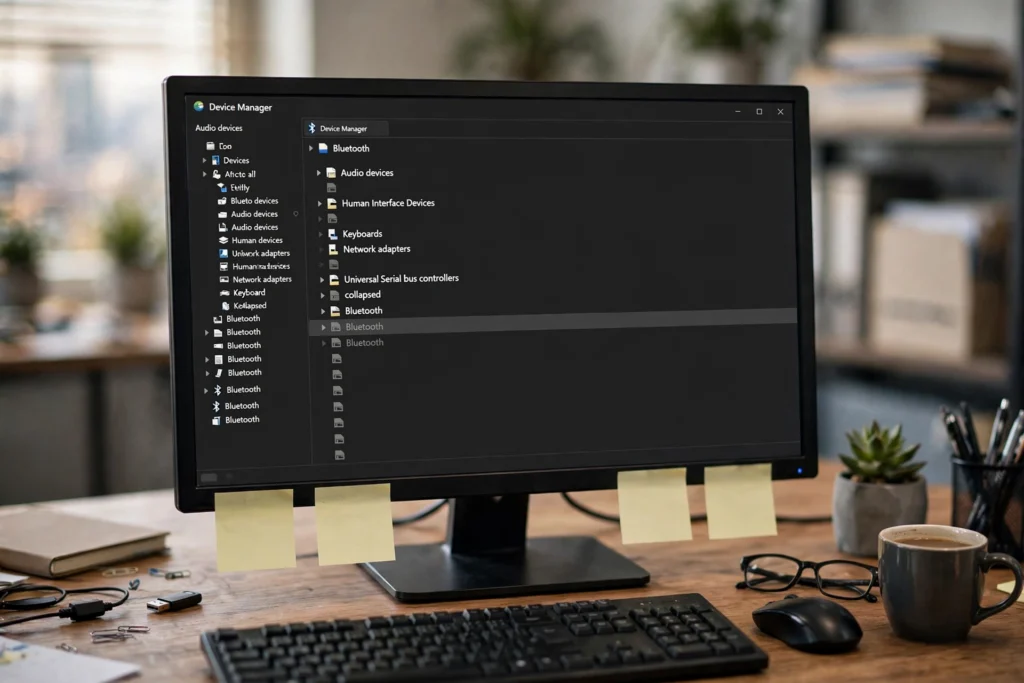
If it’s still not there, check two other places:
- Other devices: an “Unknown device” with a yellow warning may be your Bluetooth adapter without a driver.
- Network adapters: Bluetooth usually shares a chip with Wi-Fi. If the Wi-Fi adapter shows an error, Bluetooth can disappear with it.
Found your Bluetooth adapter? Right-click it:
- If you see Enable device, click it. Bluetooth may come straight back.
- If it has a yellow warning, the driver is likely broken and needs a clean reinstall.
See how to cleanly reinstall your Bluetooth driver.
Skip “driver updater” programs. They often install the wrong driver and can bundle unwanted software. Use Windows Update or your PC maker’s official support site instead.
See official Bluetooth driver downloads by chipset.
Still missing? Skip to Step 6. If Bluetooth is back but keeps vanishing, do Step 5.
Step 5: Turn Off Windows Fast Startup (To Stop It Happening Again)
Best for: Bluetooth comes back after a fix but disappears again every few days. Time: 1 minute.
When you click Shut down, Fast Startup saves part of Windows to your drive, like a light hibernation, so your PC starts faster. The downside is that a stuck Bluetooth chip can carry over to the next start instead of being cleared.
This is also why Restart sometimes fixes Bluetooth while Shut down doesn’t. Restart doesn’t use Fast Startup.
- Open Control Panel, then Hardware and Sound, then Power Options.
- Click Choose what the power buttons do.
- Click Change settings that are currently unavailable.
- Untick Turn on fast startup (recommended).
- Click Save changes.
Your PC may start a few seconds slower, but Bluetooth should stay put.
See why Windows Bluetooth keeps turning off by itself.
Step 6: Last Resorts: BIOS Settings and Dead Hardware
Best for: you’ve tried Steps 1 to 4 and Bluetooth is still missing everywhere.
Check the BIOS or UEFI. Bluetooth or wireless can be switched off in your PC’s firmware.
- Restart and press the setup key while your PC starts. It’s often F2, F10, F12, or Delete, depending on the brand.
- Look for Wireless, Onboard Devices, or Bluetooth.
- Make sure it’s enabled, then save and exit.
Menu names vary a lot, so check your PC maker’s guide if you can’t find it.
Did it start after a Windows update? Rolling back that update or driver often fixes it.
See how to fix Bluetooth after a Windows update.
The Bluetooth chip may have failed. If it’s enabled in BIOS but still missing everywhere, the hardware may be dead. The cheapest fix is a small USB Bluetooth adapter, which often costs around $10 to $20 and works in minutes. If you have a desktop that never showed Bluetooth, it probably never had it, and an adapter is the fix too.
See the best USB Bluetooth adapters for PC.
Frequently Asked Questions
Why did my Bluetooth suddenly disappear?
Usually the Bluetooth chip got stuck, the Bluetooth Support Service stopped, or a driver or Windows update broke it. The power drain in Step 2 fixes many cases.
Why is there no Bluetooth switch in Windows 11 Settings?
Windows can’t see your Bluetooth adapter right now. Try the power drain, then restart the Bluetooth Support Service.
Is my laptop’s Bluetooth broken, or is it a Windows bug?
If it comes back after a power drain or driver reinstall, it was software. If it’s enabled in BIOS but still missing after every step, it may be hardware.
Why is my Bluetooth adapter hidden in Device Manager?
Windows hides devices that aren’t currently connected or working. Click View, then Show hidden devices.
Why does Restart fix it but Shut down doesn’t?
Shut down uses Fast Startup and can carry the problem over. Restart does a full reload. A power drain is stronger than both.
For more Windows Bluetooth help, visit the complete guide to Bluetooth on Windows.
