

Getting Bluetooth on Windows to work should take seconds, but it often doesn’t. The switch is hidden in a different place on Windows 11 than on Windows 10, your headphones don’t show up in the list, or the Bluetooth option seems to be missing completely. If you’ve clicked around Settings for ten minutes and still can’t connect, you’re not alone.
This guide walks you through everything in order: how to turn Bluetooth on, pair a device, remove an old one, and fix the most common problems in a few minutes. If a quick fix doesn’t solve it, the last section sends you straight to the detailed guide for your exact issue.
How to Turn On Bluetooth in Windows (11 & 10)
The fastest way is from the taskbar. Where you click depends on your version of Windows.
Windows 11
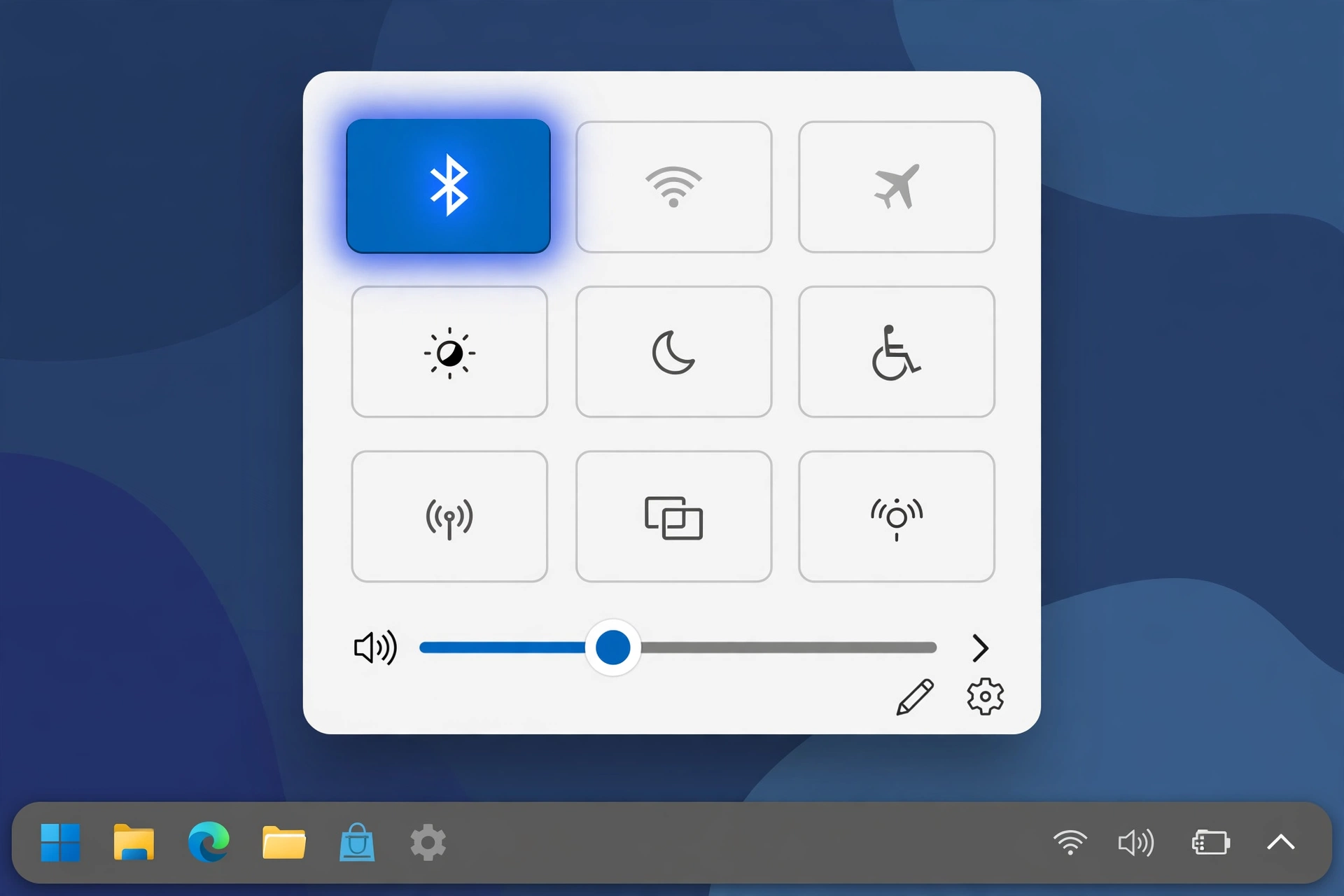
Click the Wi-Fi, volume, and battery icons together in the bottom right corner of the taskbar. On Windows 11 these icons work as one button. This opens Quick Settings.
Click the Bluetooth tile so it turns blue (on).
To see your devices, click the small arrow (>) on the right side of the Bluetooth tile.
Shortcut: press Windows + A to open Quick Settings directly.
You can also go to Settings, then Bluetooth & devices, and turn on the Bluetooth switch at the top.
Windows 10
Click the speech bubble icon at the far right of the taskbar, next to the clock. This opens the Action Center.
Click the Bluetooth tile to turn it on. If you don’t see it, click Expand to show all tiles.
Shortcut: Windows + A opens the Action Center too.
Or go to Settings, then Devices, then Bluetooth & other devices, and turn on the Bluetooth switch.
| Windows 11 | Windows 10 | |
|---|---|---|
| Taskbar click | Wi-Fi/volume/battery icons | Speech bubble (Action Center) |
| Panel name | Quick Settings | Action Center |
| Settings path | Bluetooth & devices | Devices, then Bluetooth & other devices |
| Shortcut | Windows + A | Windows + A |
See more ways to turn Bluetooth on or off in Windows 11 and 10.
Quick Check: Does Your PC Actually Have Bluetooth?
If you can’t find a Bluetooth tile or switch anywhere, your PC may not have Bluetooth at all.
Almost all modern laptops have it built in. Desktop PCs are different. Many desktops, especially custom-built ones, don’t include Bluetooth. They need a small USB Bluetooth adapter (also called a dongle) to use wireless headphones, mice, or controllers.
To check, right-click the Start button, open Device Manager, and look for a section called Bluetooth. If it’s not there, and you don’t see a Bluetooth adapter under Network adapters either, your PC most likely needs a USB adapter. Here are the best USB Bluetooth adapters for PC.
How to Pair a Bluetooth Device to Your PC
Here’s the step most guides skip: put your accessory in pairing mode first. Windows can only find a device that is broadcasting a “ready to pair” signal. Turning headphones on is usually not enough. Most of them try to reconnect to your phone instead.
Step 1: Put the Device in Pairing Mode
How you do this depends on the device:
- Headphones and earbuds: press and hold the power or pairing button until the light flashes, often blue or blue and red.
- Mouse or keyboard: press the pairing or connect button, usually on the bottom.
- Game controller: each brand has its own button combination. Check the manual.
A flashing light usually means pairing mode. A solid light usually means it’s trying to reconnect to something else. Learn how to put any device into pairing mode.
Step 2: Add the Device in Windows
On Windows 11: Go to Settings, then Bluetooth & devices. Click Add device. Choose Bluetooth. Click your device when it appears in the list. If a PIN or code shows up, check that it matches on both devices and click Connect.
On Windows 10: Go to Settings, then Devices, then Bluetooth & other devices. Click Add Bluetooth or other device. Choose Bluetooth, then click your device in the list.
Pairing only needs to happen once. After that, your device should connect on its own whenever Bluetooth is on and the device is nearby. See a step-by-step pairing walkthrough for Windows 11.
The Faster Way: Swift Pair
Some newer accessories support Swift Pair. When you put one of these in pairing mode near your PC, a pop-up appears in the corner of your screen. Just click Connect, and you skip the menus entirely.
If the pop-up never appears, make sure Swift Pair is turned on. On Windows 11, go to Settings, then Bluetooth & devices, then Devices, and turn on Show notifications to connect using Swift Pair. Not every accessory supports it, so the normal Add device method is always the backup.
How to Remove or Unpair a Bluetooth Device
Removing a device clears its saved connection from your PC. This is useful when a device keeps acting up, won’t reconnect, or you just don’t use it anymore. A fresh pairing often fixes problems that nothing else does.
On Windows 11: Go to Settings, then Bluetooth & devices, then Devices. Click the three dots next to the device. Choose Remove device, then Yes.
On Windows 10: Go to Settings, then Devices, then Bluetooth & other devices. Click the device, then click Remove device, then Yes.
Windows says “Remove,” while phones usually say “Forget” or “Unpair.” They all mean the same thing.
One tip: if you want to pair the device again, put it back in pairing mode before you click Add device. Some headphones also remember your PC on their side, so resetting the headphones can help if re-pairing fails. See how to unpair a Bluetooth device on any platform.
Bluetooth Not Working? 4 Quick Fixes
Try these in order. They solve most small Bluetooth glitches in under five minutes.
1. Restart Your PC
A restart clears temporary glitches in Windows and the Bluetooth adapter. Use Restart, not Shut down. On many PCs, Shut down saves part of the system state to start faster, so a glitch can survive it. Restart starts everything fresh.
2. Run the Windows Bluetooth Troubleshooter
Windows has a built-in tool that checks for common Bluetooth problems and fixes some of them automatically.
Windows 11: Microsoft has moved troubleshooters into the Get Help app. Open Get Help from the Start menu and search for “Bluetooth troubleshooter.”
Windows 10: go to Settings, then Update & Security, then Troubleshoot, then Additional troubleshooters, and run Bluetooth. On newer updates, this may also open Get Help.
It doesn’t fix everything, but it’s quick and safe to try.
3. Check Airplane Mode
Airplane mode turns off all wireless signals, including Bluetooth. Open Quick Settings (Windows 11) or the Action Center (Windows 10) and make sure the Airplane mode tile is off. Then check that the Bluetooth tile is on again, since turning Airplane mode off doesn’t always switch Bluetooth back on.
4. Check Your Laptop’s Wireless Key or Switch
Many laptops have a keyboard key that turns wireless on and off. It’s usually one of the F keys (F2, F3, F8, or F12 are common) with an antenna, airplane, or wireless icon. On some laptops you need to hold the Fn key while pressing it.
Older laptops may have a physical slider switch on the side or front edge instead. If wireless is switched off there, Windows can’t turn Bluetooth on no matter what you click.
Advanced Windows Bluetooth Troubleshooting (Choose Your Issue)
If the quick fixes didn’t work, the problem is usually deeper: a driver, a Windows service, or the adapter itself. Each of these has its own fix, so find your symptom below and jump to the matching guide.
| Your problem | What it usually means | Where to go |
|---|---|---|
| The Bluetooth toggle, tile, or taskbar icon is gone | Windows can’t see the adapter, or a setting is hiding the icon | Bluetooth missing from Windows guide |
| Bluetooth is on but won’t connect, or keeps dropping | Driver issue, service problem, or interference | Bluetooth not working in Windows guide |
| Problems started after a driver update or a Windows update | Outdated, broken, or wrong driver | Windows Bluetooth driver guide |
| A USB Bluetooth dongle isn’t recognized | Adapter, USB port, or driver problem | Adapter not detected guide |
| Bluetooth keeps turning off by itself | Power settings or Fast Startup | Bluetooth keeps turning off guide |
| Device Manager shows a yellow warning or an error code | A specific hardware or driver error | Device Manager error codes guide |
Bluetooth toggle or icon missing? If the switch has disappeared from Settings, or the Bluetooth icon vanished from your taskbar, start here: how to fix Bluetooth missing from Windows.
Connections keep failing or dropping? This guide covers driver conflicts, the Bluetooth service, and interference: fixes for Bluetooth not working in Windows 11 and 10.
Need to update or reinstall your driver? Learn how to fix Bluetooth driver problems on Windows.
Using a USB dongle that Windows won’t detect? See what to do when your Bluetooth adapter isn’t detected.
Bluetooth switches itself off? Find out why Windows Bluetooth keeps turning off by itself.
Seeing Code 10, Code 43, or another error in Device Manager? Here are Bluetooth Device Manager error codes explained.
Behind the scenes, Windows runs a background program called the Bluetooth Support Service (bthserv). If it stops, Bluetooth stops working even when the switch looks normal. Restarting it is one of the most useful deeper fixes: how to restart the Bluetooth Support Service.
Have a question that isn’t covered here? Answers to common Windows Bluetooth questions.
Frequently Asked Questions
Where is Bluetooth on Windows 10?
Click the speech bubble icon next to the clock to open the Action Center, then click the Bluetooth tile. You can also go to Settings, then Devices, then Bluetooth & other devices.
How do I turn on Bluetooth in Windows 11?
Press Windows + A to open Quick Settings and click the Bluetooth tile. Or go to Settings, then Bluetooth & devices, and turn on the Bluetooth switch.
Why is my PC not finding my Bluetooth device?
Usually the device isn’t in pairing mode. Hold its pairing button until the light flashes, keep it close to your PC, and turn off Bluetooth on your phone so the device doesn’t connect to it instead.
Does my desktop PC have Bluetooth built in?
Not always. Many desktops, especially custom-built ones, have no Bluetooth. If Device Manager has no Bluetooth section, you need a USB Bluetooth adapter.
Why did the Bluetooth icon disappear from my taskbar?
It’s often just hidden. Click the small up arrow near the clock to check. To bring it back, open More Bluetooth settings and tick “Show the Bluetooth icon in the notification area.” If Bluetooth is missing from Settings too, see the missing Bluetooth guide above.
Do I need to install a Bluetooth driver?
Usually not. Windows installs a driver automatically for most built-in adapters and USB dongles. You only need to update or reinstall it when Bluetooth stops working or shows an error.
Is it safe to leave Bluetooth on all the time?
Yes, for normal use. Just remove devices you no longer use, and only pair with devices you recognize.
