

Finding the right Windows Bluetooth settings can feel like a treasure hunt. You want your phone to see your PC, or you need to change a COM port, but the Settings app only shows a Bluetooth switch and a list of devices. The option you’re looking for seems to have disappeared.
It hasn’t. Windows actually has two Bluetooth settings menus: the modern Settings app for everyday tasks, and an older hidden window for deeper options. This guide shows you how to open both, how to make your PC discoverable, and what each important setting does.
How to Open Bluetooth Settings in Windows 11 and 10
There are three quick ways to get to the main Bluetooth settings page.
Option 1: The Settings app. Press Windows + I to open Settings. Windows 11: click Bluetooth & devices on the left. Windows 10: click Devices, then Bluetooth & other devices.
Option 2: The taskbar. Right-click the Bluetooth tile in Quick Settings (Windows 11) or the Action Center (Windows 10), then choose Go to Settings. Press Windows + A to open that panel. If you see the small Bluetooth icon near the clock, right-clicking it also gives you a shortcut to settings.
Option 3: The Run command (fastest). Press Windows + R to open the Run box. Type ms-settings:bluetooth and press Enter. This jumps straight to the Bluetooth page on both Windows 11 and 10. It also works if you type it into Command Prompt as start ms-settings:bluetooth.
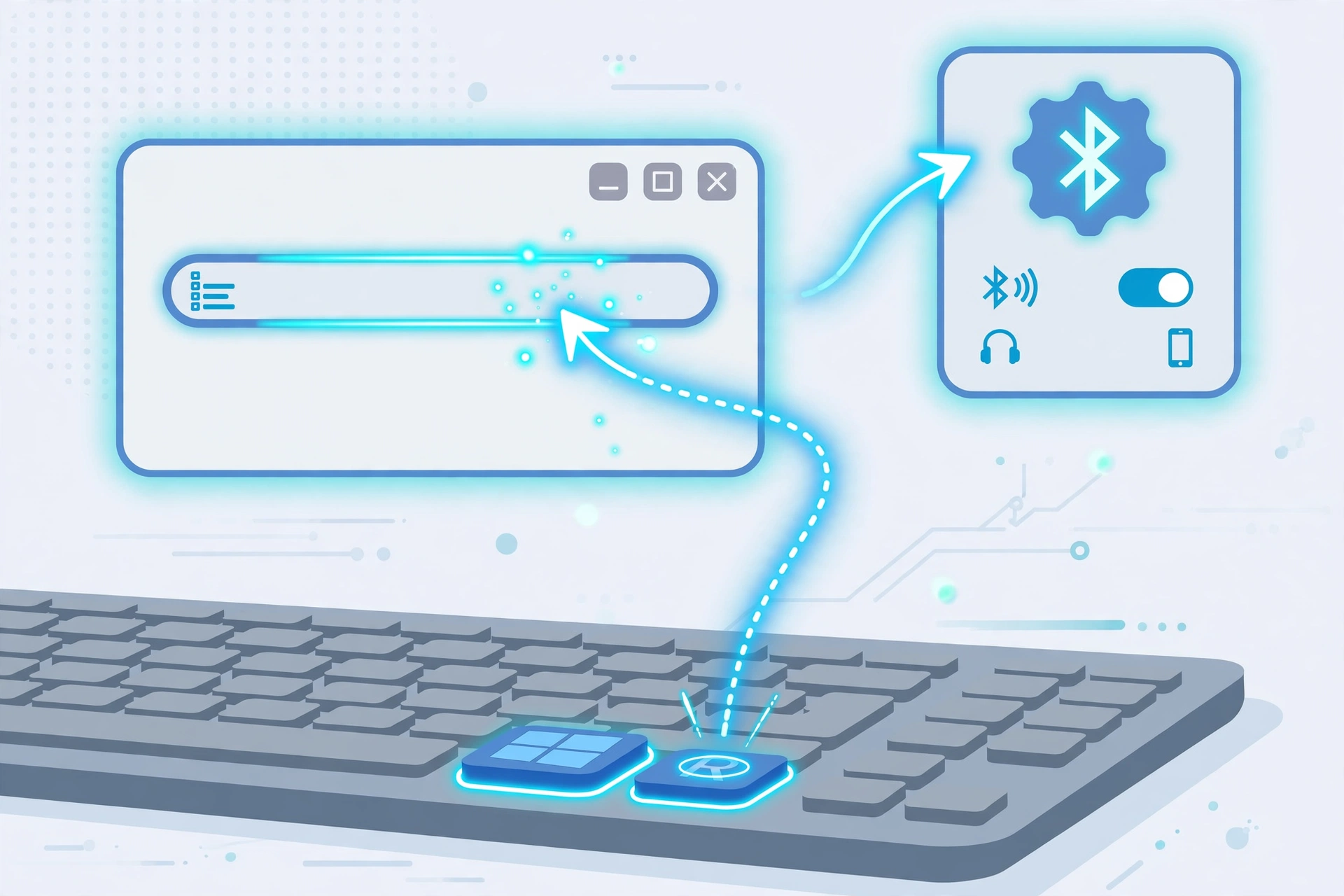
This main page is where you turn Bluetooth on or off, add devices, and remove them. See how to turn Bluetooth on or off in Windows 11 and 10.
The “Hidden” Menu: How to Access More Bluetooth Options
Here’s what confuses most people. The modern Settings app handles the basics, like turning Bluetooth on and pairing devices. But some important options still live in an older window from the Control Panel days. Microsoft didn’t delete them. It just tucked them away.
| Modern Settings app | Hidden “Bluetooth Settings” window |
|---|---|
| What it’s for: Everyday use | What it’s for: Deeper configuration |
| What you can do: Turn Bluetooth on or off, pair and remove devices, Swift Pair, metered downloads | What you can do: Make your PC discoverable, show the taskbar icon, connection alerts, COM ports |
| How to open: Windows + I | How to open: “More Bluetooth settings” link or a Run command |
How to open the hidden menu
On Windows 11: Go to Settings, then Bluetooth & devices, then Devices. Scroll down to Related settings. Click More Bluetooth settings.
On Windows 10: Go to Settings, then Devices, then Bluetooth & other devices. Look under Related settings on the right side (or scroll down if your window is narrow). Click More Bluetooth options.
A small window called Bluetooth Settings opens. It has a few tabs, usually Options, COM Ports, and Hardware.
The power-user shortcut
You can open this window directly from the Run box. Press Windows + R, paste this command, and press Enter:
rundll32.exe shell32.dll,Control_RunDLL bthprops.cpl,,1
A quick note: typing just bthprops.cpl on its own usually opens the Control Panel list of Bluetooth devices, not this settings window. That’s why many people think the shortcut “doesn’t work.” The longer command above is the one you want.
How to Make Your PC Discoverable via Bluetooth
If your phone can’t see your PC in its Bluetooth list, your PC probably isn’t discoverable. Being discoverable means your PC is announcing “I’m here” so other devices can find it.
The simple way (Windows 11 and 10): keep the Bluetooth settings page open on your PC while you search from your phone. Windows usually makes your PC visible while that page is open. On Windows 11, you’ll often see a line like “Discoverable as [your PC name]” on that page.
The permanent way: turn on the discoverability checkbox in the hidden menu.
- Open the Bluetooth Settings window (see the section above).
- Go to the Options tab.
- Under Discovery, tick Allow Bluetooth devices to find this PC.
- Click Apply, then OK.
Now search for your PC from your phone. It should show up using your computer’s name.
On the same Options tab, you’ll find two more useful checkboxes:
- Alert me when a new Bluetooth device wants to connect. Shows a pop-up when a device tries to pair.
- Show the Bluetooth icon in the notification area. Puts the Bluetooth icon back near your clock if it disappeared.
Is it safe to leave discovery on? Being discoverable doesn’t let anyone connect on its own. Pairing still needs your approval. Still, it’s a good habit to turn discovery off after you’ve paired, especially on a laptop you use in public places.
Don’t mix these up: some Windows 11 versions also show a setting called Bluetooth devices discovery on the Devices page, with Default and Advanced choices. That one doesn’t make your PC visible. It only controls which kinds of devices show up in your list when you click Add device.
If your phone still can’t find your PC, or your PC can’t find a device, the other side may be the problem. See how to fix a Bluetooth device that isn’t discoverable.
3 Important Windows Bluetooth Settings You Should Know
1. Swift Pair Notifications
Swift Pair is a faster way to connect. When you put a supported mouse, keyboard, or pair of headphones into pairing mode near your PC, a pop-up appears in the corner of your screen. Click Connect, and you’re done. No menus needed.
Swift Pair works with accessories that use Bluetooth LE (Low Energy) and support the feature. Many newer Microsoft, Logitech, and Surface accessories do.
To turn it on or off: Windows 11: Settings, then Bluetooth & devices, then Devices. Turn on Show notifications to connect using Swift Pair. Windows 10: Settings, then Devices, then Bluetooth & other devices. Tick Show notifications to connect using Swift Pair.
Turn it off if the pop-ups bother you, for example in an office full of other people’s headphones. Learn how to pair a Bluetooth device on Windows 11.
2. Download over Metered Connections
When you pair a new device, Windows may download extra software for it, like drivers, device info, or a companion app. This setting decides whether that can happen when you’re on a metered connection, such as a mobile hotspot or a capped data plan.
Off (the default): Windows waits until you’re on a normal connection. This saves your data, but a new device may not work fully until then.
On: Windows downloads what it needs right away, even on your hotspot.
You’ll find it on the same Devices page as Swift Pair. If a new device paired but seems half-working while you’re on a hotspot, turning this on can help.
3. Dynamic Lock (Bluetooth Proximity)
Dynamic Lock uses your phone as a key. When your paired phone goes out of Bluetooth range, Windows locks your PC automatically.
- Pair your phone with your PC first.
- Go to Settings, then Accounts, then Sign-in options.
- Find Dynamic lock and tick Allow Windows to automatically lock your device when you’re away.
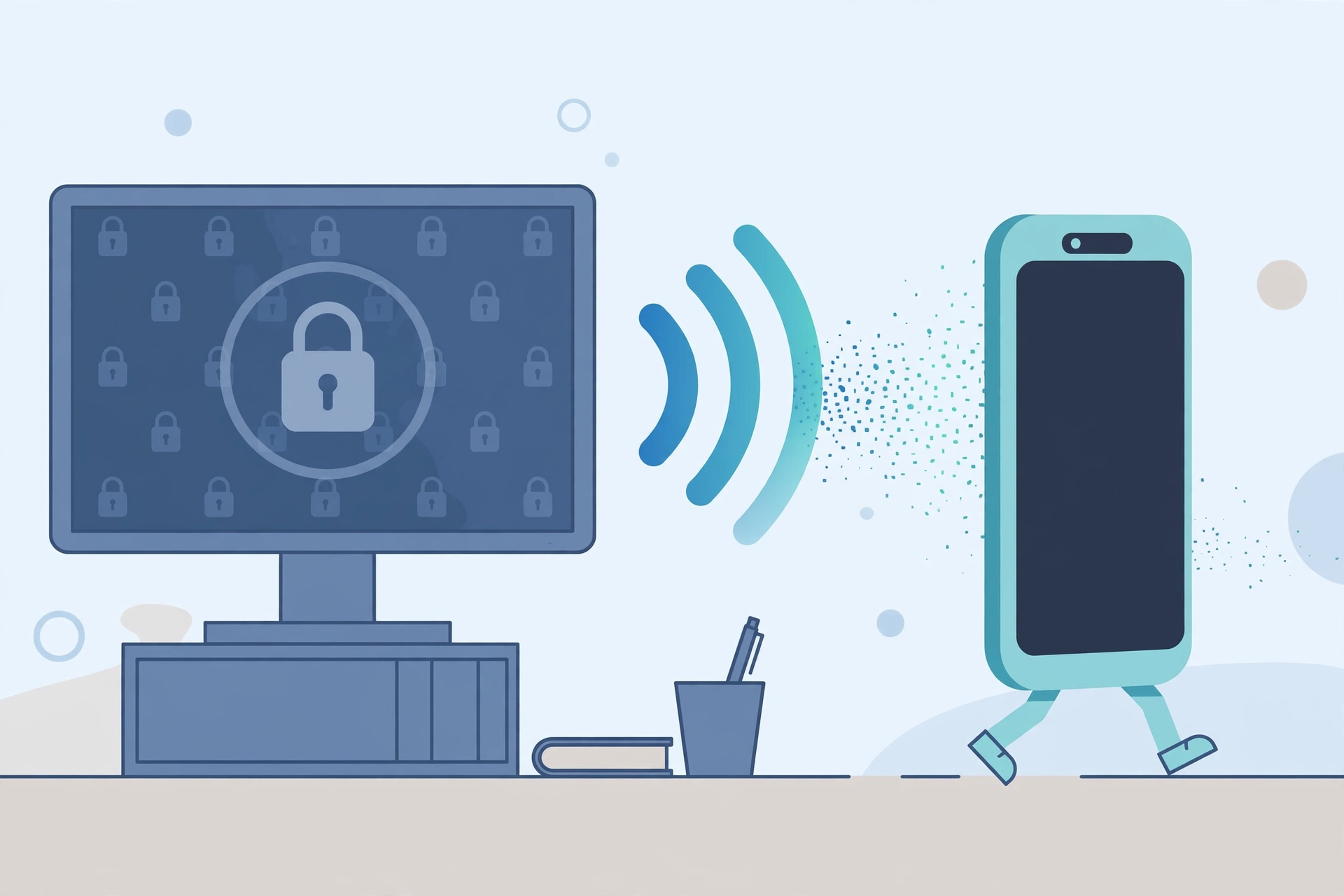
Two things to know: it isn’t instant. Windows waits about 30 seconds after your phone leaves range before it locks, so short signal drops don’t lock you out. It only locks. It won’t unlock your PC when you come back. You’ll still sign in with your PIN, password, or Windows Hello.
Treat it as a backup, not your only protection. Pressing Windows + L when you leave is still faster.
Advanced Customization: Managing Bluetooth COM Ports
Most people never need this section. It’s for older or specialty devices that talk to your PC like an old serial cable. Examples include Bluetooth GPS receivers, barcode scanners, some medical and lab tools, and developer boards like Arduino projects using an HC-05 module.
These devices need a virtual COM port, which is a pretend serial port that your software connects to.
- Pair the device with your PC first.
- Open the Bluetooth Settings window (or use the Run command ending in ,,2).
- Click the COM Ports tab.
- Click Add and choose a direction: Outgoing (your PC starts the connection — most common) or Incoming (the device starts the connection).
- For Outgoing, pick your device and its service, then click OK.
- Note the COM port number (for example, COM5) and select it in your app or software.
Can’t find the COM port setting? It’s not in the modern Settings app at all. It only exists in the hidden Bluetooth Settings window. If the COM Ports tab is empty, make sure the device is paired first. Most headphones, mice, and keyboards never use COM ports, so an empty list is normal for them.
Missing Settings? How to Troubleshoot
If the Bluetooth page in Settings is blank, the Bluetooth switch is gone, or the settings window crashes when you open it, the problem isn’t your settings. It usually means Windows can’t see your Bluetooth adapter, the driver is broken, or the Bluetooth service has stopped.
Pick the guide that matches what you see:
The Bluetooth switch, page, or icon is missing completely: how to fix Bluetooth missing from Windows.
Bluetooth is there but won’t connect or keeps failing: fixes for Bluetooth not working in Windows 11 and 10.
For everything else about Bluetooth on your PC, from setup to troubleshooting, start at our main Windows guide: the complete guide to Bluetooth on Windows.
Frequently Asked Questions
How do I make my PC discoverable to my phone?
Keep the Bluetooth settings page open while your phone searches. For a permanent fix, open More Bluetooth settings, go to the Options tab, and tick “Allow Bluetooth devices to find this PC.”
Where is “More Bluetooth options” in Windows 11?
Windows 11 calls it More Bluetooth settings. Go to Settings, then Bluetooth & devices, then Devices, and scroll down to Related settings.
How do I open Bluetooth settings using CMD or Run?
Type ms-settings:bluetooth in the Run box (or start ms-settings:bluetooth in Command Prompt). For the hidden settings window, use rundll32.exe shell32.dll,Control_RunDLL bthprops.cpl,,1.
Why can’t I find the setting to change my Bluetooth COM port?
It isn’t in the Settings app. Open the hidden Bluetooth Settings window and click the COM Ports tab. The device must be paired first.
Did Microsoft remove the discoverability checkbox?
No. It moved to the hidden Bluetooth Settings window, on the Options tab, under Discovery.
Why did my Bluetooth settings change after a Windows update?
Big Windows updates sometimes move or rename settings. The options are almost always still there, usually under the Devices page or the hidden More Bluetooth settings window.
