

You want to turn on Bluetooth in Windows 11 to connect your headphones or mouse, but the button isn’t where you expect it. If you came from Windows 10, it’s even more confusing, because Microsoft moved things around. You click the clock, the start menu, and the Settings app, and still no Bluetooth switch in sight.
The good news is that it only takes two clicks once you know where to look. Below are the exact steps for Windows 11 and Windows 10, how to connect a device once Bluetooth is on, and what to do if the Bluetooth button is missing.
2 Ways to Turn On Bluetooth in Windows 11
Windows 11 gives you a fast way from the taskbar and a full way through the Settings app. Both do the same thing.
Method 1: The Quick Settings Panel (Taskbar)
This is the fastest way.
Look at the bottom right corner of your screen, next to the clock.
Click the Wi-Fi, volume, and battery icons. In Windows 11, these three icons work as one button. Clicking any of them opens the Quick Settings panel.
Find the Bluetooth tile and click it. When it turns blue (or your accent color), Bluetooth is on.
Shortcut: press Windows + A to open Quick Settings without using the mouse.
To turn Bluetooth off, click the same tile again so it turns grey.
Want to see or manage your devices from here? Click the small arrow (>) on the right side of the Bluetooth tile. It shows your paired devices and lets you connect to one with a single click.
Method 2: The Full Settings App
Use this if the Quick Settings tile is missing or you want more options.
Press Windows + I to open the Settings app. You can also right-click the Start button and choose Settings.
Click Bluetooth & devices in the left menu.
Turn on the Bluetooth switch at the top of the page.
To turn Bluetooth off, flip the same switch back.
This page is also where you add new devices, remove old ones, and change other Bluetooth options. See every Windows Bluetooth setting explained.
One quick check: if Airplane mode is on, Bluetooth is turned off too. Open Quick Settings and make sure the Airplane mode tile is grey. After you turn Airplane mode off, check that Bluetooth came back on, because sometimes it doesn’t.
How to Turn On Bluetooth in Windows 10
Windows 10 works a little differently. Instead of Quick Settings, it uses the Action Center. Windows 11 replaced the Action Center with Quick Settings, which is why the button seems to “move” when people upgrade.
Option 1: The Action Center
Click the speech bubble icon at the far right of the taskbar, next to the clock. This opens the Action Center.
Click the Bluetooth tile to turn it on. Click it again to turn it off.
Don’t see the Bluetooth tile? Click Expand above the tiles to show all of them.
Shortcut: Windows + A opens the Action Center in Windows 10 too.
Option 2: The Settings App
Press Windows + I to open Settings.
Click Devices.
Click Bluetooth & other devices on the left.
Turn on the Bluetooth switch.
Here’s a quick side-by-side to help if you use both versions:
| Windows 11 | Windows 10 | |
|---|---|---|
| Taskbar click | Wi-Fi, volume, and battery icons | Speech bubble icon (Action Center) |
| Panel name | Quick Settings | Action Center |
| Keyboard shortcut | Windows + A | Windows + A |
| Settings path | Bluetooth & devices | Devices, then Bluetooth & other devices |
How to Connect a Device Once Bluetooth Is On
Turning Bluetooth on is only the first step. Your real goal is probably to connect headphones, a mouse, a keyboard, or a controller.
Before you start, put your device in pairing mode. This is the step most people miss. Windows can only find a device that is sending out a “ready to pair” signal. Just turning headphones on usually isn’t enough, because they try to reconnect to your phone first.
For most devices, press and hold the power or pairing button until a light starts flashing. If you’re not sure how, check the device’s manual. Learn how to put any device into pairing mode.
Then add it in Windows 11: go to Settings, then Bluetooth & devices. Click Add device. Choose Bluetooth. Click your device when it shows up in the list.
On Windows 10: go to Settings, then Devices, then Bluetooth & other devices. Click Add Bluetooth or other device, choose Bluetooth, and click your device.
Even faster: Swift Pair. Some newer mice, keyboards, and headphones support Swift Pair. Put one in pairing mode near your PC, and a pop-up appears in the corner of your screen. Click Connect and you’re done. If no pop-up appears, your device may not support it, so just use Add device instead. See the step-by-step guide to pairing a Bluetooth device on Windows 11.
Why Is the Bluetooth Button Missing?
If you can’t find the Bluetooth button, there are two very different reasons. One takes ten seconds to fix. The other needs more work.
| Where it’s missing | What it usually means | Fix |
|---|---|---|
| Only from Quick Settings | The tile was removed or hidden | Fix 1 below |
| From the Settings app too | Driver, adapter, or hardware problem | Fix 2 below |
Fix 1: It’s Just Hidden (Add It to Quick Settings)
In Windows 11, you can remove tiles from Quick Settings, and sometimes they get removed by accident. Bluetooth still works. The shortcut is just gone. Here’s how to put it back:
- Press Windows + A to open Quick Settings.
- Click the pencil icon at the bottom of the panel. This is the “Edit quick settings” button.
- Click Add.
- Choose Bluetooth from the list.
- Click Done.
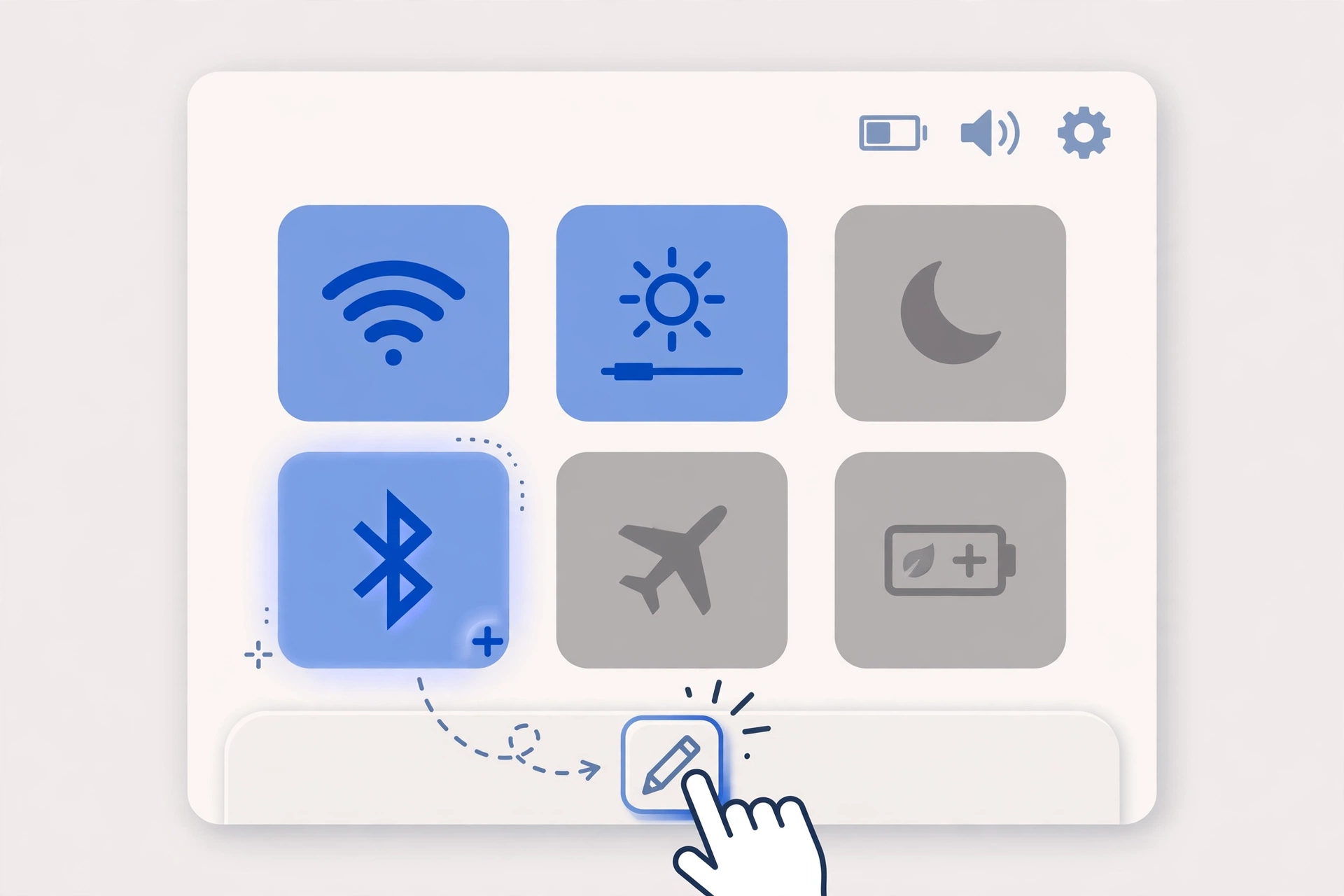
The Bluetooth tile is back. You can also drag tiles around while you’re in edit mode to put Bluetooth where you like it.
On Windows 10, if Expand doesn’t show the tile either, right-click any tile in the Action Center and choose Edit quick actions. Then click Add and pick Bluetooth.
Missing the small Bluetooth icon near the clock? That’s a different setting. First, click the small up arrow (^) in the taskbar corner, because the icon may just be hidden there. To bring it back for good, go to Settings, then Bluetooth & devices, then Devices, and click More Bluetooth settings. On the Options tab, tick Show the Bluetooth icon in the notification area and click OK. In Windows 10, the same option is under More Bluetooth options on the Bluetooth & other devices page.
Fix 2: The Driver Is Broken (Advanced Troubleshooting)
If the Bluetooth switch is also missing from the Settings app, the problem isn’t the menu. It usually means Windows can’t see your Bluetooth adapter at all. Common causes are a broken or outdated driver, a stopped Bluetooth service, or a recent Windows update.
Try one simple thing first: Restart your PC, don’t just shut it down. Windows has a feature called Fast Startup that saves part of the system when you shut down, so a glitch can carry over. Restart starts everything fresh.
If the Bluetooth switch is still gone after a restart, you’ll need deeper fixes like checking Device Manager and reinstalling the driver. We’ve put all of those in one step-by-step guide: how to fix Bluetooth missing from Windows.
Using a desktop PC? Many desktops, especially custom-built ones, don’t have Bluetooth built in. If you’ve never had Bluetooth on your PC, you may need a small USB Bluetooth adapter. Here are the best USB Bluetooth adapters for PC.
Frequently Asked Questions
Where is Bluetooth on Windows 11?
Click the Wi-Fi, volume, and battery icons next to the clock, or press Windows + A. The Bluetooth tile is in the Quick Settings panel. It’s also in Settings, under Bluetooth & devices.
How do I enable Bluetooth on my PC?
Open Quick Settings (Windows 11) or the Action Center (Windows 10) with Windows + A, then click the Bluetooth tile. If there’s no tile, turn it on in the Settings app instead.
Why can’t I find the Bluetooth toggle in Windows 11?
If it’s only missing from Quick Settings, add it back with the pencil icon. If it’s missing from the Settings app too, your Bluetooth driver or adapter has a problem.
Did a Windows 11 update move my Bluetooth button?
Windows 11 replaced the Windows 10 Action Center with Quick Settings, so the button is in a new place. Updates don’t usually remove it, but if it disappeared right after one, restart your PC first.
How do I put the Bluetooth icon back on my taskbar?
Go to Settings, then Bluetooth & devices, then Devices, then More Bluetooth settings. Tick “Show the Bluetooth icon in the notification area” and click OK.
Why does Bluetooth keep turning off by itself?
Power-saving settings are often the cause. Windows may turn off the adapter to save battery. See why Windows Bluetooth keeps turning off by itself.
For everything else about Bluetooth on your PC, from setup to troubleshooting, start with our main Windows guide: the complete guide to Bluetooth on Windows.
