

In this article:
- Quick Diagnostic Checklist: Is It a Pairing Issue or a Connection Issue?
- Why Bluetooth Devices Fail to Pair (Root Cause Analysis)
- Reason A: The Device Is Not Actually in Pairing Mode
- Reason B: Paired Memory Saturation (Device Limit Reached)
- Reason C: Passkey, PIN, or Bluetooth Handshake Mismatch
- Reason D: Proximity and 2.4GHz Frequency Interference
- Step-by-Step Fixes to Resolve Bluetooth Pairing Problems
- Fix 1: Force Re-Enter Pairing Mode on the Peripheral
- Fix 2: Clear Paired Device History (“Forget Device”) on Both Ends
- Fix 3: Clear the Bluetooth System Cache (Android, Windows, and Apple)
- Fix 4: Perform a Hardware Factory Reset on the Accessory
- Platform-Specific Pairing Guidance and Next Steps
- Frequently Asked Questions
Bluetooth pairing not working is frustrating because nothing tells you what went wrong. You turn on your headphones, open Bluetooth on your phone, and either the device never shows up or it shows up and then refuses to connect. You’ve probably turned Bluetooth off and on already, and nothing changed.
The cause is almost always one of four things: the device isn’t really in pairing mode, its memory is full of old connections, a PIN or passkey didn’t match, or the signal got interrupted at the wrong moment. In most cases, putting the accessory back into pairing mode and clearing the old pairing on both devices fixes it. Below, you’ll find how to tell which problem you have and the fixes in order, from fastest to deepest.
Quick Diagnostic Checklist: Is It a Pairing Issue or a Connection Issue?
These two problems look alike but need different fixes, so check which one you have first.
- Pairing is the first-time setup. Two devices find each other, swap security keys, and save each other in memory. This only has to happen once.
- Connecting is what happens afterward, when two devices that already know each other link up again.
If your device has never worked with this phone or PC, you have a pairing problem, and this guide is for you. If it worked before and then stopped, you most likely have a connection problem instead.
the full difference between Bluetooth pairing and connecting
Use this table to find your situation:
| What you see | What it likely means | Where to go |
|---|---|---|
| The device never appears in the list | It’s not discoverable, or the scan is failing | Reason A and Reason D below |
| It appears, you tap it, and you get “Pairing unsuccessful” or “Pairing rejected” | The handshake failed | Reasons B and C, then Fix 2 |
| You’re asked for a PIN or passkey and it’s rejected | A code mismatch | Reason C below |
| It says “Paired” but there’s no sound or no link | A connection problem, not a pairing problem | The paired but not connected guide |
| It worked yesterday and now it drops | A connection problem | The keeps disconnecting guide |
what to do when Bluetooth says paired but won’t connect
A good way to think about it is that pairing has four stages, and a failure at each stage looks different:
- Discoverable: the accessory announces itself.
- Handshake: the two devices start talking and agree to trust each other.
- Passkey: they confirm a PIN or a matching code.
- Memory: each one saves the other for next time.
The reasons below follow these four stages. Work out where yours stops, and you know where to look.
Why Bluetooth Devices Fail to Pair (Root Cause Analysis)
Most pairing failures happen for one of four reasons. Knowing which one you have saves you from trying fixes that were never going to work.
Reason A: The Device Is Not Actually in Pairing Mode
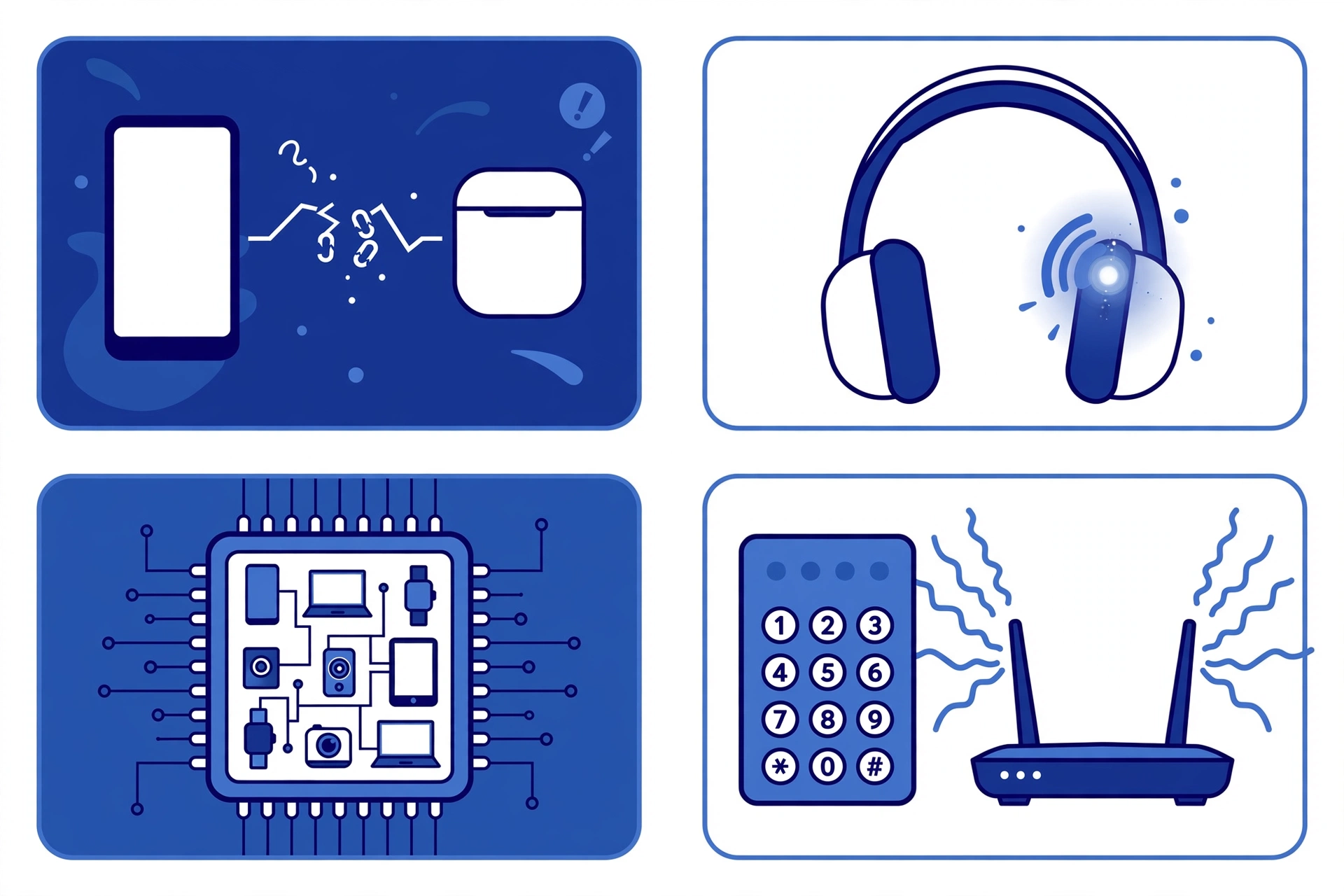
This is the most common cause, and it’s easy to miss. Turning a device on does not make it discoverable. When most headphones, speakers, and earbuds power on, they try to reconnect to a device they already know. They only announce themselves to new devices when they’re in pairing mode.
If your phone can’t see the accessory, this is where to start. Look at the light on the accessory. As a general pattern, a slow pulse or a single occasional blink usually means “on and looking for my last device,” while a fast, repeated flash usually means “pairing mode, ready to be found.”
Here is a cheat sheet of the most common ways to trigger pairing mode:
| Device type | How pairing mode is usually triggered | What the light usually does |
|---|---|---|
| Over-ear headphones | Hold the power or pairing button for about 3 to 5 seconds after it turns on | Fast flashing, often blue, or alternating blue and red |
| True wireless earbuds | Put them in the case, keep the lid open, and hold the button on the case or the touch controls for several seconds | A light on the case or an earbud flashes, often white or blue |
| Bluetooth speakers | Press and hold the Bluetooth button for about 3 seconds | Fast blue flashing, sometimes with a sound or voice prompt |
| Keyboards and mice | Switch to a Bluetooth channel with a key combo or a button underneath, then hold it for a few seconds | A small light blinks quickly |
| Car stereos | Open the stereo’s Bluetooth menu and choose Add device | The screen shows “discoverable” or a pairing code |
These are common patterns, not rules. Brands differ a lot, so check your manual if yours doesn’t match.
Also remember that pairing mode doesn’t last. Most accessories stay discoverable for only a few minutes, then stop to save battery. If you took too long to open your phone’s Bluetooth screen, start pairing mode again.
how to put any device into pairing mode
If you’re in pairing mode and the device still doesn’t show up, that’s a discovery problem with its own guide.
why a Bluetooth device isn’t showing up in the scan
Reason B: Paired Memory Saturation (Device Limit Reached)
Here’s a cause most guides skip. Every Bluetooth accessory has a small memory for devices it has paired with before. That memory has a limit, and the limit varies by model. Some accessories hold only a few devices. Others hold more.
When the memory is full, different accessories behave differently. Some quietly replace the oldest device. Others simply ignore new pairing requests, with no error message at all.
Here’s a real-world example. Say you’ve used the same pair of earbuds with an old phone, a new phone, a work laptop, a tablet, and a TV. Then you try to pair them with a new laptop, and nothing happens. The earbuds aren’t broken. Their memory is likely full of devices you no longer use.
The fix is to clear the accessory’s pairing memory. You can’t do that from your phone. You do it on the accessory itself, usually with a reset (see Fix 4 below).
Don’t mix this up with multipoint. Memory is how many devices an accessory remembers. Multipoint is how many devices it can stay connected to at once. An accessory can remember several devices but only connect to one or two at a time.
how to unpair or forget a Bluetooth device on any platform
Reason C: Passkey, PIN, or Bluetooth Handshake Mismatch
After the devices find each other, they have to prove they should trust each other. This happens in one of three ways:
- A fixed PIN. Simple accessories with no screen, like basic headsets or older keyboards, often ask your phone to enter a code such as 0000 or 1234. If the PIN is wrong, pairing is rejected.
- Matching codes. Many newer devices show the same number on both screens and ask you to confirm it. If you wait too long or tap the wrong option, pairing times out.
- No code at all. Most modern earbuds and speakers skip the code and just exchange keys quietly. This is where stale pairing data causes trouble, because the keys don’t match and the handshake fails with a vague “pairing rejected” message.
That third one explains why some people get a rejection with no PIN screen at all. The fix is to remove the old pairing from both devices, which Fix 2 covers.
what to do when the Bluetooth PIN is incorrect or won’t work
Reason D: Proximity and 2.4GHz Frequency Interference
Pairing is more sensitive than a normal connection. A signal that’s good enough to play music can still be too weak to finish the handshake, because the handshake has to go through without a break.
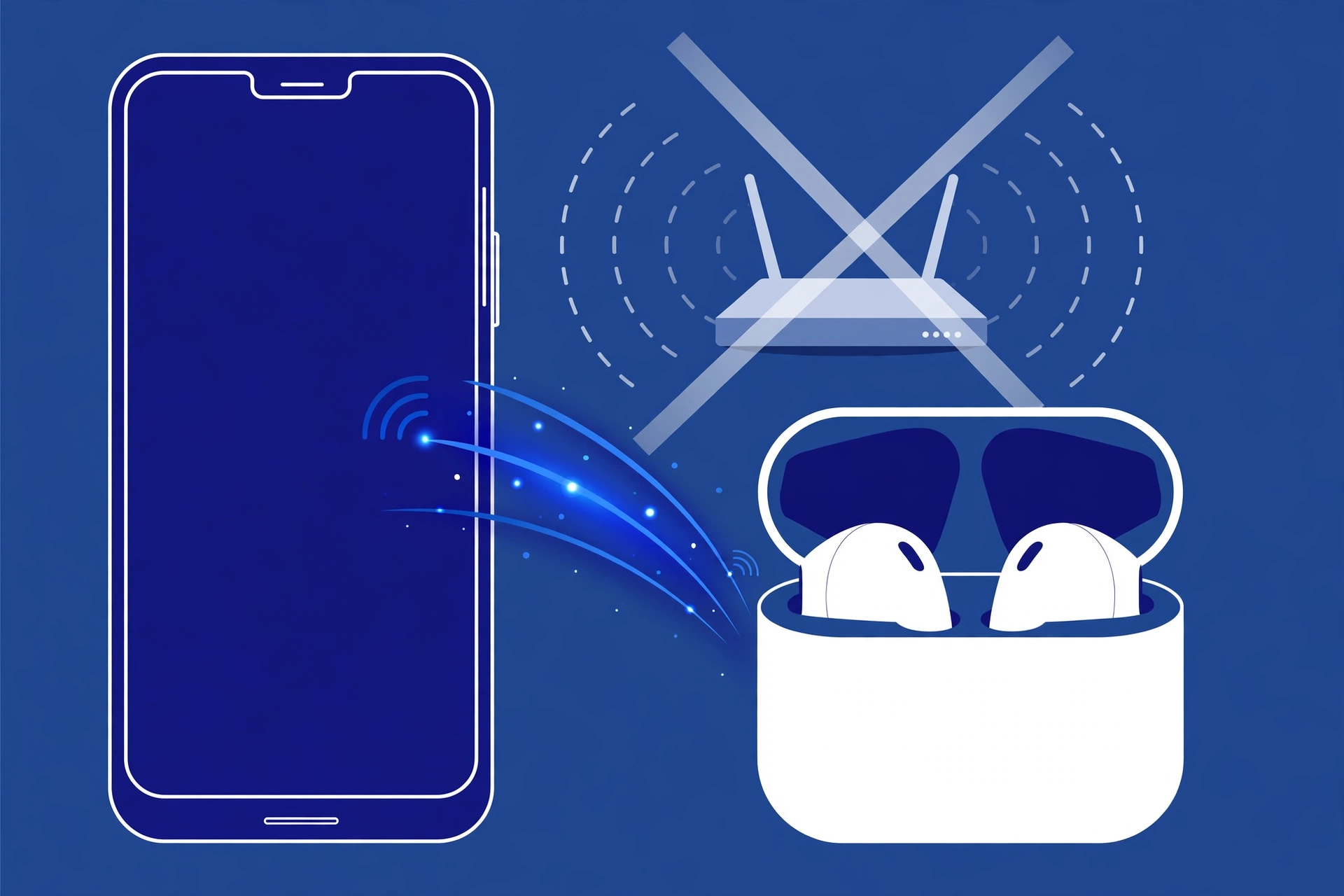
Bluetooth shares the 2.4GHz band with Wi-Fi routers, microwaves, and many wireless devices. A crowded signal can interrupt the pairing at exactly the wrong moment.
To give pairing the best chance:
- Hold the two devices close together, about a foot or two apart, with nothing between them.
- Move away from your Wi-Fi router and other wireless devices.
- If you’re pairing a USB Bluetooth adapter, try a different USB port. Unshielded USB 3.0 ports can interfere with it.
- Don’t put the phone in a pocket or bag during pairing. Your body can weaken the signal.
what causes Bluetooth interference and how to reduce it
Step-by-Step Fixes to Resolve Bluetooth Pairing Problems
Try these in order. They go from fastest to deepest, so stop as soon as one works. After each fix, try pairing again before moving on.
Fix 1: Force Re-Enter Pairing Mode on the Peripheral
This clears any timeout that closed the discoverable window.
- Turn Bluetooth off and back on at your phone or PC.
- Turn the accessory completely off, wait about 10 seconds, then turn it back on.
- Put it into pairing mode using the cheat sheet in Reason A. Wait for the fast flashing light.
- Open your phone’s Bluetooth screen right away and scan.
- Tap the device as soon as it appears.
If you see a code on your screen, confirm it on both devices without waiting.
Fix 2: Clear Paired Device History (“Forget Device”) on Both Ends
This is the fix that solves the most stubborn cases. A pairing record is stored on both devices. If either one keeps an old, broken record, the new attempt gets rejected, even after you remove the device from your phone. You need to clear both sides.
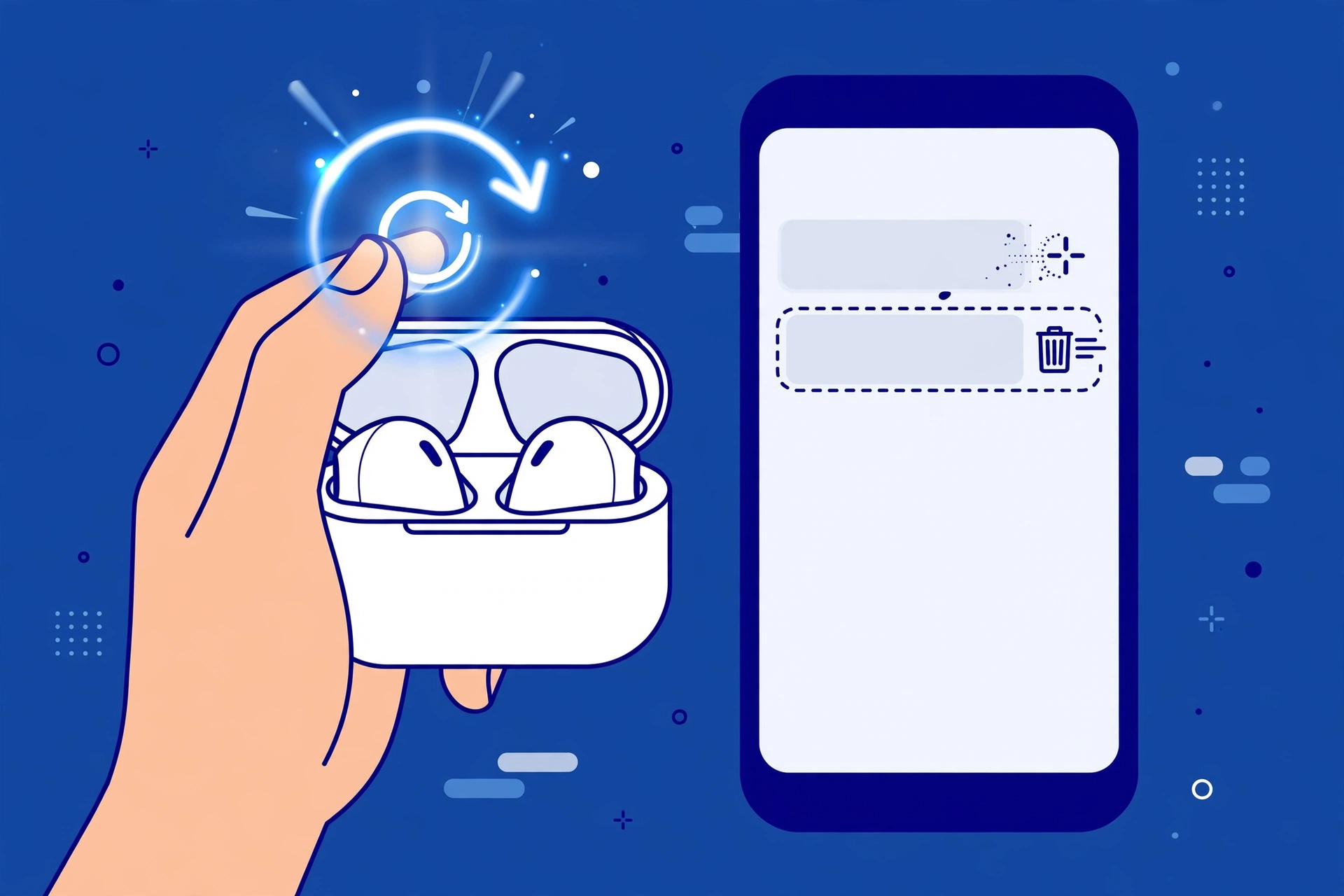
On your phone or computer:
- Android: Settings, then Connected devices, tap the gear next to the device, then Forget.
- iPhone or iPad: Settings, then Bluetooth, tap the “i” next to the device, then Forget This Device.
- Windows 11: Settings, then Bluetooth & devices, then Devices, click the three dots next to the device, then Remove device.
- Mac: System Settings, then Bluetooth, click the “i” next to the device, then Forget This Device.
On the accessory: Use its reset to clear its saved pairings. See Fix 4 for how.
Here’s what this looks like in practice: you forget a speaker on your phone, but it still won’t pair again. The speaker is holding the old record from your phone, so it rejects what looks like an impostor. Resetting the speaker clears its side, and now both devices start clean.
the full guide to fixing a Bluetooth pairing failure
Fix 3: Clear the Bluetooth System Cache (Android, Windows, and Apple)
Your device also keeps temporary Bluetooth data of its own. If that data is corrupted, it can block new pairings even when the accessory is fine. Clearing it doesn’t delete your photos or files.
- Android: Go to Settings, then Apps, then show system apps, and open Bluetooth. Tap Storage, then Clear cache. Don’t tap Clear data, because that also removes your paired devices. Restart your phone afterward.
- Windows: Restart the Bluetooth Support Service. Press Windows + R, type services.msc, press Enter, find Bluetooth Support Service, right-click it, and choose Restart.
- iPhone and iPad: There’s no Bluetooth cache you can clear. A full restart is the closest thing.
- Mac: Open Terminal, type sudo pkill bluetoothd, press Return, and enter your password. Then restart your Mac.
how to restart the Bluetooth Support Service on Windows
If you want to go further and wipe all saved Bluetooth data on your phone or computer, that has its own guide. Read the warning there first, because on phones it can also remove saved Wi-Fi passwords.
how to fully reset your Bluetooth settings
Fix 4: Perform a Hardware Factory Reset on the Accessory
This resets the accessory itself and clears its pairing memory. Use it when:
- The accessory won’t enter pairing mode at all.
- It rejects every device you try.
- You suspect its memory is full (Reason B).
- Its firmware seems locked up.
Most headphones, earbuds, and speakers have a reset, but the method varies by brand. Common methods are holding the power button for about 10 seconds, holding two buttons together, or pressing a small reset pinhole on the case. A flashing light or a sound usually tells you it worked.
A factory reset of an accessory clears its saved pairings and often its custom settings too. It does not affect your phone. Don’t mix it up with a factory reset of your phone, which erases everything.
So when should you clear the cache and when should you factory reset? Clear the cache first if the problem happens with many different devices, because it points to your phone or PC. Factory reset the accessory first if the problem happens only with that one accessory, because it points to the accessory.
how to reset Bluetooth headphones
how to reset a Bluetooth speaker
what to do when Bluetooth earbuds won’t pair
Platform-Specific Pairing Guidance and Next Steps
If the general fixes above didn’t solve it, the problem may be specific to your operating system. Each platform has its own settings that can block pairing.
On Windows, the Bluetooth toggle may be missing, or the adapter may have a driver problem. Start with the Windows guides for missing toggles and pairing steps.
Windows Bluetooth fixes and guides
what to do if the Bluetooth toggle is greyed out or missing
On Android, newer versions require a “Nearby devices” permission, and a blocked permission can stop pairing without any clear message. Battery settings can also close Bluetooth in the background.
how the Android Nearby devices permission affects Bluetooth
Android Bluetooth fixes and guides
On iPhone, iPad, and Mac, the main steps are the ones above, since Apple gives you fewer settings to change. The Apple guides cover bugs and edge cases.
iPhone, iPad, and Mac Bluetooth fixes
If you got the device paired but have a different problem now, such as no sound, dropouts, or lag, start with the main troubleshooting guide.
the complete Bluetooth troubleshooting guide
Frequently Asked Questions
Why is my Bluetooth device not showing up when pairing?
Most often, the accessory isn’t in pairing mode, or its discoverable window closed. Put it back into pairing mode, watch for the fast flashing light, and scan right away. Turn off Bluetooth on any other nearby device it was used with, because it may have reconnected there instead.
How do I fix the Bluetooth pairing unsuccessful error?
Forget the device on your phone, reset the accessory’s pairing memory, and try again from scratch. This clears broken keys on both sides, which is the most common cause.
How do you reset Bluetooth pairing?
Forget the device on your phone or PC, then reset the accessory using its reset method. Doing both sides gives you a clean start. To clear all saved Bluetooth data on your phone or computer, use a full Bluetooth reset.
Why does Bluetooth say incorrect PIN or passkey?
The code you entered doesn’t match what the accessory expects. Try 0000 or 1234 first, check the manual, and for devices that show a code on both screens, confirm it quickly before it times out.
What is the difference between a device being paired and being connected?
Paired means two devices have exchanged keys and saved each other. Connected means they’re linked right now. A device can be paired without being connected.
Why won’t my accessory pair even though it’s right next to my phone?
Distance isn’t the issue then. The cause is usually that the accessory isn’t in pairing mode, its pairing memory is full, or an old pairing record is blocking the new one. Reset the accessory and forget it on your phone.
How many devices can be paired at the same time?
It depends on the accessory. The number of devices it can remember and the number it can connect to at once are different limits, and both vary by model. Check your accessory’s manual for its exact limits.
