

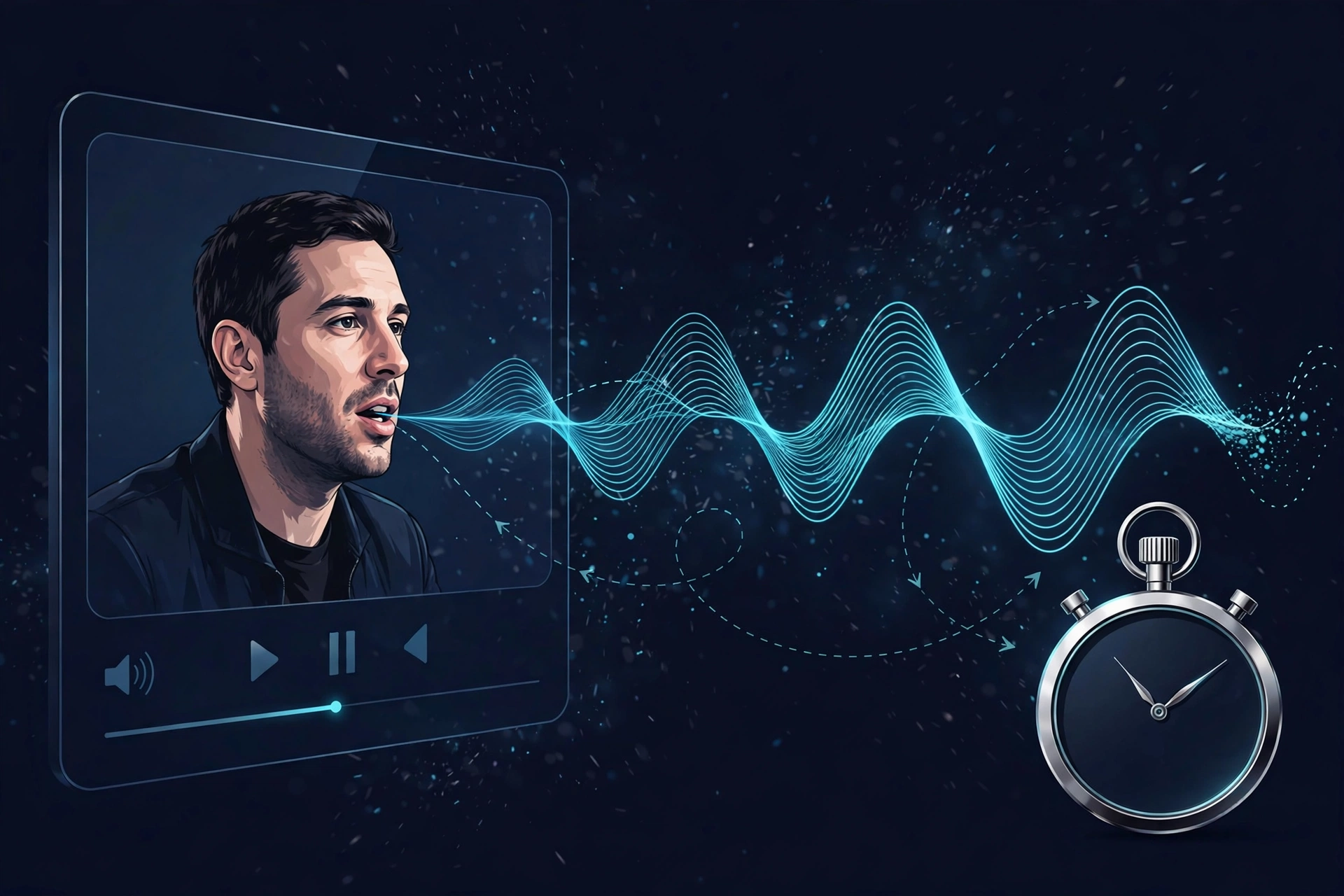
You press play, and the sound arrives a moment after the picture. Lips move before the words come out. In a game, the gunshot sound lands after the flash. That gap is Bluetooth audio delay, also called Bluetooth lag or latency.
Here is the short answer: every Bluetooth headphone and speaker has some delay. You can’t remove it completely, but you can often shrink it a lot or hide it so well you stop noticing. The right fix depends on where you hear the lag and which device you use.
In this article:
- Why Is There a Delay on My Bluetooth Audio?
- Why You Notice Lag in Games but Not on YouTube
- How to Measure Your Bluetooth Audio Lag (Baseline Test)
- The Universal Fixes (Try These First)
- How to Fix Bluetooth Audio Delay on Windows
- How to Fix Bluetooth Audio Delay on Android & iPhone
- How to Fix Bluetooth Lag on Smart TVs
- Quick Fix for Video Files: Use VLC
- Hardware Upgrades: When Software Fixes Aren’t Enough
- Summary: Can You Completely Eliminate Bluetooth Delay?
- Frequently Asked Questions
Why Is There a Delay on My Bluetooth Audio?
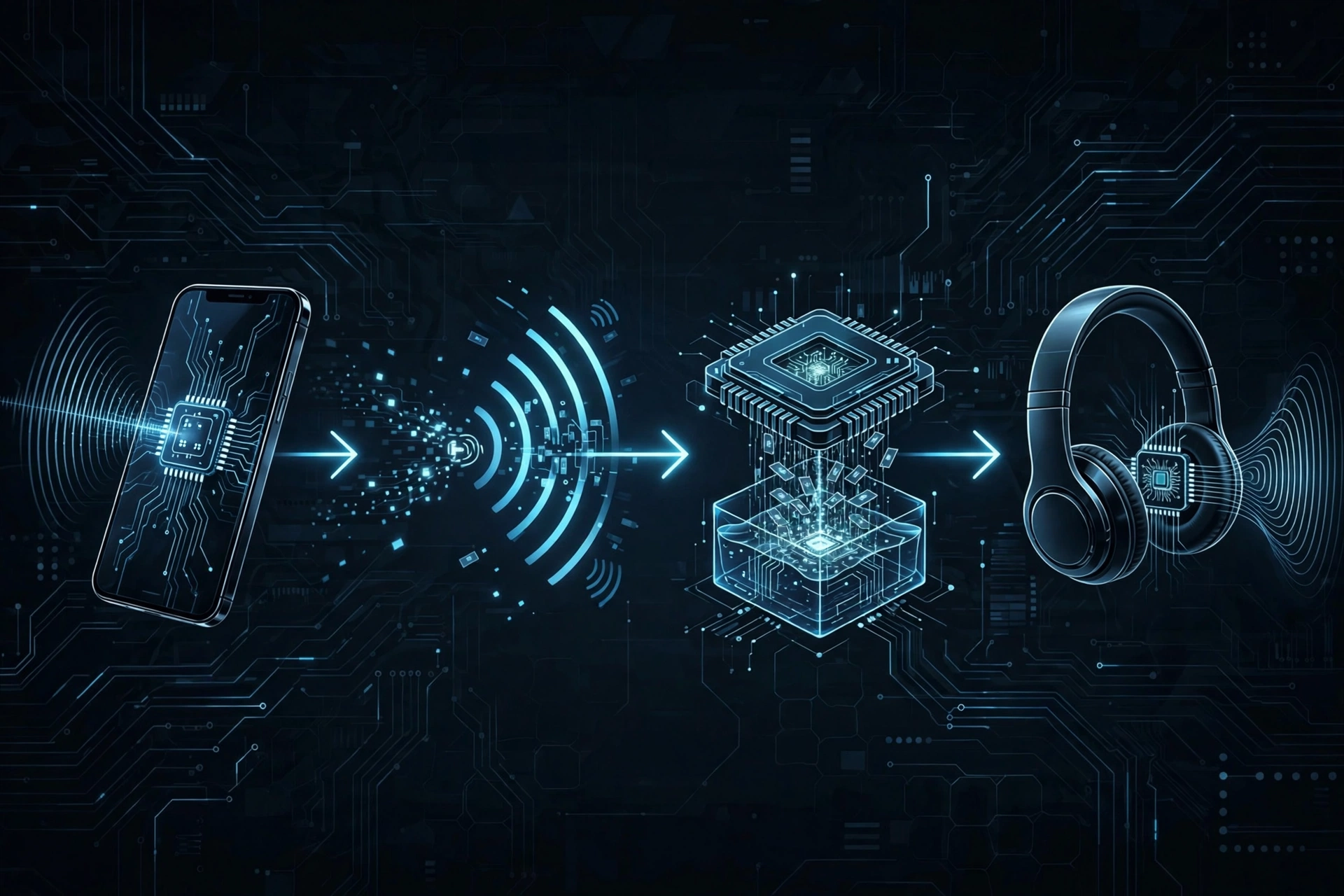
A wire sends sound almost instantly. Bluetooth has to do a few extra jobs first, and each one takes a tiny bit of time:
- Encoding. Your phone or PC squeezes the sound into a smaller package using a codec, like SBC, AAC, or aptX.
- Sending. The package travels by radio to your headphones.
- Buffering. Your headphones hold a small amount of sound in reserve. This stops the audio from cutting out if the signal gets weak for a split second.
- Decoding. Your headphones unpack the sound and play it.
Add those steps together and you get latency. A bigger buffer means steadier sound but more delay. That is the trade-off every Bluetooth device makes.
Why You Notice Lag in Games but Not on YouTube
This is the part that confuses most people. Your headphones have the same delay all the time, so why does it only show up sometimes?
Video apps like YouTube and Netflix can see the delay coming. They quietly hold back the picture by the same amount, so the video and sound line up again. You never notice.
Games, video calls, and live music apps can’t do that. A game can’t wait to show you the enemy just so the sound can catch up. So the lag is exposed.
| What you’re doing | Can the app hide the delay? | Will you notice lag? |
|---|---|---|
| Watching YouTube, Netflix, or streaming apps | Usually yes | Rarely |
| Playing games | No | Often |
| Video calls | No | Sometimes |
| Playing a keyboard or music app | No | Yes |
| Watching a video file in some media players | Not always | Sometimes |
So if you only hear lag in games, your headphones are probably working normally. If you hear lag on YouTube too, something is actually wrong, and the fixes below are worth your time.
How to Measure Your Bluetooth Audio Lag (Baseline Test)
Before you change anything, check how bad the delay really is. This tells you whether you’re dealing with normal Bluetooth lag or a problem you can fix.
Quick test 1: The lip sync check. Play a video of someone talking straight to the camera. Watch their lips closely. If the words match the lips, your delay is small or the app is hiding it well. If the words clearly trail behind, you have a real sync problem.
Quick test 2: An online A/V sync test. Search for an “audio video sync test” video. These show a flash or a beep at the same moment. Play it once with your Bluetooth headphones, then once with your device’s built-in speakers or wired earphones. The difference you see between the two is roughly how much delay Bluetooth is adding.
Quick test 3: The tap test. Tap keys in a piano app. If the sound comes clearly after your tap, that’s the raw delay with nothing hiding it.
Repeat your test after each fix below so you know what actually helped.
The Universal Fixes (Try These First)
These work on any phone, PC, or tablet. Try them before anything else.
- Forget the device and pair it again. Don’t just disconnect. Remove the headphones from your Bluetooth list completely, restart both devices, and pair again from scratch. Old connection data can force your device onto a slower setting.
- Move closer and clear the path. Walls, your body, and even a phone in a back pocket can weaken the signal. When the signal gets weak, the headphones buffer more sound to avoid dropouts, and more buffering means more lag.
- Get away from Wi-Fi and USB 3.0 noise. Bluetooth shares the 2.4GHz band with most Wi-Fi routers. A busy router or a nearby USB 3.0 hub can crowd the airwaves and push delay up.
- Disconnect other devices. If your earbuds use multipoint pairing and are linked to your phone and laptop at the same time, they can switch to a simpler, slower connection mode. Turn Bluetooth off on the device you’re not using and test again.
- Charge both devices. A low battery can make some devices save power in ways that hurt audio performance.
- Turn off Battery Saver. Power saving modes can limit how hard your phone works in the background. It doesn’t always affect Bluetooth, but it’s a quick thing to rule out.
How to Fix Bluetooth Audio Delay on Windows
Windows adds its own sound processing, and that processing can make lag worse. Try these in order.
Turn off audio enhancements. Go to Settings, then System, then Sound. Click your Bluetooth headphones, find Audio enhancements, and set it to Off. Enhancements process the sound before it’s sent, which adds extra delay.
Turn off spatial sound. On that same page, find Spatial audio and set it to Off. Spatial sound effects like Windows Sonic add another processing step. If you don’t need surround effects, turning this off is an easy win.
Update your Bluetooth driver. An old or buggy driver can cause stutter and lag. Update it through Device Manager, or download the latest version from your PC or laptop maker’s website.
Use the built-in troubleshooter only as a quick check. Microsoft has moved its troubleshooters into the Get Help app on newer versions of Windows. It can catch basic connection problems, but it rarely fixes lag. Don’t expect much from it.
How to Fix Bluetooth Audio Delay on Android & iPhone
Android gives you more control here than iPhone does, so most of the steps in this section are for Android.
On Android
Check which codec you’re using. A codec is the method your phone uses to pack the sound. Some are faster than others. To see yours:
- Go to Settings, then About phone, and tap Build number seven times to unlock Developer Options.
- Go back to Settings, then System (or Additional settings on some phones), then Developer Options.
- Find Bluetooth Audio Codec and tap it while your headphones are connected.
If your headphones support aptX Adaptive or aptX Low Latency, choosing it can cut delay compared with basic SBC. Two warnings: you can only pick a codec your headphones actually support, and on many phones the setting goes back to default after you reconnect.
Turn off Battery Saver while gaming. Battery saver modes can limit background performance. Turn it off and test your lag again.
Look for a game mode. Many Android phones have a game mode or game booster, and some earbuds have a low-latency mode in their companion app. If yours has one, turn it on. This is often the single biggest improvement for gaming.
On iPhone
iPhone doesn’t let you choose a codec. It uses AAC with most headphones. So your options are the universal fixes above, a low-latency or gaming mode in your headphone maker’s app, and keeping your iPhone and headphone firmware updated. If lag still bothers you, the hardware section below is where the real fix is.
How to Fix Bluetooth Lag on Smart TVs
TVs are where lip sync problems stand out most, because you’re watching faces for a long time.
Most smart TVs have an audio delay or A/V sync setting in the Sound menu. It might be called Audio Sync, Lip Sync, or Audio Delay, depending on the brand. This setting lets you shift the sound earlier or later until it matches the picture. Change it in small steps and use the lip sync check from earlier to find the right spot.
Some TVs also have a separate Bluetooth audio sync option. If yours does, use that one, since the general setting sometimes only affects the TV’s own speakers.
Quick Fix for Video Files: Use VLC
If you’re playing a downloaded video file on a laptop, even one connected to your TV, you can fix the sync yourself in VLC media player.
- On Windows, press J or K while the video plays. Each press nudges the audio a little earlier or later.
- Or go to Tools, then Track Synchronization, and set the audio delay by hand.
This only fixes that video in that player, not games or streaming apps. But for a movie file on your laptop, it’s the fastest fix there is.
Hardware Upgrades: When Software Fixes Aren’t Enough
If you’ve tried everything and the lag still ruins your games, the limit is probably your hardware, not your settings. Here are the options that actually make a difference.
Low-latency codec headphones. Headphones and devices that both support aptX Adaptive or aptX Low Latency can deliver much lower delay than standard SBC. The catch: both sides must support the same codec. aptX Low Latency is now found mostly in older gear and transmitters, while aptX Adaptive has become the more common option in newer devices.
A Bluetooth transmitter. If your TV or PC doesn’t support a fast codec, a small plug-in transmitter can add it. Plug it into the TV’s audio output or your PC’s USB port, then pair your headphones to the transmitter instead. This only helps if your headphones support the same low-latency codec as the transmitter.
Bluetooth LE Audio. Newer phones, PCs, and headphones that support LE Audio use a newer codec called LC3, designed to be more efficient than the old standard. Support is still growing, so check both devices before counting on it.
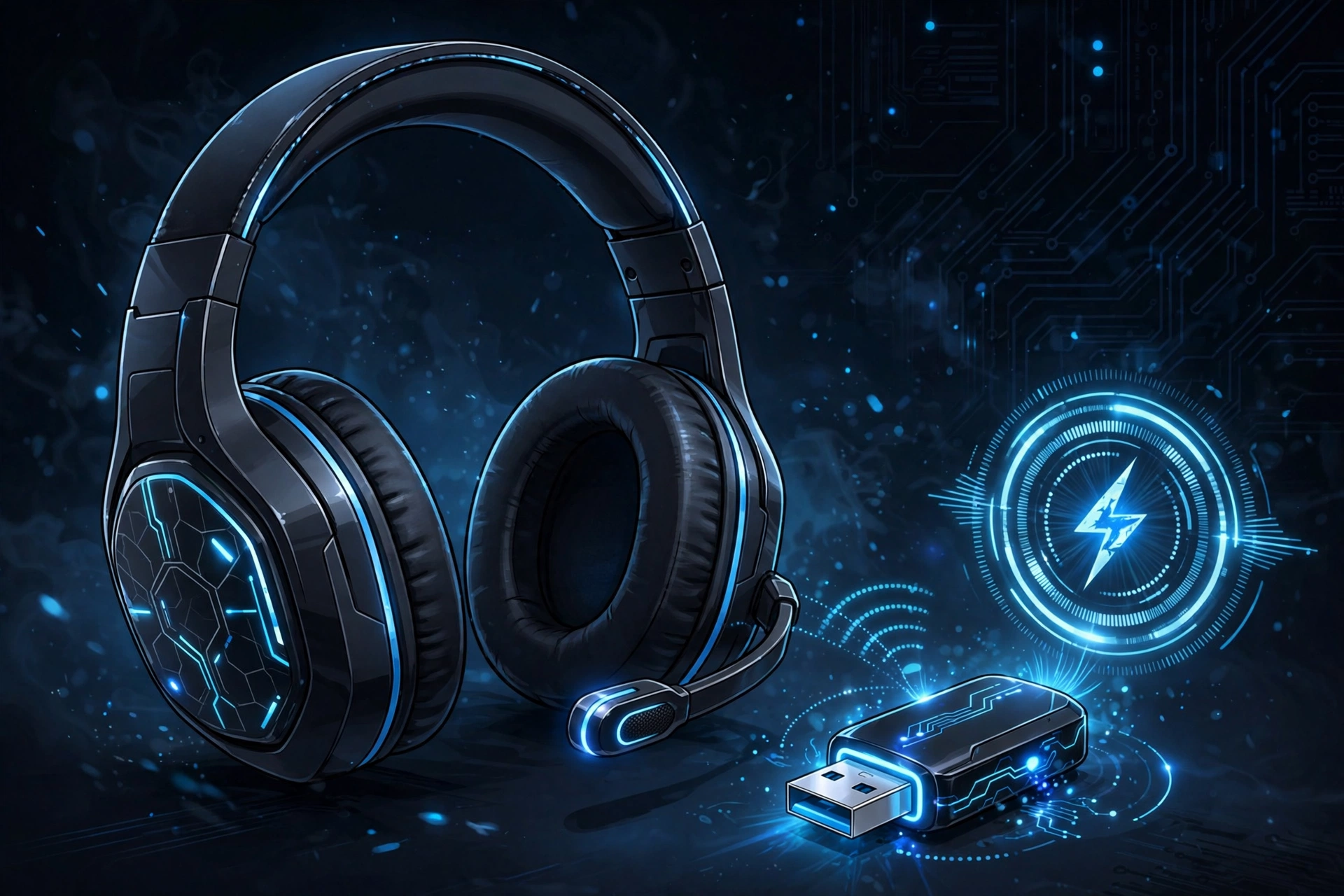
A 2.4GHz wireless dongle. Many gaming headsets skip Bluetooth and use their own USB dongle instead. These are built for low delay and are usually the best wireless choice for serious gaming.
Summary: Can You Completely Eliminate Bluetooth Delay?
No, but you can shrink it and hide it. For videos, most people can reach a point where they never notice the lag. For casual gaming, the right codec or a game mode is usually close enough. For competitive gaming or playing music live, a wired connection or a 2.4GHz dongle is still the only way to get near-zero delay.
If your headphones are dropping out or won’t connect at all, that’s a different problem.
Frequently Asked Questions
Does Bluetooth always have an audio delay?
Yes. Every Bluetooth audio connection has some latency. How much depends on the codec, the signal strength, and your devices.
How do I change my Bluetooth codec?
On Android, open Developer Options and tap Bluetooth Audio Codec while your headphones are connected. iPhone doesn’t let you change codecs.
Why is my Bluetooth audio delayed on YouTube too?
YouTube normally hides the delay, so lag there points to a real problem. Re-pair your headphones, move closer, and turn off Windows audio enhancements or spatial sound.
