

You open Bluetooth settings, tap scan, and wait. Your headphones, speaker, or keyboard just never appears in the list. Before you touch a single Windows setting or start resetting your phone, it helps to know one thing first: is the accessory actually broadcasting itself, or is your phone or PC the one that’s failing to scan? Fixing the wrong side wastes time and usually doesn’t fix anything.
The test below tells you which one it is in about 10 seconds, then the rest of this guide walks through the fixes for whichever side turned out to be the problem.
In this article:
- Is It the Device or Your Phone/PC? (The 10-Second Test)
- 5 Reasons Your Device Isn’t Showing Up (Accessory Fixes)
- How to Fix Bluetooth Not Finding Devices on Windows
- How to Fix Bluetooth Not Discovering Devices on Android & iPhone
- Are You Dealing with Bluetooth Interference?
- Frequently Asked Questions
Is It the Device or Your Phone/PC? (The 10-Second Test)
Grab a second phone or tablet, any device with Bluetooth, and try scanning for the accessory with that instead. If the accessory shows up there, your original phone or PC is the one failing to scan, and the accessory itself is fine. If it doesn’t show up on the second device either, the accessory isn’t broadcasting itself at all, which points to a pairing mode or discoverability problem on the accessory side.
Discoverability is the state a device needs to be in to be found. A device only broadcasts itself as discoverable for a short window, so if you took too long getting to your phone’s Bluetooth settings, the accessory may have already stopped broadcasting by the time you scanned.
5 Reasons Your Device Isn’t Showing Up (Accessory Fixes)
Check these before you touch any OS-level settings, since most discovery failures come down to the accessory itself. Before anything else, restart both the accessory and your phone or PC. It sounds obvious, but a simple restart clears more discovery glitches than any single fix below.
- It’s not actually in pairing mode. Look for the pairing LED, usually a blinking blue or white light. A solid light or no light at all usually means it’s either already connected to something, off, or out of pairing mode.
- The discoverability window closed. Most accessories only broadcast themselves for 2 to 3 minutes to save battery, then quietly stop. If you scanned too late, put it back into pairing mode and scan again right away.
- It’s already “stolen” by another paired device. If the accessory is within range of a phone, tablet, or laptop it’s already paired with, it may reconnect there automatically instead of staying visible for a new device. This is why a pair of earbuds can seem to vanish the moment you try pairing them with a new laptop, they’re not broken, they just quietly reconnected to the phone still sitting in your pocket. Turn off Bluetooth on any other nearby device it’s used with before scanning again. Some newer accessories support multipoint pairing, which lets them stay connected to two devices at once, but most everyday headphones and speakers can only manage one connection, which is exactly why this happens so often.
- The battery is too low. A weak charge can stop a device from broadcasting a strong enough signal to be picked up, even while it looks like it’s turned on.
- It needs a hard reset. If none of the above explains it, the accessory’s internal Bluetooth memory may be stuck. Most headphones, earbuds, and speakers have a reset method, often holding the power button for several seconds until you see a flashing light, though the exact steps vary by brand. This is worth trying even if the accessory has connected fine before, since a corrupted internal record can build up after a bad disconnect or a failed pairing attempt, and it can stop the device from broadcasting itself correctly even though nothing else about it has changed.
How to Fix Bluetooth Not Finding Devices on Windows
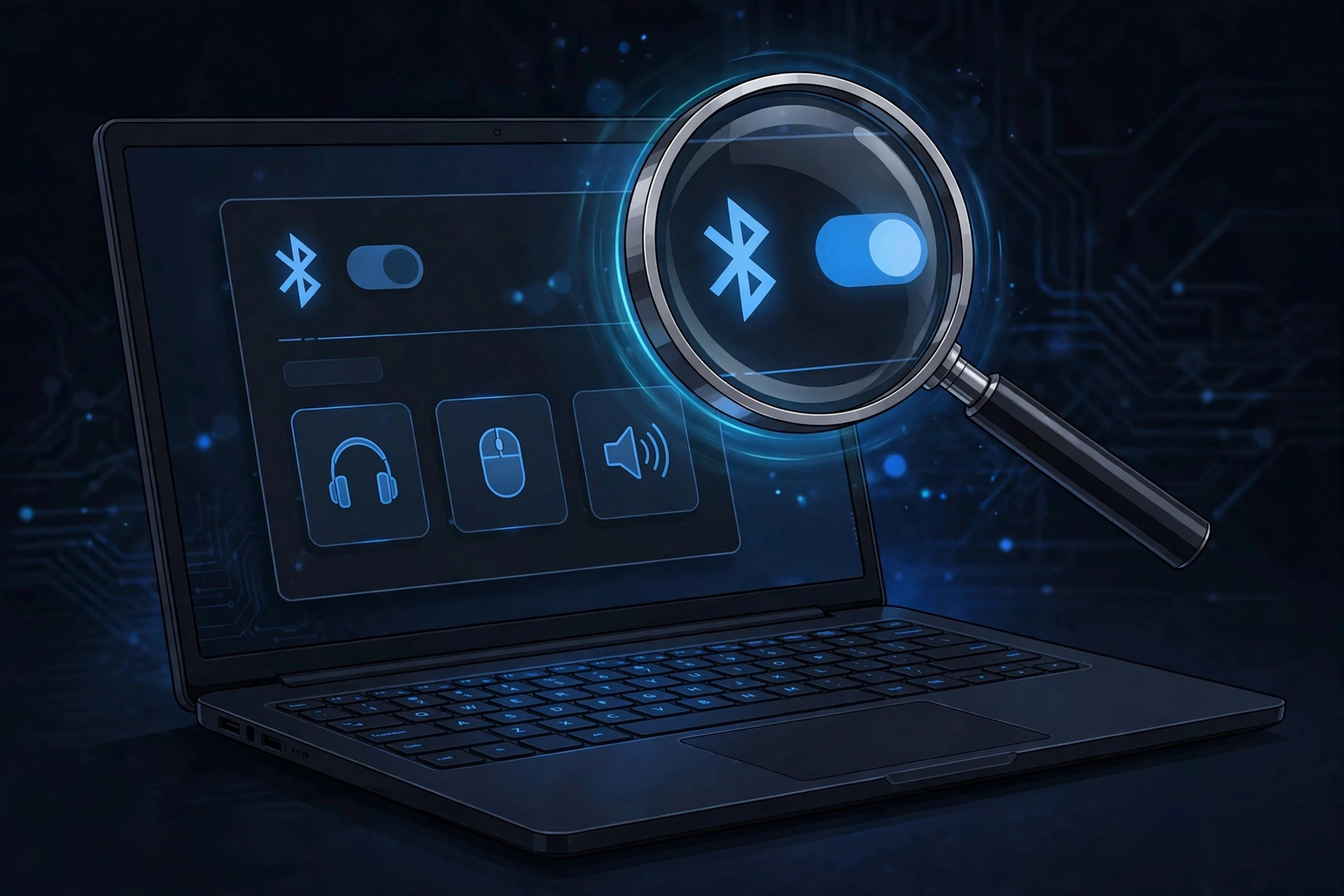
If the 10-second test pointed to your PC, start here. On older laptops, check for a physical Bluetooth switch or function key first, sometimes labeled with a Bluetooth or airplane icon. Some models also disable Bluetooth at the BIOS level, which Windows can’t override no matter what you toggle in Settings.
Toggle Airplane Mode on, wait a few seconds, then turn it off. This resets your PC’s Bluetooth radio completely and clears a surprising number of scanning glitches on its own.
If that doesn’t help, open Device Manager, find Bluetooth in the list, and check “Show hidden devices” from the View menu. Windows sometimes keeps an old, greyed-out Bluetooth radio entry active after a driver update, which can quietly block the real one from scanning properly. This is easy to miss because the working radio is usually still listed right next to the broken, hidden one, so it looks like everything is fine at a glance. If you see a duplicate or greyed-out entry, disable it and restart your PC.
If scanning still fails after that, the Bluetooth Support Service itself may need restarting, a background Windows process separate from your device drivers.
If you don’t see a Bluetooth toggle anywhere in your settings at all, that’s a different problem entirely, a missing Bluetooth stack rather than a scanning failure, and needs its own fix.
How to Fix Bluetooth Not Discovering Devices on Android & iPhone
If the test pointed to your phone, the fix is usually simpler than on a PC.
On Android:
- Go to Settings, then Connected devices, and remove any old or unused devices cluttering the saved list. A long list can slow down how fast your phone scans for anything new.
- Go to Settings, then Apps, find the Bluetooth app, tap Storage, and clear its cache. This is different from clearing its data, which would also delete your saved device list, so stick to cache only.
- Turn Bluetooth off and back on, then scan again.
On iPhone:
- Go to Settings, then Bluetooth, and forget any devices you no longer use by tapping the small “i” icon next to the name.
- Turn Bluetooth off and on, or restart your iPhone completely. iPhone doesn’t have a separate Bluetooth cache to clear the way Android does, so a full restart is the closest equivalent.
- Scan again with the accessory in pairing mode.
If your phone still won’t discover any device at all, even one you’ve never paired with before, a full network settings reset is the deeper fix.
Are You Dealing with Bluetooth Interference?
If the accessory is in pairing mode, has plenty of battery, and your phone or PC is otherwise scanning normally, interference is worth checking before anything else. Bluetooth and most Wi-Fi routers share the same 2.4 GHz ISM band, so scanning near a router or in a room packed with other wireless devices can genuinely hide a signal that’s working fine. Unshielded USB 3.0 ports can cause the same kind of interference, so if your accessory or its dongle sits near a USB 3.0 port or hub, try moving it or using a different port.
A simple way to check is to move the accessory and your phone or PC into a different room, away from your router, other USB devices, and anything else wireless, then scan again. If it shows up right away in the new spot, interference was the real cause all along, not a broken pairing mode or a software glitch.
Frequently Asked Questions
Why can’t my phone find my Bluetooth device?
Usually the accessory isn’t in pairing mode, its discoverability window already closed, or it’s auto-connected to another nearby device instead. Run the 10-second test with a second phone to confirm whether the accessory or your phone is actually at fault.
How do I fix Bluetooth not showing in Device Manager?
Open Device Manager, expand the Bluetooth section, and turn on “Show hidden devices” from the View menu. A leftover, greyed-out entry from an old driver can block the active one from scanning correctly.
Why is my Bluetooth device not discoverable?
Most accessories only stay discoverable for 2 to 3 minutes after you put them into pairing mode, then stop broadcasting to save battery. Put the device back into pairing mode and scan again right away instead of waiting.
Is my Bluetooth accessory broken, or is my phone/PC the problem?
Test it with a second phone or tablet. If the accessory shows up there, it’s working fine and the problem is with your original phone or PC’s scan. If it doesn’t show up anywhere, the accessory itself isn’t broadcasting.
Does my device need to be disconnected from my old phone to show up on my new one?
Often, yes. Many accessories automatically reconnect to whichever paired device is nearby and already has Bluetooth on, which can keep them from appearing as available to a new device. Turn off Bluetooth on the old phone first, then scan again.
Will an old Bluetooth device work with a new phone?
Almost always. Bluetooth is designed to be backward compatible, so a much older accessory can usually still be found and paired by a brand new phone. If an old device truly won’t show up no matter what you try, it’s more likely a dead battery, a pairing mode issue, or a hardware fault than a version mismatch.
