

In this article:
- The 3 Universal Steps to Connect Any Bluetooth Device
- The Secret to “Pairing Mode” (Why Most Connections Fail)
- How to Pair a Bluetooth Device to Android
- How to Pair a Bluetooth Device to iPhone & iPad
- How to Pair a Bluetooth Device to Windows (10 & 11)
- How to Pair a Bluetooth Device to Mac
- Why Won’t My Bluetooth Device Pair? (3 Quick Fixes)
- Find Your Specific Device Pairing Guide
- Frequently Asked Questions
Learning how to pair Bluetooth devices sounds easy, until your headphones refuse to show up on the list and you’re stuck tapping Scan again and again. If that’s happened to you, you’re not alone. Most people think their phone or the accessory is broken, when the real problem is usually much simpler.
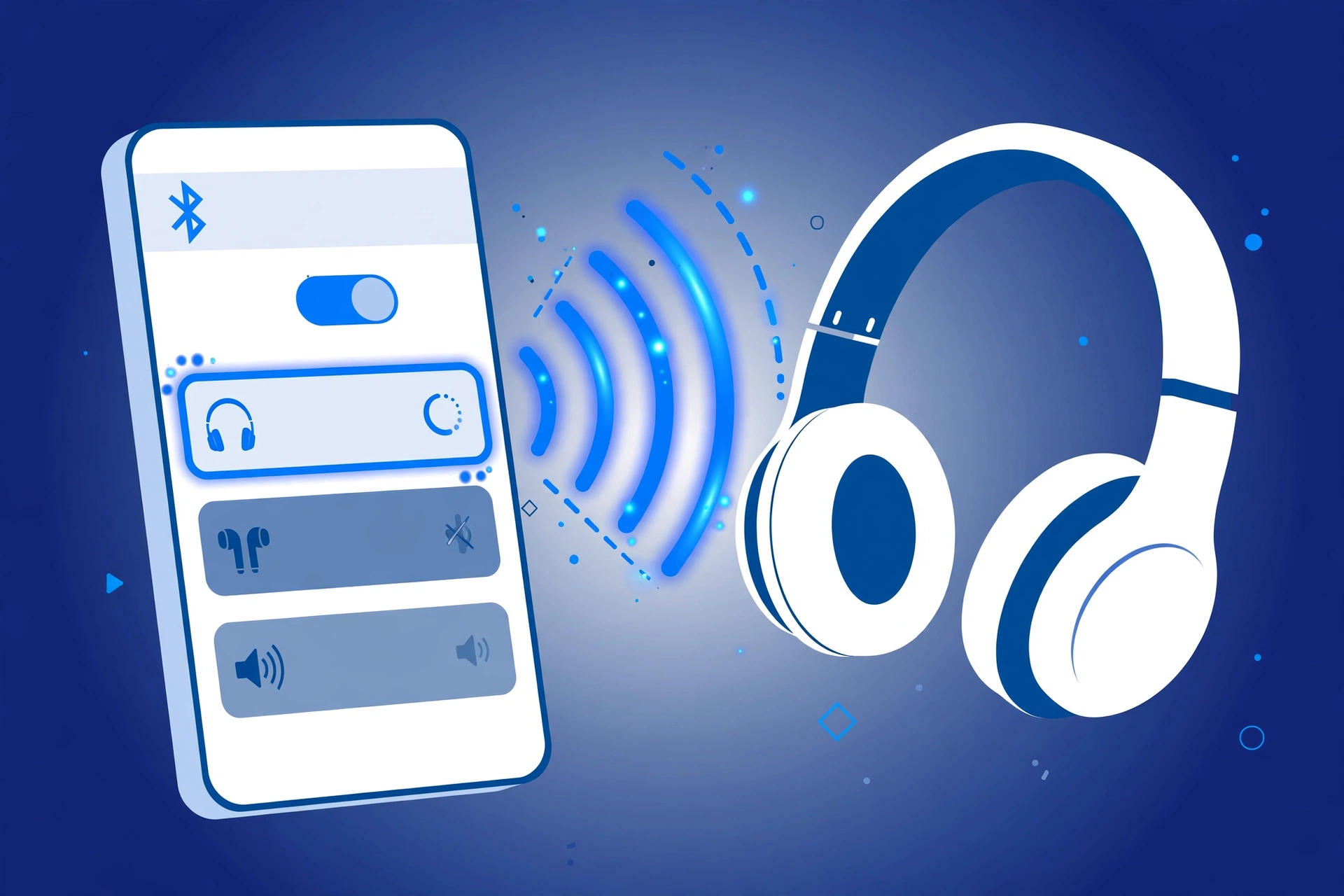
The fix is three steps: turn Bluetooth on at your phone or computer, put the accessory in pairing mode, then pick it from the list. Pairing mode is the step people miss, because turning a device on does not make it discoverable. Below, you’ll learn how to start pairing mode on any accessory, plus the exact menu path for Android, iPhone, Windows, and Mac.
The 3 Universal Steps to Connect Any Bluetooth Device
Every Bluetooth connection has two sides:
- The host is the device that searches, like your phone, tablet, or PC.
- The accessory is the device that gets found, like headphones, a speaker, or a keyboard.
Pairing is a one-time handshake. The two devices swap security keys and agree to trust each other. After that, they reconnect on their own.
- Turn on Bluetooth on the host. Use the settings or quick menu on your phone or computer.
- Put the accessory in pairing mode. Turning it on is not enough. More on this below.
- Select the accessory on the host. Tap its name in the list. If a code appears, confirm it, or type 0000 or 1234 if you’re asked for a PIN.
If the accessory has no screen, you type the PIN on your phone or PC, not on the accessory. Most modern accessories skip the PIN completely.
You don’t need an app to pair a Bluetooth device. Some earbuds and speakers have a companion app for extra settings, but pairing itself happens in your Bluetooth settings.
The Secret to “Pairing Mode” (Why Most Connections Fail)
Here’s the part most guides skip: power on does not mean pairing mode.
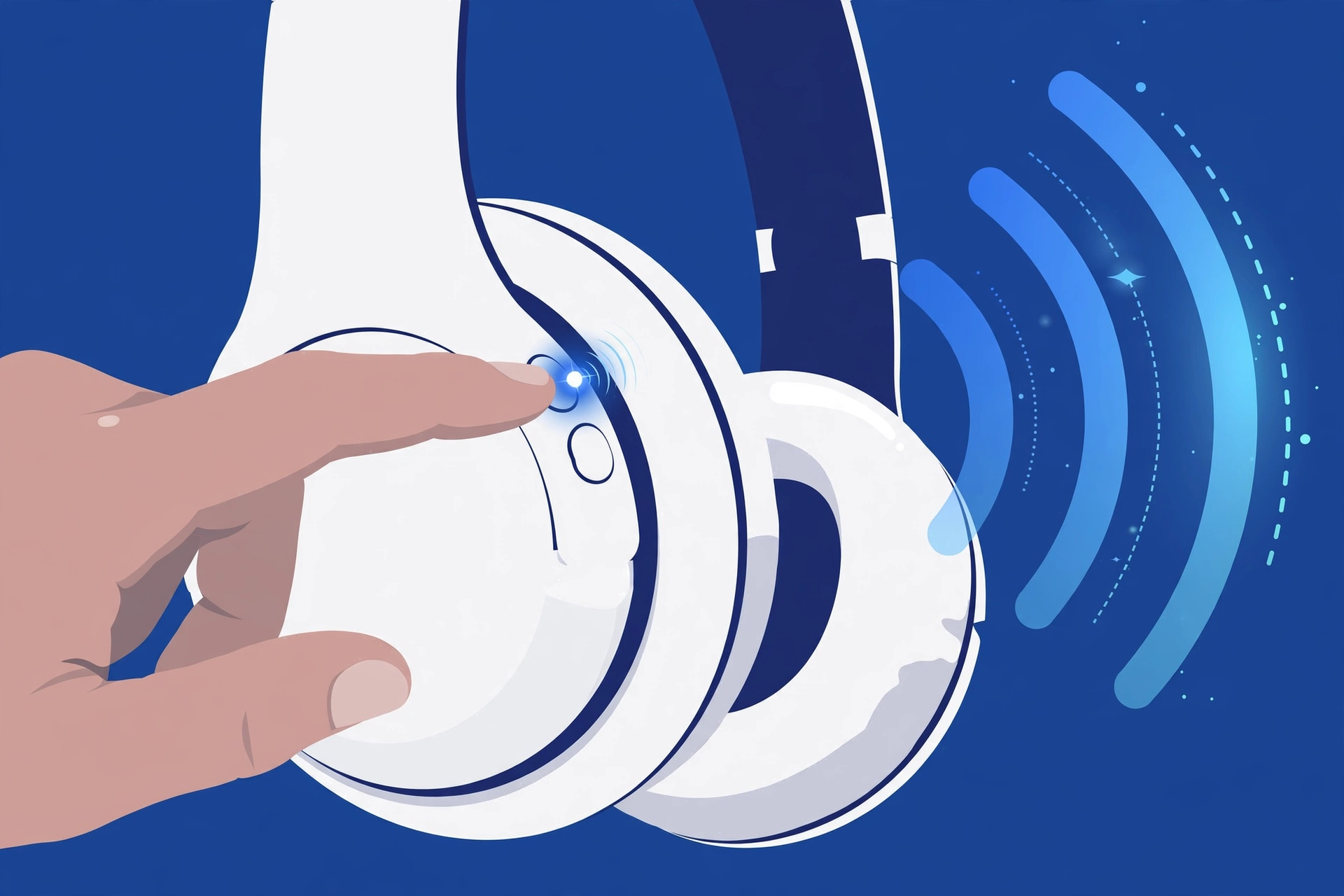
When you turn on headphones, they first try to reconnect to a device they already know. They only start broadcasting “I’m here” to new devices when they’re in pairing mode. That broadcast is what makes a device discoverable. If it’s not discoverable, your phone can scan all day and never see it.
How you start pairing mode depends on the accessory:
- A dedicated pairing or Bluetooth button: press and hold it until the light flashes.
- Only a power button: start with the device off, then hold the power button past the normal turn-on point until the light starts flashing, often red and blue.
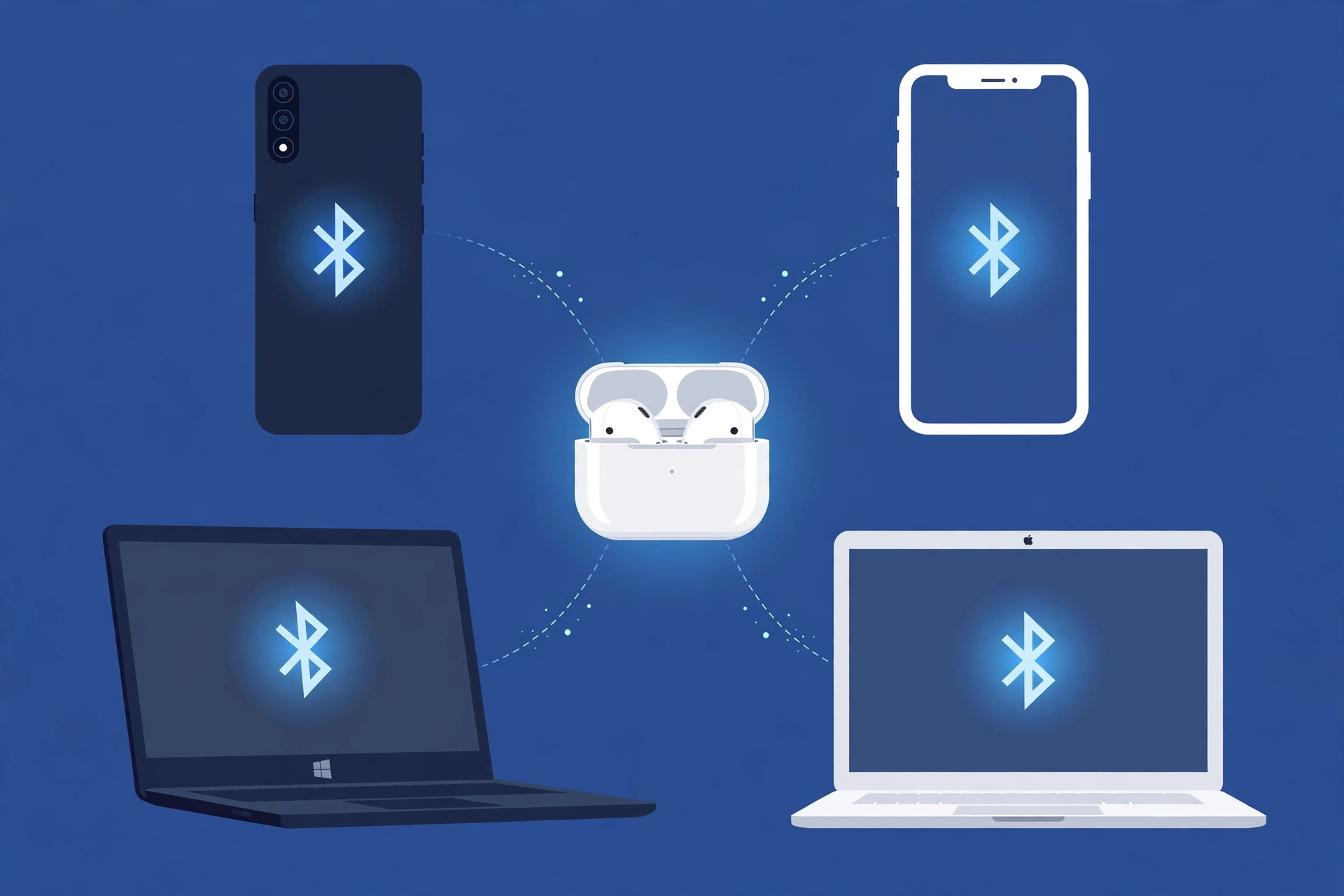
- Earbuds with a charging case: many pair when you open the case lid and hold the button on the case.
- Keyboards and mice: look for a Connect button or a pairing switch, often on the underside.
The light tells you what state the device is in. A flashing blue light, or alternating red and blue, usually means pairing mode. A solid light usually means it’s already connected or just powered on. Patterns vary by brand, so check your manual if yours looks different.
Pairing mode doesn’t last forever. Most accessories stop broadcasting after a few minutes. If you took too long, start it again and scan right away.
how to put any device into pairing mode
How to Pair a Bluetooth Device to Android
- Open Settings, then Connected devices, then tap Pair new device. On Samsung phones, go to Settings, then Connections, then Bluetooth.
- Turn Bluetooth on if it’s off.
- Put your accessory in pairing mode.
- Tap the accessory’s name when it appears, then confirm.
Your phone usually shows pairing requests on this same screen, so stay on it until you see “Connected.”
Google Fast Pair skips these steps. If your accessory supports Fast Pair, a pop-up appears on your phone when the accessory is in pairing mode and nearby. Tap Connect and you’re done. Google says Fast Pair needs Android 6.0 or newer, Bluetooth and Location turned on, an internet connection, and the phone within about half a meter of the accessory. If the pop-up never shows up, pair manually with the steps above.
the full guide to turning on and pairing Bluetooth on Android
How to Pair a Bluetooth Device to iPhone & iPad
- Open Settings, then Bluetooth, and turn it on.
- Put your accessory in pairing mode.
- Under My Devices or Other Devices, tap the accessory’s name.
- Enter a PIN or passcode if your iPhone asks for one.
AirPods and many Beats products use a pop-up instead. Open the case lid near your unlocked iPhone, and a card appears on screen. Tap Connect. This one-tap setup works because these products use Apple’s own wireless chips, so it doesn’t work with most other brands.
step-by-step pairing with iPhone or iPad
How to Pair a Bluetooth Device to Windows (10 & 11)
Windows 11:
- Open Settings, then Bluetooth & devices, and turn Bluetooth on.
- Click Add device, then Bluetooth.
- Put your accessory in pairing mode, then click its name when it shows up.
- Confirm the code if one appears, then click Done.
Windows 10:
- Open Settings, then Devices, then Bluetooth & other devices.
- Turn Bluetooth on, then click Add Bluetooth or other device, then Bluetooth.
- Pick your accessory from the list and confirm.
On Windows 11, you can also press Windows + A to open Quick Settings and turn Bluetooth on from there. If you don’t see a Bluetooth option anywhere, the problem is not pairing.
pairing a Bluetooth device on Windows 11 with screenshots
what to do if Bluetooth is missing from Windows
How to Pair a Bluetooth Device to Mac
- Click the Apple menu, then System Settings, then Bluetooth in the sidebar.
- Put your accessory in pairing mode.
- When it appears in the list, hover over it and click Connect.
- Accept any pairing request that pops up.
For headphones or speakers, also open System Settings, then Sound, then Output, and make sure your device is selected. Next time, you can reconnect from Control Center by clicking the Bluetooth icon and choosing the device.
the complete Bluetooth guide for iPhone, iPad, and Mac
Why Won’t My Bluetooth Device Pair? (3 Quick Fixes)
Try these in order:
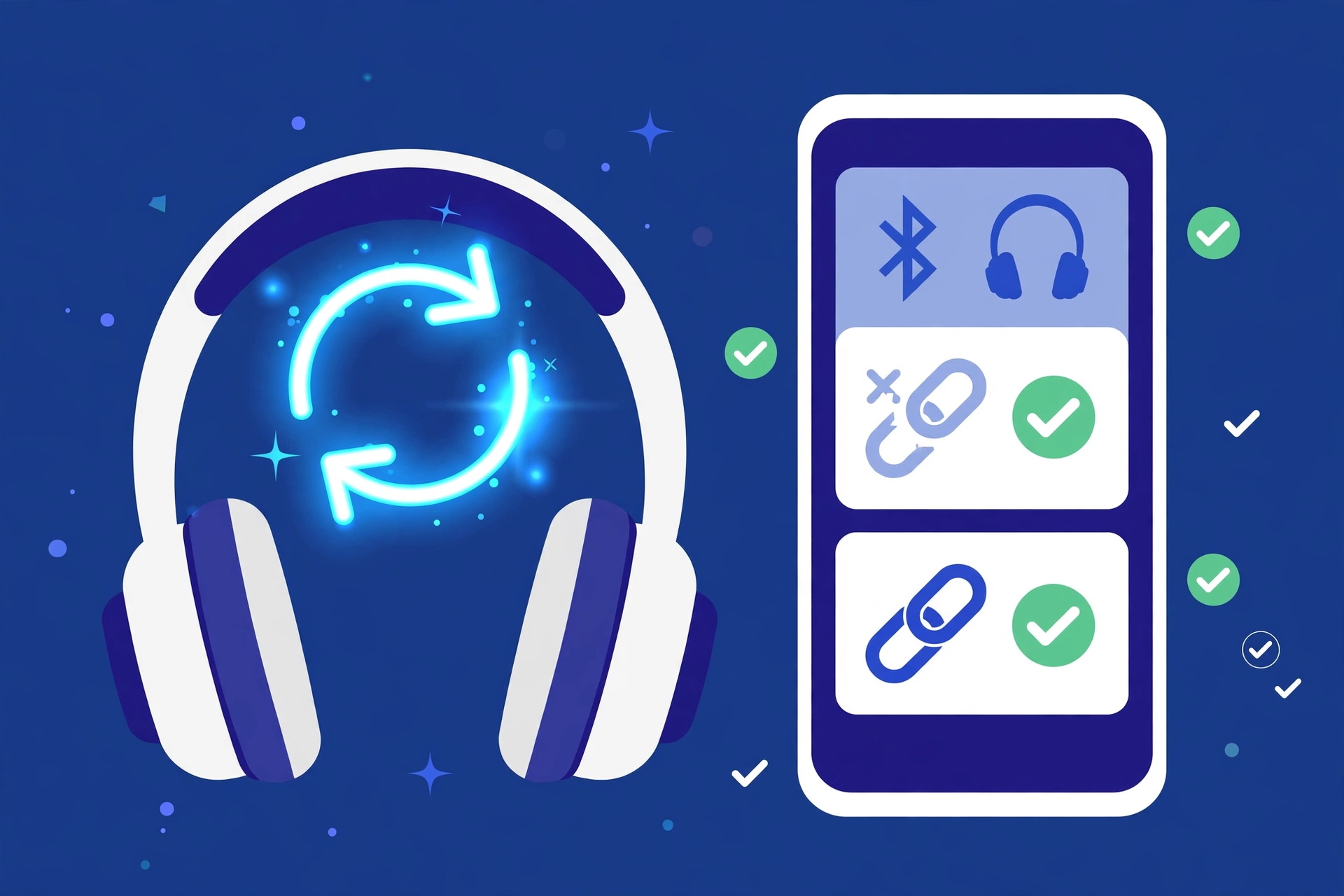
- Start pairing mode again and move closer. The pairing window may have closed. Restart it, then scan right away.
- Stop “device stealing.” Many accessories automatically reconnect to a device they already know. Say your headphones are paired with a tablet in the next room. When you turn them on, they connect to the tablet first and stop being visible to your new phone. Turn off Bluetooth on the old device, then try again.
- Forget the device and start fresh. Remove the accessory from your Bluetooth list. Reset the accessory’s own pairing memory if it has one, then pair again.
If those don’t work, the problem needs a closer look. These pages cover each case:
the complete Bluetooth troubleshooting guide
what to do if pairing starts but fails
what to do if your device doesn’t show up in the list
Find Your Specific Device Pairing Guide
Each type of device has its own button presses and quirks. Pick the one that matches yours:
- Headphones and earbuds
- Bluetooth speakers
- Keyboards and mice
- Your car’s Bluetooth
- Smart TVs
- Smartwatches and wearables
If you want to connect one accessory to two devices at once, that works differently.
how to pair multiple Bluetooth devices at once
Frequently Asked Questions
How do I put a Bluetooth device in pairing mode?
Press and hold the pairing or Bluetooth button until the light flashes. If there is only a power button, start with the device off, then hold it past the normal turn-on point until the light flashes, often red and blue. The steps vary by brand, so check your manual.
What is the default Bluetooth PIN?
The most common default PINs are 0000 and 1234. Most modern devices don’t ask for one. If yours does, type it on your phone or computer, not on the accessory.
Why won’t my Bluetooth device show up when I try to pair?
It’s usually not in pairing mode, or its pairing window already closed. It may also have connected to another device nearby, like an old phone or tablet. Turn off Bluetooth on that device, start pairing mode again, and scan right away.
