

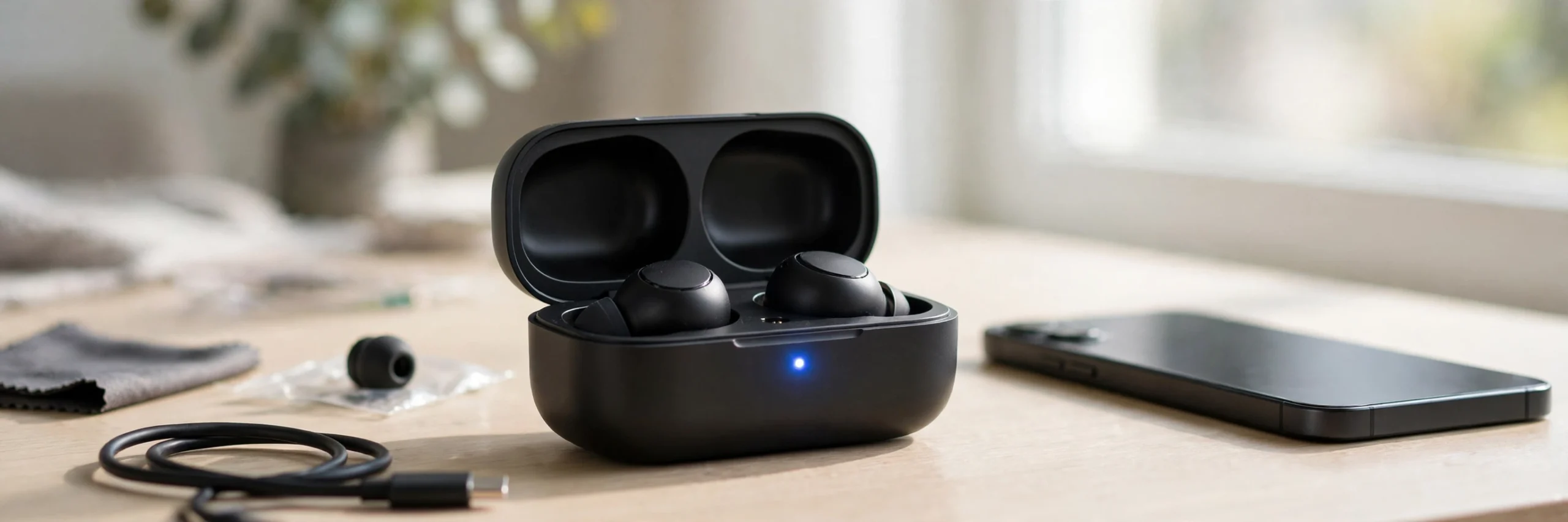
When your Bluetooth earbuds are not pairing, it can be frustrating, especially when your phone cannot find them, only one earbud connects, or the indicator light keeps flashing without a connection. You may have already turned Bluetooth off and on, but nothing has changed. The problem is not always your phone. Your earbuds may have a low case battery, dirty charging contacts, an old Bluetooth connection, or a left and right earbud that have lost sync.
The good news is that you can often fix the problem without buying new earbuds. Start with a few quick checks, then clear the old Bluetooth connection and try the reset method that matches your earbuds. This guide walks you through each step, from checking the charging case to restoring pairing mode, so you can find the cause and reconnect your earbuds.
Why Earbuds Pair Differently Than Headphones
Many wireless earbuds use True Wireless Stereo (TWS) technology. Unlike a headset that works as one unit, TWS earbuds have two separate pieces: a left earbud and a right earbud. They also use a charging case to charge, store, and sometimes reset the earbuds.
For a normal connection, three things may need to happen:
- The case and earbuds must have enough power.
- The left and right earbuds must sync with each other, if the model uses that process.
- The earbuds must enter pairing mode so your phone or computer can find them.
If the earbuds fail at the first or second step, your phone may not see them correctly. The charging case is especially important because some models use it to start pairing mode or begin a reset.
Not every earbud follows the same process. Use the steps below in order, but check your model’s instructions before trying a reset.
Step 1: Try These Quick Fixes First
Before resetting your earbuds, rule out simple connection problems.
1. Restart Bluetooth
- Turn Bluetooth off on your phone or computer.
- Wait about 10 seconds.
- Turn Bluetooth back on.
- Put your earbuds into pairing mode.
- Look for their name in the available devices list.
Keep your earbuds close to your device while pairing.
2. Disconnect Other Devices
Your earbuds may already be connected to a laptop, tablet, or another phone in your home. Some models reconnect automatically to the last device they used.
- Turn Bluetooth off on nearby devices that may be connected to the earbuds.
- If your earbuds support multipoint, check whether they are already connected to their device limit.
- Try pairing again with your preferred phone or computer.
If this works, the issue was likely an existing connection rather than a hardware fault.
3. Check the Distance
Keep the earbuds within a few feet of your phone during setup. Move away from other active Bluetooth devices if the connection keeps failing. Bluetooth uses the 2.4 GHz band, which is shared by some Wi-Fi equipment and other wireless devices, so interference can sometimes affect a connection.
Step 2: Check the Charging Case and Metal Contacts
A low case battery or poor contact between the earbuds and the case can prevent pairing or resetting.
Charge the Case and Earbuds
- Connect the case to a working charger and cable.
- Leave it charging for a while, following the manufacturer’s guidance.
- Place both earbuds in the case.
- Check whether the case or earbud indicators show that they are charging.
- Try pairing again after they have charged.
Some earbuds cannot enter pairing mode correctly when their batteries are nearly empty.
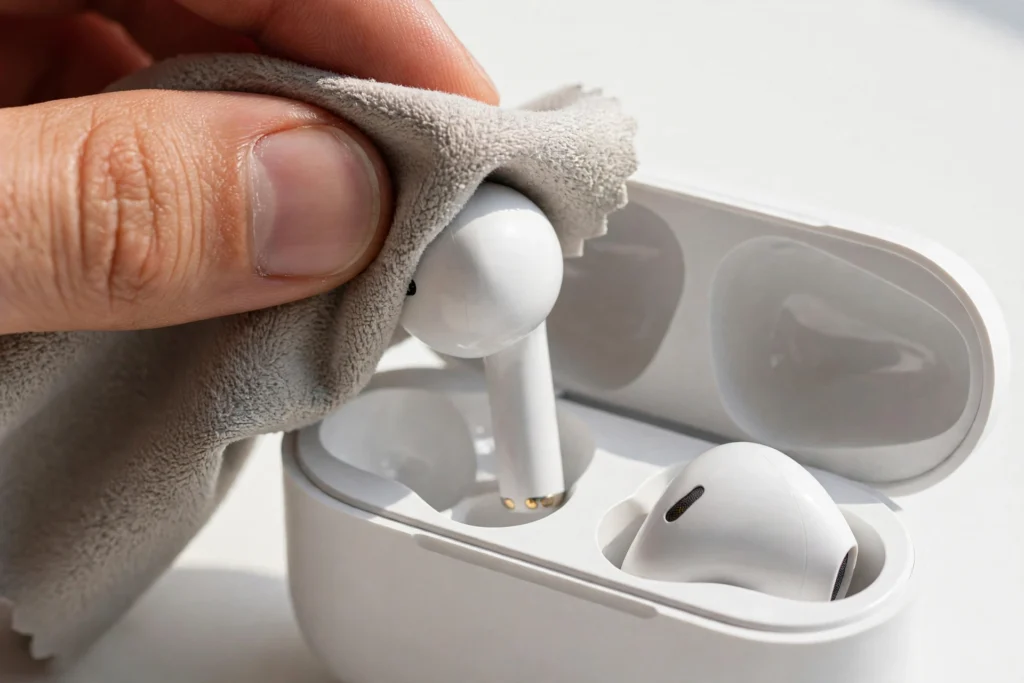
Clean the Charging Contacts
Look at the small metal charging points on the earbuds and inside the case. Dirt, oil, or pocket lint can stop the earbuds from charging or registering that they are inside the case.
- Remove the earbuds from the case.
- Inspect the metal contacts for dirt or protective film.
- Gently wipe the contacts with a clean, dry, lint-free cloth.
- Remove any protective film from new earbuds, if present.
- Put the earbuds back and check that they sit correctly.
Avoid using sharp metal objects or pouring liquid into the case. If the contacts are damaged or the earbuds still do not charge, consult the manufacturer’s support instructions.
Why this matters: Some reset methods depend on the case detecting both earbuds. If a dirty contact prevents detection, a reset may fail even when you follow the correct button sequence.
Step 3: Forget the Old Connection and Pair Again
Your phone may still have an old Bluetooth profile saved for the earbuds. Removing that saved connection and pairing again can solve some connection problems.
On Android
- Open Settings and go to Bluetooth or Connected devices.
- Find your earbuds in the saved devices list.
- Tap the settings icon beside their name.
- Select Forget or Unpair.
- Put the earbuds into pairing mode.
- Select them from the available devices list.
Menu names vary between Android phones.
On iPhone
- Open Settings > Bluetooth.
- Find your earbuds under My Devices.
- Tap the information icon beside their name.
- Select Forget This Device and confirm.
- Put your earbuds into pairing mode.
- Select their name when it appears under available devices.
On Windows
- Open Settings > Bluetooth & devices.
- Find your earbuds in the device list.
- Select the menu beside their name and choose Remove device.
- Put the earbuds into pairing mode.
- Select Add device, choose Bluetooth, and select your earbuds.
After removing the saved connection, pair the earbuds as if you were connecting them for the first time.
Important: Forgetting a device removes its saved pairing from that phone or computer. It does not factory reset the earbuds themselves.
Step 4: Factory Reset Your Bluetooth Earbuds
If the quick fixes and fresh pairing do not work, a factory reset may help. A reset can clear saved connections or restore the earbuds’ pairing state.
There is no single reset method that works for every brand. The following are common methods, not guaranteed instructions for every model. Check the manufacturer’s manual before using one.
Method 1: Reset With a Case Button
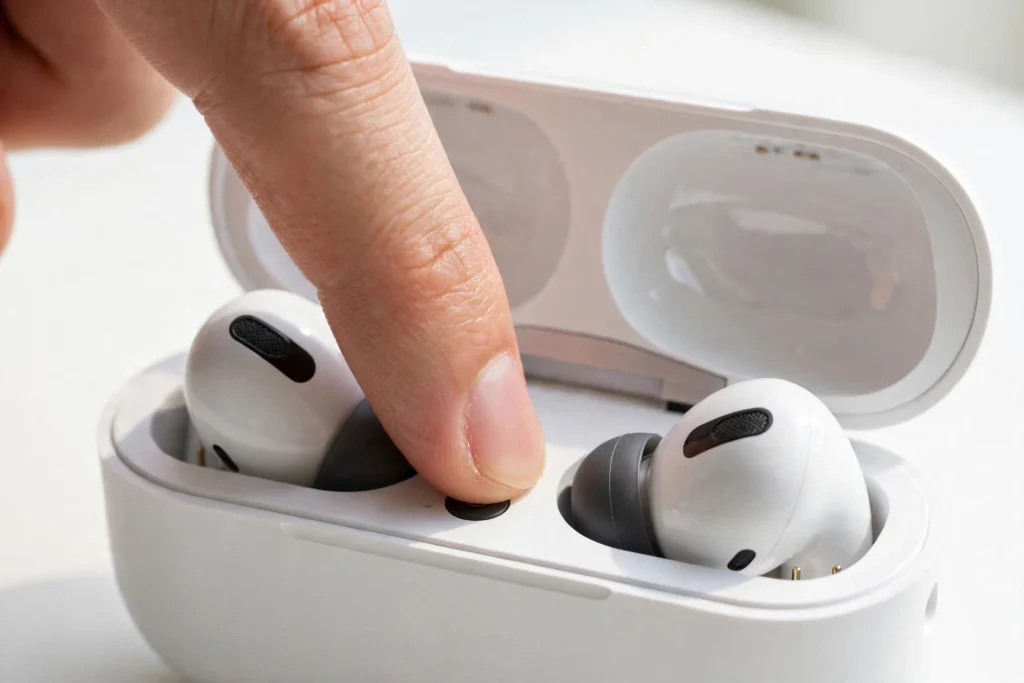
Some charging cases have a physical pairing or reset button.
- Charge the case and place both earbuds inside.
- Open the lid if your model requires it.
- Press and hold the case button for the time specified in the manual.
- Watch for the expected LED pattern or other reset signal.
- Close and reopen the case if the instructions require it.
- Remove the old pairing from your phone, then try pairing again.
Do not assume that holding the button for 10 seconds works on every model. The required time and light pattern can vary.
Method 2: Reset With Earbud Touch Sensors
Some earbuds use touch-sensitive areas instead of a physical button.
- Charge both earbuds.
- Remove them from the case or leave them inside, depending on the manufacturer’s instructions.
- Press and hold the touch controls as directed.
- Wait for the model’s reset signal.
- Return the earbuds to the case if instructed.
- Remove the old Bluetooth connection from your phone and pair again.
Some models require holding both touch sensors together. Others use a different gesture or sequence. Do not keep trying random combinations, because the same controls may change volume, pause audio, or activate another feature.
Method 3: Try the Case Open and Close Cycle
Some earbuds use the charging case to restore their pairing state, without a dedicated reset button.
- Place both earbuds in the case.
- Confirm that they are seated properly and charging.
- Close the lid and wait for the period specified in the manual.
- Open the lid again.
- Follow the model’s instructions to enter pairing mode.
- Search for the earbuds in your phone’s Bluetooth settings.
Opening and closing the case does not factory reset every pair of earbuds. If this method does not work, look up the exact model’s reset instructions.
What If the Left and Right Earbuds Will Not Pair With Each Other?
If only one earbud connects or plays sound, the two earbuds may have lost their connection to each other. This can happen after one earbud runs out of battery, one bud is reset separately, or the pair has a model-specific sync problem.
Try this general recovery process:
- Remove the saved earbud connection from your phone.
- Charge both earbuds and confirm that each one is detected by the case.
- Place both earbuds in the case.
- Follow the manufacturer’s reset or resync steps for the pair.
- Wait for the earbuds to finish syncing, if your model uses a separate sync process.
- Put them into pairing mode and connect them to your phone again.
Avoid pairing the left and right earbuds separately unless the manufacturer specifically instructs you to do so. Some models list individual earbuds in Bluetooth settings, while others present the pair as a single device.
If one earbud never shows a charging light or fails to charge, the issue may be a contact or battery problem rather than Bluetooth pairing.
Step 5: Check for Earbud Firmware Updates
If your earbuds pair but repeatedly disconnect, disappear from the Bluetooth list, or fail after a reset, outdated firmware may be part of the problem.
Firmware is the software built into your earbuds. Some manufacturers release updates to fix bugs or improve connection stability.
- Install the official companion app for your earbud model, if one is available.
- Connect the earbuds to a compatible phone.
- Open the app and look for a firmware update.
- Follow the app’s instructions.
- Keep the earbuds and phone charged during the update.
Not all earbuds support firmware updates. If your earbuds cannot connect to the companion app, follow the manufacturer’s support steps before attempting advanced fixes.
Frequently Asked Questions
Why are my Bluetooth earbuds flashing but not connecting?
A flashing light may mean the earbuds are in pairing mode, waiting for a device, or showing another status. The meaning depends on the model. Check whether the earbuds appear in your Bluetooth list, disconnect them from other devices, and try pairing again.
Why is only one earbud pairing?
The earbuds may have lost left and right sync, or one earbud may not be charging. Charge both earbuds, check their contacts, and follow the manufacturer’s resync or reset instructions. Then remove the old Bluetooth connection and pair the set again.
How do I reset earbuds that do not have a button?
Some models use touch sensors, while others use the charging case or a sequence of placing the earbuds inside and opening the lid. Check your exact model’s manual because there is no universal buttonless reset method.
Can a low charging case battery stop earbuds from pairing?
Yes, it can. Some earbuds depend on the case to activate pairing mode, detect when the buds are inserted, or start a reset. Charge the case and confirm that both earbuds are making contact before trying again.
Why will my earbuds connect to another phone but not mine?
The problem may be a saved Bluetooth profile or a setting on your phone. Forget the earbuds in your phone’s Bluetooth settings, restart Bluetooth, and pair again. If they still fail, check whether your phone needs a software update.
Final Thoughts
When Bluetooth earbuds are not pairing, start with the simplest checks: restart Bluetooth, disconnect other devices, charge the case, and clean the charging contacts. If those steps fail, forget the old connection and use the correct reset method for your earbud model.
Remember that true wireless earbuds may need to sync with each other before your phone can connect to them. If one earbud is not charging or the case cannot detect it, fix that issue before repeating the pairing process. These steps can help you find the cause without wasting time on resets that do not match your device.
