

You’re trying to connect your new earbuds, or reconnect a speaker you’ve used a hundred times, and your phone just won’t find it. You wait, you open Bluetooth settings again, you turn it off and on, and still nothing. These bluetooth pairing tips exist because this exact frustration happens to almost everyone, and in most cases, it’s not because Bluetooth is broken.
The real cause is usually something small and easy to miss, like standing too far from your router, a battery that’s too low, or a device list cluttered with old junk from years ago. Once you know what’s actually slowing things down, fixing it takes seconds, not another 20 minutes of restarting things and hoping it works. That’s exactly what the seven tips below walk you through, so the next device you try to connect actually connects the first time.
In this article:
- Why Does Bluetooth Sometimes Take So Long to Pair?
- 7 Pro Tips for Faster, More Reliable Bluetooth Pairing
- The “Airplane Mode” Trick for Stubborn Connections
- Frequently Asked Questions
Why Does Bluetooth Sometimes Take So Long to Pair?
Bluetooth devices don’t instantly recognize each other. Your phone or laptop scans for nearby devices one at a time, checking each signal it picks up. If the area around you is crowded with other wireless signals, or your device list is full of old connections, that scan takes longer to finish.
This is normal, but it’s also avoidable. The tips below target the exact habits that slow this process down, so you can go from “why won’t this just connect” to a fast, reliable pairing almost every time.
7 Pro Tips for Faster, More Reliable Bluetooth Pairing
1. Keep Devices Within Arm’s Reach (Line of Sight)
Bluetooth pairing works best when both devices are close together, ideally within a few feet, with nothing solid blocking the signal between them. The first handshake, the moment two devices connect for the very first time, needs a strong, clear signal. Once they’re paired, you can usually walk farther away, but during the initial pairing itself, distance and walls are the most common reason discovery fails or takes too long.
If a device isn’t showing up, the simplest fix is often just moving it closer, not restarting anything.
2. Disconnect from Previous Devices First (Stop “Device Stealing”)
This is one of the most common Bluetooth frustrations, and it explains a question a lot of people run into: why does my speaker connect to my tablet instead of my phone? Most Bluetooth devices automatically reconnect to the last device they were paired with, as soon as that device is nearby and Bluetooth is on. So if your earbuds are still connected to your phone in your pocket, they won’t show up when you try to pair them with your laptop, because they’re already busy talking to your phone.
The fix is simple: turn off Bluetooth on the other device, or manually disconnect it, before trying to pair with a new one. Some newer devices support multipoint pairing, which lets them stay connected to two devices at once, but most everyday devices still only manage one active connection at a time.
3. Charge Devices Above 20%
Battery level affects more than just how long a device lasts. Many devices lower their Bluetooth broadcasting power when the battery gets low, to save whatever charge is left. That weaker signal means a shorter discoverable range and a higher chance the pairing attempt fails or takes several tries.
There’s no single battery number that applies to every device, but as a general habit, charging above roughly 20% before pairing gives the radio enough power to broadcast a strong, reliable signal. If a device keeps failing to pair and you’re not sure why, low battery is worth checking before anything else.
4. Step Away from Wi-Fi Routers and Microwaves
If a device just won’t pair no matter what you try, step a few feet away from your router or wait until the microwave isn’t running, then try again. This single habit solves more “randomly not connecting” problems than most people expect.
5. Take Advantage of Fast Pair, Swift Pair, and Apple’s Ecosystem
Most people still pair devices the old way: opening Bluetooth settings, waiting for a scan, then tapping the device name. But modern phones and laptops often support faster, automatic pairing systems that skip that whole process.
Android phones use Google Fast Pair, Windows laptops use Windows Swift Pair, and Apple devices use their own pairing system built around Apple’s custom H1 and H2 chips, found in AirPods and other Apple accessories. Here’s how to actually use each one:
- Google Fast Pair (Android): Turn on your accessory’s pairing mode near your Android phone. A card appears at the bottom of your screen showing the device name. Tap it to connect, no need to open Bluetooth settings at all.
- Windows Swift Pair: With Bluetooth turned on and your laptop’s Swift Pair setting enabled (found under Settings, then Bluetooth and devices), put your accessory in pairing mode nearby. A small notification pops up at the bottom right corner of your screen. Click it to connect.
- Apple’s pairing system: Open the lid of your AirPods case, or put your Apple accessory in pairing mode, near your iPhone or iPad. A setup card appears near the top of the screen automatically. Tap Connect.
If you keep manually opening Bluetooth settings every time, check whether your device and phone support one of these systems first. It’s usually much faster.
6. Practice “Bluetooth Hygiene” (Forget Old Devices)
This directly answers a question a lot of people wonder about: does deleting old Bluetooth devices actually make pairing faster? Yes, and here’s why. Every device saved in your Bluetooth settings sits in a cache your phone checks during scanning. If that list has 20 or 30 old entries, like a rental car, a broken pair of headphones, or a speaker you don’t own anymore, your phone still has to sort through all of them in the background every time it scans for something new.
Go into your Bluetooth settings every so often and remove (“forget”) devices you no longer use. It’s a small habit, but a cleaner list means faster scanning and less chance of your phone getting confused about which old device to reconnect to.
7. Use the Companion App Instead of the OS Menu
Some devices, especially smartwatches, fitness trackers, and newer earbuds, don’t pair the normal way at all. Instead of showing up in your phone’s Bluetooth settings, they need to be set up through their own companion app, like Fitbit, Samsung Health, or the device’s own branded app.
This trips a lot of people up, since they assume something is broken when the device just won’t appear in the regular Bluetooth menu. If a device isn’t showing up no matter what, check whether it actually needs its own app for setup before assuming it’s a connection problem.
The “Airplane Mode” Trick for Stubborn Connections
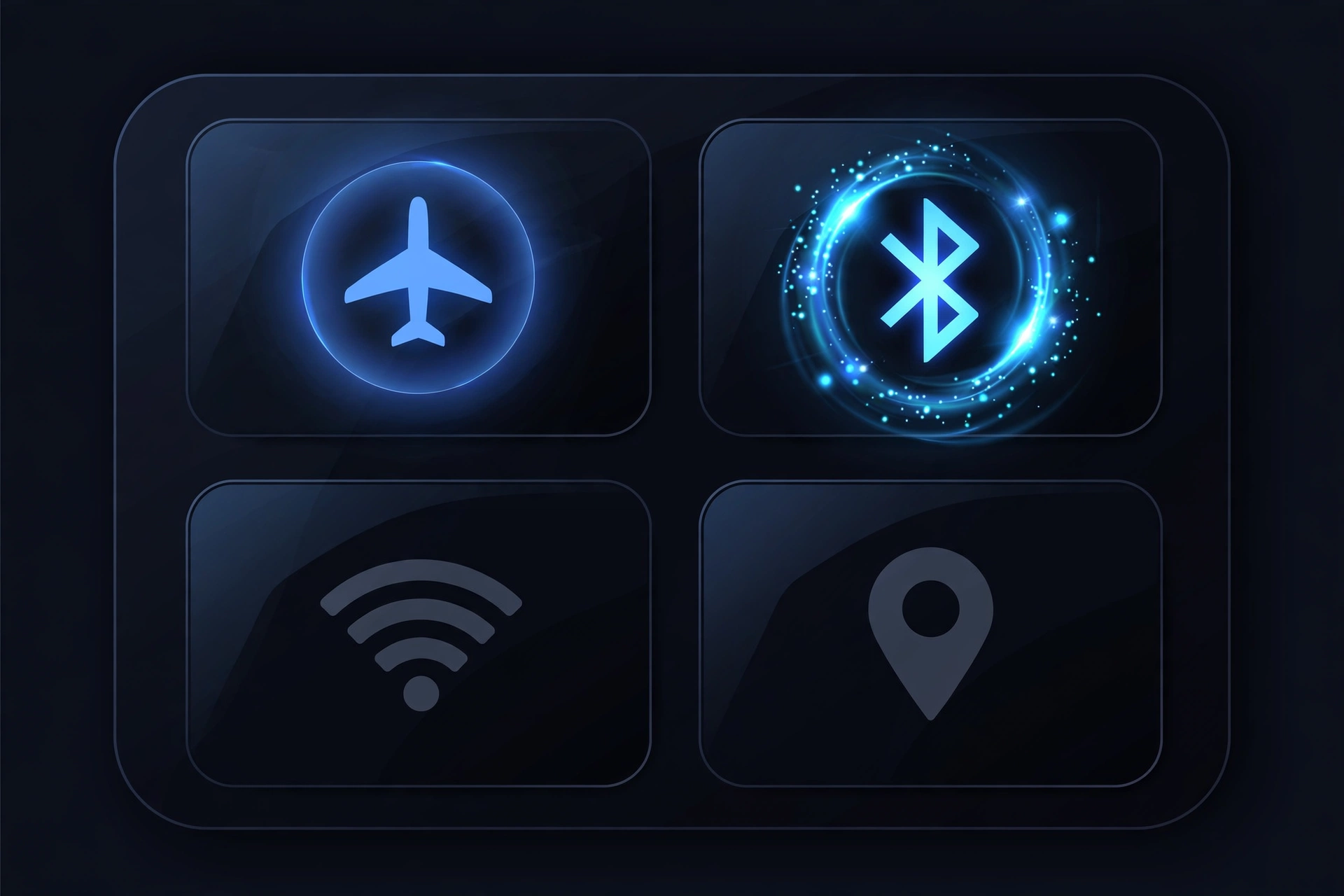
If a device still won’t connect after trying the tips above, there’s a quick trick a lot of users rely on before doing a full restart: turn on Airplane Mode for a few seconds, then turn it back off. This resets your phone’s Bluetooth radio completely, clearing out whatever temporary glitch was causing the connection to hang, without needing to reboot the entire device.
Here’s how to do it:
- Open your phone’s quick settings or Control Center (swipe down from the top of the screen on most phones).
- Tap the Airplane Mode icon to turn it on. This disables Bluetooth, Wi-Fi, and cellular all at once.
- Wait a few seconds, then tap Airplane Mode again to turn it off.
- Try pairing or reconnecting your device again. Bluetooth will have to reconnect from scratch, which often clears whatever was causing the holdup.
Frequently Asked Questions
How do I connect Bluetooth devices fast?
Keep the devices close together during pairing, make sure both have decent battery, and check whether your phone supports a fast-pairing system like Google Fast Pair or Windows Swift Pair. These three habits alone fix most slow connections.
Why is my Bluetooth taking so long to find devices?
Usually it’s one of a few things: you’re too far from the router or the microwave is on, causing interference on the same 2.4 GHz band, your Bluetooth list is cluttered with old devices, or the device you’re trying to pair is already connected to something else, like a tablet or laptop, so it isn’t discoverable.
