

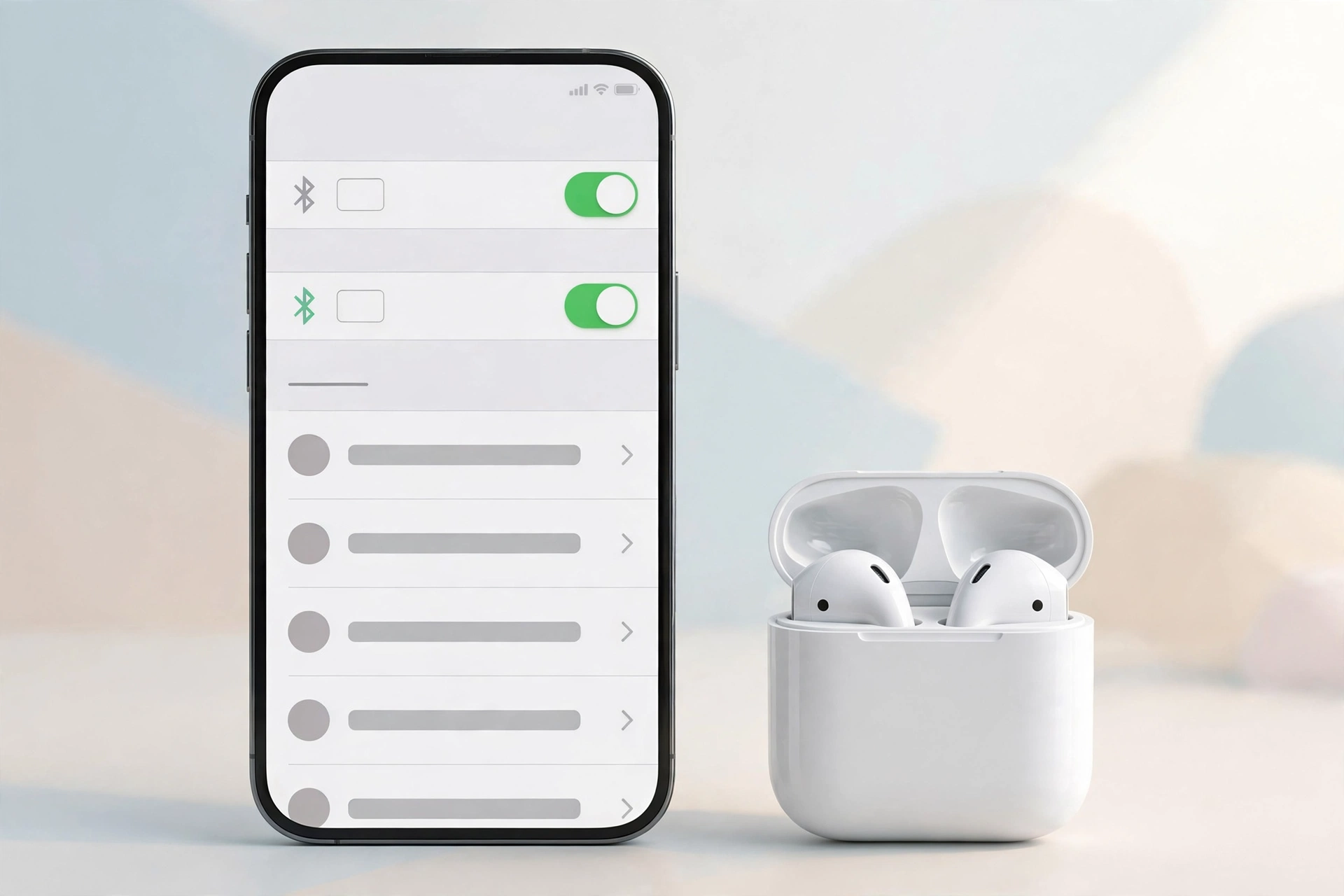
iPhone Bluetooth not working can stop your phone from connecting to wireless headphones, speakers, smartwatches, car audio, and other devices. Sometimes, the problem is a simple setting. Other times, your iPhone may have a software issue, a blocked app permission, or damaged hardware.
The good news is that you can try several fixes before visiting a repair shop. Start with the quick checks below, then move to pairing fixes and network settings. If the Bluetooth button is greyed out or Bluetooth and Wi-Fi both stopped working after a drop, you may need a different solution.
1. The Quick Checks: Do These First
Before changing important settings, try these simple steps. They often fix common iPhone Bluetooth problems without deleting your data.
Check That Bluetooth Is Turned On
- Open Settings on your iPhone.
- Tap Bluetooth.
- Make sure Bluetooth is turned on.
- Keep this screen open while trying to connect your device.
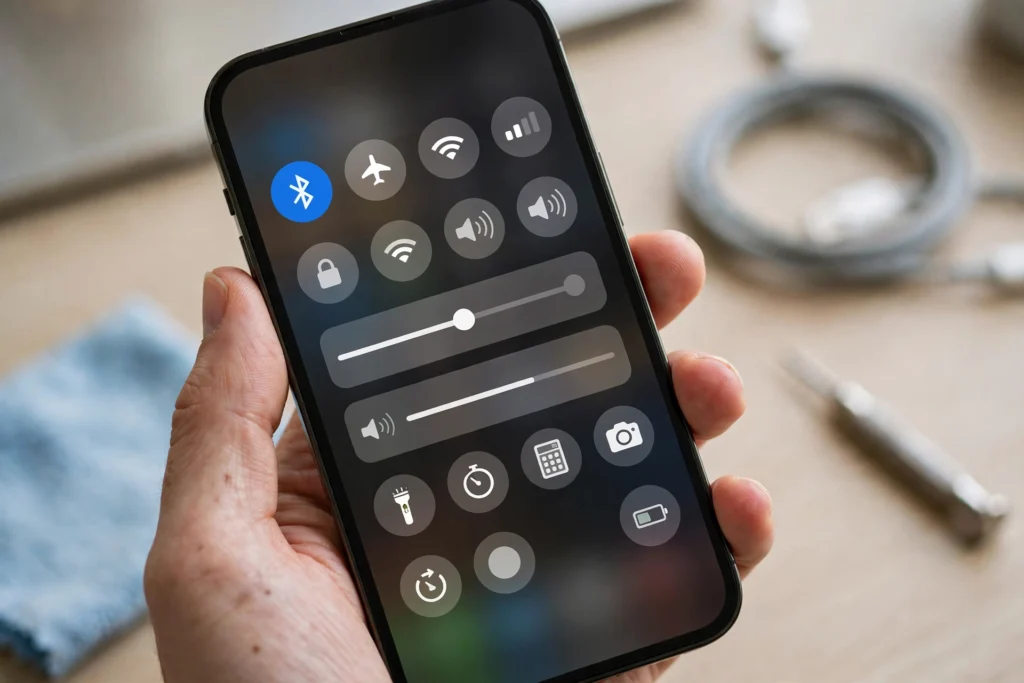
You can also open Control Center and tap the Bluetooth icon. However, tapping this icon may disconnect accessories temporarily rather than fully turn Bluetooth off in Settings. For troubleshooting, use Settings > Bluetooth to check its actual status.
Turn Airplane Mode On and Off
Airplane Mode can sometimes help refresh wireless connections.
- Open Settings.
- Turn on Airplane Mode.
- Wait about 10 seconds.
- Turn Airplane Mode off.
- Return to Bluetooth settings and try connecting again.
This step does not erase your saved devices or personal files.
Keep Your iPhone Close to the Device
Bluetooth works best when your iPhone is near the accessory. Move the device within a few feet of your phone while pairing. Also, make sure the accessory has enough battery power. If it is connected to another phone, tablet, or computer, disconnect it from that device first.
Put Your Accessory in Pairing Mode
Your iPhone cannot find an accessory if the accessory is not ready to pair. Pairing mode tells the accessory to look for a new Bluetooth connection. The steps depend on the device. Some headphones use a button, while others require you to hold the power button or open the charging case.
Check the accessory’s instructions and look for a flashing indicator light if it has one. Then open Settings > Bluetooth on your iPhone and select the accessory when it appears.
Restart Your iPhone and Accessory
- Turn off your iPhone, then turn it back on.
- Restart the Bluetooth accessory if possible.
- Open Settings > Bluetooth.
- Try connecting again.
If your iPhone still cannot find any Bluetooth devices, continue to the next steps.
2. How to Fix App-Specific Bluetooth Blocks
Does Bluetooth work with your headphones, but your smartwatch or another accessory app will not connect? The app may not have permission to use Bluetooth. iOS lets you control which apps can access Bluetooth. This means Bluetooth can work normally for one accessory while a particular app cannot communicate with its device.
Check Bluetooth Permission for the App
- Open Settings on your iPhone.
- Tap Privacy & Security.
- Select Bluetooth.
- Find the app that controls your accessory.
- Turn on its Bluetooth permission if it is disabled.
The exact options can vary by iOS version and installed apps. For example, a fitness watch may pair with your iPhone but still fail to sync activity data if its companion app cannot use Bluetooth. Allowing access may solve the problem without resetting your phone. If the app does not appear in the list, open it and follow its setup instructions. It may request Bluetooth access when it first tries to connect. Also check for an app update.
Check the App’s Own Connection Settings
Some accessories need more than basic Bluetooth pairing. They may require you to sign in, complete setup inside the app, or allow other permissions. Try these steps:
- Open the accessory’s official app.
- Check whether it shows the device as connected.
- Follow any setup instructions displayed in the app.
- Update the app if a newer version is available.
- Restart the app and try again.
Do not reset all your iPhone settings just because one app cannot connect. First, confirm that the problem is limited to that app.
3. Use “Forget This Device” and Pair Again
If your iPhone sees a Bluetooth device but cannot connect to it, the saved pairing may be causing the problem. Forgetting the device removes its saved connection from your iPhone. Pairing it again creates a fresh connection. This is useful when an accessory keeps disconnecting, refuses to pair, or connects unreliably.
How to Forget and Reconnect a Bluetooth Device
- Open Settings > Bluetooth.
- Find the accessory in the device list.
- Tap the information icon, usually shown as an i inside a circle.
- Tap Forget This Device.
- Confirm your choice.
- Put the accessory back into pairing mode.
- Select it when it appears in the Bluetooth device list.
- Follow any pairing instructions on the screen.
Your iPhone may ask you to confirm a code or allow pairing.
Important: Forgetting a device removes its saved pairing from your iPhone. It does not delete your photos, contacts, or apps. Some accessories may also need to be removed from their own app before they can be set up again. If the device does not appear, make sure it is powered on, in pairing mode, and not actively connected to another device.
4. How to Reset iPhone Network Settings
If Bluetooth still fails after the earlier fixes, resetting network settings may help. This can resolve some persistent connection problems caused by incorrect or damaged network settings. This reset is more extensive than restarting your phone or forgetting one accessory, so try the simpler steps first.
What Does Reset Network Settings Do?
Resetting network settings removes saved network configurations. It can remove:
- Saved Wi-Fi networks and their passwords.
- Certain cellular network settings.
- VPN and related network settings, depending on how they were configured.
- Saved Bluetooth pairings and other network-related settings.
It does not normally delete your photos, messages, apps, contacts, or other personal content. Still, make sure you know your Wi-Fi passwords before proceeding.
Steps to Reset Network Settings
- Open Settings.
- Tap General.
- Select Transfer or Reset iPhone.
- Tap Reset.
- Choose Reset Network Settings.
- Enter your passcode if asked.
- Confirm the reset.
- Wait for your iPhone to restart, if required.
- Open Bluetooth settings and pair your accessory again.
Be careful to select Reset Network Settings, not Erase All Content and Settings. The second option can erase your personal data. After the reset, you will need to reconnect to Wi-Fi networks and pair your Bluetooth accessories again.
When Should You Use This Fix?
Try this method if:
- Several Bluetooth devices fail to connect.
- Your iPhone repeatedly loses Bluetooth connections.
- Forgetting and re-pairing devices does not help.
- You have already restarted your iPhone and checked basic settings.
If Bluetooth remains unavailable or the button is greyed out, continue below before repeating resets.
5. Why Is the iPhone Bluetooth Button Greyed Out?
If the Bluetooth switch in Settings is greyed out, you may not be able to turn Bluetooth on. This is different from a phone that has Bluetooth turned on but cannot find nearby devices. A greyed-out switch can point to a software restriction or a deeper iOS or hardware problem. Check these possibilities before deciding your iPhone needs repair.
Check Screen Time Restrictions
Screen Time includes settings that can limit certain features. On some iOS versions, restrictions may affect changes to Bluetooth-related settings or sharing. Try this:
- Open Settings.
- Tap Screen Time.
- Select Content & Privacy Restrictions.
- Review the available restrictions.
- Look for Bluetooth Sharing if that option is available on your iOS version.
- Check whether a restriction is preventing the change you need to make.
The exact menu and available controls can vary by iOS version and device management settings. The Bluetooth Sharing control is not a universal fix for every greyed-out Bluetooth switch, so do not assume Screen Time is the cause if you cannot find it. If a parent, school, or workplace manages your iPhone, a restriction may be set by that person or organization. You may need their help to change it.
Check Whether Your iPhone Is Managed
Work or school devices can have management profiles that limit certain features. To check for a management profile, open Settings > General > VPN & Device Management, if this option appears. If the iPhone belongs to your employer or school, ask the administrator before removing a profile or changing managed settings. Removing a profile without permission may affect work or school access.
Restart and Update iOS
If no restriction seems to apply, restart your iPhone. Then open Settings > General > Software Update and check whether an iOS update is available. Install an update only when you are ready, your phone has enough battery power, and you have a reliable connection. An update may fix a software problem, but it cannot repair a damaged antenna or logic board.
When a Greyed-Out Switch May Mean Hardware Damage
If Bluetooth remains greyed out after restarting and checking restrictions, the issue may be more serious. Hardware damage becomes more likely if:
- Bluetooth stopped working after the phone was dropped.
- Wi-Fi also stopped working or became unreliable.
- The phone was recently exposed to liquid.
- Several software troubleshooting steps have failed.
These signs do not prove that a hardware part has failed. They do mean you should avoid repeating the same resets and consider professional diagnosis.
6. Signs Your iPhone Has a Hardware Antenna or Logic Board Fault
Bluetooth problems are not always caused by settings. A drop, liquid damage, or internal component failure can affect the iPhone’s wireless connections. The antenna and logic board are part of the system that allows your iPhone to send and receive wireless signals. If one of these parts is damaged, Bluetooth may stop working even when your settings are correct.
Wi-Fi and Bluetooth Both Stopped Working
Wi-Fi and Bluetooth use related wireless hardware and are both connected to the iPhone’s internal electronics. Their antenna systems and components vary by model, so it is not accurate to say that every iPhone uses one single shared antenna for both. Still, if Wi-Fi and Bluetooth both fail at the same time, especially after a drop or repair, hardware damage is one possible cause. Watch for signs such as:
- Bluetooth will not turn on.
- Your iPhone cannot find any nearby Bluetooth devices.
- Wi-Fi also cannot turn on or keeps disconnecting.
- Wireless connections became unreliable immediately after physical damage.
A software problem can also affect both features, so these symptoms alone are not enough to confirm a hardware fault.
Can a Dropped iPhone Break the Bluetooth Antenna?
Yes. A strong impact can damage internal antenna connections, small cables, connectors, or parts of the logic board. Liquid damage can also cause corrosion that affects wireless functions. On some iPhone models, the logic board uses a compact, layered design. Physical stress or a previous poor-quality repair may damage board connections. However, a drop does not automatically mean the logic board has separated, and that should not be diagnosed from Bluetooth symptoms alone. Do not open the phone or attempt to reconnect internal cables yourself unless you have the right repair training and tools. Internal parts are delicate, and opening the phone can cause more damage.
What If Bluetooth Connects but There Is No Sound?
If your iPhone pairs with headphones or a speaker but the sound still comes from the phone, the Bluetooth radio may be working. The problem could be the selected audio output, the app, or the accessory itself. Try these steps:
- Play audio on your iPhone.
- Open Control Center.
- Tap the audio output control in the playback panel.
- Select your Bluetooth headphones or speaker.
- Check the volume on both devices.
- Try playing audio from another app.
- Disconnect and reconnect the accessory.
If the device shows as connected but produces no sound, test it with another phone or computer if possible. If it works elsewhere, review the iPhone’s audio settings and try forgetting and pairing the device again. If the accessory fails with multiple devices, it may have its own battery, speaker, or hardware problem.
When Should You Contact Apple Support?
Consider professional help if:
- Bluetooth stays greyed out after basic checks and an iOS update.
- Wi-Fi and Bluetooth both fail, particularly after a drop or liquid exposure.
- Your iPhone cannot discover any Bluetooth device.
- The phone has other signs of physical damage.
- Network settings reset and fresh pairing have not helped.
An Apple Store or Apple Authorized Service Provider can inspect the phone and check whether the issue is software-related or caused by hardware damage. Back up your iPhone before service if you can. For official troubleshooting and service options, visit Apple Support for Bluetooth-related help. You can also use the Apple Support app to explore available service options.
Frequently Asked Questions
Why is my iPhone Bluetooth spinning and not finding devices?
If Bluetooth keeps searching without finding devices, make sure the accessory is turned on, charged, and in pairing mode. Move it close to your iPhone, turn Airplane Mode on and off, and restart both devices. If your iPhone still cannot find any Bluetooth accessories, forget and re-pair a previously saved device or try resetting network settings. If Bluetooth is greyed out, check for restrictions and possible hardware problems.
How do I fix a greyed-out Bluetooth button on my iPhone?
Restart your iPhone and check for restrictions under Settings > Screen Time > Content & Privacy Restrictions. If your phone is managed by a school or workplace, an administrator may control some settings. If the switch remains greyed out and Wi-Fi is also failing, contact Apple Support or an authorized repair provider for a diagnosis.
Does resetting network settings delete my photos?
No. Reset Network Settings does not normally delete photos, videos, apps, messages, or contacts. It removes saved network configurations, including Wi-Fi passwords and Bluetooth pairings. You will need to reconnect your devices afterward. Do not choose Erase All Content and Settings unless you intend to erase your iPhone.
Why does Bluetooth connect but play no sound?
Your iPhone may be connected to the accessory while audio is routed somewhere else. Open Control Center, tap the audio output control, and select your Bluetooth device. Check the volume and test another app. If there is still no sound, disconnect and reconnect the accessory. Testing it with another device can help you determine whether the problem is your iPhone or the accessory.
Can a dropped iPhone break the Bluetooth antenna?
Yes. A hard drop can damage antenna connections, internal cables, connectors, or logic board components. If Bluetooth and Wi-Fi both stop working after a drop, hardware damage is possible. A technician needs to inspect the phone to confirm the cause.
Should I reset my iPhone to factory settings to fix Bluetooth?
Not as your first step. Start with basic checks, app permissions, forgetting and re-pairing the device, and resetting network settings if needed. A full factory reset erases personal content and settings, so back up your iPhone before considering it. If the Bluetooth switch is greyed out or the phone has physical damage, seek a diagnosis before erasing everything.
Final Thoughts
When your iPhone Bluetooth is not working, start with the simplest fixes. Check Bluetooth in Settings, refresh the connection, keep your accessory nearby, and make sure it is in pairing mode. If only one app has a problem, check its Bluetooth permission before changing system settings.
For persistent connection problems, forget the device and pair it again. Reset network settings only after simpler fixes fail, because you will need to reconnect to Wi-Fi and Bluetooth accessories.
