

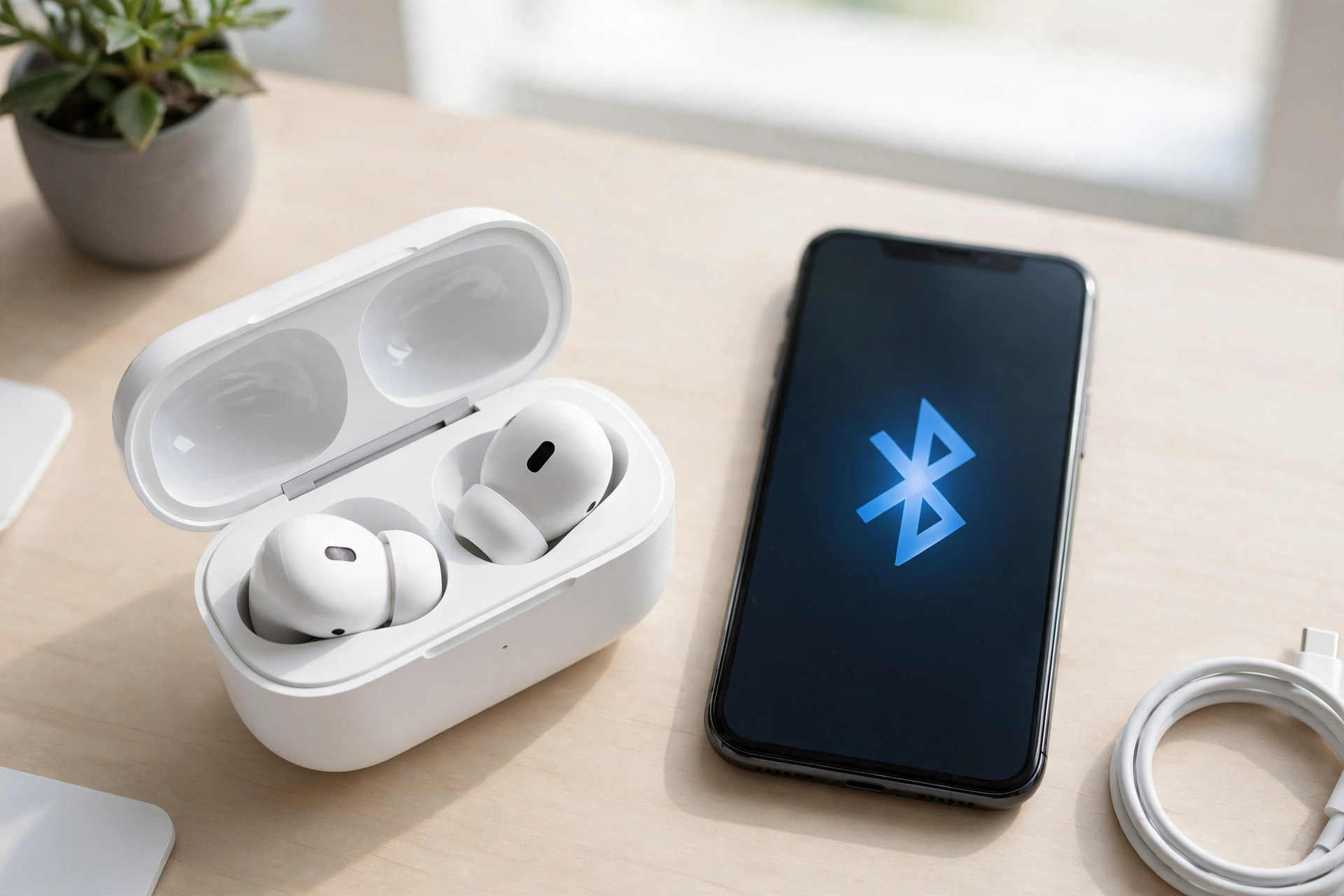
AirPods Bluetooth problems can be frustrating, especially when your earbuds refuse to connect, keep disconnecting during a call, or play sound in only one ear. Even when the battery is charged, your AirPods may fail to connect because of Bluetooth settings, pairing errors, or a problem with the charging case.
The good news is that you can often fix these issues at home. This guide walks you through simple troubleshooting steps, explains what the charging case light means, and shows you how to fix AirPods connection problems on an iPhone, Mac, Windows PC, or Android phone.
The Quick Diagnostic: What the AirPods LED Light Tells You
Before trying random fixes, check the status light on your AirPods charging case. Its color and flashing pattern can help you understand whether your AirPods are charging, ready to pair, or may need a reset.
| Status light | What it usually means | What to do |
|---|---|---|
| Green | The case or AirPods have sufficient charge. | If they will not connect, check Bluetooth settings. |
| Amber | The battery needs more charging. | Charge the case and both earbuds. |
| Flashing white | Your AirPods are ready to pair. | Open Bluetooth settings and select your AirPods. |
| Flashing amber, then white | The reset process has completed on supported models. | Pair your AirPods again. |
| No light | The battery may be empty, or the case may have another issue. | Charge the case and check again. |
An amber light does not always mean an error. It often indicates that the battery needs charging. The exact meaning of a light can depend on your AirPods model and the action you are performing.
If the light does not appear, connect the case to power before trying more advanced solutions.
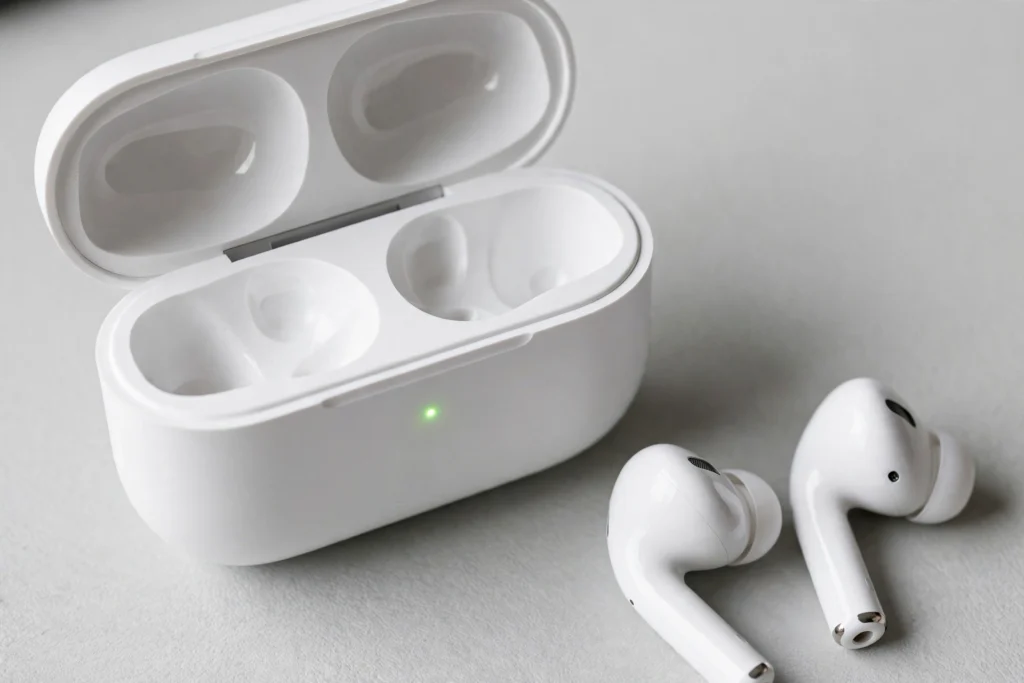
7 Ways to Fix AirPods That Won’t Connect
Try these fixes in order. Start with simple checks before resetting your AirPods.
1. Check the Battery and Clean the Charging Contacts
Low battery power can prevent your AirPods from connecting or cause one earbud to stop working. Follow these steps:
- Put both AirPods inside the charging case.
- Connect the case to a power source.
- Let them charge for 15 to 30 minutes.
- Open the case near your iPhone and check the battery levels.
- Make sure both earbuds show that they are charging.
If one AirPod does not show a battery level, check its charging contacts. Dirt or earwax can stop the earbud from making proper contact with the case. Use a soft, dry, lint-free cloth to clean the earbuds and case. Avoid putting liquids or metal objects inside the charging port.
If your case uses a Lightning or USB-C port, check it for dust or lint. Clean it carefully without damaging the contacts. Try connecting your AirPods again after charging and cleaning them.
2. Toggle Bluetooth and Manually Select Audio Routing
Sometimes your iPhone, iPad, or Mac may have a temporary Bluetooth or audio routing problem. Your AirPods might be connected but not selected as the audio output.
On an iPhone or iPad:
- Open Settings and select Bluetooth.
- Turn Bluetooth off.
- Wait about 10 seconds.
- Turn Bluetooth on again.
- Open your AirPods case near your device.
- Connect your AirPods if they do not reconnect automatically.
Next, open Control Center and tap the audio output or AirPlay button. Select your AirPods from the available devices. On a Mac, open Control Center, select Sound, and choose your AirPods as the output device. Play a song or video to test the connection.
Tip: Turning Bluetooth off and on in Settings is a useful troubleshooting step. The Bluetooth button in Control Center may only disconnect accessories temporarily rather than fully switching Bluetooth off.
3. Disable Automatic Switching Between Devices
Do your AirPods connect to your iPhone and then suddenly switch to your Mac or iPad? The problem may be automatic device switching rather than a broken Bluetooth connection. AirPods can switch between supported Apple devices signed in to the same Apple Account. This feature is useful when moving between devices, but it can interrupt your listening if another device starts playing audio.
To change this setting on an iPhone or iPad:
- Connect your AirPods to the device.
- Open Settings.
- Tap your AirPods near the top of Settings, or find them under Bluetooth.
- Select Connect to This iPhone or Connect to This iPad.
- Choose When Last Connected to This iPhone or iPad.
On a Mac:
- Open System Settings.
- Select Bluetooth.
- Find your AirPods and open their settings.
- Look for Connect to This Mac.
- Choose When Last Connected to This Mac.
Menu names may vary depending on your operating system version. This setting reduces unwanted automatic switching. You can still select your AirPods manually when you want to use them with another device.
4. Forget This Device and Pair Your AirPods Again
If your AirPods appear in Bluetooth settings but will not connect, the saved pairing information may be causing the problem. Removing your AirPods from the device and pairing them again can help.
On an iPhone or iPad:
- Open Settings and select Bluetooth.
- Find your AirPods in the device list.
- Tap the information button beside their name.
- Select Forget This Device and confirm.
- Put both AirPods in the charging case.
- Open the lid and place the case near your device.
- Put your AirPods into pairing mode and follow the instructions on the screen.
For many older AirPods models, you can enter pairing mode by pressing and holding the setup button on the back of the case until the status light flashes white. AirPods 4 models use front touch controls for pairing instead of a traditional rear setup button. Follow the instructions for your exact model. If you are pairing with a Mac, open System Settings, select Bluetooth, and remove the AirPods before pairing them again.
5. Perform a Factory Reset
If your AirPods still will not connect, a factory reset may help clear persistent pairing problems. The reset process depends on your AirPods model.
For AirPods 1, AirPods 2, AirPods 3, AirPods Pro 1, and AirPods Pro 2:
- Put both AirPods in the charging case.
- Close the lid and wait 30 seconds.
- On your iPhone or iPad, open Settings, then Bluetooth.
- Select the information button beside your AirPods and tap Forget This Device if they are still listed.
- Open the charging case lid.
- Press and hold the setup button on the back for about 15 seconds.
- Wait for the status light to flash amber, then white.
For AirPods 4 models and other models with front touch controls: These models use a different reset procedure. Follow the specific instructions for your model, including the required double taps on the front of the case and the status light sequence.
Once the reset is complete, bring the open case near your device and follow the pairing instructions. A factory reset is different from simply restarting your AirPods. It clears their saved pairing configuration, so you will need to connect them again.
6. Update Your iPhone, iPad, or Mac Software
Outdated software can sometimes cause compatibility or connection problems.
On an iPhone or iPad:
- Open Settings.
- Select General.
- Tap Software Update.
- Install an available update if your device supports it.
On a Mac:
- Open System Settings.
- Select General.
- Open Software Update.
- Install any suitable available update.
Restart your device after updating if needed, then try connecting your AirPods again. AirPods firmware updates are generally installed automatically under suitable conditions, such as when the earbuds are charging in their case and near a connected Apple device with Wi-Fi access. There is no standard manual firmware update button.
7. Test Your AirPods With Another Device
If none of the earlier fixes work, try connecting your AirPods to another phone, tablet, or computer. Put them in pairing mode and select them from the other device’s Bluetooth menu.
- If they work on the second device, the original device may have a Bluetooth, software, or audio routing issue.
- If they fail to connect to multiple devices, the AirPods or charging case may have a hardware problem.
- If they connect but keep dropping out, check the battery levels and test them close to the device, away from possible wireless interference.
This simple test helps you identify which device is causing the problem before spending money on a repair.
How to Fix When Only One AirPod Is Working
If your left or right AirPod is not working, the cause may be a charging problem, blocked speaker mesh, incorrect audio balance, or a pairing issue.
Check Whether Both AirPods Are Charging
- Put both AirPods in the charging case.
- Close the lid and wait 30 seconds.
- Open the case near your iPhone or iPad.
- Check the battery level of each earbud.
- If one AirPod is not charging, remove it and place it back in the case.
If one earbud still shows no charge, clean its charging contacts and check that it sits correctly inside the case.
Check the Audio Balance Setting
Your iPhone has an accessibility setting that can send more sound to the left or right earbud. To check it:
- Open Settings.
- Select Accessibility.
- Tap Audio & Visual.
- Find the Balance slider.
- Move it to the center.
Play some audio again to see whether both earbuds sound equal.
Clean the Speaker Mesh
Dust, earwax, and other debris can block the speaker mesh. This may make one AirPod sound much quieter than the other. Inspect both earbuds under good lighting. If you see dirt, clean the affected area gently using a soft, dry brush or a suitable lint-free cloth. Avoid sharp objects and liquids.
If only one AirPod works after charging, cleaning, and checking audio balance, reset the pair and connect them again. If the same earbud still fails, it may need professional service.
Fixing AirPods Connection Issues on Windows or Android
AirPods can connect to Windows PCs and Android phones through Bluetooth. However, some Apple-specific features, such as seamless device switching and certain battery or settings integrations, may be limited.
AirPods Not Connecting to Windows 11
If your AirPods will not connect to a Windows 11 PC, try the following:
- Put both AirPods in their charging case and open the lid.
- Enter pairing mode using the method for your AirPods model.
- On your PC, open Settings.
- Select Bluetooth & devices.
- Turn Bluetooth on.
- Select Add device, then Bluetooth.
- Choose your AirPods from the available devices.
If the AirPods appear as paired but will not connect, remove them from the Windows Bluetooth device list and pair them again. If the problem continues, restart your PC, check for Windows updates, and update the Bluetooth driver through your PC manufacturer’s support tools or Windows Update. Also check your sound output settings. Windows may connect the earbuds but continue playing sound through the laptop speakers.
AirPods Not Connecting to Android
To connect your AirPods to an Android phone:
- Open Settings on your Android phone.
- Select Bluetooth or Connected devices.
- Turn Bluetooth on.
- Put your AirPods into pairing mode.
- Select your AirPods from the available devices.
- Confirm the connection if prompted.
If they do not appear, make sure they are not actively connected to another nearby device. Disconnect them from that device and try pairing again. If they appear but will not connect, remove the saved AirPods entry from Android’s Bluetooth settings and repeat the pairing process. AirPods can play audio on Android, but some Apple-only features and settings may not be available.
When to Contact Apple Support (Hardware Failure)
If your AirPods still have Bluetooth problems after charging, cleaning, re-pairing, resetting, and testing them with another device, the problem may be hardware-related. Consider contacting Apple Support or an authorized service provider if:
- The charging case shows no light after you have charged it.
- One AirPod never charges, even after you clean the contacts.
- Your AirPods cannot enter pairing mode.
- They fail to connect to several different devices.
- The earbuds have physical damage or have been exposed to liquid.
- Connection problems continue after a successful factory reset.
Before arranging a repair, identify your AirPods model and check their warranty or available service options. Repair or replacement costs depend on the model, damage, and coverage. You can start with Apple Support for AirPods.
Final Thoughts
Most AirPods Bluetooth problems can be narrowed down with a few simple checks. Start with the battery and charging contacts, then check Bluetooth settings and audio routing. If your AirPods keep switching devices, change the automatic switching setting. If they still refuse to connect, forget the device and pair it again before trying a model-specific factory reset.
If only one AirPod works, check its charge, clean the speaker mesh, and make sure the audio balance is centered.
For Windows and Android users, pairing mode and the correct Bluetooth settings are especially important. If your AirPods fail across multiple devices after these steps, professional support may be the best next step.
