

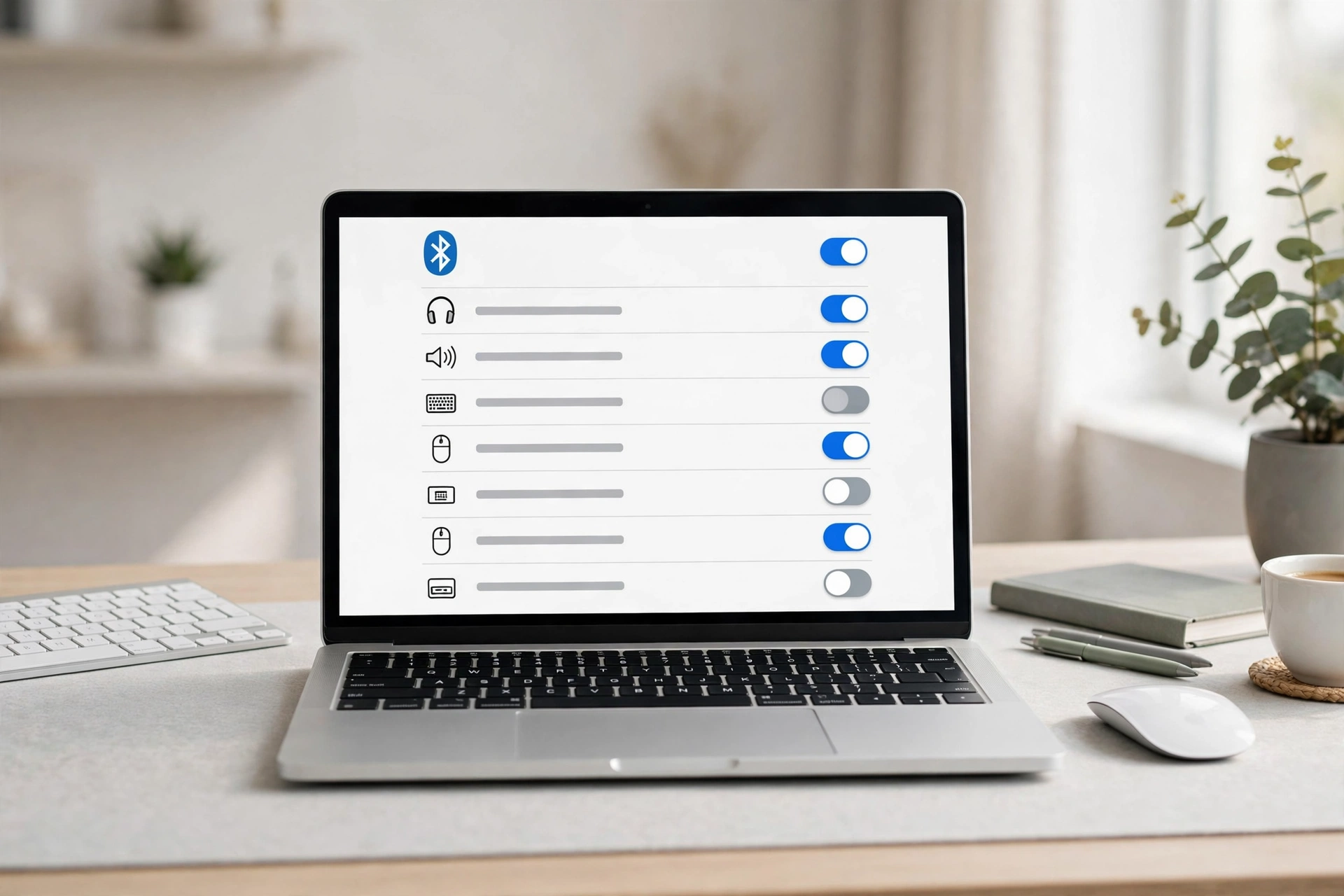
If Bluetooth is not working on your Mac, start by turning Bluetooth off and on, checking your accessory’s battery, and restarting your Mac. If Bluetooth is greyed out or says “Not Available,” you may need to reset Bluetooth settings or restart the Bluetooth process.
Most connection problems do not mean your Mac’s Bluetooth hardware has failed. Try the simple fixes first, then move to advanced steps only if the problem continues.
This guide covers MacBook Air, MacBook Pro, iMac, and Mac mini running macOS.
Why Is Bluetooth Not Available on My Mac?
Mac Bluetooth problems can happen for several reasons:
- A temporary macOS software glitch
- A Bluetooth accessory with a low battery
- Wireless interference from nearby devices
- A damaged or outdated Bluetooth preference file
- A problem that started after a macOS update
- A Bluetooth process that has stopped responding
- A hardware or system controller issue
Sometimes, Bluetooth works but cannot find a particular accessory. In other cases, the Bluetooth switch is greyed out or the menu says Bluetooth is not available.
These problems need different fixes. If only one accessory fails, start by checking that device. If every Bluetooth device fails or Bluetooth itself is unavailable, focus on your Mac.
Level 1: Basic Checks and Quick Fixes
Try these simple steps before changing system files or using Terminal.
1. Toggle Bluetooth Off and On
A quick Bluetooth reset may fix a temporary connection problem. On recent versions of macOS:
- Open the Apple menu.
- Select System Settings.
- Click Bluetooth.
- Turn Bluetooth off if the control is available.
- Wait a few seconds.
- Turn Bluetooth on again.
On older versions of macOS, open System Preferences > Bluetooth. If Bluetooth is greyed out and you cannot change it, move to the next fix.
2. Check Device Battery and Reduce Wireless Interference
Your Bluetooth accessory needs enough power to connect. Check the battery of your headphones, mouse, keyboard, speaker, or other device. Charge it if needed.
Next, bring the accessory close to your Mac. Walls, furniture, and other objects can weaken a Bluetooth signal. Wireless interference can also cause connection problems. Bluetooth and many Wi-Fi networks use the 2.4 GHz band. USB devices and other nearby wireless equipment may add interference.
Try these steps:
- Move the accessory closer to your Mac.
- Move away from other wireless equipment.
- Temporarily disconnect unnecessary USB devices.
- Turn off Bluetooth on other devices that may be taking control of the accessory.
Then try connecting again.
3. Forget and Re-Pair Your Bluetooth Device
If your Mac finds an accessory but will not connect to it, remove the saved connection and pair it again.
- Open System Settings > Bluetooth.
- Find the accessory in the device list.
- Open its information menu or use the available disconnect or remove option.
- Choose Forget This Device or the equivalent option if shown.
- Put the accessory into pairing mode.
- Find it in the nearby device list.
- Select it to pair again.
The exact controls may vary by macOS version.
Important: Forgetting a device removes its saved pairing from your Mac. You may need to pair it again with your Mac afterward.
Level 2: Software Resets When Bluetooth Won’t Connect
If basic checks do not work, restart your Mac and check its Bluetooth preference file.
4. Restart Your Mac Properly
Restarting your Mac can clear temporary problems in macOS and its background processes.
- Save your open work.
- Click the Apple menu.
- Select Restart.
- Wait for your Mac to start again.
- Open System Settings > Bluetooth.
- Try connecting your accessory.
If the Bluetooth menu is still greyed out, continue to the next step. For Apple Silicon Macs, a normal shutdown and restart can also help reset hardware states. You do not need to use the old Intel SMC keyboard shortcuts on an M-series Mac.
5. Remove a Corrupted Bluetooth Preference File
macOS stores settings in preference files, including files that can affect Bluetooth behavior. A damaged preference file may cause connection problems. The file to check is: /Library/Preferences/com.apple.Bluetooth.plist
Before changing anything, note that removing a Bluetooth preference file may cause you to lose saved pairing information. You may need to reconnect your Bluetooth accessories afterward.
How to locate the file
- Open Finder.
- Click Go in the menu bar.
- Select Go to Folder.
- Enter this path: /Library/Preferences/
- Look for com.apple.Bluetooth.plist.
Do not delete the file immediately. First, make a backup by copying it to a safe folder, and make sure you have administrator access if required. If you choose to remove the file as a troubleshooting step, restart your Mac afterward and test Bluetooth again. macOS may recreate preference files as needed. If the file is not present, do not create a replacement manually. Continue to the next step.

Level 3: Reset the Mac Bluetooth Module
If Bluetooth is frozen, greyed out, or unavailable after the earlier fixes, restarting the Bluetooth background process may help. The process is called bluetoothd. It manages important Bluetooth functions in macOS.
6. Restart Bluetooth Using Terminal
A Terminal command can restart the Bluetooth process on newer macOS versions, including Monterey, Ventura, Sonoma, and Sequoia.
Note: This command requires administrator permission and may interrupt active Bluetooth connections. Save your work and disconnect any accessories you do not want interrupted.
Step 1: Open Terminal. Open Finder and go to Applications > Utilities > Terminal.
Step 2: Run the command. Copy and enter: sudo pkill bluetoothd. Press Return.
Step 3: Enter your password. If Terminal asks for your administrator password, type it and press Return. You may not see characters while typing. That is normal for a password prompt.
The command asks macOS to stop the Bluetooth process. macOS may start it again automatically. Wait a short time, then open System Settings > Bluetooth and check whether Bluetooth works. If the command returns an error or Bluetooth remains unavailable, do not keep repeating it. Continue with the hardware and system checks below.
7. What About the Old Bluetooth Debug Menu?
Older Mac troubleshooting guides often recommend holding Shift + Option while clicking the Bluetooth menu icon. Some older macOS versions offered Bluetooth debugging or reset options through this menu. The available options changed across macOS releases, and the old shortcut may not work on newer versions.
If you use Big Sur or an older version of macOS, check which Bluetooth options are available on your system. If you use Monterey or newer and the menu option is missing, use the supported settings and troubleshooting methods for your version instead of repeatedly trying the old shortcut.
Level 4: Hardware Resets for Persistent Bluetooth Not Available Errors
If Bluetooth remains unavailable, the next steps depend on whether your Mac uses Apple Silicon or an Intel processor.
8. Apple Silicon Mac: M1, M2, M3, or M4
Apple Silicon Macs do not use the same manual SMC reset keyboard combinations as older Intel Macs. For an M-series Mac:
- Save your work.
- Shut down the Mac from the Apple menu.
- Wait for the computer to turn off fully.
- Leave it off for a short time.
- Turn it back on.
- Check Bluetooth again.
A normal shutdown and restart allows the Mac to reset its hardware state as part of the startup process. You do not need to follow old Intel SMC reset key combinations.
9. Intel Mac: Reset SMC and NVRAM When Appropriate
Older Intel Macs may use the System Management Controller (SMC) and NVRAM to manage hardware and system settings. An SMC reset may help with certain power or hardware control problems. An NVRAM reset can help with some saved system settings.
The exact reset steps depend on your Intel Mac model, including whether it has a T2 security chip and whether its battery is removable. Before resetting either system, identify your Intel Mac model and follow the instructions for that exact model. Do not use an SMC reset procedure meant for a different Mac. The important distinction is that Intel Macs and Apple Silicon Macs have different hardware reset methods.
Final Resort: macOS Updates and Safe Mode
If none of the earlier steps fix Bluetooth, check whether macOS needs an update or whether a third-party app is interfering.
10. Update macOS
Open: Apple menu > System Settings > General > Software Update. On older macOS versions, open System Preferences > Software Update. If an update is available, back up important files and follow the on-screen instructions. After updating, test Bluetooth again.
Start Your Mac in Safe Mode
Safe Mode can help you check whether software that loads during startup is causing a problem. The steps differ between Apple Silicon and Intel Macs.
Apple Silicon:
- Shut down your Mac.
- Press and hold the power button until startup options appear.
- Select your startup disk.
- Hold Shift and choose Continue in Safe Mode.
Intel:
- Turn on or restart your Mac.
- Immediately press and hold Shift.
- Release the key when the login window appears.
Once in Safe Mode, check Bluetooth. If Bluetooth works in Safe Mode but not during a normal startup, software or login items may be involved. Restart normally and review recently installed apps or startup items. If Bluetooth remains unavailable in both modes, the issue may need further diagnosis.
Frequently Asked Questions
Why does my Mac say Bluetooth is not available?
This can happen because of a macOS glitch, a Bluetooth process problem, corrupted settings, or a hardware issue. Start with a normal restart, then try the software troubleshooting steps in this guide.
How do I force restart Bluetooth on Mac?
Open Terminal and run: sudo pkill bluetoothd. Use it carefully because it can interrupt Bluetooth connections. macOS may restart the Bluetooth process automatically.
Will deleting the Bluetooth plist file remove my paired devices?
It may remove saved Bluetooth pairing information. Back up the file first, and be prepared to pair your accessories again after restarting your Mac.
Does an Apple Silicon Mac need an SMC reset?
Apple Silicon Macs do not use the old manual SMC reset keyboard combinations used on some Intel Macs. A normal shutdown and restart is the appropriate first hardware reset step.
What if Bluetooth still does not work?
If Bluetooth remains unavailable after software resets, updates, and Safe Mode testing, contact Apple Support or an authorized repair provider. Persistent failure across all accessories may require hardware diagnosis.
Final Bluetooth Troubleshooting Checklist
If Bluetooth is not working on your Mac, follow this order:
- Turn Bluetooth off and on in System Settings.
- Check the accessory battery and reduce wireless interference.
- Forget and re-pair the accessory.
- Restart your Mac.
- Back up and carefully review the Bluetooth preference file.
- Restart the Bluetooth process through Terminal if appropriate.
- Use the reset method that matches your Mac’s processor.
- Install available macOS updates.
- Test in Safe Mode.
- Seek hardware diagnosis if Bluetooth remains unavailable.
Start with the easiest fixes. Avoid deleting system files or running Terminal commands until basic troubleshooting has failed.
