

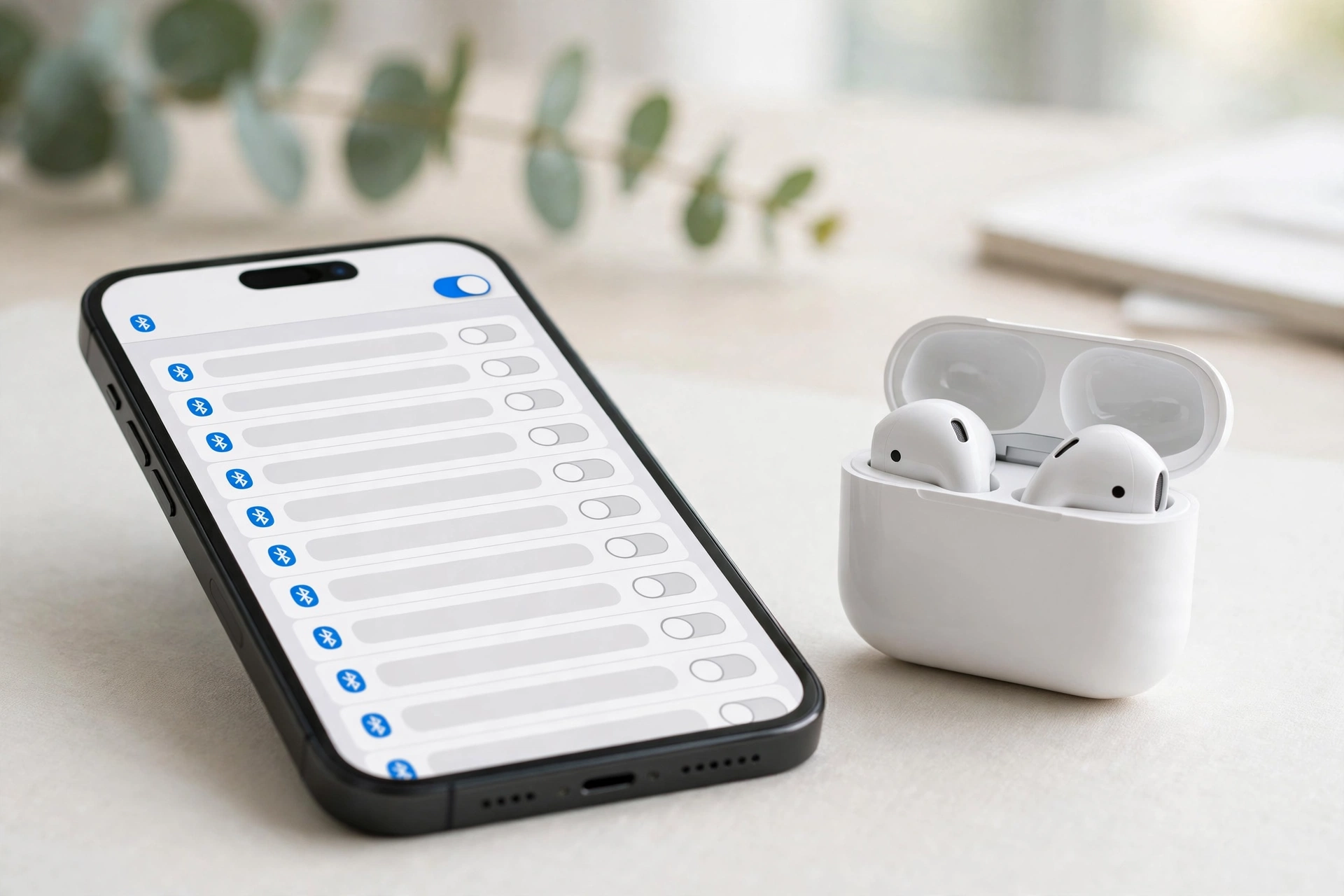
Want to pair Bluetooth with your iPhone? The process is simple. Turn on Bluetooth, put your accessory into pairing mode, then select it under Settings > Bluetooth.
If your device does not appear, the most common reason is that the accessory is not in pairing mode. Keep the phone and accessory close together, make sure both have enough battery, and remove old saved connections if needed.
This guide explains how to pair Bluetooth headphones, speakers, keyboards, car systems, and other accessories with an iPhone or iPad.
Pre-Pairing Checklist: What to Check First
Before you try to pair a Bluetooth device, check a few basic things.
- Turn on Bluetooth. Open Settings > Bluetooth and make sure Bluetooth is turned on. Your iPhone needs Bluetooth enabled before it can scan for nearby accessories.
- Keep the devices close. For first-time pairing, keep your Bluetooth accessory close to your iPhone. About 33 feet (10 meters) is the standard Bluetooth range reference, but walls, furniture, and other obstacles can reduce the useful range. For the first connection, staying within a few feet is better.
- Check the battery. Make sure your accessory has enough battery power. A device with a very low battery may fail to enter pairing mode or may turn off while you are trying to connect it.
- Make sure the accessory is not already connected. Some Bluetooth devices automatically connect to a phone, tablet, computer, or car they have used before. If the accessory is already connected to another device, your iPhone may not see it as available for a new connection. Turn off Bluetooth on the old device or disconnect the accessory before trying again.
How to Put Your Bluetooth Accessory Into Pairing Mode
Your iPhone can only find an accessory when that accessory is discoverable. This is called pairing mode or discovery mode. Different accessories use different methods to enter pairing mode.
Bluetooth headphones and earbuds
For many headphones and earbuds:
- Turn the headphones on.
- Press and hold the Power or Bluetooth button.
- Keep holding until the indicator light starts flashing or the device announces pairing mode.
- Open Bluetooth settings on your iPhone.
- Look for the accessory under available devices.
Some earbuds use a button on the charging case instead.
Bluetooth speakers
For a speaker:
- Turn the speaker on.
- Press the Bluetooth or pairing button.
- Look for a flashing Bluetooth light or pairing sound.
- Keep the speaker near your iPhone.
- Select it from the Bluetooth device list.
Bluetooth keyboards
Turn on the keyboard and activate its pairing mode. Some keyboards have a dedicated Bluetooth button. Others require you to hold a specific key combination. Check the keyboard’s instructions if you cannot find the pairing button.
Car Bluetooth systems
For a car:
- Turn on the vehicle’s infotainment system.
- Open the Bluetooth or phone settings on the car screen.
- Select the option to add or pair a new device.
- Open Settings > Bluetooth on your iPhone.
- Select the car when it appears.
Your car may show a pairing code on its screen. Check that the code matches the one shown on your iPhone before confirming.
Quick pairing mode reminder
- Earbuds: pairing button or charging case button
- Headphones: Power or Bluetooth button
- Speaker: Bluetooth or pairing button
- Keyboard: Bluetooth button or pairing key
- Car system: add phone or Bluetooth device option
The exact button depends on the accessory. This is why simply turning a device on does not always make it appear on your iPhone.
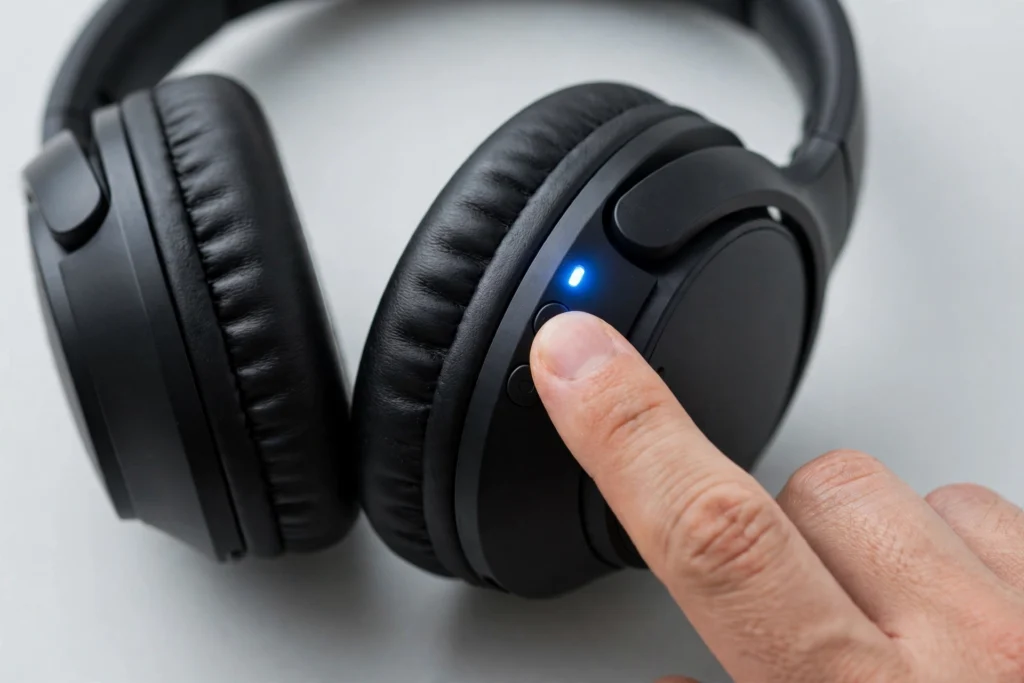
Step-by-Step: Pairing a Bluetooth Device via iPhone Settings
Once the accessory is in pairing mode, connecting it is easy.
Step 1: Open Settings. On your iPhone or iPad, open Settings.
Step 2: Open Bluetooth. Tap Bluetooth and make sure the Bluetooth switch is turned on.
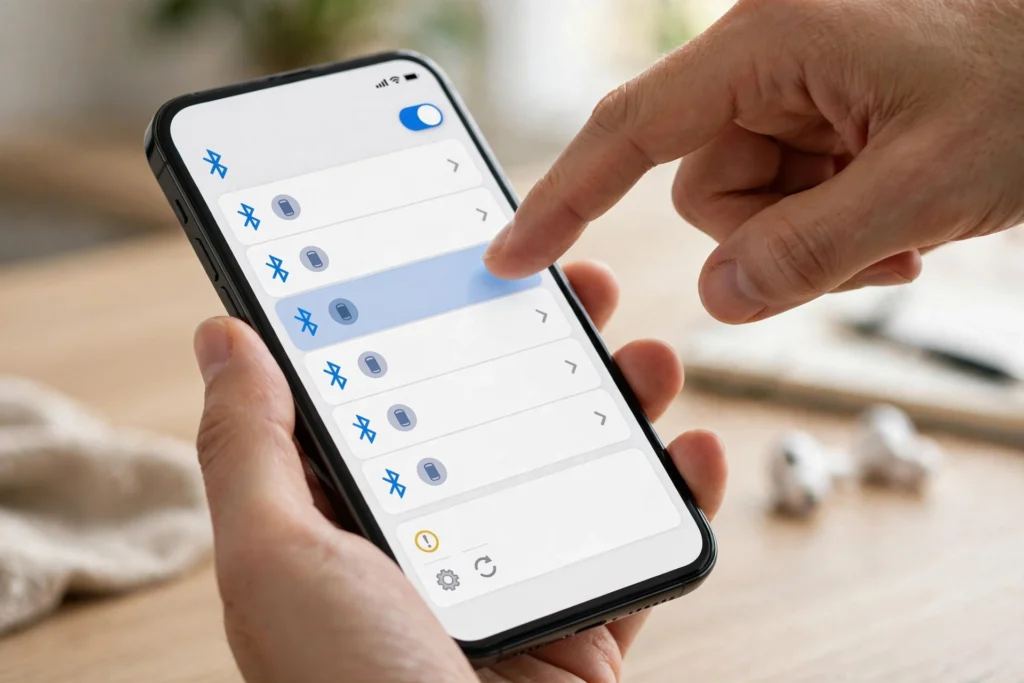
Step 3: Wait for the device. Your iPhone will look for nearby Bluetooth accessories. You may see devices under Other Devices. Tap the name of the accessory you want to connect.
Step 4: Confirm the connection. Your iPhone may ask you to confirm a pairing request. Some older Bluetooth accessories may ask for a PIN or passcode. Common legacy Bluetooth passcodes include 0000, 1111, and 1234. The correct code depends on the accessory. If none of these work, check the device instructions.
Step 5: Check My Devices. After successful pairing, the accessory should appear under My Devices, and its status should show that it is connected. You can now use the accessory with your iPhone.
Quick Connection via iPhone Control Center
Once you have paired a Bluetooth device, you may not need to open Settings every time. You can use the Control Center for quick Bluetooth management. The exact way to open Control Center depends on your iPhone model. From there, you can access the Bluetooth controls and manage your connection more quickly.
Important: Control Center does not fully turn Bluetooth off
This is an important detail. Using the Bluetooth control in Control Center is not the same as turning Bluetooth off completely from Settings > Bluetooth. The Control Center action can temporarily disconnect Bluetooth accessories while Bluetooth remains available for certain system functions. Users can think their Bluetooth has been fully disabled when they have only disconnected their accessories temporarily. For full Bluetooth control, use Settings > Bluetooth. This distinction is especially useful when troubleshooting a device that will not reconnect.
How to Unpair or Forget a Bluetooth Device
Sometimes you need to remove an old Bluetooth connection before pairing the accessory again. For example, you may have changed phones or the saved Bluetooth profile may no longer work correctly.
Step 1: Open Bluetooth settings. Go to Settings > Bluetooth.
Step 2: Find the device. Look under My Devices and find the accessory you want to remove.
Step 3: Tap the Info button. Tap the i button next to the device.
Step 4: Select Forget This Device. Tap Forget This Device and confirm the action. The device will be removed from your saved Bluetooth connections.
After forgetting it, put the accessory back into pairing mode and try connecting again.
What About AirPods and Apple Accessories?
Apple accessories can have special syncing behavior when they are connected to the same Apple Account. For example, AirPods can be available across supported Apple devices signed in to the same account. Because of this, forgetting an accessory can behave differently from forgetting a basic third-party Bluetooth device.
Troubleshooting: What to Do If Your iPhone Won’t Pair
If your Bluetooth accessory does not appear or refuses to connect, do not keep trying the same pairing step. Work through these fixes in order.
Step 1: Toggle Bluetooth and restart both devices. Go to Settings > Bluetooth. Turn Bluetooth off, wait a moment, and turn it back on. Then restart both your iPhone and the Bluetooth accessory. This can clear a temporary connection problem and gives both devices a fresh start.
Step 2: Clear old connections and forget the device. Old saved connections can sometimes get in the way. If the accessory appears under My Devices, tap the i button and select Forget This Device. Then put the accessory into pairing mode again. Return to Settings > Bluetooth, wait for it to appear under Other Devices, then tap its name. This creates a new pairing process instead of relying on the old saved connection.
Step 3: Reset iPhone network settings. If Bluetooth still refuses to pair, Reset Network Settings is a deeper troubleshooting step. This is different from simply turning Bluetooth off and on. Before using a reset option, make sure you understand what it will remove or reset on your iPhone, and follow the current iOS prompts carefully. A network settings reset should be treated as a later troubleshooting step, not the first thing you try.
Why Is My Bluetooth Device Not Showing on iPhone?
If your accessory does not appear under Other Devices, check these points:
- Bluetooth is enabled in Settings.
- The accessory is powered on.
- The accessory is in pairing mode.
- The accessory has enough battery.
- The accessory is close to the iPhone.
- The accessory is not already connected to another device.
- An old pairing has been forgotten if necessary.
The most common issue is often pairing mode. Simply turning on headphones, speakers, or another accessory does not always make them discoverable.
Does Forgetting a Bluetooth Device Delete It Everywhere?
For a normal third-party Bluetooth accessory, Forget This Device removes the saved connection from the iPhone. Apple accessories can behave differently because Apple Account and iCloud syncing can make compatible accessories available across supported Apple devices. So, if you are removing an AirPods connection, remember that Apple device syncing may affect how the accessory appears on your other signed-in devices.
Final Bluetooth Pairing Checklist
Before giving up, run through this quick list:
- Turn on Bluetooth in Settings > Bluetooth.
- Charge your Bluetooth accessory.
- Keep it close to your iPhone.
- Put the accessory into pairing mode.
- Look under Other Devices.
- Tap the accessory name.
- Enter the correct PIN if requested.
- Check that it appears under My Devices.
- If pairing fails, forget the old connection.
- Restart both devices.
- Try pairing again.
- Use network settings reset only for stubborn problems.
The key is to make the accessory discoverable before you try to pair it. Your iPhone cannot connect to a device that is not ready to accept a new Bluetooth connection.
